
The best Xodo alternative depends on the job. For deep editing and OCR, look at Adobe Acrobat Pro or Foxit PDF Editor. For everyday tasks that stay private, FlowPDF is our pick: it runs in your browser, processes files locally, and is free with no watermark or signup. Below, we compare the main options on platforms, cost, privacy and the tasks students, professionals and small businesses in Singapore do most.
TL;DR
- Best for private, free everyday work: FlowPDF edits, merges, splits, compresses and signs PDFs in your browser without uploading the file.
- Best for heavy editing and OCR: paid desktop editors such as Adobe Acrobat Pro, Foxit PDF Editor and Wondershare PDFelement.
- Best for apps on several devices: Xodo, PDFgear, UPDF and iLovePDF all cover mobile as well as desktop or web.
- Check the upload question first: web services that send your file to a server suit low-risk forms, not contracts or NDAs.
- Compare total cost, not the headline price: billing cycle, tax and region all change what you pay.
Table of Contents
- How the main Xodo alternatives compare
- Start with the job, not the brand
- The options, one by one
- What to check before you switch
- Perspective
- Where FlowPDF fits in your workflow
- Try FlowPDF for the tasks you do most
- Which one should you pick?
- FAQ
- Sources
How the main Xodo alternatives compare
Xodo covers a lot of ground. According to 360-reader.com's November 2026 ranking, it runs on web, Windows, macOS, Linux, iOS and Android, and it scores 8.2 out of 10 among the PDF editors reviewed. Any replacement has to match the part of Xodo you actually use, whether that is reading, annotating, filling forms or signing.
The table below uses the platform and score data from that ranking, plus our own description of FlowPDF.
| Option | Platforms | Score (360-reader.com) | Best for |
|---|---|---|---|
| FlowPDF | Any modern browser | Not scored | Private, free, no-upload PDF tasks |
| Adobe Acrobat Pro | Windows, macOS, Web, iOS, Android | 9.4/10 | Deep OCR and e-signature tools |
| Foxit PDF Editor | Windows, macOS, Web | 9/10 | Acrobat-class editing, perpetual licence option |
| Wondershare PDFelement | Windows, macOS, iOS, Android, Web | 8.6/10 | Full-featured editing on every platform |
| PDF-XChange Editor | Windows only | 8.5/10 | Strong editing on Windows |
| UPDF | Windows, macOS, iOS, Android | 8.4/10 | One licence across 4 devices |
| Xodo | Web, Windows, macOS, Linux, iOS, Android | 8.2/10 | Reading and annotating across devices |
| PDFgear | Windows, macOS, iOS, Android, Web | 8.1/10 | Desktop and mobile editing without paying |
| iLovePDF | Web, Windows, macOS, iOS, Android | 8/10 | Everyday PDF tools |
| Sejda PDF | Web, Windows, macOS, Linux | 7.9/10 | Offline desktop editing |
| Stirling PDF | Web, Windows, macOS, Linux | 7.7/10 | Self-hosters wanting local processing |
Scores come from one publication's editorial testing, so treat them as a starting point. The more useful question is which of your own tasks each tool handles.
Start with the job, not the brand
Most people looking for Xodo alternatives fall into one of four groups. Sort yourself first and the shortlist shrinks quickly.
Students merging research papers
You need to combine chapters, articles and appendices into one file, drop pages you do not need and keep the size small enough to upload to a school portal. These are light tasks. You do not need a paid editor for them. Merge PDF, Organize PDF and Compress PDF in FlowPDF cover the whole workflow in one browser tab, and nothing leaves your laptop.

Freelancers and professionals handling contracts
Contracts, quotations and NDAs are where the upload question matters most. The 360-reader.com team notes that web services upload documents to servers, which is fine for council forms but not for contracts, medical records or NDAs. If that describes your work, favor tools that process files on your own device.
Small businesses managing many documents
Teams need repeatable tasks: splitting scanned batches, adding page numbers, watermarking drafts, redacting names before sharing. Subscription cost per seat adds up fast, so a free tool for routine work and a paid desktop editor for the few people who need deep editing is often the sensible split.
Individuals who just want a smaller file
If you want to email a PDF under a size limit, you need one good compressor and nothing else. A browser tool is quicker than installing an app you will open twice a year.
The options, one by one
FlowPDF
FlowPDF is a browser-based PDF toolkit. Our approach is simple: all processing happens locally in your browser, so your document is not uploaded. There is no subscription, no watermark and no signup. The toolkit covers more than 20 PDF tools, including edit, merge, split, compress, organize, rotate, crop, watermark, page numbers, fill forms, compare, scan, extract, remove, redact, protect, unlock and sign. It also converts images to PDF and extracts PDF content to Markdown.
Who it suits: students, freelancers, small teams and anyone who handles sensitive files and wants the tool to stay out of the way. If you want a closer look at how it handles editing without marks on the page, read our guide to a PDF editor without watermark.

Adobe Acrobat Pro
Acrobat Pro tops the 360-reader.com ranking at 9.4 out of 10, with deep OCR and e-signature tools, and it runs on Windows, macOS, web, iOS and Android. It is the reference product for teams that need scan recognition and formal signature workflows. Expect a subscription. Confirm the current price for Singapore on the vendor page, since pricing varies by region, taxes, promotions and billing cycle.
Foxit PDF Editor
Foxit offers Acrobat-class editing and, according to the same ranking, a perpetual licence option. It runs on Windows, macOS and web. We have a separate comparison for readers who start from Foxit: Foxit alternatives that edit free without uploads.
Wondershare PDFelement
PDFelement is a full-featured editor on Windows, macOS, iOS, Android and web. It scored 8.6 out of 10. It suits people who want one paid product across all their devices.
PDF-XChange Editor
PDF-XChange Editor is Windows-only with strong editing and scored 8.5 out of 10. If your whole office runs Windows and you want a capable desktop editor, it belongs on the list. If you use a Mac or a phone, look elsewhere.
UPDF
UPDF supports four devices (Windows, macOS, iOS and Android) and scored 8.4. It is a reasonable pick when you want to read and edit on a laptop and a phone with the same account.
PDFgear
PDFgear provides desktop and mobile editing without paying, according to the ranking, and runs on Windows, macOS, iOS, Android and web. It is the closest in spirit to a free Xodo replacement among the apps. If privacy matters to you, check whether a given feature runs on your device or on a server before you feed it a sensitive file.
iLovePDF
iLovePDF offers everyday PDF tools on web, Windows, macOS, iOS and Android. It is popular for quick jobs. Because it is a web service, apply the same rule as for any server-based tool: keep contracts and personal records for something that works locally.
Sejda PDF
Sejda offers offline desktop editing on Windows, macOS or Linux, plus a web version. The desktop route keeps files on your machine, which suits privacy-minded users who are happy to install software.
Stirling PDF
Stirling PDF is aimed at self-hosters who want local PDF processing. It is a good fit if you or your IT team can run your own server. For everyone else, a browser tool that already works locally is faster to start.
Smallpdf
Smallpdf is a common stop for people searching for PDF tools. Its free tier allows roughly 2 tasks per day with a file size limit of about 5 MB, and Pro costs $15 per month on monthly billing or about $9 per month billed annually, in US dollars. If daily caps get in the way, our Smallpdf alternatives guide shows how to work without them.
What to check before you switch
The 360-reader.com editors list five factors, and they map well onto a Singapore workflow.
- Light tasks or real editing. Body-text editing, reflowed layouts and OCR on scans are where paid software earns its money. Merging, splitting, compressing and rotating are light tasks.
- OCR quality on your own documents. If you scan paper, test the recognition on a typical page of yours.
- Whether files leave your machine. Browser tools that process locally and desktop apps keep files with you. Server-based tools do not.
- Forms and signatures. Filling a form, building a fillable form and applying a legally recognized signature are three different capabilities.
- Licence type. One-time purchases can be much cheaper over three years than subscriptions.
On price, compare the whole commitment. Toolytica's analysis points out that an annual plan billed monthly differs from a month-to-month subscription, and for perpetual licences you should check whether future major upgrades, AI features and cloud services are included. Because prices differ by region and tax, read the Singapore price on the vendor's own checkout page rather than a review site.
Perspective
We built FlowPDF around one belief: a PDF task should not require you to hand your document to someone else's server. When you merge research papers, compress a report or sign a contract, the file is yours. That is why every FlowPDF tool processes locally in your browser.
Most people we think of as typical users are not asking for a hundred features. They want to merge, split, compress, fill and sign, quickly, without a watermark appearing on page one and without creating an account. Keeping those tools free and local removes the usual friction points: the subscription prompt, the daily limit and the upload.
Our advice for anyone replacing Xodo: list the five tasks you do most, then pick the tool that handles them where your data stays under your control. For many Singapore students, freelancers and small teams, that is a browser toolkit that costs nothing.
Ronald Ang
Where FlowPDF fits in your workflow
Here is how the most common Xodo tasks translate.
| Task | FlowPDF tool |
|---|---|
| Edit text or add annotations | Edit PDF |
| Combine papers or contracts | Merge PDF |
| Pull out a chapter or section | Split PDF and Extract pages |
| Drop unwanted pages | Remove pages |
| Shrink a file for email | Compress PDF |
| Tidy page margins | Crop PDF |
| Hide sensitive text permanently | Redact PDF |
| Turn phone photos into a PDF | Image to PDF |
| Digitize paper | Scan to PDF |
| Complete an application | Fill PDF forms |
Two of these deserve a note for Singapore readers. For forms, our guide to filling a PDF in your browser explains the no-upload approach and covers local signing rules. If you work on a phone, see how to fill PDFs on an iPhone without installing an app, and the Mac equivalent for filling a form with Preview or FlowPDF.
On signing: FlowPDF's sign tool places your signature on the document. If the other party asks for a certificate-backed digital signature, confirm their requirement first and use a signing service that issues one.
Try FlowPDF for the tasks you do most
If your Xodo use is mostly merging, compressing, filling and signing, you can switch in a minute. Open the FlowPDF toolkit, pick a tool and drop in your file. It is processed in your browser, so it stays on your device. There is no signup, no subscription and no watermark.
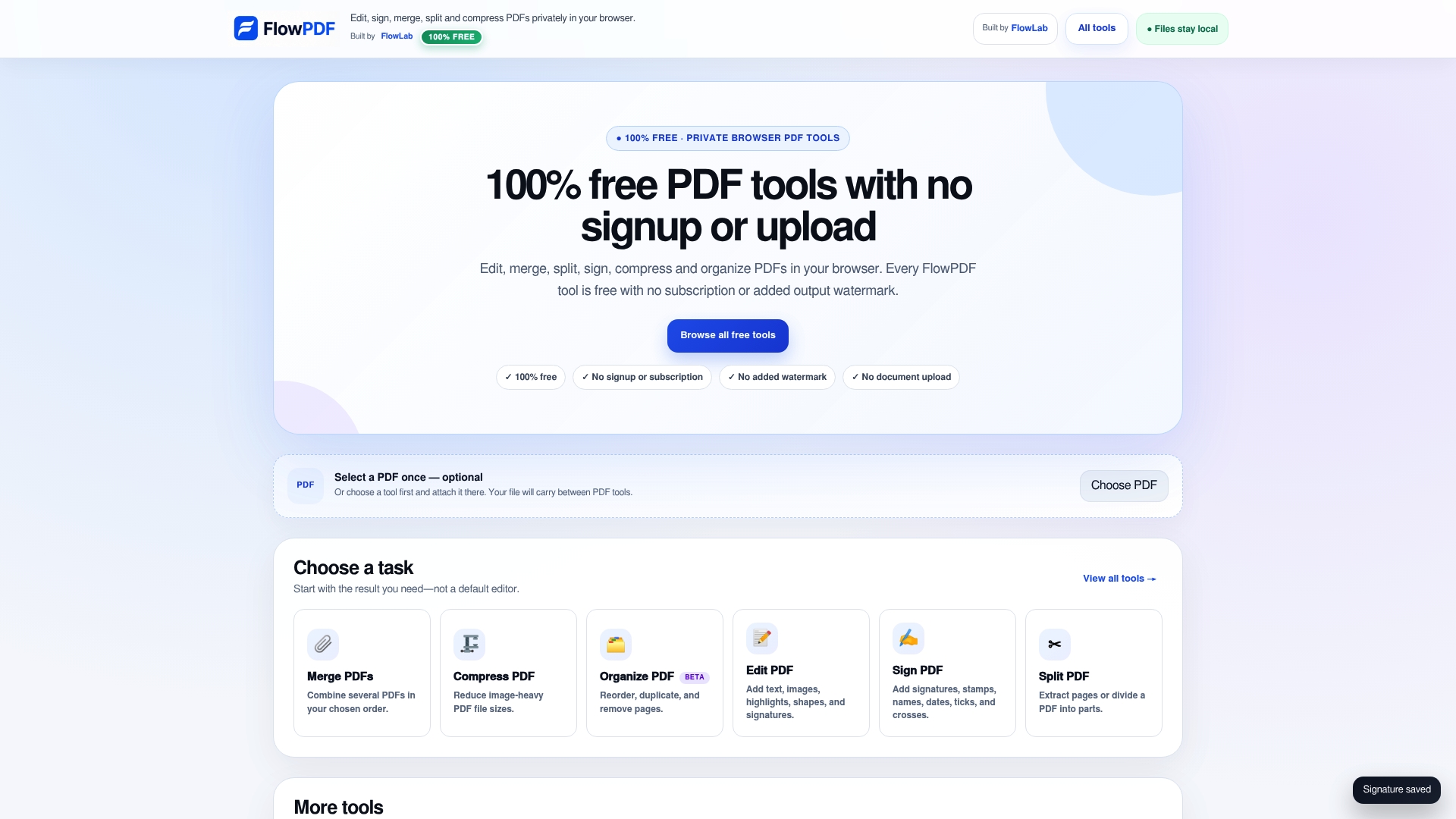
If you want a lighter option for quick jobs, our write-up on the best lightweight PDF editor shows what a no-install workflow looks like. Prefer the app-style comparison for another popular editor? See our PDF Expert alternatives for Singapore users. You can also start from the FlowPDF home page.
Which one should you pick?
Use this short decision path.
- You merge, split, compress, fill and sign, and your documents are sensitive. Use FlowPDF. It is free and keeps files in your browser.
- You edit body text heavily or run OCR on scans every day. Look at Acrobat Pro, Foxit PDF Editor or PDFelement, and check the Singapore price before committing.
- You work on Windows only and want a desktop editor. PDF-XChange Editor fits.
- You read and mark up on several devices. Xodo itself, UPDF, PDFgear or iLovePDF cover phones and tablets.
- You prefer a local, installable tool. Sejda's desktop app or a self-hosted Stirling PDF keep processing on your side.
Many people end up with two tools: a free local one for routine work and one paid editor for rare, heavy jobs. That keeps cost low and sensitive files close.
FAQ
What is the best free alternative to Xodo?
For browser use, FlowPDF is free with no watermark, no signup and no upload, and it covers editing, merging, splitting, compressing and signing. PDFgear is described as offering desktop and mobile editing without paying. Pick based on whether you need a mobile app or private browser processing.
Are there apps like Xodo for phones?
Yes. According to the 360-reader.com ranking, UPDF, PDFgear, PDFelement, iLovePDF and Acrobat Pro all support iOS and Android. On an iPhone you can also fill forms without installing anything by using a browser-based method.
Is it safe to edit contracts in an online PDF tool?
It depends on where the file is processed. Web services upload documents to servers, which the 360-reader.com editors say suits low-risk forms but not contracts or NDAs. A tool that processes locally in your browser, like FlowPDF, never sends the file to a server.
Do paid PDF editors cost the same in Singapore as elsewhere?
Not necessarily. Prices vary by region, taxes, promotions and billing cycle, so check the vendor's checkout page for the Singapore figure. For reference, Smallpdf lists Pro at $15 per month on monthly billing or about $9 per month billed annually, in US dollars.
Sources
- Best PDF Editors in 2026, Ranked and Scored (360-reader.com)
- Smallpdf pricing 2026 (frontdeskreview.com)
- Best PDF Editors for Personal Use (Toolytica)