
The best PDFescape alternative depends on what you do with PDFs. If you want to edit, merge, compress and sign without uploading files, creating an account or paying, we built FlowPDF for that. If you need team collaboration or desktop software, Lumin and Adobe Acrobat are worth a look. Below you will find each option, what limits to expect, and which one fits which job.
TL;DR
- PDFescape's free editor is reported to cap files at about 10 MB or 100 pages, so larger documents push people to look elsewhere.
- Many popular alternatives limit free use by tasks per day, tasks per hour or documents per month.
- FlowPDF processes PDFs in your browser, with no upload, no signup, no watermark and no cost.
- For signatures backed by a legal identity in Singapore, Sign with SingPass is a separate route from a simple drawn signature.
- Match the tool to the job: quick edits and merging suit a browser tool, while real-time team review suits a cloud platform.
Table of Contents
- Why people leave PDFescape
- The criteria that matter
- PDFescape alternatives compared
- 1. FlowPDF: edit, merge and sign without uploading
- 2. Smallpdf: polished, with a daily task cap
- 3. PDF Candy: many tools, one task an hour
- 4. Lumin PDF: for teams that review together
- 5. Adobe Acrobat: the full desktop suite
- 6 to 8. Sejda, PDF24 Tools and iLovePDF
- Which tool fits which job
- Our perspective: why local processing matters
- Signing documents in Singapore
- Questions to ask before you switch
- Try FlowPDF on your next file
- FAQ
- Sources
Why people leave PDFescape
PDFescape is a long-standing online PDF reader, editor and form filler. It works in a browser, which is why it became popular for quick edits. Readers who search for alternatives usually have one of four reasons:
- File size and page limits. One review says the free editor typically caps uploads at around 10 MB or 100 pages. A thesis, a scanned contract bundle or a long annual report can exceed that.
- Uploads. Most online editors send your file to a server. For an employment contract, an NRIC copy or a client invoice, many people would rather the file never left their device.
- Missing tools. You may need to compress, split, redact, compare or add page numbers in the same place you edit.
- Accounts and limits. Some tools ask you to sign up, or stop you after a set number of tasks.
Keep these four in mind. They are the criteria we use to compare the options below.
The criteria that matter
Before you pick a tool, check these points:
- Where the file is processed. In your browser on your own device, or on the provider's servers.
- What is free. Look at limits by task, by time period, by document count and by file size.
- Whether output carries a watermark or needs an account.
- Which tools are included. Edit, merge, split, compress, sign, fill forms, redact.
- What you will pay in Singapore dollars or US dollars if you outgrow the free tier.
PDFescape alternatives compared
| Tool | Type | What to know before you choose |
|---|---|---|
| FlowPDF | Browser tool, local processing | 20 tools, no upload, no signup, no watermark, no cost |
| Smallpdf | Cloud web app | Free plan allows 2 tasks per day |
| PDF Candy | Cloud web app | 49 tools, free use limited to one task per hour |
| Lumin PDF | Cloud editing and e-signature platform | Built for real-time collaboration, free tier is limited by documents per month |
| Adobe Acrobat | Desktop and web | Acrobat Reader is free to view, editing sits in the paid Pro tier |
| Sejda | Web and desktop | Known for a wide set of online tools |
| PDF24 Tools | Web and desktop | Broad free toolbox |
| iLovePDF | Cloud web app | Popular for merge, split and compress |
The sections below go through the ones that matter most for readers in Singapore.
1. FlowPDF: edit, merge and sign without uploading
FlowPDF is a free PDF toolkit that runs in your browser. Your file stays on your device while you work. There is no subscription, no watermark and no required signup.
The toolkit covers what most people open PDFescape for, and more:
- Edit PDF for text, images and annotations
- Fill PDF forms
- Merge PDF and Split PDF
- Compress PDF for easier sharing
- Organize PDF, Rotate, Crop, Remove pages and Extract pages
- Add page numbers and Watermark PDF
- Protect PDF and Unlock PDF
- Redact PDF
- Compare PDFs
- Scan to PDF, Image to PDF and PDF to Markdown
- Sign PDF
This is the pick when privacy and cost are the main concerns. A freelancer signing a client contract, a student merging research papers and an office admin trimming a long report can all do it in one place, with nothing sent to a server.
One point on signing: FlowPDF is built for everyday signatures on contracts and forms. If a counterparty requires a certificate-backed digital signature, you will need a certificate-based service for that step. We explain the difference in our guide to OES and SES in Singapore.
2. Smallpdf: polished, with a daily task cap
Smallpdf is a cloud-based suite with a clean interface and a large tool menu. TechRadar's roundup reports that its free plan allows 2 tasks per day, with a Personal plan at $9 a month on a yearly contract or $12 monthly, and Team at $7 or $10 per account depending on billing cycle.
It suits people who only need one or two quick jobs a day. If you merge, compress and edit the same file in one sitting, two tasks go quickly. We cover this in more detail in our Smallpdf alternatives guide.

3. PDF Candy: many tools, one task an hour
PDF Candy offers 49 tools covering editing, conversion, compression, merging, signing and form filling. TechRadar's review notes that free use is limited to one task per hour, and reports prices of US$6 monthly, US$4 a month on an annual plan, or US$99 for a perpetual licence.

It works if you do an occasional job and don't mind waiting between tasks. For a batch of documents, the hourly limit is the thing to plan around.
4. Lumin PDF: for teams that review together
Lumin is a cloud platform for PDF editing and e-signatures built around real-time collaboration, with integrations for Google Workspace and Microsoft OneDrive. A 2026 overview from Phi Consulting lists a free tier of 3 documents a month, then paid tiers from $9 per user per month.
Choose it when several people need to comment on the same document in the cloud. If you work alone and want a file to stay on your device, a local browser tool is the simpler path.
5. Adobe Acrobat: the full desktop suite
Adobe Acrobat is a family of apps and web services for viewing, creating and managing PDFs. According to this overview, the family includes Acrobat Reader, which is freeware, and Acrobat Pro. Reader is a large install at 426 MB, and Pro is 1.11 GB.
Acrobat suits organizations with fixed procedures that need advanced desktop features. For everyday edits and merges, many individuals prefer something lighter. Our Adobe Acrobat alternatives guide walks through the choices for small teams.
6 to 8. Sejda, PDF24 Tools and iLovePDF
These three show up again and again in lists of PDFescape alternatives. Sejda and PDF24 Tools offer web and desktop versions with a wide range of tools. iLovePDF is best known for merge, split and compress. All three are mainly cloud-oriented web services, so your file is sent for processing. Check each provider's current limits and terms on its own site before you rely on it for a big batch or a sensitive document.
Which tool fits which job
| Your job | A good fit |
|---|---|
| Merge research papers into one file | FlowPDF Merge PDF, no upload and no page cap from us |
| Compress a PDF to email or upload to a portal | FlowPDF Compress PDF |
| Edit a contract or fill a form privately | FlowPDF Edit PDF or Fill PDF forms |
| Sign a document quickly | FlowPDF Sign PDF |
| Redact NRIC numbers before sharing | FlowPDF Redact PDF |
| Review one file with a whole team in the cloud | Lumin PDF |
| Advanced desktop workflows | Adobe Acrobat Pro |
Our perspective: why local processing matters
Most online PDF tools work the same way. You upload a file, a server handles it, and you download the result. That is fine for a menu or a flyer. It is less comfortable for a signed lease, a payslip or a client contract.
We built FlowPDF so the work happens inside your browser. Your document is not sent to us for editing, merging, splitting, compressing or signing. That removes a whole category of worry: where the file is stored, who can see it and how long it stays there.
We also think free should mean free. No subscription, no watermark on your output and no signup wall. Students merging papers, freelancers editing agreements and businesses managing many documents all get the same tools.
When you compare PDFescape alternatives, ask two questions first. Does the file leave my device? And will I hit a limit halfway through my work? We designed FlowPDF so the answers are no and no.
Ronald Ang
Signing documents in Singapore
Signing is where privacy and legal weight meet. There are two separate needs:
- A visible signature on an everyday document. A drawn, typed or image signature placed on the page. This is what most freelancers and small businesses need for quotes, NDAs and forms. FlowPDF's Sign PDF does this locally. See also our guides on how to sign a PDF for free and signing locally without Adobe.
- An identity-backed digital signature. Since 5 November 2020, SingPass users can digitally sign contracts through the SingPass Mobile app, with signatures cryptographically linked to the signer and validated at signing. GovTech also states that during this process only a code representing the signed document is transferred, not the document data itself.
If a counterparty requires the second kind, use a service that supports it. For an overview of how e-signature documents are handled, see this page on e-signature documents. For everything else, a local signer keeps things quick.
Questions to ask before you switch
Work through this short checklist with any tool, including ours:
- What is the largest file I handle? Compare it with the tool's size and page limits.
- How many tasks do I do in one sitting? Daily and hourly caps matter most for batches.
- Is the file sensitive? If yes, prefer a tool that processes locally.
- Do I need an account? Some tools make you register before you can download.
- Do I need more than editing? List the extras, such as compress, redact or compare, and choose a tool that covers them together.
Try FlowPDF on your next file
If you want one place for editing, merging, splitting, compressing and signing, open the FlowPDF toolkit in your browser. There is nothing to install and nothing to register.
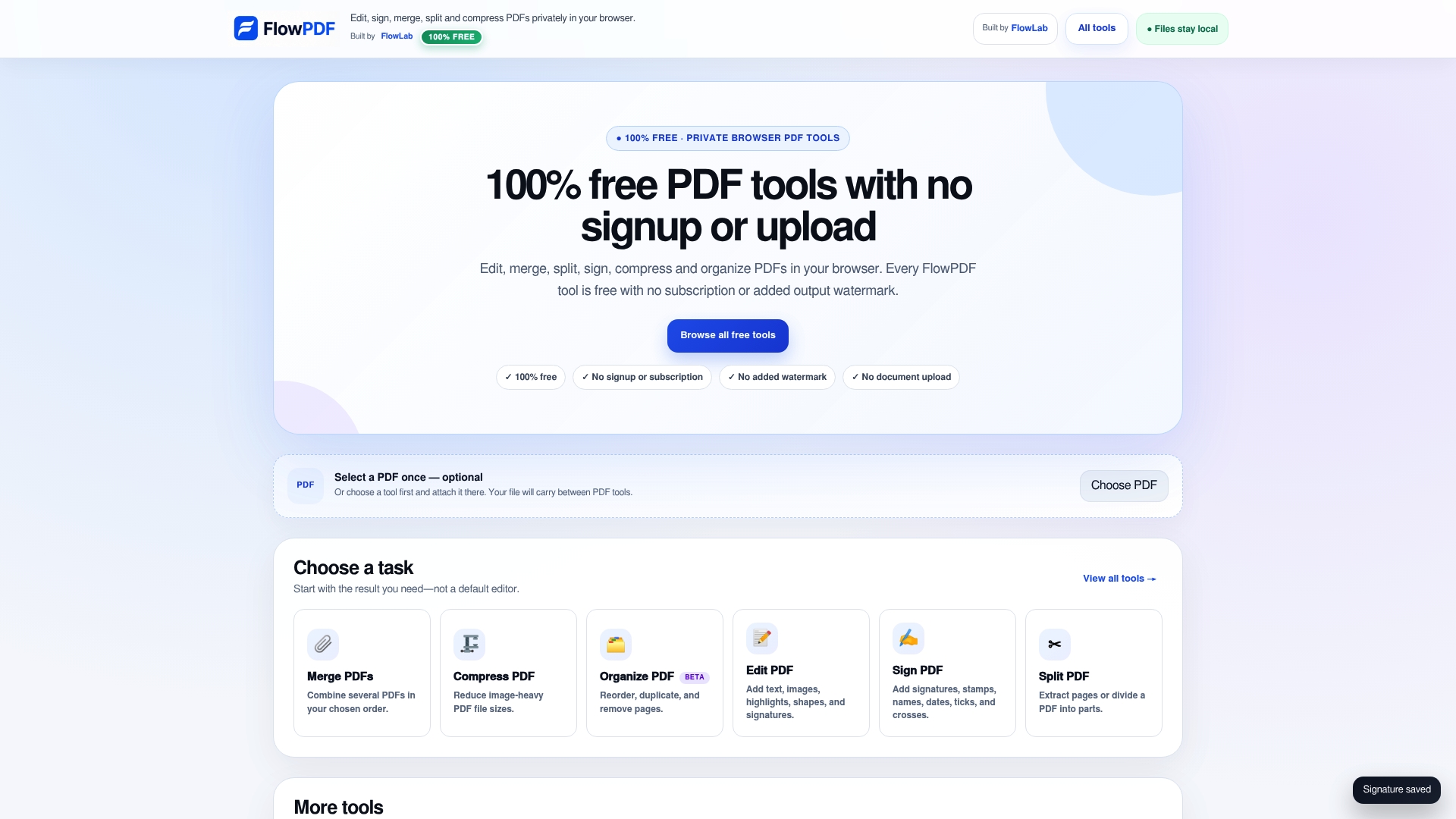
Start with the job in front of you: merge a few PDFs, shrink a large file or fill in a form. Your files stay on your device. If you are also weighing other editors, our guides to PDF Expert alternatives and PDF Pro alternatives cover more Singapore options.
FAQ
Is there a completely free PDFescape alternative?
Yes. FlowPDF is free for all its tools, with no signup, no watermark and no subscription. It works in your browser, so you can edit, merge, split, compress and sign PDFs without paying. Other tools offer free tiers, but many cap you by tasks or documents.
Which PDFescape alternative is best for large files?
Start by checking the limits. PDFescape's free editor is reported to cap files at about 10 MB or 100 pages. A tool that works locally in your browser, like FlowPDF, avoids the upload step, which suits large documents such as long reports or scanned bundles.
Can I edit a PDF without uploading it?
Yes. FlowPDF processes your PDF inside your browser, so your document is not sent to a server. This helps when the file contains personal or commercial details, such as contracts, payslips or ID copies.
Can I sign a PDF in Singapore without Adobe?
Yes. You can place a signature on a PDF with FlowPDF's Sign PDF in your browser. If a counterparty needs a digital signature tied to your identity, Sign with SingPass is the official option for SingPass users, available since 5 November 2020.
Do free PDF editors add watermarks?
Some do, and some limit how many tasks you can run. FlowPDF adds no watermark to your output and has no task limit. Check each tool's current terms on its own site before you start a large job.
Sources
- PDFescape Review 2026 (Scalarly)
- Best free PDF editor 2026 (TechRadar)
- Lumin: PDF editing and e-signatures (Phi Consulting)
- Adobe Acrobat (Wikipedia)
- New Sign with SingPass service (GovTech Singapore)
- E-Signature Document (T-Ledgers)