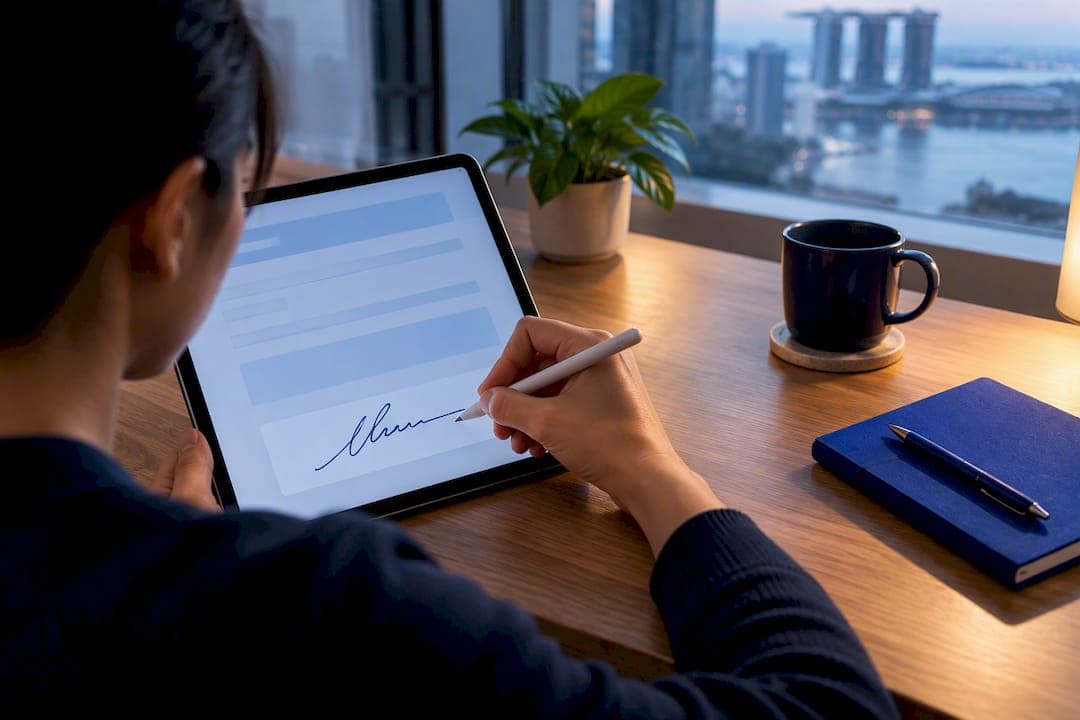
You can sign a PDF without Adobe using tools already on your device: Markup on iPhone or iPad, Preview on Mac, or the drawing tools in Microsoft Edge. A browser-based option works too, processing your file locally instead of uploading it anywhere. Keep in mind that a drawn or typed signature is different from a certificate-backed digital signature, and Singapore's electronic signature law focuses on reliability, not on which software you used. Below are the exact steps for each method, plus how to check your work.
TL;DR:
- Any device-native or browser-based tool can add a visual signature to a PDF without requiring Adobe or an account, making fast, free signing accessible.
- Signatures created with Markup, Preview, Edge, or FlowPDF are visual and not cryptographically secure, suitable for informal or internal documentation but not for legally binding digital signatures.
- The legal validity of a drawn or typed signature depends on reliability and intent, not the software used; higher-risk documents may still require certificate-backed digital signatures.
- Always save a separate signed copy and verify the placement on different devices to ensure the signature appears correctly and the file remains intact.
- Confirm whether the recipient requires a formal, certificate-backed digital signature before relying on a simple, visual electronic signature for important legal or contractual documents.
Table of Contents
- Quick methods at a glance: which to pick and why
- How to sign a PDF on iPhone or iPad with Markup
- How to sign a PDF on Mac with Preview
- How to sign a PDF on Windows using Microsoft Edge's draw tools
- How to sign a PDF in your browser without uploading files
- When a drawn or typed signature is legally sufficient
- Practical tips: placement, file integrity, and verification
- Author perspective: privacy versus convenience in everyday signing
- Try FlowPDF for private, free PDF signing
- Sources
- FAQ
Quick methods at a glance: which to pick and why
Most people signing a PDF do not need Adobe at all. The right method depends on your device, how fast you need to move, and whether the document calls for something more formal than a drawn signature.
- iPhone or iPad Markup: built into iOS, fast for signing on the go, keeps your signature saved for reuse.
- Mac Preview: no extra download, lets you sign with a trackpad, camera, or a paired iPhone.
- Microsoft Edge inking: works on Windows and Mac, good for a quick handwritten mark on a form.
- Browser-based local tool: signs the PDF in your browser without uploading the file, with no account or watermark.
- Print, sign, and scan: the slowest option but useful when a document specifically asks for a wet-ink signature before scanning.
Each of these creates a visual signature rather than a cryptographic one. For routine paperwork, rental forms, internal approvals, or quick acknowledgments, that is usually enough. For contracts where a counterparty explicitly requires a certificate-backed digital signature, a drawn signature will not satisfy that request even if it looks convincing. Match the tool to the stakes of the document, not just to convenience.
How to sign a PDF on iPhone or iPad with Markup
Apple's Markup tool is already on your device and works inside several apps, so you rarely need to install anything new.
- Open the PDF in Files, Mail, or Books.
- Tap the Markup icon, which looks like a pen tip inside a circle.
- Tap the + button, then choose Add Signature.
- Sign with your finger or an Apple Pencil, then tap Done.
- Drag the signature into place and resize it using the corner handles.
- Save the file or share the signed copy directly from the same screen.
Apple's Markup documentation confirms this flow works across Files, Mail, Notes, and Photos, and that your saved signature can be reused the next time you need it, so you only have to draw it once. A common mistake is tapping "Done" and assuming the original file updated automatically. Always check that you are sharing or saving the signed version, not the original, especially when working from Mail where the source attachment may still be unsigned.
If Apple Pencil input looks shaky or the signature scales oddly when placed, try creating it again on a fresh line. Markup stores multiple signatures, so you can delete a bad one from the signature list without affecting documents where it was already placed.
Pro Tip: Sign once on a blank line in the Notes app first, so you have a clean signature ready to drop into any PDF later.
How to sign a PDF on Mac with Preview
Preview, the default PDF viewer on every Mac, has a signing feature that many people never notice because it sits inside the Markup toolbar rather than a separate menu.
- Open the PDF in Preview and click the Markup icon in the toolbar.
- Click the signature button, which looks like a small squiggly line.
- Choose to create a signature using your trackpad, your Mac's camera, or a nearby iPhone or iPad.
- If using the camera, sign your name on a plain white sheet of paper and hold it up to the lens.
- Click the new signature to place it on the page, then drag the corner handles to resize it.
- Save a copy of the file so your original stays untouched.
Apple's own guidance on signing PDF forms in Preview covers all three creation methods and confirms that a signature, once created, can be placed and resized directly on the page. For camera capture, use a signature on unlined white paper held flat and level, since a tilted or shadowed sheet often produces a jagged or partial capture, a tip echoed in Carleton College's guide to Preview signatures. If you sign documents often, give each saved signature a clear description so you can tell them apart later, rather than guessing which one matches your current name or role.
Pro Tip: After placing your signature, zoom in to 200% before saving to confirm the edges look clean and the ink color matches the rest of the page.
How to sign a PDF on Windows using Microsoft Edge's draw tools
If you are on Windows, Microsoft Edge already has a built-in PDF reader with a drawing feature that works well for a quick handwritten signature.
- Open the PDF in Edge, either by dragging it into the browser or opening it from File Explorer.
- Click the Draw icon in the toolbar near the top of the PDF viewer.
- Choose a pen color and adjust the thickness to match a natural signature stroke.
- Draw your signature directly on the page using your mouse, trackpad, or a touchscreen.
- Click Save or use the download icon to save the signed PDF to your computer.
Microsoft documents this feature in its Edge PDF reader guidance, confirming that inking and drawing on PDFs is a built-in part of the browser, with no extra software required. It works the same way on Windows and Mac versions of Edge, so the steps do not change based on your operating system.
What Edge cannot do is create a certificate-backed digital signature. A Microsoft Q&A thread on signing in Edge makes this distinction clear: Edge's draw tool is an annotation, not a cryptographic signature, and readers looking for tamper-evident signing typically need a dedicated PDF signing tool. If a recipient specifically asks for a "digital signature" in the certificate sense, an Edge-drawn mark will not meet that bar, so it is worth confirming what they actually need before you spend time on it.

How to sign a PDF in your browser without uploading files
Some people are not comfortable uploading a document to a cloud service just to add a signature, especially for anything with personal or financial information on it. A browser-based tool processes the file locally in your browser, so the PDF never leaves your device.
- Open the FlowPDF sign tool and load your PDF directly in the browser.
- Draw or type your signature using the built-in signature creator.
- Drag the signature onto the correct spot on the page and resize it as needed.
- Save the signed PDF straight to your device, with no account or login required.
This approach skips two friction points common with other online signing tools: mandatory sign-ups and files sitting on someone else's server while you work on them.
- No file upload, since processing happens in your browser.
- No account or email address needed to sign a document.
- No watermark added to the finished PDF.
- No cost for using the sign tool or other features.
Like Markup and Edge, this produces a drawn or typed signature rather than a certificate-backed one, so the same legal considerations apply. For everyday tasks such as signing a lease acknowledgment, a permission slip, or an internal form, this is a practical direct substitute for opening Adobe just to add your name to a page.
When a drawn or typed signature is legally sufficient
Singapore's Electronic Transactions Act sets the standard that matters here, and it has nothing to do with which app you used. The law asks whether the method used identifies the signer, shows their intent to sign, and is reliable enough for the purpose of the document, or whether other evidence shows those functions were met anyway.
That test explains why a drawn signature from Markup, Preview, or Edge is usually fine for everyday paperwork but riskier for something with serious legal weight.
- Low risk: internal approvals, acknowledgment forms, permission slips, informal agreements.
- Higher risk: property contracts, loan agreements, documents a counterparty explicitly says need certificate-backed signing.
A signature's legal weight depends on its reliability for the specific purpose, not on the software that created it, according to the Electronic Transactions Act. This means the same drawn signature can be perfectly adequate for one document and insufficient for another, depending on what is at stake and what the other party requires.
Before relying on a simple electronic signature for anything important, run through a short legal documents checklist to ensure proper handling and recordkeeping:
- Confirm the recipient does not have a specific format or certificate requirement.
- Keep a copy of the signed file along with a timestamped email or message showing when it was sent.
- Save a screenshot of the signing step if the document could later be disputed.
Practical tips: placement, file integrity, and verification
Getting the signature onto the page is only part of the job. A few habits make sure the final file actually works for whoever receives it.
- Always save a signed copy separately, keeping your original PDF untouched.
- Flatten annotations before sending if the recipient opens PDFs in a restricted viewer, since some viewers hide markup-layer signatures.
- Open the signed file on a second device to confirm the signature still shows up correctly and is not misplaced.
- Attach a short note in your email stating how the signature was created, for example "signed using Preview on Mac."
- Keep a dated copy in your own records in case the signing method is questioned later.
File naming matters more than people expect. A name like "contract_signed_2026-03-04.pdf" tells you and the recipient exactly what you are looking at, compared to a vague "final2" that invites confusion when a third version shows up later. Before sending, it is also worth a quick check that no leftover editable form fields remain active, since a stray fillable field can make a signed document look unfinished even after you have added your signature.
Pro Tip: Open the final PDF on your phone before sending it. Signatures that look perfectly placed on a laptop screen sometimes shift or shrink on a smaller display.
Author perspective: privacy versus convenience in everyday signing
Most signature requests in daily life do not need cryptography, they need a quick, reliable mark that shows you agreed to something. That is where device tools and local browser processing earn their keep: no file sitting on a server, no account tying your document to a login you will forget about. I built my view around a simple rule: use the fastest tool that matches the document's actual stakes. A permission slip does not need the same rigor as a loan agreement. Local-processing approaches exist for everyday cases, fast, private, and free, while certificate-backed signing stays reserved for documents that genuinely call for it.
— Ronald Ang
Try FlowPDF for private, free PDF signing
Every method above gets the job done, but if you want one tool that handles signing without asking you to install anything or hand over your file, FlowPDF's sign tool keeps the whole process on your own device.

There is no account to create, no watermark stamped across your document, and no charge for using it. Beyond signing, the same free PDF tools page covers the other jobs that tend to come up around the same task:
- Merge multiple signed pages into a single file.
- Split a long document down to just the pages you need.
- Compress a signed PDF before emailing it.
If you already have a document open for signing and need to tidy it up first, the PDF editor handles that in the same browser tab. Start with the sign tool the next time Adobe feels like overkill for a one-page form.
This article is general information, not a substitute for advice from a qualified lawyer. Consult a qualified legal professional about your own circumstances before acting on anything here.
Sources
- Use Markup on your iPhone, iPad, or iPod touch - Apple Support
- Electronic Transactions Act 2010 - Singapore Statutes Online
FAQ
Is there a way to sign a PDF without Adobe?
Yes, built-in tools like Markup on iPhone and iPad, Preview on Mac, and the drawing feature in Microsoft Edge all let you add a signature without installing Adobe. Browser-based tools such as FlowPDF offer the same result while processing the file locally instead of uploading it.
How can I sign a PDF without paying Adobe?
Every method described above, Markup, Preview, Edge, and FlowPDF, is free and already available on most devices. None require a subscription or a one-time purchase to add a signature to a document.
Do I need Adobe to sign a PDF?
No. Adobe is one option among several, and for a drawn or typed signature, device-native tools handle the job just as well. Adobe becomes more relevant only when a document specifically requires a certificate-backed digital signature rather than a visual one.
Where can I digitally sign a PDF for free?
FlowPDF's sign tool lets you create and place a signature entirely in your browser at no cost, with no upload and no watermark. Device tools like Markup, Preview, and Edge are also free and built into iOS, macOS, and Windows respectively.
Is a drawn signature on a PDF legally binding?
It can be, depending on the document and jurisdiction. Under Singapore's Electronic Transactions Act, a signature is valid when it reliably identifies the signer and shows their intent for the purpose of that specific document, which most routine forms satisfy without needing a certificate-backed signature.