
Yes, you can fill out and sign most PDFs on iPhone using the built-in Preview and Files tools that come with iOS. If the form has tappable fields, Preview fills them directly and can even AutoFill your details. If it's a flat or scanned document, Markup lets you add text boxes and a signature. When a file is locked, corrupted, or too sensitive to risk on an unfamiliar app, a no-upload tool like FlowPDF handles it privately in your browser.
TL;DR:
- Most interactive PDFs can be filled quickly on iPhone using Preview or Files, with AutoFill available if contact details are stored correctly.
- Flat or scanned PDFs require you to add text and signatures manually through Markup, which doesn't convert the form into a true fillable document.
- Protected, corrupted, or legacy XFA PDFs often need special tools like FlowPDF to unlock, process locally, and ensure privacy during editing.
- Saving and sharing completed forms should involve flattening annotations and using secure methods like AirDrop or encrypted email to protect sensitive information.
- For maximum privacy, browser-based tools such as FlowPDF process documents locally in your browser, avoiding uploads of sensitive files to online servers.
Table of Contents
- Quick Methods to Fill and Sign PDFs on iPhone
- How to Fill Interactive PDF Fields With Preview or Files
- How to Use Markup for Flat or Scanned PDFs
- When Built-In Tools Fail (And What to Do Instead)
- Save, Export, and Share Your Completed PDF Securely
- Why FlowPDF Works Well for Sensitive PDF Forms
- Preview First, Markup Second, FlowPDF Third
- Try FlowPDF for Filling and Signing PDFs Without Uploading
- Sources
- FAQ
Quick Methods to Fill and Sign PDFs on iPhone
Before you dig into steps, it helps to know which tool matches which type of PDF. Not every form behaves the same way, and picking the wrong method wastes time tapping on fields that were never designed to be tapped.
Here's the fast version:
- Interactive PDFs (tappable fields): Open the file in Preview or Files. This is the quickest option, and Apple's own Preview app on iPhone now handles both form filling and signing natively.
- Flat or scanned PDFs (no real fields): Use Markup to draw text boxes and drop in a signature wherever it needs to go.
The first step is always the same: open the file and tap a field. If your cursor blinks and a keyboard pops up, you're dealing with an interactive form. If nothing happens, you're working with a flat PDF, and Markup becomes your tool.
How to Fill Interactive PDF Fields With Preview or Files
This is the method most people should try first, since it's built into iOS and requires zero setup.
- Open the PDF. Tap the attachment in Mail or Messages, or open it directly from the Files app. It should load into Preview automatically.
- Check for interactive fields. Tap anywhere text should go. If the field highlights and a keyboard appears, the form has real AcroForm fields, and Preview will let you type directly into them.
- Use AutoFill for common details. Preview can pull from your My Card entry in Contacts to suggest your name, address, and email. If suggestions don't appear, check Safari settings under AutoFill and confirm My Card has your current information saved, since AutoFill depends on that contact record being accurate.
- Add a text box if fields are missing. Some forms look interactive but only have a few real fields. Tap the + icon, choose Add Text Form Box, then tap where you need text. Adjust the font and size using the toolbar that appears above the keyboard.
- Save your work. Tap Done in the top corner. iOS will ask where to save the file, or it will save automatically back to its original location in Files. From there, you can share the finished document through Mail, Messages, or AirDrop.
Pro Tip: Before typing anything, tap through the entire form once field by field. Some interactive PDFs skip fields in a strange order, and finding that out before you start filling in details saves you from backtracking halfway through.
Interactive forms are genuinely the fastest path. There's no drawing, no dragging boxes into place, and no guessing where text should land. If your file has real form fields, this method alone probably solves your problem.
How to Use Markup for Flat or Scanned PDFs
Flat PDFs, the kind you get when someone scans a paper form or exports a document as a flattened image, don't respond to tap the way interactive forms do. Markup is the workaround, and it's still built directly into iOS.
- Open Markup. Open the PDF in Files or Mail, then tap the pen-tip icon (Markup) in the top toolbar.
- Add text where you need it. Tap the + button, select Add Text, then drag the text box into position. Double-tap to edit the font, size, and color so it matches the rest of the form reasonably well.
- Add your signature. Tap + again and choose Add Signature. You can draw a fresh signature with your finger or reuse one you've saved from a previous document. Drag it into place once it appears on the page.
- Align carefully. Zoom in before placing text or a signature near a printed line. iOS doesn't snap objects to a grid, so nudging with your finger at a higher zoom level gives you much cleaner placement than eyeballing it at full screen.
- Watch for the Undo limitation. Some versions of Markup won't reliably undo a signature placement once you've moved on to another action. Practical guides on the topic recommend placing your signature last, after every other text box is finalized, so you're not risking a redo.
Pro Tip: Keep every text box the same font size across a form. Markup lets each box scale independently, and mismatched sizes are the easiest way to make a filled-out PDF look sloppy to whoever receives it.
Markup won't turn a scanned form into a true fillable document. It just lets you draw text and signatures on top of the image, which is exactly what most one-off forms (permission slips, waivers, simple applications) actually need.
When Built-In Tools Fail (And What to Do Instead)
Sometimes Preview and Markup simply won't cooperate, and it's rarely a mystery why. Three culprits show up again and again:
- The PDF is a flattened image with no text layer at all, meaning there's nothing for Preview to recognize as a field, and even Markup text boxes may sit awkwardly over a low-resolution scan.
- The file has password or permission restrictions set by whoever created it, blocking editing entirely until it's unlocked.
- The form uses legacy XFA fields, an older Adobe form standard that iOS doesn't reliably render as tappable, even though the PDF technically has interactive fields.
If a file is protected and you know the password, FlowPDF's unlock tool can remove that restriction locally before you fill anything in. If you don't have the password, your only real option is asking the sender for an unlocked copy.
For everything else, this is where a browser-based tool earns its place. Uploading a contract, a tax form, or a medical intake sheet to an unfamiliar app is a real privacy risk, since you have no idea where that file lands once it leaves your phone. Tools that process documents locally instead of uploading them avoid that exposure entirely.
This type of tool fills that gap by running the entire fill-and-sign process inside your browser, with no file ever leaving your device, and typically doesn't require an account or a subscription to use. For anyone filling out identification documents, rental applications, or business contracts on the fly, that local-only handling matters more than convenience features ever will.
Save, Export, and Share Your Completed PDF Securely
Once your form is filled in, how you save and send it matters almost as much as how you filled it out.
- Tap Done and confirm where iOS saves the file in the Files app. If you're not sure whether you're overwriting the original, use Save a Copy instead.
- Decide whether the recipient needs flattened annotations (text and signatures locked into the page) or an editable version. Most forms should be flattened before sending, so nobody can accidentally alter your entries.
- For nearby recipients, AirDrop is the fastest and most private option since the file never touches a server. For everyone else, Mail works fine for routine documents, though anything sensitive deserves a secure cloud link rather than a public one.
- Rename the file with a clear, dated convention, something like
lease_signed_2026-03-14.pdf, so you can find the correct version later if you need to resend it.
Keeping one dated, saved copy of every signed form protects you if a recipient claims they never received it, or if you need to reference exactly what you agreed to months down the line.
Why FlowPDF Works Well for Sensitive PDF Forms
Built-in tools cover most everyday needs, but certain documents deserve extra caution before you touch them at all. Tax forms, medical intake sheets, and signed contracts all carry information you don't want sitting on a stranger's server, even briefly.
FlowPDF processes every file locally in your browser, which means your document never uploads anywhere during the fill-and-sign process. That single design choice removes the biggest privacy risk associated with most free online PDF tools.
Beyond filling forms, FlowPDF covers the tasks that typically follow right after:
- Sign PDF documents by drawing or uploading a signature image directly onto the page.
- Edit PDF content when a form needs more than a field filled in, like correcting a typo in existing text.
- Compress PDF files afterward if the finished document is too large to email as an attachment.
Freelancers signing client contracts, small business owners handling employee paperwork, and anyone filling out identification forms all fall into the same category: people who need the job done without handing sensitive files to a service they've never heard of.
Preview First, Markup Second, FlowPDF Third
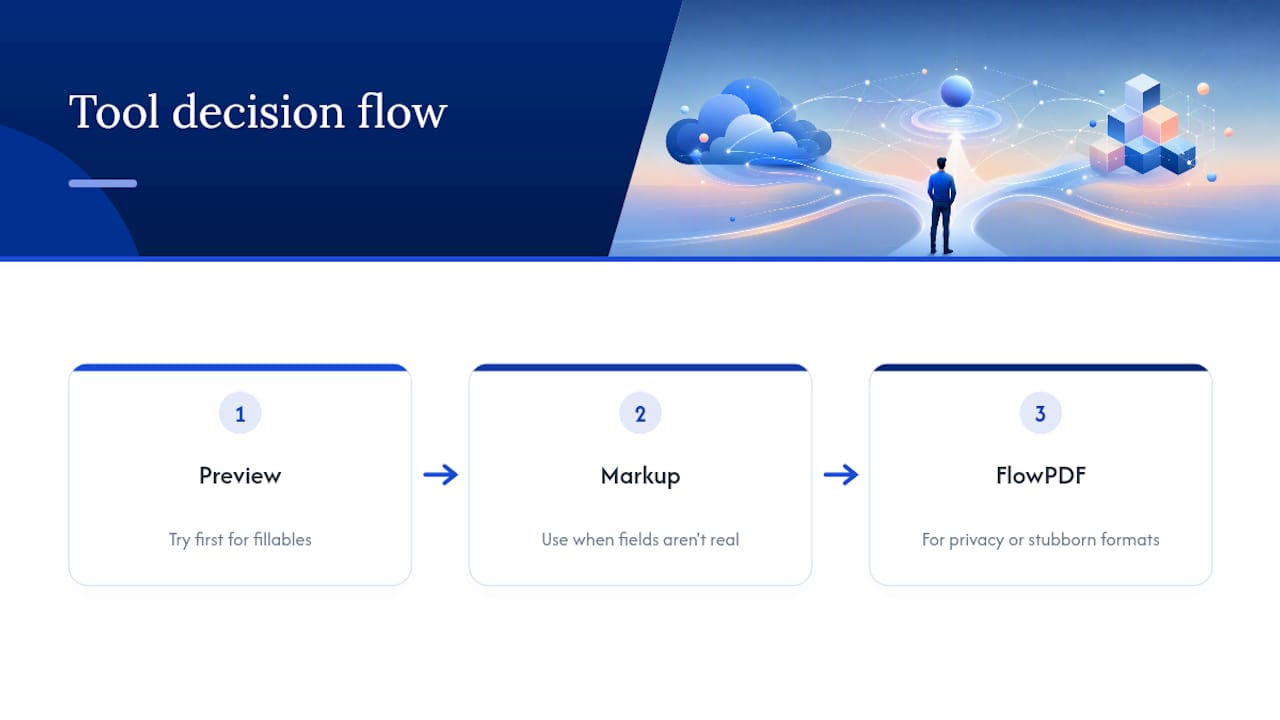
My rule for this is simple: try Preview first, fall back to Markup when the fields aren't real, and reach for FlowPDF the moment privacy or a stubborn file format gets in the way. Most people overcomplicate this decision when it's really a three-step filter.
One habit worth building regardless of which tool you use: test your signature placement on a spare page or a duplicate file before committing to the real one. A signature dropped two inches too high looks unprofessional and, on legal documents, can occasionally cause processing delays.
Always save a copy of the blank form before you start filling it in. You'll thank yourself the first time you need to send a fresh version to someone else.
— Ronald Ang
Try FlowPDF for Filling and Signing PDFs Without Uploading
There are tools that let you fill out and sign PDF forms entirely in your browser, without uploading a single file to a server and without paying for features other tools lock behind a subscription. That matters most for the documents you'd least want floating around online: signed leases, tax paperwork, medical forms, anything with your personal details on it.

If you've run into a form that Preview or Markup couldn't handle, the Fill PDF Forms tool is built for exactly that situation. Open your document, add text where you need it, drop in a signature, and export the finished file, all without an account or a watermark. For everything else PDF-related, from merging files to compressing them for email, the full FlowPDF toolset covers it in one place. Open the Fill PDF Forms tool now and see how it handles your next form.
Sources
For readers who want to go straight to the source, Apple documents the exact steps for filling and signing forms in its Preview support guide, including how AutoFill behaves. AppleInsider's coverage of Preview's expanded features in iOS 26 breaks down what changed for signing and scanning. For a closer look at Markup's quirks and limitations, iDownloadBlog's walkthrough covers the practical differences between interactive and flat PDFs in more detail.
- Fill out and sign PDF forms in Preview on iPhone - Apple Support
- How to fill and edit a PDF on your iPhone or iPad
- Inside Preview in iOS 26 — how to edit PDFs, sign documents, and scan files
FAQ
Can I Fill Out a PDF File on My iPhone?
Yes. iPhone's built-in Preview and Files apps let you tap directly into interactive form fields, and Apple's own support documentation walks through the exact steps. For flat or scanned PDFs without real fields, Markup lets you add text boxes manually instead.
Can I Fill Out a PDF Form on My Phone Without Downloading an App?
Yes, both Preview and Markup come pre-installed on every iPhone, so no download is required for most forms. If a file is locked or won't respond to either tool, a browser-based option like FlowPDF works without installing anything either.
Can I Turn a PDF Into a Fillable PDF?
Not reliably on an iPhone alone. Converting a flat, scanned document into a true fillable form with real AcroForm fields typically requires desktop or server-side software, since on-device tools aren't built for that specific conversion. For a single form you just need to complete once, Markup's text boxes are usually a faster workaround than converting the file at all.
How Do I Fill Out a Blank PDF on iPhone?
Open the blank PDF in Files or Preview and tap where information should go. If nothing highlights, the document has no real fields, so switch to Markup, tap the pen icon, and use Add Text to place typed boxes wherever the form needs answers.
Is It Safe to Fill Out Sensitive Forms Using Online PDF Tools?
It depends entirely on how the tool handles your file. Services that require uploading your document to a server carry more risk, while tools that process files locally in your browser never send your data anywhere, which is a meaningfully safer choice for tax forms, contracts, or ID documents.