
The best Kami alternative depends on what you use Kami for. If you mostly annotate readings in a class, look at a desktop PDF viewer or a note-taking app. If you also need to merge, split, compress, fill or sign PDFs without uploading them anywhere, a browser tool that works locally, like FlowPDF, covers that side for free. Below we compare the main routes, say what each is good at, and show how to pick.
TL;DR
- Kami is built for reading, highlighting, annotating and collaborating on PDFs and worksheets, so any alternative should be judged on that first.
- Most people who search for alternatives need one of three things: annotation, PDF housekeeping (merge, split, compress), or private signing and form filling.
- FlowPDF handles the housekeeping and signing side with local processing, no upload, no watermark and no signup. It is not a classroom annotation platform.
- A sensible setup for many students and small teams is two tools: one for annotation, one for page-level work on the file.
- Check current plans and limits on each provider's own page before committing, because free tiers change.
Table of Contents
- What Kami does, and what an alternative must cover
- Six alternatives compared
- If you annotate PDFs for study or research
- If you need to merge, split or compress PDFs
- If you sign contracts or handle sensitive files
- How to compare privacy, devices and cost
- How FlowPDF fits
- Our view: use two tools for two jobs
- Try the tools you actually need
- FAQ
- Sources
What Kami does, and what an alternative must cover
Kami is a web-based tool for reading, writing on, highlighting, annotating and collaborating on PDFs, images, worksheets and documents. That description matters, because it tells you what you are replacing. Kami is mainly a markup and classroom workflow tool. It is not primarily a tool for rebuilding a PDF: reordering pages, shrinking file size or stitching ten documents into one.
When you list what you actually do each week, you usually find two separate jobs:
- Marking up a document. Highlighting, typing in text boxes, drawing, commenting, sharing with a teacher or classmate.
- Handling the file itself. Merging research papers, splitting a long scan, compressing for an email limit, removing pages, adding page numbers, signing a contract.
The alternatives that rank for this search tend to blur these two jobs together. Separating them makes the choice much easier.
Six alternatives compared
The table groups real options by type. We have kept it to what each type is known for and left out prices we could not confirm today. Check each provider's page for its current plan.
| Option | Best for | Strength | Watch out for |
|---|---|---|---|
| Kami (the baseline) | Classroom annotation and collaboration | Markup on PDFs, images and worksheets in one place | Plans and limits change, so confirm what the free tier includes |
| FlowPDF | Merging, splitting, compressing, editing, filling and signing PDFs privately | Runs in your browser, no upload, no watermark, no signup | Not a collaborative classroom markup platform |
| OneNote | Annotating PDFs inside your notes | Has a built-in tool for annotating PDFs | Page-level PDF tasks like merging or compressing are not its job |
| PDF-XChange Viewer | Desktop reading and markup on Windows | Often listed among Kami's closest competitors | Needs installation, so it is awkward on school or shared devices |
| Okular | Desktop reading and annotation on Linux and similar systems | Commonly listed as a Kami alternative | Needs installation; less suited to Chromebooks and tablets |
| Google Classroom and similar learning platforms | Teachers who want assignments and PDFs in one system | Assignment workflow | They are classroom platforms, not PDF tools |
The last three options come up repeatedly in alternatives lists. We name them so you recognize them, not to rank them for you. Your school's device policy often decides more than any feature does.
If you annotate PDFs for study or research
Students usually want to highlight, jot a note beside a paragraph and find it again later. For that job, the closest like-for-like replacements are tools whose main purpose is markup: a desktop viewer with annotation, or a note-taking app that opens PDFs.
Two questions narrow the field quickly:
- Where do you work? A school Chromebook cannot install a Windows viewer. A browser tool or a web-based note app is the realistic path.
- Do others need to see your marks? If a teacher or study group must comment on the same file, you need a collaboration feature. Local-only tools do not offer a shared workspace by design.
If your annotation is light, such as filling a worksheet or typing answers on a PDF, you may not need a dedicated markup tool at all. Our guide on editing PDFs in Chrome without uploading walks through what the browser can do on its own, and FlowPDF's edit tool goes further when you need to change text, add shapes or whiteout content.
For worksheets and forms specifically, filling PDF forms in your browser is quicker than annotating, because you type into the fields and save.
If you need to merge, split or compress PDFs
This is where annotation tools usually fall short, and where students and office workers lose the most time. A typical case: you have six journal articles, a cover page and an appendix, and you need one file in the right order.
The steps are the same in most tools:
- Add all the files.
- Drag them into the order you want.
- Check the page count of the result.
- Save the merged file.
With FlowPDF, you do this on the Merge PDF page, and the files stay on your device. If you only need part of a document, use split or extract pages. Dropping a blank or irrelevant page is a job for remove pages, and reordering is on the organize page.
For file size, compress locally before you email or upload an assignment. Compression always trades some image quality for size, so keep your original and compare the result before you send it.
If you need a simple way to extract pages from a longer file and have a second online option for splitting, there is also a free split PDF tool you can try for the same job.
If you sign contracts or handle sensitive files
Students rarely worry about this, but freelancers and small businesses should. Many online PDF services work by sending your file to their server, processing it there and sending it back. For an exam paper, that may be fine. For a contract, a payslip or an ID scan, you may prefer that the file never leaves your computer.
Browser tools that process files locally avoid that step. FlowPDF's sign tool lets you place your signature on a PDF without uploading it. Be clear about what this is: it adds a visible signature to the document. It is not a certificate-backed digital signature, so if a counterparty or regulator specifically requires one, use a service built for that.
Other sensitive tasks follow the same logic:
- Redaction. Black boxes drawn on top of text can hide nothing if the text underneath remains. We explain how to do it properly and check the result in redacting PDFs locally and verifying with selection tests, and you can start on the redact tool.
- Comparing versions. When a contract comes back with edits, compare the two PDFs rather than trusting that only the agreed clauses changed.
- Sending the file. Even a clean, private file has to travel. For options on sharing, see this guide to securely sending a PDF.
How to compare privacy, devices and cost
Whatever you pick, ask the same five questions. They apply to Kami and to every alternative.
| Question | Why it matters |
|---|---|
| Is the file uploaded to a server? | Local processing means fewer places your document can end up. |
| Does it need an account? | Signup adds friction and ties your usage to an identity. |
| Does the free version add watermarks? | A watermark makes the output unusable for assignments or client work. |
| Are there daily or per-file limits? | Limits often appear only after you have started a task. |
| Does it work on your device? | Chromebooks, tablets and shared school laptops restrict installs. |
The cost question deserves care. Pricing for Kami and other tools changes over time and can differ by region and by whether you buy as an individual or a school. We have not listed amounts here, because a number that is out of date is worse than none. Open the provider's pricing page and read what the free tier restricts before you build a workflow around it.
If you are choosing for a school or company, also read the provider's privacy policy and check how it handles student or employee data. That is the right place to look for retention and sharing terms.
How FlowPDF fits
FlowPDF is a free, browser-based PDF toolkit. It covers editing, merging, splitting, compressing, organizing, rotating, cropping, watermarking, page numbers, form filling, comparing, scanning, extracting, removing, redacting, protecting, unlocking and signing, plus image-to-PDF conversion and PDF-to-Markdown extraction. Everything is processed locally, with no document upload, no subscription and no watermark.
Here is where it is a strong choice:
- Privacy first. Your file stays in your browser.
- No friction. No account, no trial period, no export fee.
- Wide toolset in one place. You do not hop between sites for each small task.
- Works on a Chromebook. See our guide to editing PDFs on a Chromebook.
And here is where you may want something else alongside it: if your core need is a shared classroom workspace where a teacher marks up student work and returns it, a collaboration platform is the right fit. FlowPDF does not try to be that.
If you have compared other PDF tools before, our write-ups on Smallpdf alternatives and Foxit alternatives apply the same checklist, and editing without a watermark shows what a clean export looks like.
Our view: use two tools for two jobs
We build a PDF toolkit, so we see the same pattern in the way people describe their problems. Someone says they need a Kami replacement, and a few sentences later they mention a file that is too big to email, or a scan with pages in the wrong order, or a form they have to print just to sign. Those are not annotation problems.
Our view is that annotation and file handling are different jobs and do not need to live in one product. Annotation is about reading and thinking, and often about sharing. File handling is about getting a document into the right shape and getting it to someone safely. The second job is where privacy matters most, because it is the step where a complete document, with all its personal details, leaves your hands.

That is why we process everything in your browser. We would rather you could merge a set of research papers or sign a contract without wondering where the file went. We also keep it free, with no watermark and no signup, so you can finish the task and move on.
If you take one thing from this comparison, make it this: write down your three most frequent PDF tasks, and choose tools for those tasks, not for a feature list.
— Ronald Ang
Try the tools you actually need
If your list of tasks includes merging, splitting, compressing, filling or signing, you can start now. FlowPDF offers all of them free, with files processed on your device, and you can check the result before you download it.
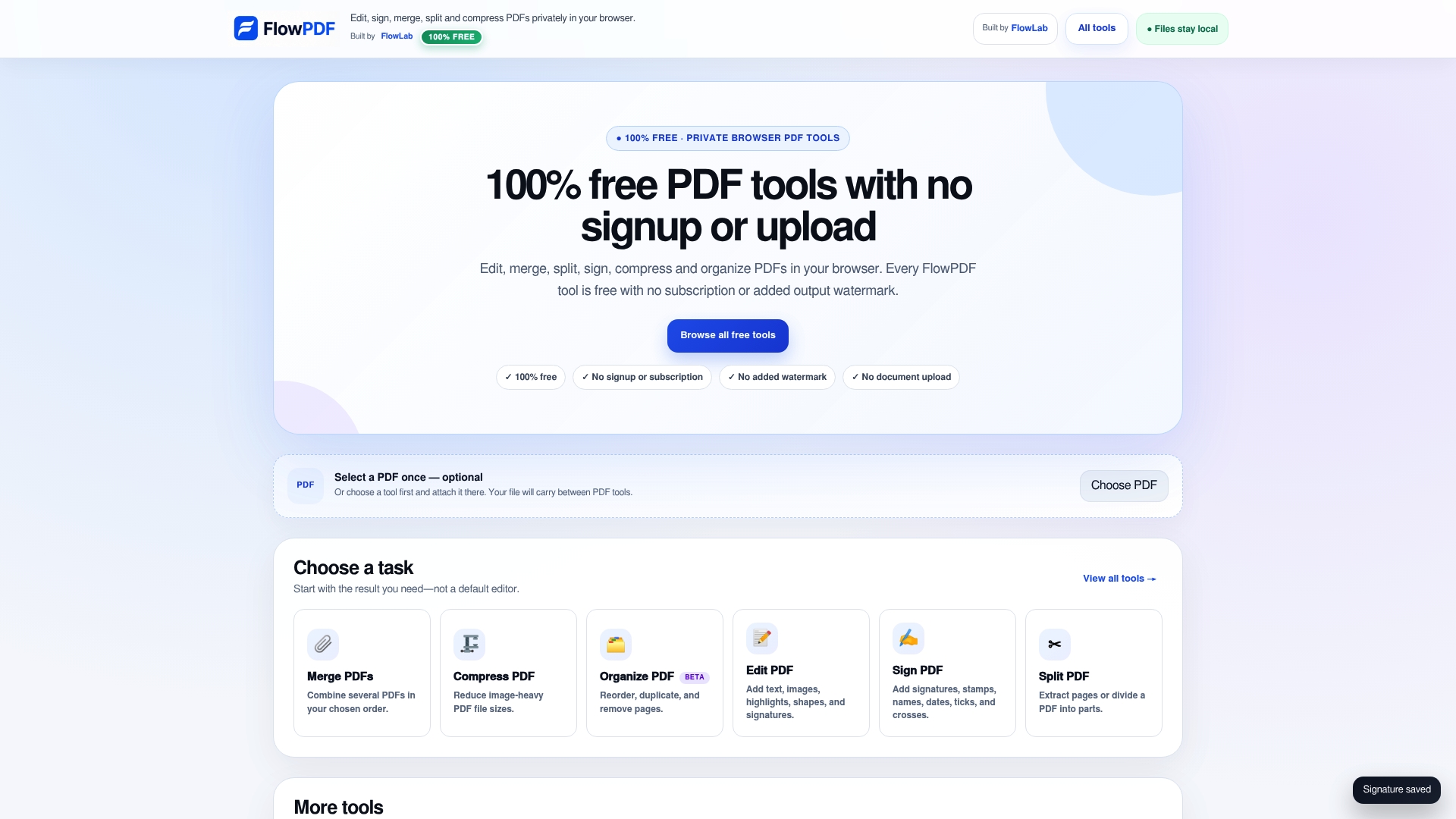
Open the tool you need from the full list of PDF tools, drop in your file and work. There is no account to create and no watermark on the output.
FAQ
What is the website Kami?
Kami is a web-based tool for reading, writing on, highlighting and annotating PDFs, images, worksheets and documents, with collaboration features. It is used mostly in schools. Its focus is markup, not rebuilding or compressing PDF files.
What are some alternatives to Kami?
The common ones are note-taking apps with PDF annotation, desktop viewers with markup, and classroom platforms. For merging, splitting, compressing and signing, a browser tool like FlowPDF fills the gap. Match the tool to your task and your device.
Is Kami a PDF editor?
It is better described as an annotation and markup tool than as a full editor. You can write on and mark up a document, but page-level work such as merging, splitting or compressing usually calls for a separate PDF tool.
Can I sign a contract without uploading it?
Yes. A browser tool that processes files locally, such as FlowPDF, places your signature on the PDF on your own device. It adds a visible signature and is not a certificate-backed digital signature. If a counterparty requires that, use a service designed for it.