
You can edit PDFs on a Chromebook two practical ways: the built-in Gallery app for quick annotations, signatures, and offline form-filling, or a browser editor when you need to change embedded text, reorder pages, or redact sensitive content permanently. For anything involving real text edits or privacy, FlowPDF gets the job done directly in Chrome, with no uploads and no watermark.
TL;DR:
- The Gallery app can add new text, annotate, and sign PDFs but cannot edit embedded text or remove existing content permanently.
- For tasks like fixing typos, redacting sensitive information, or reorganizing pages, a local in-browser editor like FlowPDF is necessary for privacy and functionality.
- FlowPDF processes files entirely on your device, preventing upload of sensitive data and ensuring true redaction by removing content from the file structure.
- Always verify redactions by attempting to select or search the covered text, as simply drawing over it does not fully remove the information.
- Use "Save As" in Gallery to preserve original files before editing, and consider dedicated editors for sensitive or complex document modifications.
Table of Contents
- What ChromeOS's native Gallery app can (and cannot) do
- Step-by-step: edit a PDF using the Gallery app
- When a browser editor is necessary
- How to edit PDFs in-browser privately with FlowPDF
- Redaction and privacy: common mistakes and safe practices
- Save, export, and share edited PDFs from a Chromebook
- Author perspective: choosing ease vs control on a Chromebook
- FlowPDF: private PDF editing that stays on your device
- Sources
What ChromeOS's native Gallery app can (and cannot) do
The Gallery app is the tool already sitting on your Chromebook, and it handles more than most people expect. You can open a PDF, add typed text, highlight, annotate, fill in form fields, and sign your name, all without an internet connection. That makes it genuinely useful for signing a lease, initialing a school form, or jotting a quick note on a scanned document while you're on a flight.
Where it falls short is anything involving the PDF's existing content. Gallery lets you layer new elements on top of a page, but it can't reach into the file and change text that's already there.
- View and scroll through any PDF
- Add new typed text boxes
- Draw, highlight, and use a pen tool
- Fill out form fields
- Add a signature
- Save changes or save a copy
That last limitation trips people up constantly. Adding text is not the same as editing text that's already embedded in the document. If a contract has a typo in paragraph three, Gallery won't let you fix it. It can only add something new next to it. And drawing a black box over a sentence doesn't erase it. That distinction matters more than most guides let on, and it's the reason a second tool exists for the jobs Gallery can't touch.
Step-by-step: edit a PDF using the Gallery app
Here's the fastest way to mark up or sign a PDF without leaving ChromeOS.
- Open the Files app and locate your PDF in Downloads or Google Drive.
- Double-click the file. It opens automatically in Gallery.
- Tap Text to insert a new text box anywhere on the page, then type your entry.
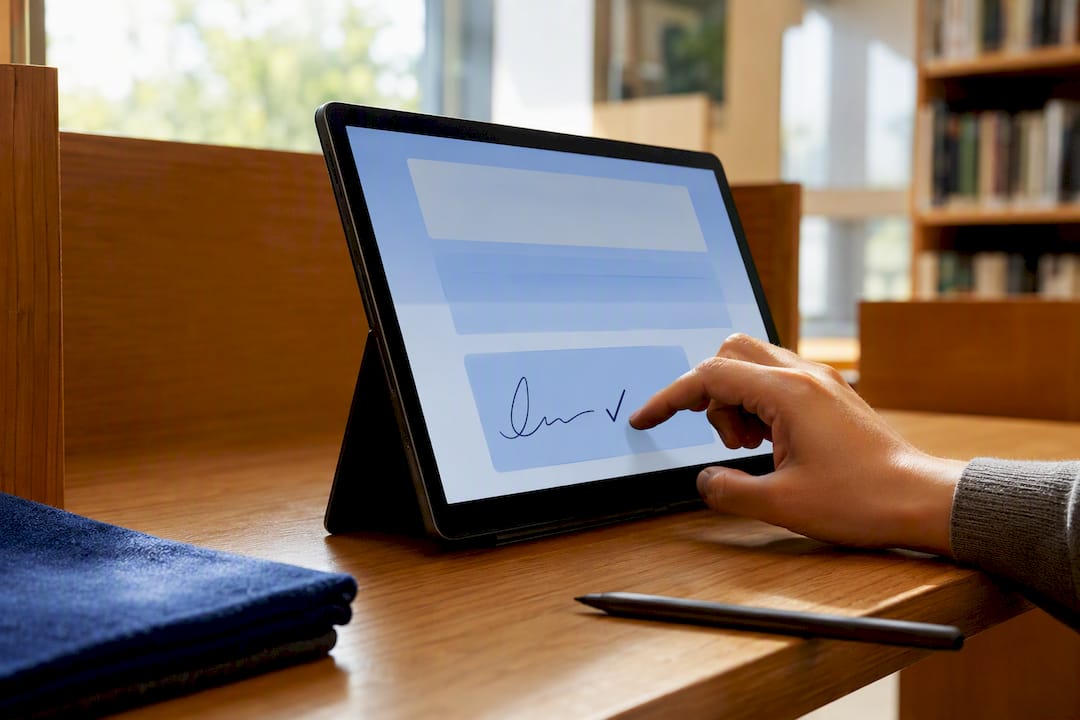
- Tap Annotate to access the pen, highlighter, and signature tools. Use your finger or a stylus on a touchscreen, or drag with a trackpad if you don't have one.
- When you're done, choose Save to overwrite the original file, or Save As to keep the original untouched and create a new copy.
Pro Tip: Always use Save As when you're editing something you might need in its original state later, like a tax form or a signed lease. It takes two extra seconds and saves you from having to hunt down a backup.
Touchscreen Chromebooks make the annotate tools noticeably smoother since you're drawing signatures and checkmarks with a finger or stylus instead of a mouse. If you're on a trackpad-only device, zoom in before signing so your signature doesn't come out jagged.
When a browser editor is necessary
Some tasks are simply outside Gallery's reach, no matter how you approach them. If you need to fix a typo in existing text, permanently black out a Social Security number, rearrange or delete pages, or run OCR on a scanned document, you've hit the ceiling of what a native annotation tool can do.
- Correcting or replacing text that's already part of the PDF
- Permanently removing sensitive information (true redaction, not a drawn box)
- Reordering, deleting, or extracting specific pages
- Running OCR to make scanned text searchable
- Restructuring form fields beyond simple fill-in entries
This is also where privacy becomes a real consideration. Plenty of web-based PDF tools, including some Chrome extensions, require uploading your file to a remote server before you can touch it. That's a bad trade for anything containing account numbers, medical details, or client information. The simple rule: if the task involves changing what's already in the document or guaranteeing something is truly gone, you need a dedicated editor that processes files locally.
How to edit PDFs in-browser privately with FlowPDF
FlowPDF runs entirely in your Chrome browser and never uploads your file to a server, which matters when the document in front of you has anything sensitive in it. It handles the tasks Gallery can't, including editing embedded text, reordering pages, and permanent redaction, and it stays free with no watermark added to your finished file.
- Go to FlowPDF's edit tool in Chrome and select your PDF from your Chromebook's Files app.
- Click directly on existing text to edit it, or use the page panel to drag pages into a new order.
- Use the redaction tool to remove sensitive content permanently rather than just covering it visually.
- Save the finished file back to Downloads or Drive.
Pro Tip: After redacting, try selecting or searching the area you just blacked out. If no text highlights, the redaction worked. If you can still select words underneath, the sensitive content is still in the file.
Because everything happens on your device rather than a remote server, you can verify this yourself: FlowPDF's how-it-works page documents exactly how the local processing model works, so you're not taking a privacy claim on faith.
Redaction and privacy: common mistakes and safe practices
Drawing a black rectangle over a sentence feels like redaction, but it isn't. The underlying text often remains stored in the PDF's content layer, meaning anyone who selects that area or copies the page can pull the "hidden" text right out. Plenty of leaked contracts and government documents have made this exact mistake public.
Real redaction removes the content from the PDF's structure, not just its visual appearance.
- Use a dedicated redaction tool that strips content rather than covering it
- Flatten the document afterward so no hidden layers remain
- Always verify by trying to select or search the redacted area
- Never rely on a drawn shape or highlight as your only method
If you handle any documents with names, account numbers, or medical information, treat this as a non-skippable step before sharing anything.
Save, export, and share edited PDFs from a Chromebook
Gallery's Save button overwrites your original file in place, while Save As creates a separate copy and leaves the original untouched. Edited files land in the same folder as the source document, typically Downloads, unless you specifically save to Drive or another folder.
- Use Save As to preserve an unedited backup before making changes
- Check whether your file lives in Downloads (local) or Drive (synced)
- Compress large files before emailing them to avoid attachment limits
- Password-protect anything sensitive before sharing, and use Drive's sharing permissions or encrypted email rather than open links
Author perspective: choosing ease vs control on a Chromebook
Gallery wins when speed matters more than precision, signing a permission slip, marking up a PDF for a class, initialing a delivery form. Nobody needs a dedicated editor for that. But the moment a document contains a client's financial details, a patient record, or anything you'd regret leaking, reach for a browser editor with local processing instead. Students and casual users can stick with Gallery most of the time. Freelancers and small businesses handling contracts or client data should default to a privacy-first editor as a habit, not an afterthought.
— Ronald Ang
FlowPDF: private PDF editing that stays on your device
If the PDF in front of you needs a real fix, not just a sticky note on top, FlowPDF handles it without ever leaving your browser or touching a remote server. It edits existing text, reorders pages, redacts permanently, and saves your finished file, all for free and without a watermark stamped across the page.

Compare that to uploading a sensitive contract to an unfamiliar web tool and hoping it deletes your file afterward. With FlowPDF's editor, the processing happens locally, so nothing leaves your Chromebook in the first place. Need to reorganize a multi-page scan first? The organize tool handles reordering and deletion before you fine-tune the text. Open your file in FlowPDF now and finish the edit Gallery couldn't.