
If you want a Nitro PDF alternative that merges, compresses, edits and signs PDFs without a licence fee, without a watermark and without sending your files to a server, start with FlowPDF. It runs in your browser and processes every document on your own device. The other six tools below suit specific needs, such as heavy desktop editing or Office conversion, and this guide shows where each one fits.
This comparison is written for four kinds of readers: students merging research papers, small businesses managing piles of documents, people who need to shrink a PDF to email it, and professionals who sign contracts and do not want those contracts uploaded anywhere.
TL;DR
- FlowPDF is our pick: edit, merge, split, compress, sign and 14 more tools, all free, with no signup, no watermark and no file upload.
- Nitro is built around paid desktop software. Most people who search for an alternative only need a handful of everyday tasks, and a free browser tool covers them.
- Many web tools upload your file to a server to process it. If the document is a contract, an ID or a thesis draft, local processing is the safer default.
- Foxit and Adobe Acrobat are full desktop suites. Smallpdf, iLovePDF and Sejda are web tools with accounts, usage limits or paid tiers. PDF24 offers an offline desktop creator.
- Check each provider's own pricing page before you commit, because plans and Singapore dollar prices change.
Table of Contents
- Why people look for a Nitro PDF alternative
- The one question to ask first: where does your file go?
- The alternatives at a glance
- 1. FlowPDF: free, local and complete for everyday work
- 2. Foxit PDF Editor: the closest desktop match
- 3. Adobe Acrobat: the standard, at a subscription
- 4. Smallpdf and iLovePDF: convenient web tools with limits
- 5. PDF24: free, with an offline option
- 6. Sejda: a tidy web editor for occasional jobs
- How the options compare on what you actually do
- Which one should you pick?
- Our perspective
- Try FlowPDF on your next file
- FAQ
- Sources
Why people look for a Nitro PDF alternative
Nitro PDF is a desktop PDF editor sold as paid software. That model makes sense for a team that lives inside PDFs all day. It makes less sense when you need to merge three files before a Friday deadline, or compress a scanned form so it fits an email limit.
The usual reasons readers move on are simple:
- Cost. A paid licence is hard to justify for occasional use.
- Installation. A desktop installer is a problem on a shared, school or locked-down work laptop.
- Privacy. Contracts, payslips, tax forms and research drafts are not files you want sitting on a stranger's server.
- Account friction. Signups, trials that ask for a card, and watermarks on the exported file.
Keep those four in mind. They are the criteria used in the comparison below.
The one question to ask first: where does your file go?
There are two ways a PDF tool can work. A server-based tool uploads your file, processes it on the company's machines and sends the result back. A local tool does the work inside your browser or on your computer, so the file never leaves your device.

For a public flyer, either is fine. For a signed employment contract, a client's financial statement or an unpublished paper, a local tool removes the question of who stores your file and for how long. In Singapore, businesses that handle customer or employee data also have obligations under the Personal Data Protection Act, so keeping documents on your own device is a simple way to reduce exposure. Your own company policy should still decide what may be used.
The alternatives at a glance
| Tool | Type | Where files are processed | Free use | Best for |
|---|---|---|---|---|
| FlowPDF | Browser app | On your device, no upload | All 20 tools free, no signup, no watermark | Everyday edit, merge, compress, sign |
| Foxit PDF Editor | Desktop suite | On your computer | Paid editor, see Foxit's pricing page | Teams that want a Nitro-style desktop editor |
| Adobe Acrobat | Desktop and web | Mixed, web features use Adobe's cloud | Free reader, editing is paid | Organizations standardized on Adobe |
| Smallpdf | Web app | Server-based | Limited free use, paid plan for more | Quick one-off conversions |
| iLovePDF | Web app | Server-based | Free tier with limits, paid Premium | Batch web tasks |
| PDF24 | Web suite and offline Creator | Creator works locally | Free | Users happy to install software |
| Sejda | Web app and desktop | Server-based for web | Free tier with limits | Occasional edits |
The sections below go through the options in the order we would recommend them.
1. FlowPDF: free, local and complete for everyday work
FlowPDF is a browser-based toolkit. There is nothing to install, no account to create and no price. Every tool processes your file on your own device, so the document is never uploaded. Exports carry no watermark.
The full toolkit covers edit, merge, split, compress, organize, rotate, crop, watermark, page numbers, fill forms, compare, scan to PDF, extract pages, remove pages, redact, protect with a password, unlock, sign, image to PDF and PDF to Markdown. That is the list most people ever need from a Nitro licence.
Here is how it maps to each reader:
- Students: merge your research papers into one file, then remove pages you do not need and add page numbers before you submit.
- Small businesses: split a long supplier pack, organize pages into the right order and redact sensitive details before sharing.
- Anyone sharing by email or chat: compress a PDF to a size that sends easily.
- Professionals signing contracts: sign in the browser without uploading the agreement anywhere.
If you want the full privacy-first argument for browser editing, our guide to editing PDFs locally with no watermark goes deeper.
2. Foxit PDF Editor: the closest desktop match
Foxit sits in the same category as Nitro: a paid, installed editor with a familiar ribbon-style interface and team features. If your office already runs on desktop PDF software and you need that exact style of workflow, Foxit is a natural comparison. Its price depends on the plan and billing term, so read the current Singapore-facing price on Foxit's own site before you decide.
For readers who do not need a full suite, we explain the lighter route in our guide to Foxit alternatives that work without uploads or watermarks.
3. Adobe Acrobat: the standard, at a subscription
Adobe created the PDF format, and Acrobat is the reference tool for compatibility. It is sold by subscription for editing and advanced features, while the reader is free. Some of its web features work through Adobe's cloud, which matters if you are handling confidential files.
If your goal is to leave a subscription behind, read our small-team guide to Adobe Acrobat alternatives. It walks through testing a tool with one real file from your own workload.
4. Smallpdf and iLovePDF: convenient web tools with limits
Smallpdf and iLovePDF are the two web tools most people meet first. Both offer merge, split and compress on a page with a drag-and-drop box. Both run a free tier with usage limits and a paid plan for heavier use, and both process files on their servers.
That is fine for non-sensitive files. For a contract or a draft thesis, you are trusting a third party with the upload. Our comparison of Smallpdf alternatives with no uploads or fees explains what to look for.
5. PDF24: free, with an offline option
PDF24 offers a browser suite and an installable Creator app. According to one developer's comparison of PDF tools, the offline Creator processes files locally, and the free web interface shows banner ads. It is a reasonable option if you are comfortable installing software. If you would rather not install anything and want an ad-free page, a browser tool like FlowPDF saves the setup.
6. Sejda: a tidy web editor for occasional jobs
Sejda handles edits, merges and compression from the browser, with a free tier that limits how much you can do per day and per file. It suits a one-time job. For repeated work across many documents, a tool with no limits is easier to plan around, and that is where an unrestricted free toolkit helps.
How the options compare on what you actually do
Merging research papers or multiple documents
Merging needs three things: reorder files before combining, keep the page quality, and not leak your drafts. With FlowPDF you merge locally, then use Organize to reorder, rotate or delete pages in the same session. Web tools merge well but upload every file. Desktop suites merge well but require an installation and a licence.
A simple routine for a thesis or a report pack:
- Name your files in the order you want them (01-abstract, 02-chapter1).
- Merge them into one PDF.
- Remove blank or duplicate pages.
- Add page numbers.
- Compress the result if it is going by email.
All five steps are in the FlowPDF toolkit, so you never export to a second tool.
Compressing a PDF for sharing
Compression trades file size for image quality. Scanned documents and photo-heavy files shrink the most. Text-only PDFs are already small. When you compress, open the result and check that small print, stamps and signatures are still readable before you send it. Our guide to compressing PDFs offline in under a minute covers this in more detail.
Protecting and redacting
A password stops casual opening. Redaction removes the content itself. They solve different problems, so use redaction for details such as NRIC numbers or account numbers that must not be recoverable, and a password when the whole file should be restricted. FlowPDF includes both, and our guide to protecting PDFs without Adobe in Singapore lists four no-upload routes.
Signing contracts without uploading them
This is where the upload question matters most. A contract holds names, addresses, amounts and signatures. With FlowPDF you place your signature on the page in the browser and the document stays on your device.

One point to be clear about: a drawn or typed signature placed on a PDF is a visual signature. If the other party asks for a certificate-backed digital signature, follow their stated requirement. If you later need to check a signed file, this explainer on how to verify PDF signatures properly shows what to look for.
Which one should you pick?
| If you are... | Choose |
|---|---|
| A student merging and trimming papers | FlowPDF |
| A small business handling client documents | FlowPDF |
| Someone who needs a smaller file today | FlowPDF |
| Signing a contract that must not leave your device | FlowPDF |
| A large team that wants a licensed desktop editor with vendor support | Foxit PDF Editor |
| An organization standardized on Adobe | Adobe Acrobat |
For most readers searching for a Nitro alternative, the first four rows describe the real need. One free tool covers them with no installation.
Our perspective
We built FlowPDF around one idea: a PDF tool should do the job without taking your document anywhere. Most people who look for a Nitro alternative are not after a hundred features. They want to merge, compress, edit and sign, and they want to do it today on whatever computer is in front of them.
That is why every tool in FlowPDF runs in your browser, on your device. There is no upload, no signup, no watermark and no price. A student, a freelancer and a finance team all get the same toolkit, and the file stays with the person who owns it.
If you try one tool, pick the task you do most often and run one real file through it. You will see quickly whether it fits your routine.
Ronald Ang
Try FlowPDF on your next file
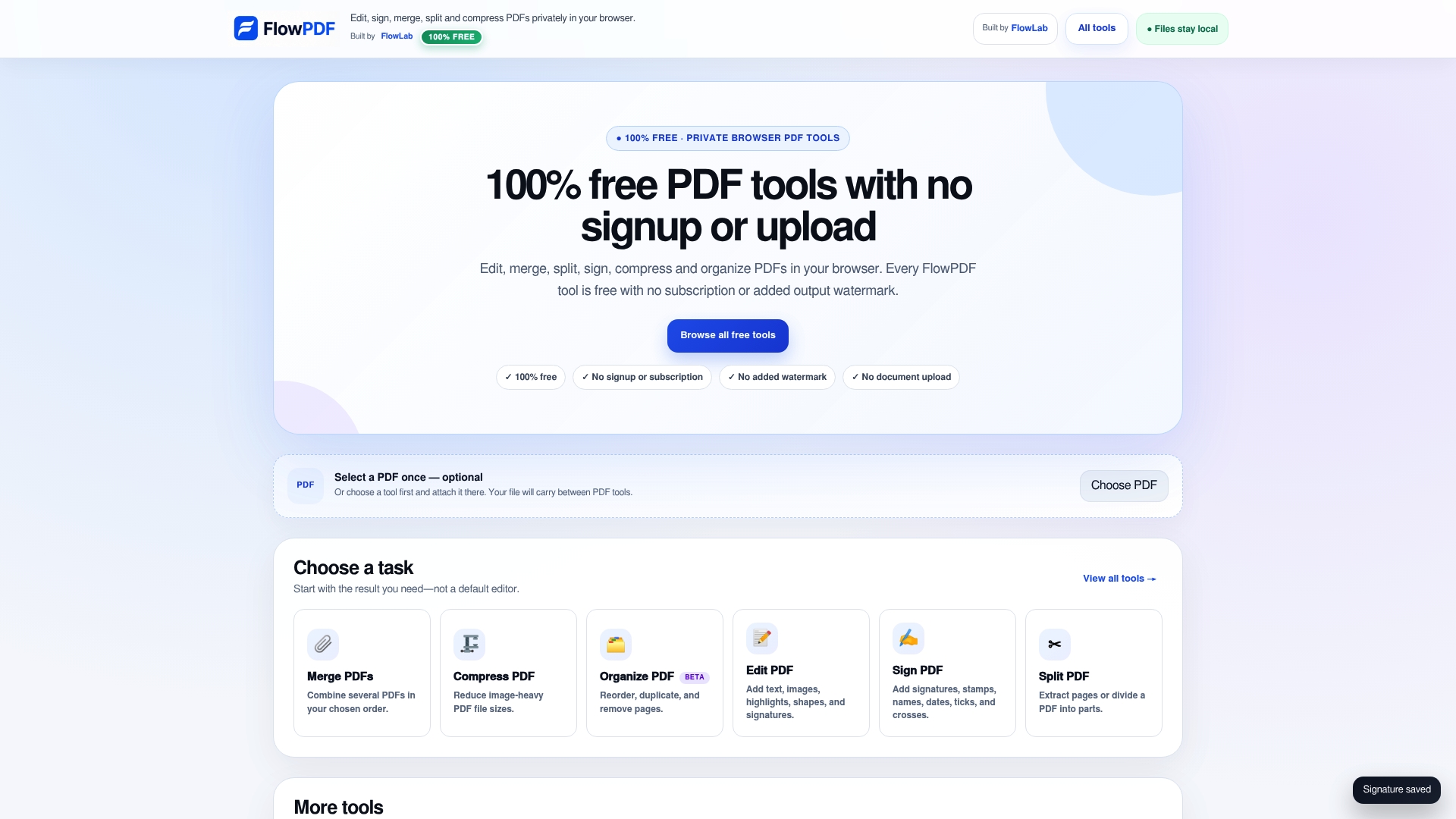
Open the FlowPDF toolkit and choose the task you need: edit, merge, split, compress, sign or any of the other tools. Everything is free, needs no account and keeps your PDF on your device.
If you mostly want a quick editor, see our guide to a lightweight PDF editor that needs no install or upload, or our checklist for a free PDF editor with no sign up.
FAQ
Can I use Nitro PDF for free?
Nitro is sold as paid software, and any trial has its own terms, so read Nitro's current page for details. If you only need everyday tasks, FlowPDF gives you merge, split, compress, edit and sign for free, with no signup and no watermark.
What is the best free alternative to Nitro PDF for privacy?
A tool that processes files on your own device is the most private option, because nothing is uploaded. FlowPDF works this way in your browser. It is free, needs no account and adds no watermark to your exports.
Can I merge and compress PDFs without installing anything?
Yes. Open FlowPDF in your browser, merge your files, reorder or delete pages, then compress the result. Each step runs locally, so you can finish the whole job without an install or an account.
Does FlowPDF work for signing contracts?
Yes, you can sign a PDF in your browser without uploading the document. FlowPDF places a visual signature on the page. If your counterparty requires a certificate-backed digital signature, follow their requirement for that agreement.