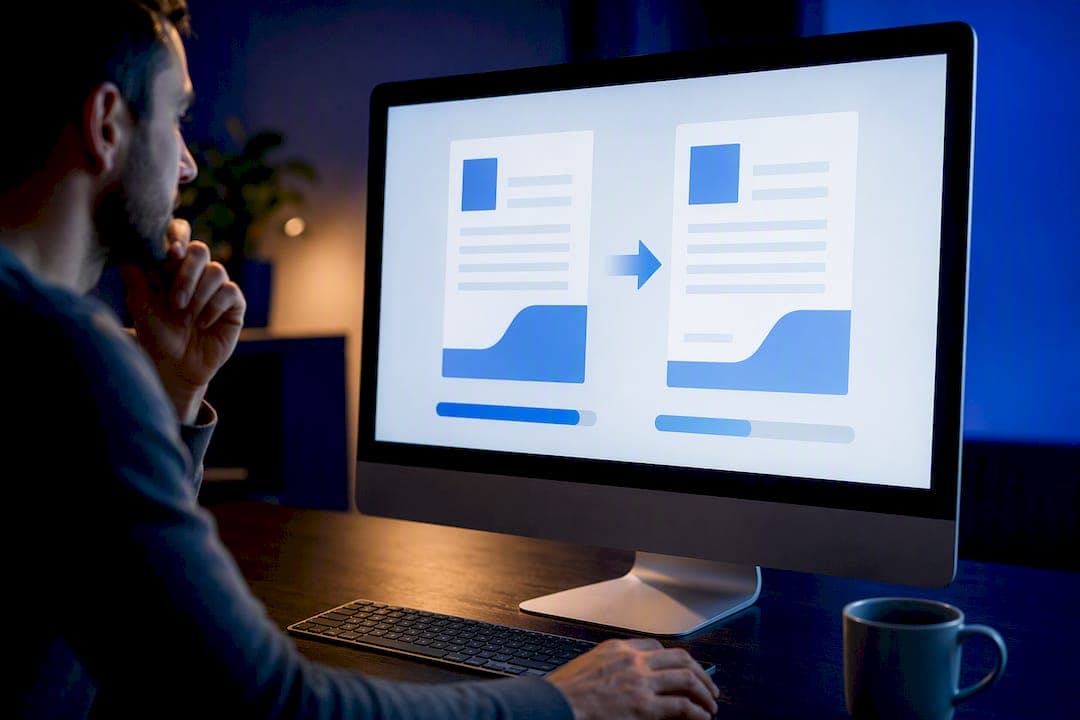
Yes, you can compress a PDF completely offline. Three practical methods work: a desktop app, a local-in-browser tool built on WebAssembly, or a command-line tool like slimpdf. For most people, a local-in-browser compressor like FlowPDF is the fastest cross-platform option, since it needs no install and never uploads your file.
TL;DR:
- Compressing a PDF locally with FlowPDF keeps the file entirely on your device, ensuring privacy without uploading to external servers.
- For scanned or image-heavy PDFs, reducing image DPI and JPEG quality significantly cuts size with minimal visible quality loss.
- Verify compression success by testing text searchability and inspecting images, especially on scanned pages, before final use.
- Use desktop apps for bulk compression, browser tools for quick single files, and CLI for precise size targeting in automated workflows.
- Always back up the original PDF, as lossy compression methods like JPEG reduction cannot be undone.
Table of Contents
- How do you compress a PDF offline step by step?
- Desktop, browser-local, or command line: which one fits your job?
- Which settings actually shrink a PDF the most?
- How do you verify a compressed PDF still works?
- What actually matters when you compress PDFs regularly
- Compress your PDF privately with FlowPDF, no upload required
- Where to go for deeper technical details
- Sources
How do you compress a PDF offline step by step?
The right workflow depends on your device and how many files you're handling. Here's how each one actually works.
- Desktop app (Windows/macOS): Open the file in a program like PDF24 Creator, select "Compress" or "Optimize," pick a preset such as email, screen, or archive, then save the output. These offline compressor tools typically let you fine-tune image downsampling before exporting.
- Local-in-browser tool: Load the tool once while you have a connection, then it keeps working offline. Drop your PDF in, choose a preset or drag a quality slider, click compress, and download. Nothing leaves your machine, because the compression runs inside your browser using WebAssembly.
- Command line: For scripted or repeatable jobs, a tool like slimpdf runs locally and can target an exact output size. A typical command looks like
pip install slimpdffollowed byslimpdf compress big-scan.pdf --target 3mb -o small.pdf.
Pick the desktop route when you're batching dozens of files with a consistent format. Pick the browser-local route for a single file you need shrunk right now, especially a scanned document you don't want touching a server. Reach for the CLI when a script needs to hit a specific size ceiling automatically, or when you're processing files as part of a larger pipeline. Text-heavy PDFs compress differently than scanned image PDFs, so the method that treats images intelligently usually wins for scans.
Desktop, browser-local, or command line: which one fits your job?
Each method trades off speed, precision, and setup time differently.
- Desktop apps need installation but give you a full GUI with granular controls, which suits repeated bulk work.
- Browser-local tools work across Windows, macOS, and Linux without installing anything, and WebAssembly compressors keep every file on your device rather than sending it anywhere.
- CLI tools deliver the most precision for hitting an exact size, and they return a status code if the target isn't reached, which makes them ideal for automation.
If you're compressing one contract before an email, the browser-local option wins on convenience. If you're an office manager crunching a hundred scanned invoices every week, a desktop app with saved presets saves more time. If you're a developer feeding PDFs through a build pipeline, the CLI is the only one built for that job.
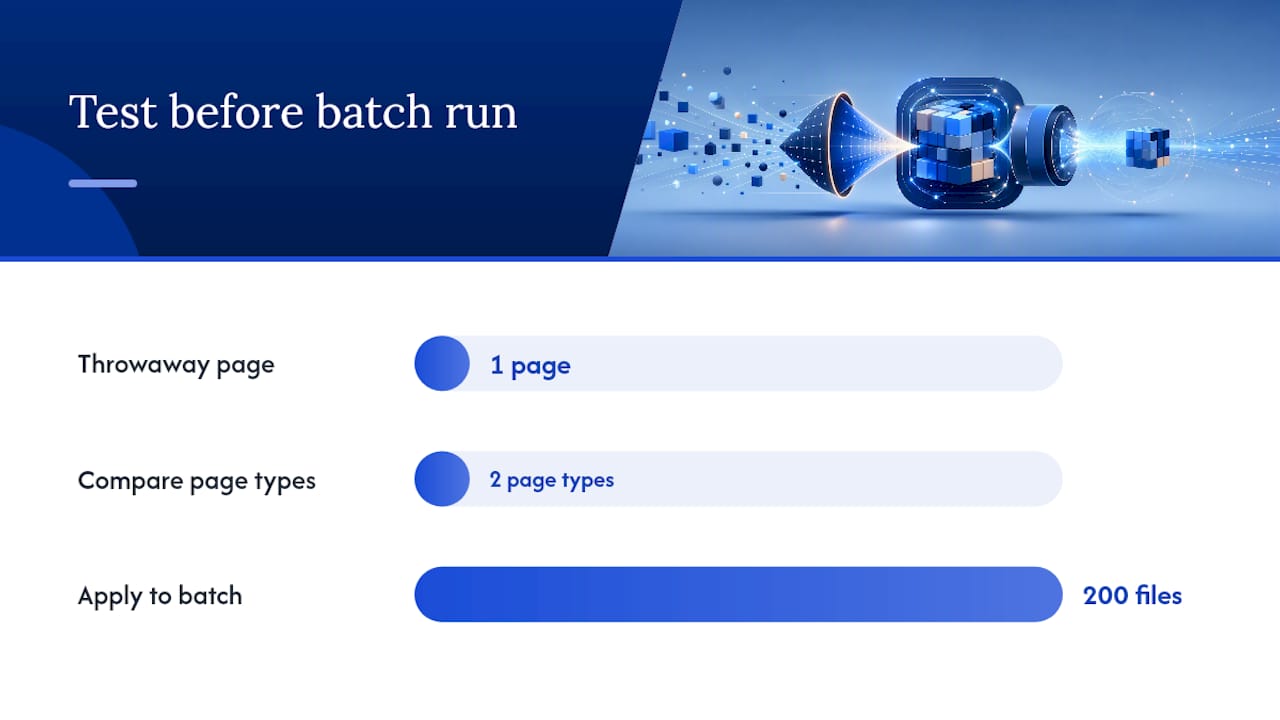
Pro Tip: Test any new method on a single throwaway page first. A compression setting that looks fine on a text page can wreck a photo-heavy page, and you'll want to know before you run it against 200 files.
Which settings actually shrink a PDF the most?
Image resolution does most of the heavy lifting in PDF size, not the text. The settings worth understanding:
- Image DPI: Dropping from 300 DPI to 150 DPI for screen viewing often cuts image weight dramatically with little visible loss.
- JPEG quality: Lower quality percentages shrink photos but introduce visible artifacts past a certain point.
- Grayscale conversion: Turning color scans to grayscale can meaningfully reduce size for documents that don't need color.
- Downsampling and rasterization: Rasterizing a page turns it into a flat image, which can strip out selectable, searchable text, so avoid it for forms or anything that needs to stay searchable.
- Metadata removal: Stripping embedded metadata trims a small but real amount of excess weight.
For most email attachments, a preset built for typical email size caps works well. For general sharing, a "screen" preset balances legibility and size. For scanned or image-heavy PDFs, slider guidance from tools like CompressPDF recommends starting as low as 1% to 10% compression to preserve fine detail, only increasing if the file is still too large. Always run one sample page before committing to a batch job. A setting that looks fine on a clean text page can blur a scanned signature past readability.
How do you verify a compressed PDF still works?
Shrinking the file is only half the job. Confirming it still does what you need matters just as much.
- Check text selection. Try highlighting a sentence or using the search box. If text won't select, the page was likely rasterized into an image, which breaks searchability.
- Zoom into images. Inspect scanned pages or photos at the size you'll actually view them. Artifacts that are invisible at thumbnail size can be obvious on a full screen.
- Confirm metadata and PDF/A status if you're submitting to an archive, court system, or form that requires it, since aggressive compression sometimes strips required metadata.
- Re-run with a lighter preset if anything looks wrong, or split the file into smaller batches if one section is causing the bulk of the size.
- Use a target-size flag if you need an exact number. A CLI tool that supports a
--targetflag will iterate until it either hits the size or reports that it couldn't.
What actually matters when you compress PDFs regularly
Most guides treat compression as a one-size-fits-all slider drag, and that's where people get burned. If you handle scanned contracts, receipts, or forms even occasionally, the setting that works for a text-only report will quietly wreck a scanned signature or a barcode. The instinct to crank the slider to "smallest file size" is almost always wrong for anything with images.
Local-in-browser tools deserve more credit than they get for occasional use. They skip the install, skip the upload, and get the job done in the time it takes to drag a file into a window. Reach for a desktop tool only when you're doing this daily or need it wired into a larger document workflow. Whatever you choose, keep a backup of the original before you compress. You can't undo a lossy JPEG conversion, and you'll want the source file if a client asks for a cleaner copy later.
— Ronald Ang
Compress your PDF privately with FlowPDF, no upload required
FlowPDF handles this entire job inside your browser, and your file never leaves your device. That's the core advantage over tools that route your document through a remote server before handing back a smaller version: FlowPDF skips that step entirely, and it's free with no watermark added to your output.

The workflow takes under a minute. Open the FlowPDF compress tool, drop in your PDF, choose a preset or drag the quality slider to match your target size, then click compress and download. Because the compression engine runs locally in the browser, it keeps working even if your connection drops mid-session. There's nothing to install, it runs the same way on Windows, macOS, or Linux, and you can read more about how FlowPDF processes files locally if you want the technical details before you trust it with a sensitive document. Once your file is smaller, you can jump straight into merging or organizing pages without ever uploading anything.
Where to go for deeper technical details
A few resources are worth bookmarking if you compress PDFs often. FlowPDF's compress tool is the fastest starting point for a one-off file. For scripted or automated jobs, the slimpdf package page documents install steps and target-size flags. If you're preparing scanned pages for print or ebook publishing, this PDF preflight checklist walks through size and quality checks specific to book production. For a closer look at browser-based compression engines, the local PDF tools project explains how WebAssembly builds of Ghostscript handle presets and custom settings without an upload step.