
To compress a PDF for email, open it in a compressor, shrink the file, check that the result is under your email provider's limit, and attach it. Gmail and Outlook.com both cap attachments at 25 MB, but encoding means the real ceiling is closer to 18 MB. With FlowPDF's compress tool, all of this happens in your browser. Your file is never uploaded, so a contract or ID scan stays on your device.
This guide covers why a PDF gets blocked, which limits apply in Singapore, how to shrink a file without wrecking the text, and what to do when compression is not enough.
TL;DR
- Gmail and Outlook.com both allow 25 MB per message. After encoding, plan for a file of about 18 MB or less.
- Some Singapore systems are far stricter. The government's Postman email API, for example, allows 2 MB per attachment.
- Compress locally in your browser so sensitive PDFs never leave your device.
- Merge, remove or extract pages before you compress. Fewer pages means a smaller file.
- If the file is still too big, send a share link or split it across several emails.
Table of Contents
- Why your PDF is too large to email
- Check the file size before you compress
- How to compress a PDF for email with FlowPDF
- Keep text and images readable
- Trim the document before you compress it
- Compress without uploading a sensitive file
- Quick target sizes by situation
- Compress your PDF now
- Our perspective on emailing PDFs
- If the compressed PDF is still too large
- What to check before sending a confidential PDF
- FAQ
- Sources
Why your PDF is too large to email
Every email provider sets a ceiling on attachments. For personal Gmail accounts it is 25 MB. When the total goes over, Gmail removes the attachment and adds it as a Google Drive link. Outlook.com also limits files to 25 MB per message, and offers OneDrive sharing for larger files.
There are two catches that trip people up.
Encoding adds weight. Attachments are MIME/Base64 encoded in transit, which adds roughly 33% to the file size. A 25 MB limit therefore leaves only about 18 MB for the raw file. A 22 MB PDF looks safe on paper and still bounces.

The smallest limit wins. Your server may accept the message, but the recipient's server can still reject it. The same source explains that the strictest limit anywhere along the delivery path decides the outcome, so you need to think about the recipient's mailbox as well as your own.
This matters in Singapore because many people email from company or hosting accounts, not only Gmail. A few examples from Singapore providers and agencies:
| Where the email goes through | Stated limit | Source |
|---|---|---|
| Gmail (personal) | 25 MB per message | Google Support |
| Outlook.com | 25 MB per message | Microsoft Support |
| Exabytes.SG hosted email | 50 MB per email, attachments included | Exabytes.SG |
| Casbay Singapore shared hosting | 20 MB (Windows and webmail) or 50 MB (Linux and webmail) per email | Casbay Singapore |
| Singapore government Postman email API | Up to 10 attachments, each up to 2 MB, 10 MB in total | Postman guide |
If you are not sure what your recipient's limit is, aim low. A file under 10 MB passes almost everywhere in this table except the strictest government-style setups.
Check the file size before you compress
Right-click the PDF on Windows and choose Properties, or select it on a Mac and press Command + I. Then compare the size with the target:
- Find the lowest limit that applies (yours or the recipient's).
- Multiply it by 0.75 to allow for encoding. A 25 MB limit becomes about 18 MB. A 20 MB limit becomes about 15 MB.
- Add up every attachment in the email, not only the PDF. The limit applies to the total.
A quick example: you want to send a 14 MB report and a 6 MB appendix to a Gmail address. That is 20 MB raw, which encodes to roughly 27 MB. It will not go through, even though each file is under 25 MB on its own. Compressing the report to 6 MB brings the total to 12 MB, which is comfortable.
How to compress a PDF for email with FlowPDF
FlowPDF runs in your browser and does the work on your own device. Nothing is uploaded, and there is no signup, subscription or watermark.
- Open the Compress PDF tool.
- Add your PDF by choosing it from your device.
- Run the compression and wait for the result.
- Compare the new size with your target from the section above.
- Download the smaller file and attach it to your email.
Keep your original file. If the compressed version looks too soft on a page you care about, you can go back to the original and try again rather than compressing an already compressed copy.
Several of our guides go deeper if you have a specific target. Need a hard cap for a portal or an application form? See how to shrink a PDF to 200 KB or reduce a PDF to 1 MB. On a phone, read our guide to compressing PDFs on Android. Mac users can follow the steps to compress PDFs on a Mac.
Keep text and images readable
Compression is a trade: a smaller file means less image data. Text in a PDF is usually tiny. Photos, scans and screenshots are what make a file heavy, so that is where the savings come from. A few habits keep the result clean.
Know what is making the file big. A PDF made from a phone scan is a stack of photos, so it is large even if it holds a single page of text. A PDF exported from Word with no images is usually already small. If your text-only file is huge, it probably has embedded images or fonts you did not expect.
Do not compress twice. Each pass can lower image quality further. Compress once from the original, check the result, and only repeat from the original if you need to.
Check the pages that matter. Zoom in on signatures, small print, tables and stamps. If those are legible at 100% zoom, the file is fine for email. Recipients will usually read it on a screen, not a printed page.
Fix the cause, not only the symptom. If you control the source, export images at a sensible size before building the PDF. Our guide on reducing PDF size without ruining it explains what to look for.
Crop the empty margins. Scanned pages sometimes include a lot of border. The Crop PDF tool trims it, so the page reads better at the same size.
Trim the document before you compress it
The fastest way to shrink a PDF is to send less of it. Before you compress, ask whether the recipient needs every page.
- Remove pages you do not need, such as blank sheets, cover pages or old drafts.
- Extract pages when someone only needs a section, such as pages 12 to 18 of a report.
- Organize pages to put them in the right order or delete the extras in one view.
Students and teams often have the opposite problem: ten separate files that should be one. Merging them into a single PDF gives the recipient one attachment to open and one name to file. If you are combining research papers, merge first, then compress the merged file once. That is usually better than compressing each paper separately and merging after, because you only apply compression a single time.
If your document starts as paper, the Scan to PDF tool creates a PDF in your browser. Scans are image-heavy, so compress the result before you attach it.
Compress without uploading a sensitive file
Many online compressors ask you to send your file to a server first. For a holiday itinerary that is no problem. For an employment contract, a tenancy agreement, a bank statement or an NRIC scan, you may not want a copy sitting on someone else's machine.
FlowPDF processes the file locally. The file stays in your browser tab and on your device. That is the main reason to use it for documents you would otherwise hesitate to upload. If you want more detail on the approach, read our piece on a PDF compressor that runs in your browser, or on compressing PDFs offline.
Two more steps are worth adding for confidential files:
- Redact any text the recipient does not need to see, such as an account number or a home address, before you compress and send. Redaction is a separate step from covering text with a box in an editor.
- Remove hidden metadata. PDFs can carry author names and other background data. Our guide to sending a PDF securely walks through five local ways to do it.
Quick target sizes by situation
| Situation | Sensible target | Why |
|---|---|---|
| Gmail or Outlook.com to a personal address | Under 18 MB per message | 25 MB limit minus encoding overhead |
| Company mailbox you do not know the limit of | Under 10 MB | Safe for most corporate gateways |
| Submitting to a government email system | Under 2 MB per file | Matches the Postman per-attachment limit |
| Several attachments in one email | Total under 10 MB | The limit covers the whole message |
These are working targets, not rules. If you can find the exact limit from the recipient's IT team or the agency's instructions, use that figure.
Compress your PDF now
FlowPDF gives you compress, merge, split, edit, sign, redact, protect and more, all free and all processed in your browser. There is no account to create and no watermark added to your file. You can see the full set on the FlowPDF tools page.
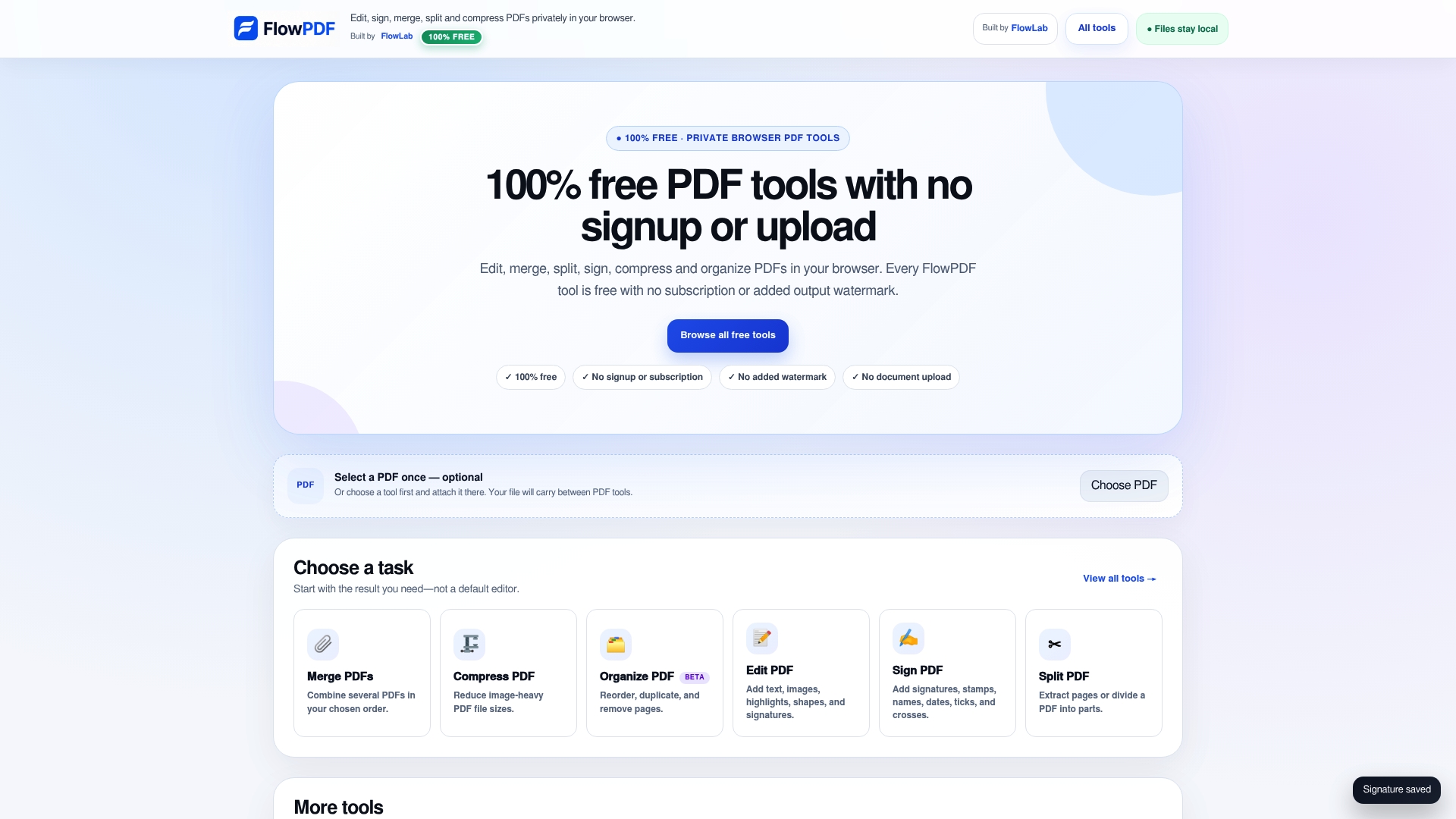
Start with the Compress PDF tool. If you also need to sign the document before sending, the Sign PDF tool works the same way, without uploading the file.
Our perspective on emailing PDFs
Most advice about emailing a large PDF starts with "upload it here". We think that is the wrong first step. The files people struggle to email are often the ones they care about most: contracts, applications, financial records. Sending those to an unknown server just to make them smaller adds a risk that the task never needed.
That is why we built FlowPDF to process files in your browser. Compressing, merging and trimming are things your own device can do. You keep control of the document from the first click to the moment you attach it.
Our advice is to work in this order: remove what the recipient does not need, merge what belongs together, compress once from the original, and check the pages that matter. It takes a few minutes and it avoids the bounce-back, the follow-up email and the second attempt.
Because FlowPDF is free, with no signup and no watermark, you can do all of that without a subscription or an account standing between you and your file.
Ronald Ang
If the compressed PDF is still too large
Some files stay big however well you compress them: long scanned books, drawing sets, large image portfolios. You have three practical options.
Split the file. Divide the PDF into parts and send each in its own email. Keep each part within your target, and name them clearly, for example "Report part 1 of 3".
Use a share link. Upload the file to cloud storage and email a link instead. Gmail already does this automatically when an attachment goes over the limit, and Outlook.com offers OneDrive sharing for files up to 2 GB. If you want to understand how link sharing works in practice, here is a guide on how to share a document by link.
Use a file transfer service. These are built for large files and often let you set an expiry date for the download.
With links, treat access as part of security. Check who can open the link, whether it expires, and whether you want a password on the PDF itself. You can add a local password with FlowPDF before you share it.

What to check before sending a confidential PDF
Compression changes the file, so give it a last look before it leaves your outbox.
- Open the compressed copy, not the original, and scroll through every page.
- Check the recipient's address twice. A misdirected contract is a bigger problem than a large one.
- Remove what is not needed. Redact personal details, and clear hidden metadata if the file came from a shared draft.
- Protect it if it is sensitive. A password sent through a different channel, such as a message app, is better than sending both in the same email.
- Keep the original in a safe place, in case you need to send a higher quality version later.
- Confirm receipt for time-sensitive documents. A bounce-back does not always arrive, and a recipient's server can reject a message after yours accepted it.
FAQ
How do I compress a PDF to fit Gmail's limit?
Gmail allows 25 MB per message, but encoding adds about 33%, so aim for roughly 18 MB or less across all attachments. Compress the PDF in your browser, check the new size, and attach it. If the total is still over, Gmail turns the attachment into a Google Drive link.
Why is my PDF too large to email even though it is under 25 MB?
Attachments are encoded when they travel, which makes them about a third larger. The recipient's server can also have a lower limit than yours. A 22 MB file can therefore be rejected. Compress it to a safer size and count every attachment in the message.
Can I reduce PDF size for email without uploading it?
Yes. FlowPDF compresses the file inside your browser, so it is not sent to a server. That makes it a good fit for contracts, statements and ID documents. You do not need an account, and no watermark is added.
Will compressing a PDF make the text blurry?
Text usually stays sharp because it is small to store. Images and scans are what shrink, so they may look softer. Compress once from your original file, then zoom in on signatures, tables and small print to confirm they are readable.
What if the file is still too big after compression?
Try removing or extracting pages first, then compress again from the original. If it is still too large, split it into parts, send a cloud storage link, or use a file transfer service.
Sources
- Send attachments with your Gmail message, Google Support
- Send limits in Outlook.com, Microsoft Support
- Attachment and message size limits for different mailbox providers, Suped
- Maximum email size and attachment, Exabytes.SG
- Shared Hosting: Email Size, Casbay Singapore
- Attachments, Postman email API guide