The fastest way to compress a PDF on Android is through a dedicated app, a browser-based local tool like FlowPDF, or Android's built-in Print-to-PDF trick. For anything sensitive, pick a browser tool that processes files locally instead of uploading them. Whichever route you choose, always check that the smaller file still opens cleanly and reads clearly before you send it.
TL;DR:
- Browser-based local tools like FlowPDF offer the best privacy for sensitive documents by processing files entirely on the device without uploads.
- Dedicated apps handle batch processing more efficiently but require storage permissions and may upload files without user awareness.
- For quick, one-off compressions, using a browser tool is faster and avoids clutter, while previewing results ensures readability before sharing.
- Compressing to a target size of 300 to 500 KB is ideal for email and upload portals, with resolution adjustments critical for scanned pages.
- Always keep the original file uncompressed and verify the compressed version's clarity to prevent loss of important details or signatures.
Table of Contents
- Android App vs. Browser Tool vs. Built-In Workflow: Which Should You Use?
- How Do You Compress a PDF Using an Android App?
- How Do You Compress a PDF on Android Using a Browser Tool Like FlowPDF?
- Which Compression Preset Should You Choose?
- Where Do Compressed PDFs Go, and What If the Result Looks Bad?
- Why Local Processing Matters for Privacy and Reliability
- What I'd Actually Recommend
- Try FlowPDF's Compress Tool Right Now
- Sources
- FAQ
Android App vs. Browser Tool vs. Built-In Workflow: Which Should You Use?
Each method trades convenience for something else. An installed app gives you offline batch processing but asks for storage permissions and shelf space on your phone. A browser tool skips the install entirely and, when it runs locally, never sends your document anywhere. Android's own Print-to-PDF option needs no extra software but gives you almost no control over the result.
Here's how the three stack up on the factors that actually matter:
- Privacy: Browser tools that use local, in-device processing (via WebAssembly) never touch a server, which makes them the safer pick for contracts, medical records, or financial statements. Apps vary. Some compress on-device; others quietly upload your file.
- Batch processing: Dedicated apps usually win here, letting you queue several files at once. Browser tools typically handle one file per pass.
- File-size control: Some mobile tools let you dial in an exact target, like 300 KB or 1 MB, and preview the result before saving, which beats guessing with a generic "low/medium/high" slider.
- Permissions and storage: Apps request Files access and eat storage space. Browser tools need neither.
For a quick one-off share, use the browser. For a folder full of scanned invoices, an app's batch mode saves time. For anything you'd rather not put anywhere near a stranger's server, local processing is the only sensible default.
How Do You Compress a PDF Using an Android App?
Most compressor apps follow the same basic flow, whether you're using a standalone shrinker or a broader PDF suite.
- Open the app and import your file. Tap the import button and pull the PDF from your Files or Downloads folder, or use Android's Share menu directly from another app.
- Clean up the document first. Rotate sideways pages, crop dead space, and delete any pages you don't need. A leaner file compresses better and faster.
- Choose a compression preset or target size. Pick from options like "small," "medium," or a specific size such as 500 KB, depending on what the app offers.
- Preview the result. Zoom into text-heavy pages and any images or diagrams to confirm they're still legible.
- Save or export. Export to Downloads, or share directly to email, Drive, or a messaging app.
- Verify readability one more time after saving, especially if the file contains fine print or scanned signatures.
Pro Tip: Always compress a copy of your file, never the original. If a preset compresses too aggressively and turns your text blurry, you'll want the source file intact to try again with a gentler setting.
How Do You Compress a PDF on Android Using a Browser Tool Like FlowPDF?
Browser-based compression skips the app store entirely. Open FlowPDF's compress tool in Chrome or any mobile browser on your Android phone, and you're compressing within seconds.
- Open the compress page in your mobile browser and tap to select a file.
- Choose your file through the Files picker, the same system dialog Android uses for any file selection.
- Pick a compression preset or target size, depending on whether you need a quick shrink or a specific file size for an upload portal.
- Compress. This step runs entirely inside the browser. Nothing gets sent to a server, which matters if the document contains anything personal.
- Save the result to Downloads, ready to attach to an email or share through any app on your phone.
This local, no-upload model works because modern browsers can run genuine file-processing code, not just display webpages. That's a meaningful difference from a compressor that quietly ships your file to a remote server and sends back a smaller version.
Before you share the output, run through a short checklist:
- Keep the original file until you've confirmed the compressed version works.
- Open the compressed PDF and check that body text and any signatures are still sharp.
- If text looks fuzzy, go back and pick a milder preset. You'll get a slightly larger file, but one that's actually usable.
Pro Tip: If your document has both dense text and a few photos, try compressing it twice at different presets and compare file sizes side by side before you decide which one to send.
Which Compression Preset Should You Choose?
Compression presets work by removing duplicate fonts and images, shrinking image resolution, and stripping out unused objects buried in the PDF's structure. The preset you pick determines how aggressively those steps run, and that directly affects how the file looks afterward.
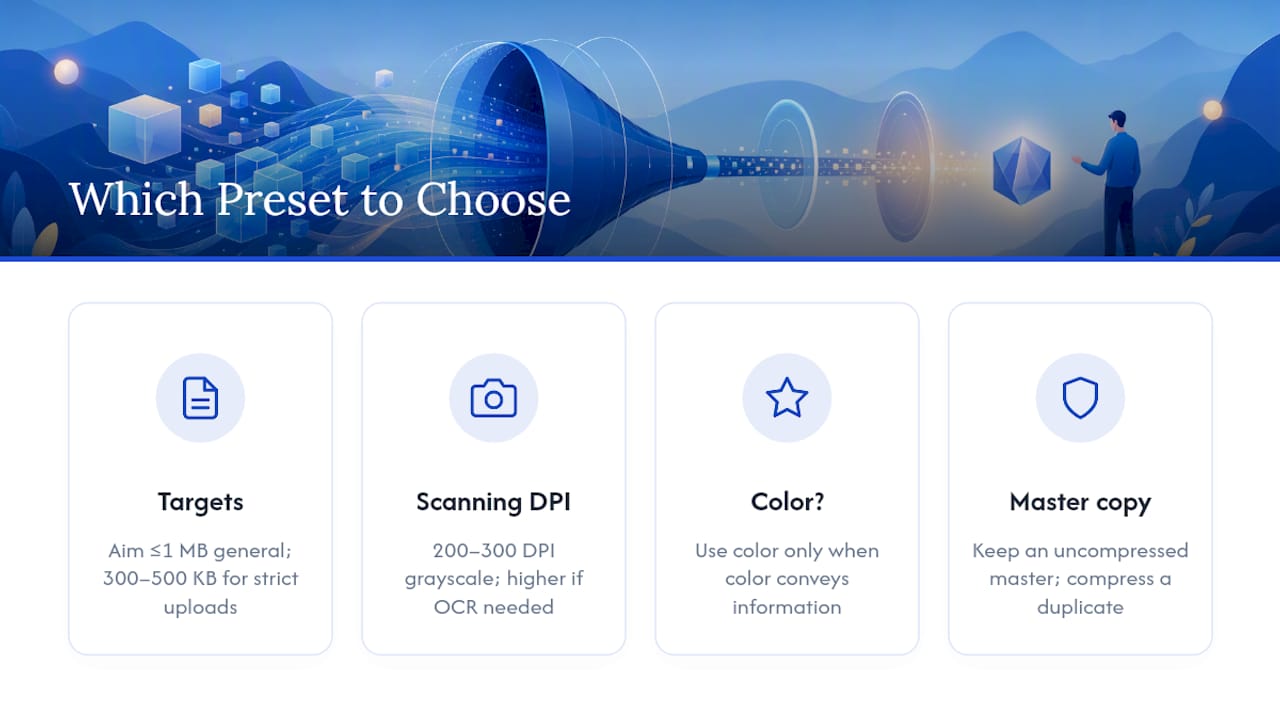
As a rule of thumb: aim for 1 MB or under for general email attachments, and 300 to 500 KB when you're dealing with a strict upload portal, like a job application or a government form. If the document is something you'll need again later at full quality, such as a signed contract, keep an uncompressed master copy somewhere safe and only compress a duplicate for sending.
For scanned pages, resolution matters more than most people realize. 200 to 300 DPI in grayscale is plenty for readable text, and color scanning should be reserved for documents where color actually carries information, like a diagram or a highlighted section. Push resolution too low, and you'll notice it fastest in scanned signatures, small print, and technical diagrams with fine lines. If the file needs to run through OCR later, err toward the higher end of that range. Aggressive compression can blur character edges just enough to trip up text recognition.
Where Do Compressed PDFs Go, and What If the Result Looks Bad?
Compressed files usually land in one of two places: your Downloads folder if you used a browser tool, or an app-specific export folder if you used an installed app. Either way, Android's Files app is the fastest way to track them down, rename them, or move them somewhere easier to find later.
If the output looks blurry or text is hard to read, don't panic:
- Restore the original file (this is why you never overwrite it).
- Retry with a milder compression preset.
- If the file is a scan, crop and straighten the pages before compressing again. A skewed or badly cropped scan compresses worse and looks worse afterward.
When sharing, remember that WhatsApp and some email providers cap attachment sizes, so a file that's fine for Gmail might still bounce elsewhere. Hold onto the master file until the recipient confirms they can open and read the compressed copy without issues.
Why Local Processing Matters for Privacy and Reliability
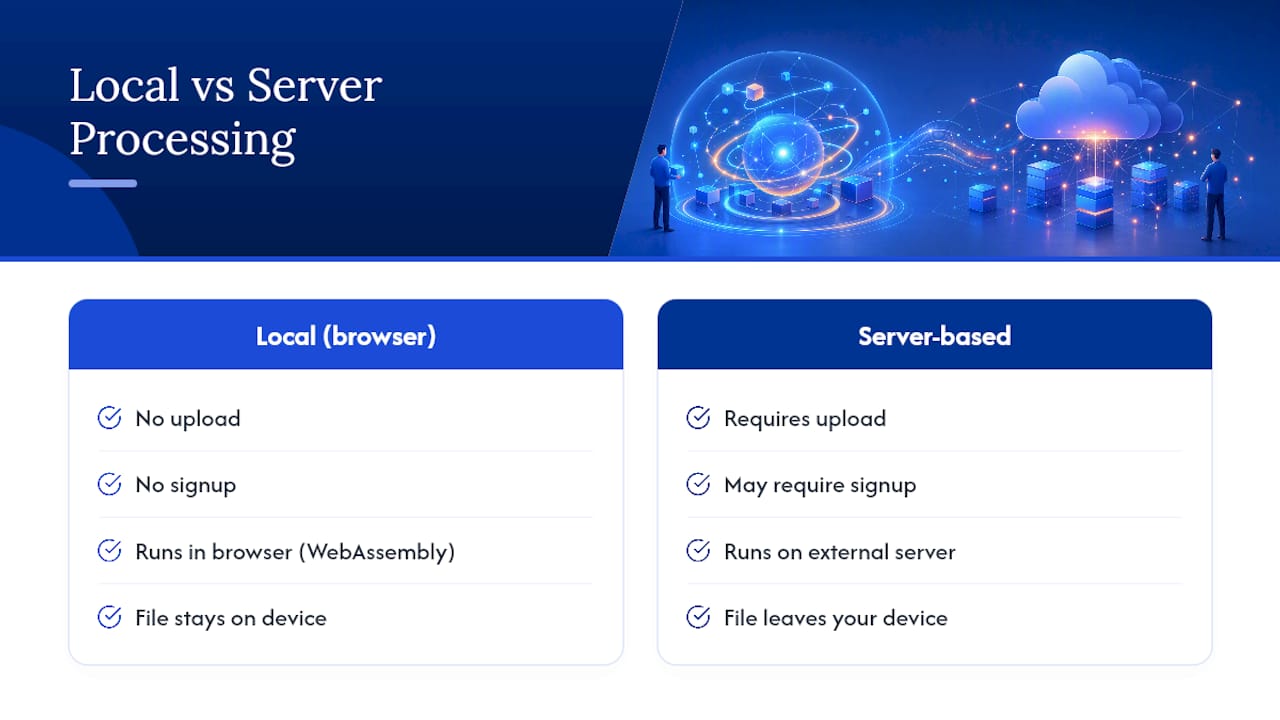
Some browser-based PDF tools compress files directly in your browser, with no upload and no signup required. That local-processing model, built on browser technology that lets WebAssembly-based tools run heavy file operations on-device, means your document never sits on an external server. For anything sensitive, that's often the safer choice over a server-based compressor.
What I'd Actually Recommend
If the document is a boarding pass or a flyer, use whatever's fastest. But for anything with your name, an address, a signature, or financial details, I default to local browser processing every time. It's not about distrusting every app on the Play Store. It's that you have no easy way to verify what happens to your file once it leaves your device. When speed matters more than sensitivity, like batch-processing a folder of scanned receipts, an app's batch mode is the more practical choice.
— Ronald Ang
Try FlowPDF's Compress Tool Right Now
There are browser tools available as alternatives to app-store compressors and upload-based web tools for anyone who'd rather not send a document to a server they can't see inside. Some of these run compression jobs locally in your browser, requiring no signup, adding no watermarks, and having no hidden upload step.

Getting started takes about as long as reading this sentence: open FlowPDF's free PDF tools on your Android phone, tap the compress tool, and pick a file. Try it first with something low-stakes, like an old receipt or a flyer, so you can see the size and quality tradeoff for yourself before you trust it with anything more important. Once you're comfortable with the workflow, the same local-processing approach carries over to merging, splitting, and signing PDFs, all without ever leaving your browser.
Sources
- Compress, Scan, and Prepare PDFs from your Android phone | PDF Ready
- Compress PDF on Android — Chrome Mobile Workflow (2026) | RatPDF
- Compress PDF online for free — privacy and local processing discussion
FAQ
How Do I Lower the MB Size of a PDF on Android?
Use a compressor app or a browser tool, import the file, choose a compression preset or target size like 500 KB, and export the result. Tools that let you preview the output before saving help you avoid over-compressing text or signatures.
What Is the Best PDF Compressor App for Android?
The best fit depends on what you need. A batch-capable app suits large scan libraries, while a browser tool like FlowPDF suits one-off files where privacy matters, since it processes everything locally with no upload.
How Can I Compress a PDF File to Reduce Its Size Without Losing Readability?
Downsample images to around 200 to 300 DPI for text-based scans, and keep color scanning only where color adds information. Always preview the compressed file at full zoom before sharing it to confirm text and signatures still look sharp.
How Do I Reduce File Size on Android for Sharing?
Compress the file first using an app or browser tool, then check where it saved (usually Downloads), and share directly from your Files app or the tool's own share button. Keep the uncompressed original until your recipient confirms the smaller version opened correctly.
Does FlowPDF Cost Anything to Compress PDFs on Android?
FlowPDF's compression tool is free to use, with no signup or watermark. Current details on its full suite of PDF tools are available directly on the site.