
The fastest way to reduce a PDF to 1MB is to use a compressor with a "1MB" or custom-size target, since most tools progressively strip metadata, downsample images, and compress fonts until your file fits. For anything sensitive, like ID scans or contracts, pick a local, no-upload compressor such as FlowPDF. It's free, skips the watermark, and never sends your document to a server. Always double-check the final size before submitting.
TL;DR:
- Setting your compression target slightly above 1MB, such as 1.2MB, can better preserve image quality while meeting upload limits.
- Using a browser-based compressor with a custom size setting streamlines hitting the exact file size needed without software installs.
- Reducing high-resolution images to 150 DPI or converting color images to grayscale can significantly lower file size without sacrificing readability.
- Rasterizing a PDF to reduce size sacrifices text searchability and should only be used as a last resort when other methods fail.
- For sensitive documents, local compression tools prevent uploading files to servers, maintaining privacy and security during the process.
Table of Contents
- How to Reduce a PDF to 1MB Step by Step
- When Do You Actually Need a PDF Under 1MB?
- Why Won't My PDF Compress Below 1MB?
- What to Do When Compression Alone Isn't Enough
- Why Local, No-Upload Compression Is the Smarter Default
- Compress Your PDF With FlowPDF in Seconds
- Useful Links for Compressing and Managing PDFs
How to Reduce a PDF to 1MB Step by Step
You don't need special software to hit an exact size target. Most modern compressors, including FlowPDF's compress tool, let you set a numeric goal instead of guessing which quality slider gets you there.
Here's the process:
- Open your compressor. Use a browser-based tool so you're not waiting on installs.
- Upload your PDF. With a local tool, this step keeps the file on your device rather than sending it anywhere.
- Set your target. Choose the "1MB" preset if one exists, or type a custom size like 1000 KB.
- Pick a compression level. Start with "recommended" before jumping to "extreme."
- Run the compression. This usually takes a few seconds for a typical document.
- Download and verify. Check the file size and open a few pages to confirm the text and images still look right.
Compression levels matter more than most people realize. "Basic" mode typically only strips metadata and unused objects, which barely changes size but keeps quality untouched. "Recommended" adds image downsampling, the sweet spot for most documents. "Extreme" pushes into rasterization territory, useful only when recommended mode isn't enough.
A few practical notes on execution:
- Use Wi-Fi instead of mobile data if your file is large. Uploads to cloud-based tools can stall on weak connections.
- Work on a desktop when compressing scanned documents over 20MB. Phones can struggle with the processing load.
- If your result lands at 1.3MB or 1.4MB, don't panic. Rerun the compression at a slightly more aggressive level, or manually pick a target of 900 KB instead of 1000 KB to give yourself a buffer.
Some tools use presets ranging from 2MB down to 200KB, and picking a target slightly above your hard limit, say 1.2MB instead of exactly 1MB, can preserve more visual quality if the recipient's system tolerates small variance. Always ask if the portal enforces the cap strictly before you gamble on that extra buffer.
When Do You Actually Need a PDF Under 1MB?
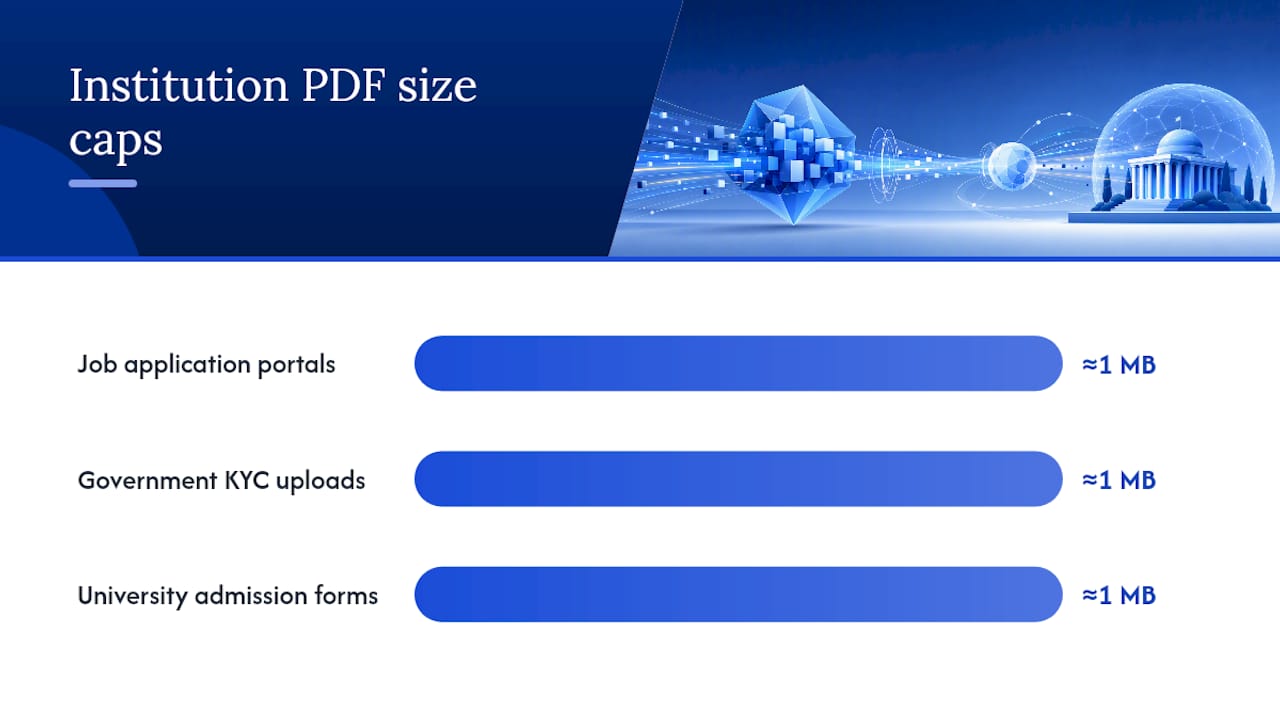
The 1MB ceiling isn't arbitrary. Job application portals, government KYC uploads, and university admission forms frequently cap individual attachments at about 1MB to keep their servers from getting flooded with oversized files.
The distinction between per-file and per-application limits trips people up constantly. A portal might allow several attachments each with a 1MB limit, but if you try to submit one combined multi-megabyte PDF instead, it gets rejected even though the total data isn't wildly different.
Here's when the 1MB target really matters versus when you have some breathing room:
- Strict when: ID verification systems, resume/CV upload fields, and automated form processors that reject anything over the stated limit.
- Flexible when: Email attachments (most inboxes handle 10 to 25MB fine) or shared drive links, where 1MB is more of a courtesy than a rule.
- Quality-first when: The document needs OCR or must stay searchable, since aggressive compression can undermine both.
If a form specifically needs text you can search or copy, don't over-compress. A 950KB rasterized scan that looks fine but can't be searched may cause more problems than a 1.1MB file with intact, selectable text.
Why Won't My PDF Compress Below 1MB?
Four culprits usually explain a stubborn file: too many high-resolution images, embedded fonts baked into every page, a long page count, or a scan saved at a DPI far higher than needed for screen viewing. A 40-page scanned contract at 300 DPI can easily run 15MB before you touch it.
The fix sequence works best in this order, since each step is progressively more aggressive:
- Strip metadata and unused objects first. This is lossless and costs you nothing in quality.
- Downsample images to a lower resolution, usually 150 DPI is plenty for screen reading.
- Convert color images to JPEG or grayscale where color isn't essential to the content.
- Remove unused embedded objects, orphaned form fields, or leftover annotation layers.
- Flatten transparency layers and linearize the file for faster loading.
- Rasterize as an absolute last resort, only when nothing else gets you under the limit.
That last step deserves a warning. Rasterization converts each page into an image, which means the text you could previously select, copy, or search is gone. Your document will look nearly identical, but a computer can no longer read the words on the page. That matters if a portal runs automated text scanning on your submission.
Pro Tip: Always keep your original PDF before compressing. Preview compressed pages at 100% zoom, not the shrunken thumbnail view, so you actually catch blurry text or pixelated logos before you submit the file.
What to Do When Compression Alone Isn't Enough
Sometimes the math just doesn't work, no matter how aggressively you compress. When that happens, these fallbacks usually solve it:
- Split the file. Use a tool like FlowPDF's split PDF feature to save only the pages the recipient actually needs, then upload the smaller chunk.
- Crop or remove heavy images. Trim wide margins or delete decorative graphics that add bulk without adding information.
- Convert to grayscale. If color isn't required, this alone can cut image weight substantially.
- Lower the scan DPI before compressing rather than after, since starting from a smaller source file gives the compressor less to fight.
- Contact the recipient. If none of this closes the gap, ask whether they accept a shared link or a slightly larger file. Many portals have quiet exceptions for edge cases.
Splitting often beats repeated re-compression on the whole document anyway, since smaller per-file uploads preserve quality better than squeezing one large file down repeatedly.
Why Local, No-Upload Compression Is the Smarter Default
Sending a scanned passport or signed contract through a server you don't control is a risk most people don't think about until it's too late. Local, in-browser processing keeps that file on your own device the entire time, which matters a lot for anything tied to KYC or identity verification.

FlowPDF handles compression this way by design: no server upload, no signup wall, and no watermark stamped across your output. That's rare among free tools, and it turns a one-off compression task into something you can also use for merging, splitting, or signing later, all in the same browser tab.
— Ronald Ang
Compress Your PDF With FlowPDF in Seconds
FlowPDF is the privacy-first alternative to upload-based compressors: your file never leaves your device, so there's no server queue, no account wall, and no watermark stamped on the result you send off.

Head to the FlowPDF compress tool and drop in your file to see the local compression run in real time, right in your browser tab. If your document also needs trimming down page by page, the organize PDF tool lets you delete or reorder pages before you compress, which often gets you closer to 1MB with less quality loss than compression alone. Try compressing your next file at Flowpdf and see the size drop before you even think about uploading it anywhere.
Useful Links for Compressing and Managing PDFs
Beyond compression, FlowPDF's split tool and crop tool help trim files further. If you need to recombine pages after editing, Pingfloat's combine tool handles that without an upload step either.