The best PDF compressor for most people is a browser-based tool that never uploads your file. A browser-based tool fits that bill for free. It works because local processing keeps sensitive documents on your device, the compression is watermark-free, and the controls are simple enough to use without a manual. The one exception: signed or archival PDFs need a different sequence, which we cover below.
TL;DR:
- Compressing heavily image-based PDFs yields more size reduction than text-only documents, but further lossy compression can introduce noise in pre-JPEG images.
- Local, browser-based tools like FlowPDF process files on your device, avoiding uploads and maintaining privacy, which is critical for sensitive or signed PDFs.
- Recompressing signed PDFs can invalidate their cryptographic signature; compress before signing or keep signed originals untouched for size adjustments.
- For files that don't shrink enough, splitting the document, removing unnecessary pages, or converting images to grayscale can improve size without sacrificing quality.
- Always verify compressed PDFs by checking page counts, link functionality, and image fidelity before trusting or distributing the file.
Table of Contents
- What Actually Affects Your Compressed PDF's Size
- How to Compress a PDF Without Wrecking It
- Why Compressing a Signed PDF Can Break It
- When Shrinking the File Isn't Enough
- Should You Upload Your PDF or Keep It on Your Device?
- Why FlowPDF Fits the Criteria That Actually Matter
- How Do Popular PDF Compressors Actually Compare?
- My Take: The Routine I'd Actually Follow
- Compress Your Next PDF Without Uploading a Single File
- Sources
- FAQ
What Actually Affects Your Compressed PDF's Size
Not every PDF compresses the same way. A scanned brochure full of photos has far more room to shrink than a text-first contract, because image and font handling drive most of the savings, and some optimization steps can even make a file larger if they're applied to the wrong content type, according to PDF Association research. If your PDF already contains heavily JPEG-compressed images, running another lossy pass usually adds noise without cutting size.
The other variable that matters more than most people realize is where the compression actually happens. A server-based tool uploads your document to a remote system before shrinking it. A browser-based tool like FlowPDF's compress PDF tool processes the file locally, so nothing leaves your machine.
When you're comparing options, check for:
- Adjustable quality levels, not just one generic "compress" button
- Both lossy (image recompression) and lossless (container cleanup) modes
- A stated maximum file size or page count
- Batch processing if you're handling multiple files
- Speed and a way to preview or verify the result before you save it
How to Compress a PDF Without Wrecking It
Compression is safe when you follow it in order, and risky when you skip the verification step. Here's the routine that keeps you from finding out your links are broken after you've already sent the file.
- Duplicate the original first. Never run compression on your only copy.
- Pick the mildest setting that hits your size target. Don't jump straight to maximum compression because it's available.
- Open the result and check it. Page count should match, text should still be selectable and searchable, links and form fields should work, and images should hold up at 100% zoom.
- Print a sample page. Screen quality and print quality aren't the same thing, especially with photos or fine text.
- If it's still too big, don't crank the compression further. Consider splitting the document or removing unneeded pages before you sacrifice more image quality.
Keeping the original matters because a compression pass can strip metadata, flatten interactive elements, or change how fonts are embedded, per pypdf's file-size documentation. A smaller file that lost its form fields isn't actually a win.
Pro Tip: Size in megabytes is not the whole story. A file that dropped from 4 MB to 1 MB but now shows blurry scanned text failed the job even though the number looks great.
Why Compressing a Signed PDF Can Break It
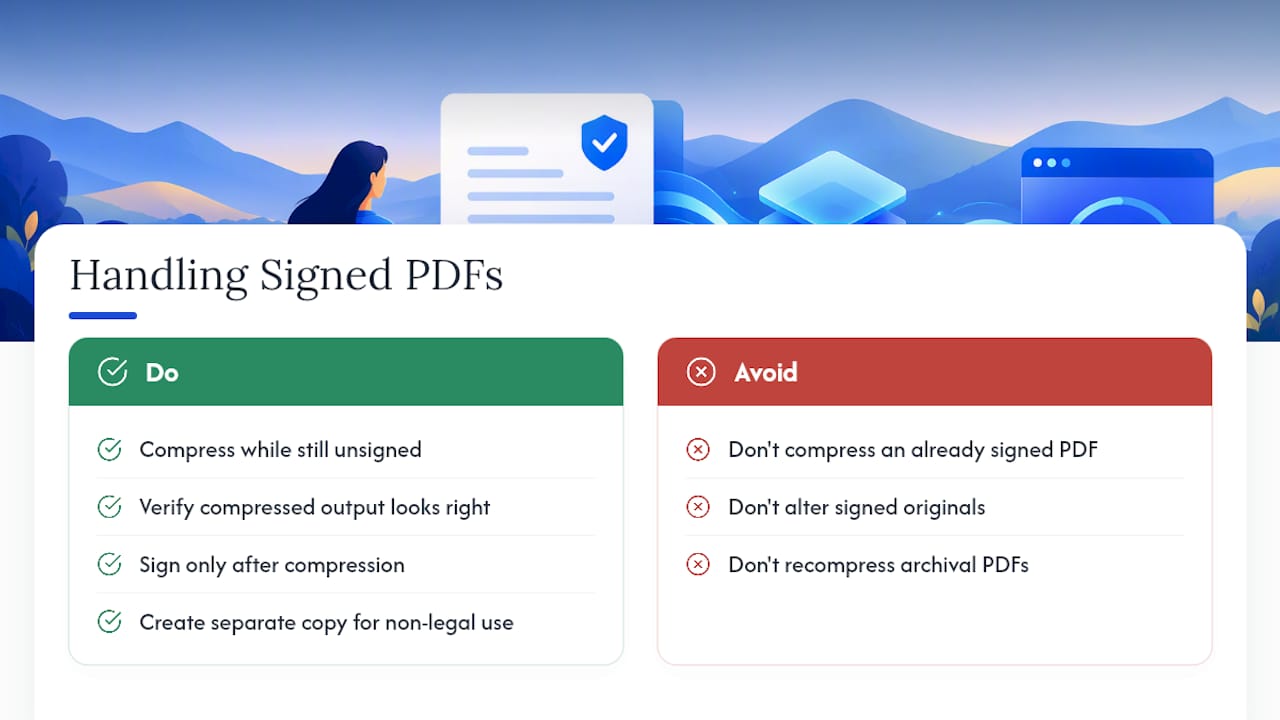
Signed PDFs play by different rules. A digital signature is a cryptographic seal tied to the exact bytes of the file at the moment it was signed. Compress that file afterward, and you change those bytes, which can invalidate the signature check entirely, according to ETSI's PAdES signature standard.
The fix is sequencing, not avoidance. Compress the document while it's still unsigned, verify the output looks right, and only then apply the signature. FlowPDF's sign PDF tool is built for that order: compress first, sign last. If a document is already signed and you need it smaller, treat the signed original as untouchable and generate a separate copy for non-legal use instead. Archival PDFs deserve the same caution. Once a document is fixed for long-term storage or compliance, recompressing it later risks the very properties that made it valid in the first place, per PDF Association technical guidance.
When Shrinking the File Isn't Enough
Sometimes compression hits a wall. A 40-page scanned report with dense photos may only drop so far before text turns fuzzy, and that's the point to change tactics instead of pushing the quality slider lower.
- Split the file if a strict upload limit is the real constraint, not overall quality. A 60-page contract split into three parts each under the cap beats one blurry file.
- Remove pages you don't need to send, like cover sheets or appendices, before you touch image quality.
- Downsample or convert to grayscale for internal drafts where color and resolution don't matter.
FlowPDF's organize PDF and split PDF tools handle both moves locally, so you're not uploading a document just to cut it down to size.
Should You Upload Your PDF or Keep It on Your Device?
Uploading a PDF to a server hands it to a third party, even briefly, and that carries real exposure for anything confidential: contracts, medical records, financial statements. Convenience is real, but so is the risk. For sensitive files, local or browser-only processing is the safer default because the document never leaves your device, per Datalogics' guidance on PDF optimization.
If you do use an online tool, verify three things before you trust it with anything private: encryption in transit, a clear retention and deletion policy, and an explicit statement that files aren't stored or used to train models.
One in the pool of upload-based tools quietly reserves the right to retain files for a set period, which most users never read past the upload button. Browser-based tools sidestep that question entirely, since there's nothing sitting on a server to retain.
Why FlowPDF Fits the Criteria That Actually Matter
Every criterion above points the same direction: local processing, adjustable quality, no hidden cost. Some browser-based PDF processors run entirely inside your browser, so compression happens on your device with no upload step, and no server ever sees the file.
The tool set often goes beyond compression too. Merge, split, edit, and organize functions can be available at no cost, with no watermark stamped on the output and no signup wall blocking the download. That combination matters most for people handling sensitive material on a deadline: freelancers compressing signed contracts before email, small businesses shrinking scanned invoices for a client portal, or anyone stuck under a strict upload limit with a document that just won't fit. You get the same control a paid desktop tool offers, without the account creation or the subscription prompt.
How Do Popular PDF Compressors Actually Compare?
Most PDF compressors fall into three broad categories, and knowing which one you're using tells you what to expect.
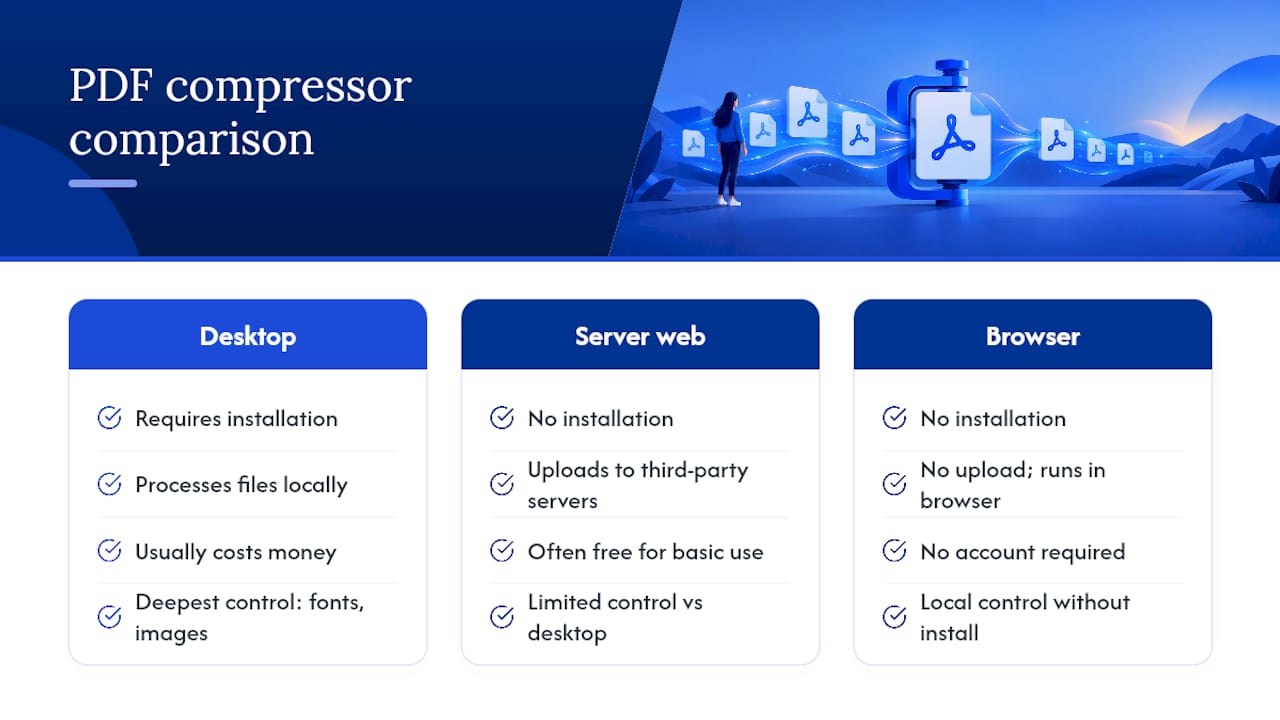
Desktop software tends to offer the deepest control, including manual font subsetting and precise image resampling, but it usually costs money and requires installation. It's the right call if you compress large volumes of files daily as part of a print or publishing workflow.
Server-based web tools are convenient and often free for basic use, but every file passes through someone else's infrastructure first. That trade-off is fine for a flyer you're about to post publicly. It's a worse fit for a signed lease or a tax return.
Browser-based tools, FlowPDF among them, split the difference: no installation, no account, and no upload, because the compression engine runs in your browser using your device's own processing power. The trade-off is that very large batch jobs may run a bit slower than a beefy desktop app.
Under the hood, most compressors lean on library-level tools. The pypdf project, for instance, documents real reductions using content stream compression, in one case cutting a file from 11.8 MB down to 3.5 MB, though that kind of page-level compression is CPU-intensive and font optimization can fall outside some tools' reach, per pypdf's documentation. The takeaway for choosing a tool isn't the brand name. It's whether the tool tells you what it actually did to your file, and lets you check the result before you rely on it.
My Take: The Routine I'd Actually Follow
Skip the debate over which compressor claims the biggest percentage reduction. Copy the original, apply a mild compression pass, open the result and actually check it, then sign only after you're satisfied. That order avoids the two mistakes I see constantly: people overwrite their only copy, and people judge success purely by the megabyte drop without opening the file. The other one worth naming directly: compressing a document that's already signed, then wondering why the signature check fails later. Fix the order, not the compression setting.
— Ronald Ang
Compress Your Next PDF Without Uploading a Single File
Some PDF tools give you the criteria this guide just walked through: compression that runs locally in your browser, sometimes free, and may or may not include a watermark on the output. You also get split, organize, and merge tools sitting right next to compression, so a file that needs more than one fix doesn't send you hunting for a second app.

Start with the compress PDF tool. Drag your file in, choose a mild compression level first, and check the output before you commit to anything stronger. If compression alone doesn't get you under a size limit, the full toolkit is one click away on the free PDF tools page, ready whenever your document needs more than a smaller file size.
Sources
For deeper technical grounding, the PDF Association's optimization research breaks down where real savings come from. pypdf's file-size documentation covers verification practices in detail, and Datalogics' overview of PDF optimization explains the trade-offs between fidelity, size, and privacy.
- Putting a Squeeze on your PDF (PDF Association, 2022)
- pypdf — file size guidance
- PDF optimization (Datalogics)
- EN 319 142-1 PAdES digital signatures (ETSI)
FAQ
What Is the Best Free PDF Compressor?
FlowPDF is a strong choice because it compresses files locally in your browser with no upload, no watermark, and no signup required. It suits most everyday compression needs, from resumes to scanned invoices.
Does Compressing a PDF Reduce Text Quality?
No, text usually stays sharp because compression mainly targets images and file structure, not text characters themselves. Always verify by zooming in and checking that text is still selectable after compression.
Can I Compress a Signed PDF Without Breaking the Signature?
Compressing a signed PDF risks invalidating its cryptographic signature because the process changes the file's underlying bytes, according to ETSI's PAdES standard. Compress the document before signing, or keep the signed original untouched and create a separate copy if you need a smaller file.
Is It Safe to Upload a PDF to an Online Compressor?
It depends on the document and the tool's policy on encryption and retention. For confidential files, local or browser-based processing is the safer route since the file never leaves your device, per Datalogics.
How Do I Know if My Compressed PDF Still Works Correctly?
Check that the page count matches, text is still selectable, links and form fields function, and images hold up at 100% zoom. A test print catches quality issues that screen previews may miss, following the checklist in pypdf's guidance.