Most PDFs can be brought down to 200 KB, even scanned documents and image-heavy files, without gutting readability. Your fastest path is an in-browser local compressor that resizes images and strips excess data without uploading the file anywhere. Aim for a target closer to 180 KB rather than exactly 200 KB. Strict upload portals often reject a file that lands even a few kilobytes over their stated cap.
TL;DR:
- Reducing a PDF to 200 KB is achievable by using browser-based compressors that resize images and remove unnecessary data without uploading files to external servers.
- For image-heavy PDFs, lowering image resolution and re-encoding photos as JPEG typically offers the largest size reduction, sometimes over 80 percent.
- Text-based files can be significantly reduced by stripping embedded fonts, removing unused objects, and deleting metadata, with the best approach depending on the file type.
- Combining multiple tweaks—such as cropping, page removal, font subsetting, and DPI reduction—usually achieves the size goal within two or three compression attempts.
- Always keep an uncompressed copy before iterative compression, and verify that critical text remains selectable to avoid converting it into a flattening image.
Table of Contents
- How to Reduce PDF to 200KB: Three Methods That Actually Work
- Step-by-Step: Compress a PDF to 200KB Using FlowPDF
- Is Your PDF Image Based or Text Based?
- Still Over 200KB? A Troubleshooting Checklist
- Quality, Privacy, and Acceptance Rates: What Actually Matters
- Compress, Crop, and Iterate Without Ever Uploading a File
- Tools and Resources Referenced
- Sources
- FAQ
How to Reduce PDF to 200KB: Three Methods That Actually Work
Not every PDF gets small the same way. A scanned tax form and a ten-page text contract have completely different size problems, so the fix depends on what's actually bloating the file.
Method A: In-browser local compressors. This is the fastest route for most people. Tools that run entirely in your browser re-encode images and rebuild the file client-side, which means nothing leaves your device while it works. Browser-based compressors can rasterize pages and re-encode them to hit a specific file-size target without a server round trip, which is both quicker and safer for anything containing personal information. Start here for almost any file type.
Method B: Reduce image resolution and re-encode photos. If your PDF is really a stack of scanned pages or photos wrapped in a PDF shell, the images are your problem, not the text. Dropping DPI and re-compressing as JPEG usually cuts size dramatically. A first pass of compression often reduces size substantially for image-heavy PDFs, sometimes by 80% or more, while text-only files barely budge from the same treatment.
Method C: Remove pages, subset fonts, strip metadata. For text-heavy contracts, reports, or layered design files, the bulk often hides in embedded fonts, unused objects, and metadata you never see. Recreating the file from source or stripping these extras helps more than any image tweak.
A quick way to decide which method fits your file:
- Scanned ID, receipt, or photo grid: start with Method B (DPI reduction).
- Multi-page report or Word-to-PDF export: start with Method C (font subsetting, metadata removal).
- Anything else, or when you're not sure: start with Method A and see how far it gets you.
Most people only need one method. Combine two only when the first pass doesn't clear the 200 KB bar.
Step-by-Step: Compress a PDF to 200KB Using FlowPDF
Here's the workflow to follow when you need a specific, predictable result rather than a vague "smaller" file.
- Open the FlowPDF compress tool and drop in your file. Processing happens locally in your browser, so the document never touches a server.
- Pick a compression level or target size if the tool offers one, then run the compression pass.
- Check the resulting file size immediately. If it's still above 200 KB, don't just run the same pass again.
- Remove blank or unnecessary pages using a page removal tool, crop out excess white margins with a cropping tool, then reduce image quality or DPI before compressing a second time.
- Verify the final size, then open the file and try to highlight text. If it highlights, your text survived. If not, you may have accidentally flattened it into an image.
Pro Tip: Keep your original, uncompressed file saved somewhere separate before you start. If a second or third compression pass overcorrects and text turns blurry, you'll want the clean source to start over instead of compressing a compressed file.
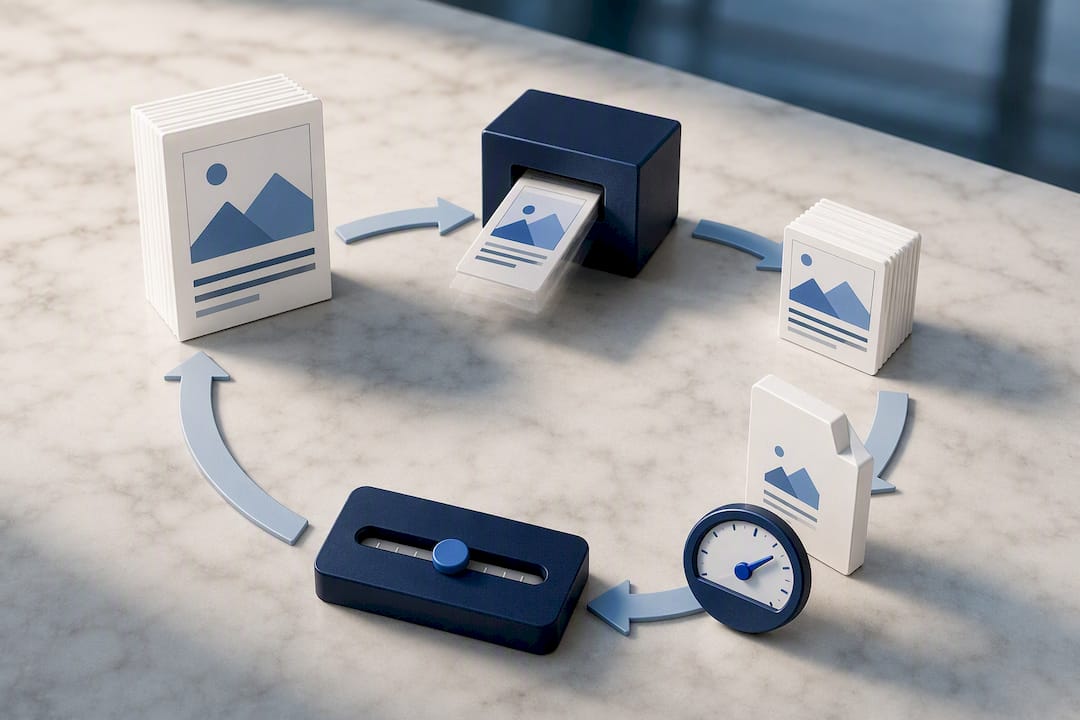
This loop, compress, check, adjust, recompress, usually gets even stubborn files under the limit within two or three tries.
Is Your PDF Image Based or Text Based?
This matters more than most people realize, because the wrong compression method can either do nothing or wreck the file.
Run a quick test before you touch any settings. Try to click and drag to select a sentence in the PDF. If a text cursor highlights individual words, you're dealing with a text-based file. If nothing highlights and the whole page acts like a single picture, it's image-based, likely a scan or a photo pasted into a document.
The distinction changes your whole approach:
- Image-based PDFs respond to DPI reduction, image re-encoding, and sometimes an OCR pass first if you also need the text searchable later.
- Text-based PDFs shrink through font subsetting, removing embedded fonts you don't need, and stripping redundant internal objects.
- Mixed PDFs (text with embedded photos or logos) usually need both: compress the images, then subset the fonts.
Avoid flattening selectable text into a rasterized image just to save space. Converting a text-based PDF into a flattened image only reduces size if you heavily downsample it, and doing so kills your ability to search or copy the text, which matters if the recipient needs to quote or extract from it later.
Still Over 200KB? A Troubleshooting Checklist
When a single compression pass doesn't get you there, work through this list in order rather than guessing:
- Strip metadata (author info, edit history, embedded thumbnails), which adds up more than people expect on files that have been edited many times.
- Flatten or subset fonts so the PDF only carries the exact characters it uses instead of the full font file.
- Delete unused objects and orphaned bookmarks left over from editing.
- Crop margins on scanned pages, since white space still gets encoded as pixel data.
- If the file is naturally long, consider splitting it into two documents with a split tool instead of over-compressing one file into illegibility.
Ghostscript-based online compressors and similar tools commonly suggest exactly these steps, cropping, page removal, DPI reduction, when a single pass doesn't reach a strict target. That's the same iterative loop worth following here: compress, check the number, adjust one variable, compress again.
On the safety margin: portals enforcing a hard 200 KB cap typically reject a file that exceeds it by even 1 KB. Build in a buffer and target 180 KB to 190 KB rather than cutting it exactly to the limit.
Quality, Privacy, and Acceptance Rates: What Actually Matters
The tension in PDF compression isn't really about tools. It's about which trade-off you're willing to accept first.
Most guides treat file size as a pure technical problem, but for sensitive documents, privacy comes before quality. A passport scan or medical form shouldn't sit on someone else's server while you wait for a download link. Local, client-side processing keeps the file inside your browser, which matters more for these documents than shaving an extra 10 KB off the final size.
Second, accept upfront that a strict 200 KB limit sometimes forces a real quality trade-off on image-heavy pages. That's fine for most submission portals. It's not fine if you need the document to remain legible on close inspection, so always keep your original file and re-check text selectability before you submit anything.
— Ronald Ang
Compress, Crop, and Iterate Without Ever Uploading a File
A convenient PDF workflow offers compression, cropping, page removal, and scanning tools without requiring an account, subscription, or watermark on the finished file. That's the real difference versus cloud converters: you're not sending a scanned ID or signed contract to a remote server just to make it smaller.

Start with the compress tool itself, then lean on the adjacent tools when one pass isn't enough. Crop dead margins with the crop tool, delete blank or unnecessary pages with the page removal tool, or rebuild a clean file from a physical document using scan to PDF. Every one of these lives on the same free PDF tools page, so you can chain steps together without switching services or re-uploading anything between passes. Open the compress tool now and run your file through it. You'll know within seconds whether one pass gets you under 200 KB or whether you need a second round.
Tools and Resources Referenced
- CompressTo, browser-based compression to a 200 KB target.
- RatPDF, tiered compression levels for government forms.
- Zamzar, multi-format conversion with server-side compression.
Sources
- Compress PDF to 200 KB — Free, Browser-Based | CompressTo
- Compress PDF to 200KB Online — Government Form Ready | RatPDF
- Zamzar - video converter, audio converter, image converter, eBook converter
FAQ
Is 200 KB a Large File Size for a PDF?
No, 200 KB is small for a PDF, especially one with images or scanned pages. A single high-resolution photo can easily exceed 200 KB on its own, which is why most PDFs need active compression, not just a quick save, to fit under that limit.
How Do I Reduce the KB Size of a PDF?
Run it through an in-browser compressor like the FlowPDF compress tool, which re-encodes images and strips unnecessary data locally. If the result is still too large, crop margins, remove blank pages, and lower image DPI before compressing again.
How Do I Reduce a PDF File Size Below 250 KB?
Use the same compression workflow as targeting 200 KB, since a slightly higher target gives you a bit more room to work with. Start with a standard compression pass, then check the resulting size before deciding whether you need to remove pages or downsample images further.
How Do I Compress a PDF to 240KB?
Run one compression pass first and check where you land. Compressors that offer tiered settings let you pick a lighter compression level for a target somewhat above 200 KB than you would for a stricter 200 KB cap, which usually preserves more image detail.
What If My PDF Is Password Protected or Scanned?
Remove password protection before compressing, since encrypted files often can't be processed by compression tools at all. For scanned documents, rescanning at a lower DPI before building the PDF usually gives a better balance of size and readability than compressing an already-large scanned image after the fact.