
If you want to leave Soda PDF, the best alternative for most everyday jobs is a free tool that works inside your browser and never uploads your file. FlowPDF does that: it merges, splits, compresses, edits and signs PDFs on your own device, with no subscription, no signup and no watermark. Below, we compare it with the other options people consider, by what they do well and what each one means for your documents.
TL;DR
- Best all-round free pick: FlowPDF covers merge, split, compress, edit, sign, redact, protect and more, all processed locally in your browser.
- Privacy: with local processing, a contract or research draft never leaves your device. With upload-based tools, the file travels to a server first.
- Cost: FlowPDF has no plans, no watermark and no signup. Some other free tools say that features may become paid later.
- Other types of option: desktop apps (PDFsam Basic) and self-hosted software (Stirling PDF) suit people with particular setups.
- Match the tool to the job: students merging papers, teams handling many files, anyone shrinking a file to email, and anyone signing a contract each need slightly different things.
Table of Contents
- Why people look for a Soda PDF alternative
- Local processing vs upload: the difference that matters
- The options compared
- Which tool for which job
- How to choose: a short checklist
- A quick worked example
- Try FlowPDF
- Our view: free should also mean private
- FAQ
- Sources
Why people look for a Soda PDF alternative
Soda PDF is a long-running PDF suite with desktop and online versions. People usually start searching for something else for three reasons.
- Cost. A lot of readers only need to merge, compress or sign a PDF a few times a month. A full subscription suite is more than that job needs.
- Installing software. A desktop program means downloads, updates and a particular computer. A browser tool opens on any laptop, including a shared or library machine.
- Privacy. Many online PDF tools upload your file to a server to process it. For a lease, an employment contract, an NRIC scan or an unpublished thesis, that is a real consideration.
The third point is the one that separates the options most clearly, so we use it as the main yardstick below.
Local processing vs upload: the difference that matters
When a PDF tool says it works online, there are two very different meanings.
- Upload-based: you pick a file, it is sent to the provider's server, processed there and sent back. The provider's systems handle a copy of your document.
- Local (in-browser): the page loads, then the work happens on your own computer. The file is not sent anywhere to be merged, compressed or edited.
FlowPDF is built the second way. All processing happens locally with no document upload. For sensitive files, that removes the question of where a copy ends up and how long it stays there.
The same question applies to free tools in general. The Knowledge Engineers' ranking of PDF editors notes, for example, that PDFgear, a free editor from a Singapore-registered company, may process some advanced conversions on its cloud servers, and that the vendor says some advanced features will become paid. That is the kind of detail worth reading before you put a confidential document through any tool.
The options compared
Here is how the main alternatives group together. We keep prices out of the table on purpose: plans and promotions change often, so read the provider's own page for current Singapore pricing.
| Option | Type | Where your file is processed | Best for |
|---|---|---|---|
| FlowPDF | Browser tool | On your device, no upload | Merge, split, compress, edit, sign and more, free, with no signup or watermark |
| PDFgear | Desktop and mobile app | Mostly on your device; some advanced conversions may use cloud servers | Free editing on a computer or phone |
| PDF24 | Online tools and desktop app | Depends on the tool and version | Everyday utility tasks |
| PDFsam Basic | Desktop app | On your computer | Offline page assembly (merge, split, rotate) |
| Stirling PDF | Self-hosted software | On a server you run | Teams with an IT person and their own server |
| Smallpdf, iLovePDF | Upload-based online suites | Provider's servers | Quick conversions when privacy is not a concern |
| Adobe Acrobat | Desktop and online suite | Mixed | Organisations already standardised on it |
The PDF24, PDFsam Basic and Stirling PDF roles above follow the guidance in Idoras' September 2026 guide to PDF tools, which recommends PDF24 for everyday utility, PDFsam Basic for offline page assembly and Stirling PDF for processing on your own server.
FlowPDF: the pick for most readers
FlowPDF is the first choice because it combines the three things most people leaving Soda PDF want: it costs nothing, it needs no account, and your file stays on your device. The toolkit lists 20 tools:
- Page work: merge, split, organize, rotate, crop, remove pages, extract pages, add page numbers.
- Content: edit, fill forms, redact, watermark, compare two PDFs.
- Security: protect with a password, unlock, sign.
- Conversion and capture: image to PDF, scan to PDF, PDF to Markdown.
- Size: compress.
There is no tier to pick and nothing is held back behind a paywall. That also means there is nothing to cancel later.
PDFgear
PDFgear is a free editor for desktop and mobile that does not ask you to sign up. The Knowledge Engineers' review adds that its terms already describe auto-renewing subscriptions and that its roadmap points to advanced features moving to paid options, so plan for the price of free to change. If you want a tool that is free and stays free, FlowPDF is the safer choice.
PDF24, PDFsam Basic and Stirling PDF
These three suit narrower needs. PDFsam Basic is a desktop program, so it is useful if you want an offline page assembler and do not mind installing it. Stirling PDF runs on a server you manage, which makes sense for a company with its own IT resources but is more setup than a student or freelancer wants. PDF24 is a general-purpose utility set. If you want the same jobs done in a browser tab with no installation and no server to run, FlowPDF does them directly.

Upload-based suites
Smallpdf, iLovePDF and similar services are popular because they are quick, but the document goes to their servers. If you would not email the file to a stranger, a local tool is the better habit. We go into this comparison in more detail in our guide to Smallpdf alternatives with no uploads or fees, and our piece on Adobe Acrobat alternatives for small teams covers the other big suite.
Which tool for which job
Students merging research papers
You have a cover page, five chapters and a bibliography in separate files, and you need one PDF. The job is merging in the right order, and sometimes deleting a blank page or two. Open Merge PDF, add the files, drag them into order and download. Then use Organize PDF to reorder or delete pages in the combined file. Because nothing is uploaded, an unpublished thesis or a draft you are still writing stays on your computer. Our walkthrough of merge tools with no upload and no watermark shows what to look for.

Businesses managing many documents
Teams usually need a handful of repeatable actions: merge invoices into one file, split a long report by section, extract the pages a client needs, add page numbers and watermark a draft. FlowPDF has each of these as a separate tool, with no per-seat licence to manage and no account to create for each person. If you are replacing DocHub, our no-upload DocHub alternatives for Singapore freelancers and small teams lists what to check.
Anyone compressing a PDF to share
Email attachment limits and messaging apps are the usual reasons. Use Compress PDF, which shrinks the file locally. If the file is large because it is a stack of phone photos, Image to PDF combines them into one document first, and then you compress it.
Professionals signing and filling contracts
This is where uploading hurts most. A contract contains names, addresses, signatures and sometimes ID numbers. FlowPDF's Sign PDF and Fill PDF Forms tools work in the browser without sending the document anywhere. For safe signing, keep one rule in mind: finish all editing before you sign. Edits made to a PDF after it has been digitally signed can invalidate the signature or show up as changes after signing. How to verify PDF signatures properly explains what a validity check looks at. Do your edits, redactions and page changes first, then sign last.
How to choose: a short checklist
Whichever tool you pick, run through these questions before you load a real document.
- Where is the file processed? On your device, or on a server? This decides how comfortable you can be with a confidential file.
- Is it free now, and will it stay free? Look for wording about features becoming paid or auto-renewing plans.
- Does it need an account? Signup means an email address, and often a mailing list.
- Does the output carry a watermark? A watermark on a finished document makes it unusable for school, work or clients.
- Does it do the job you actually have? List the two or three actions you do most and confirm they are all there.
- Does it need installing? Browser tools work on any machine; desktop apps are tied to one.
FlowPDF is designed to meet each of these: local processing, no cost, no signup, no watermark, 20 tools and nothing to install. If you want to go deeper on the signup question, see what to check in a free PDF editor with no signup, and for metadata and uploads, our guide to private PDF editors.
A quick worked example
Say you are a final-year student with a 90-page thesis in four files plus a scanned approval page from your supervisor, and your university portal accepts one PDF.
- Convert the scan with Scan to PDF if it is a photo.
- Merge all five files in the correct order.
- Check the page order and remove any blank pages with Organize PDF.
- Add page numbers.
- Compress the result if the portal has a file-size limit.
Every step happens in your browser tab. You do not create an account, and no copy of your thesis sits on someone else's server.
Try FlowPDF
FlowPDF puts the full set of PDF tools in one place: edit, merge, split, compress, organize, rotate, crop, watermark, page numbers, fill forms, compare, scan, extract, remove, redact, protect, unlock and sign. Everything runs in your browser, with no upload, no subscription and no watermark. Open the full list of free PDF tools and pick the one for your job.
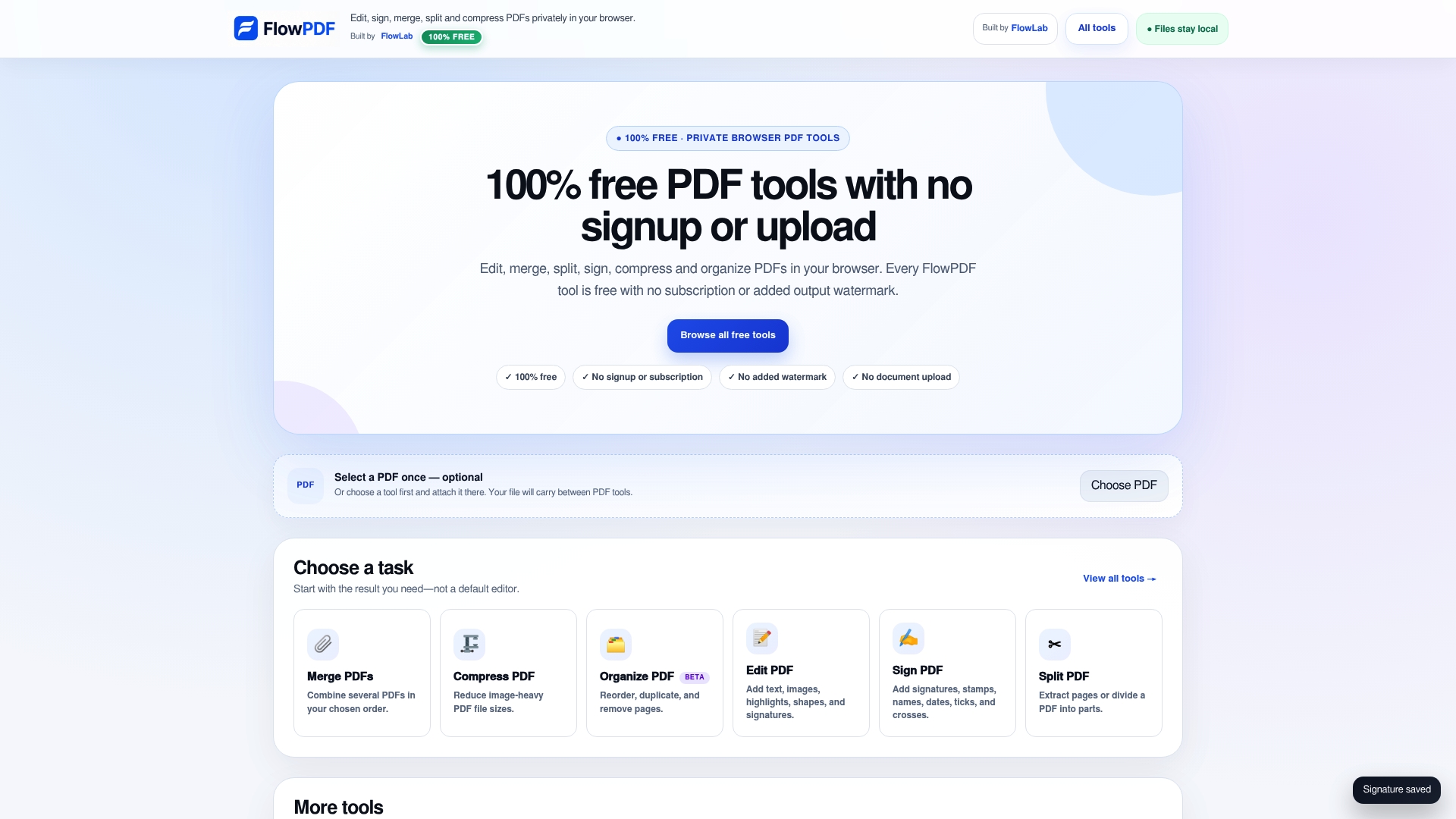
If you are not sure where to start, begin with Merge PDF or Compress PDF. They are the two jobs most people arrive with.
Our view: free should also mean private
Most people who leave a paid PDF suite are not asking for fewer features. They want to stop paying for tasks as simple as joining two files, and they want to stop wondering where their documents go.
We built FlowPDF around one decision: your PDF is processed in your browser, so it is never uploaded. That is why a contract, a thesis or a set of invoices can go through the same tools as any other file. All features are free, with no watermark and no required signup, because a tool for sensitive documents should not make you create an account to use it.
Our advice when you compare any alternative is simple. Pick the tool that matches the three or four jobs you do every week, and pick the one whose handling of your files you are comfortable explaining to your employer, your client or your supervisor. For the jobs listed in this article, that is the approach we designed FlowPDF for.
Ronald Ang
FAQ
What is the best free alternative to Soda PDF?
For most everyday jobs, FlowPDF is the best free alternative. It merges, splits, compresses, edits and signs PDFs in your browser with no signup, no watermark and no upload. You can see all 20 tools on the FlowPDF tools page.
Can I merge PDFs without uploading them anywhere?
Yes. FlowPDF processes your files locally in the browser, so a merge happens on your own device. Open Merge PDF, add your files, set the order and download the combined file.
Is FlowPDF really free, with no watermark?
Yes. All features are free, with no subscription, no signup and no watermark added to your output. There are no plans to choose between.
Can I sign a contract with FlowPDF?
Yes, FlowPDF has a Sign PDF tool that works in your browser without uploading the document. Make all your edits first and sign last, because changes made after a digital signature can invalidate it.
Do I need to install anything?
No. FlowPDF runs in your browser on any computer, so there is nothing to download or update.
Sources
- Best PDF Editors in 2026, The Knowledge Engineers
- Best PDF Tools: 40 Options for Editing, OCR and Conversion, Idoras