
To annotate a PDF in your browser, open the file in a browser-based tool, mark it up, and save a new copy. The step that matters most for a contract, a thesis draft or a client file is where the processing happens. FlowPDF runs in your browser and processes your PDF on your device, so the file is not uploaded to a server, you do not sign up, and the saved copy carries no watermark.
This guide walks through the whole routine: opening, marking up, saving and checking the result. It also covers why highlighting sometimes fails, what to do when comments seem to vanish, and how to keep a sensitive document private while you work.
TL;DR
- Open the PDF in a browser tool, mark it up, then save a new copy. Keep the original untouched so you can go back to it.
- Annotating in a tool that processes files locally means your document never leaves your device, which matters for contracts, client files and unpublished research.
- If you cannot highlight, the file is usually a scan with no real text, a restricted file, or a viewer that only previews.
- If comments seem missing, open the saved copy in a full PDF reader. Many browser previews do not show every note.
- Handle the neighboring jobs in the same place: merge research papers, compress for sharing, fill forms, sign and redact.
Table of Contents
- What "annotating" a PDF means
- Why the browser is the right place to do it
- Step-by-step: annotate a PDF in your browser
- What you can add, by task
- Annotating for study: from highlights to recall
- Annotating for work: contracts and client files
- Why you can't highlight text, and what to do
- Why your comments seem to have disappeared
- Sharing and collaboration
- Make the file easy to send
- Working on a Chromebook or in Chrome
- Our view: privacy should be the default
- Try it on your next document
- FAQ
- Sources
What "annotating" a PDF means
Annotating means adding marks on top of a document without rewriting its original content. The usual kinds are:
- Highlights, underlines and strikethroughs on text that is already on the page.
- Comments and sticky notes, which are short messages attached to a spot on the page.
- Text boxes you type into any blank area, such as a correction or a label.
- Drawings and shapes, such as circles, arrows and freehand lines, to point at something.
- Stamps and signatures, which confirm, approve or sign a page.
An annotation sits in a layer above the page. Editing is different: it changes the text or images in the document itself. In practice you will often need both. You highlight a clause, add a note beside it, then fix a typo in the text. A good browser toolkit lets you do all of this in one place.
Why the browser is the right place to do it
A browser-based tool needs no installation, so it works on a school laptop, a shared office computer or a Chromebook where you cannot add software. You open a page, choose your file and start.
The catch with many online PDF tools is that they send your file to a remote server to process it. For a lecture handout this does not matter. For an employment contract, a tenancy agreement, a medical letter or a client's financial statement, it does.
FlowPDF takes a different route. All processing happens locally in your browser, with no document upload, no subscription and no watermark. You can read how that works on the page explaining local processing. For readers in Singapore who handle NRIC numbers, salary figures or signed agreements, keeping the file on your own device removes one whole category of worry before you start.

Step-by-step: annotate a PDF in your browser
The steps are the same in any browser, whether Chrome, Edge, Safari or Firefox.
1. Make a working copy
Before you touch the file, duplicate it and add a suffix such as "-marked" to the name. This is the cheapest insurance you can buy. If you later discover that you highlighted the wrong paragraph, the clean original is still there.
Where it goes wrong: people annotate the only copy, save over it and cannot undo a mistake days later.
2. Open the file in a local-processing tool
Go to the FlowPDF Edit PDF page and choose your file. It opens inside the browser tab. Nothing is sent to a server, and you do not need an account.
Where it goes wrong: some tools ask you to create an account or upload the file before showing a single page. If that happens with a sensitive document, stop and use a tool that stays on your device.
3. Check that the text is real
Try to select a single word with your cursor. If it selects word by word, the file contains real text and you can mark it up directly. If the cursor grabs a whole page like a picture, the document is a scan. Scans have no text for a highlighter to attach to, so you will need to add a text layer first. Our guide on extracting text from a PDF without uploading covers copying and OCR, which is the process that turns a picture of text into selectable text.
4. Add your marks
Work through the document in one pass and keep a consistent system so you can read it later:
- One color for definitions or key terms.
- One color for points you need to question or verify.
- One color for action items.
- Short notes beside a passage rather than long paragraphs. If a note needs more than two sentences, it probably belongs in a separate document.
If you need to place new text on a page, such as a correction or a label, use the editing tools. For removing text cleanly, see how to white out PDF text locally, and for swapping words, see how to replace text in a PDF.
5. Save a new copy
Export the marked-up file and save it under the "-marked" name. Because the processing is local, the export is created on your device and goes straight to your downloads folder.
Where it goes wrong: closing the tab before exporting. Local tools hold your work in the browser's memory, so export before you close the tab or refresh the page.
6. Check the saved copy
Open the exported file once and scroll through it. Confirm that your highlights, notes and text boxes are all there. This takes a minute and saves you from sending a clean file by mistake.
What you can add, by task
| Task | What you add | Good habit |
|---|---|---|
| Reading a research paper | Highlights, margin notes | Use a color per theme, such as method, result and critique |
| Reviewing a contract | Comments, text boxes | Note the clause number in every comment |
| Marking up a client draft | Text boxes, drawings | Keep each note to one point |
| Completing a form | Typed entries, ticks | Use the dedicated fill PDF forms tool |
| Confirming a document | Signature | Keep the signed file as a separate copy |
Annotating for study: from highlights to recall
If you are a student working through a pile of papers, highlighting is only the first step. Marks help you find a passage again, but they do not prove you remember it. A sensible pattern is to highlight sparingly, write a one-line note in your own words beside each highlight, then use those notes as review material. One way to put this into practice is a lecture highlight strategy that keeps your marks selective. Once your notes are clean, you can also turn PDF notes into flashcards for revision.
Before you start marking, join your sources into a single file. A student with eight journal articles and a lecture handout will find one combined, annotated document much easier to search than nine separate ones. The merge tool combines them locally. If a paper contains forty pages and you only need six, use extract pages to keep just those pages and annotate a short document.
Annotating for work: contracts and client files
Professionals face a different problem. The document is confidential, several people may need to see it, and the final version may need to be signed.
A workable routine looks like this:
- Annotate the draft locally and save a marked copy.
- Send the marked copy to the other party, not the original.
- Make the agreed changes in the document itself with the edit tool.
- Use compare PDFs to check that the final version differs from the earlier one only where you expect.
- Sign the final copy and save it separately.
On signing, it helps to know what the law in Singapore says. The Electronic Transactions Act 2010 defines a signature as a method, electronic or otherwise, used to identify a person and show their intention regarding the information in a record. That is the general principle. FlowPDF's signing is a local drawn or typed signature on your PDF. It is not a certificate-backed digital signature, so if a counterparty or a specific process requires one, follow their requirement for that step. Our guide on filling PDFs in the browser with Singapore signing rules goes into more detail.
If you must share a document that includes personal details, redact them first. The redact tool removes the content locally. Drawing a black box over text is not the same thing, because the text underneath can still be copied. Redaction is meant to remove it for good.
Why you can't highlight text, and what to do
This is the most common complaint, and it usually has one of three causes.
The PDF is a scan. The page is a picture, so there is no text to select. If your cursor grabs the whole page, this is your case. The fix is to add a text layer through OCR, then highlight. If you made the scan yourself, you can start with a cleaner source using scan to PDF or image to PDF, then extract the text.
The file has restrictions. An author can set a PDF so that commenting or editing is switched off. If you can select text but cannot add marks, this is the likely reason. If you own the file or have permission, the unlock tool can remove a password you know. If someone else owns the document, ask them for an unrestricted version. It is their document, and their permission settings are theirs to change.
The viewer only previews. A browser's built-in preview is designed to show pages quickly. It may let you read but not mark. Open the file in an editing tool instead of a plain viewer.
A useful rule: if you can select words but not mark them, suspect permissions. If you cannot select words at all, suspect a scan.

Why your comments seem to have disappeared
You saved a PDF with notes, sent it, and the other person sees nothing. Before you assume the work is lost, check these in order:
- Open the file in a full PDF reader on a computer. Comments come in two forms: text that sits visibly on the page, and collapsed sticky notes that open only when clicked. Some browser previews and mobile viewers do not display the second kind.
- Look for a comments or annotations panel. Full readers list every annotation by page, and you can jump to each one.
- Confirm which file you sent. If the original and the marked copy have similar names, it is easy to attach the wrong one. The "-marked" suffix from step 1 prevents this.
- Make the important notes visible. For anything critical, such as a correction the reader must not miss, use a visible text box instead of a collapsed note. It shows up in every viewer.
This last habit is the most reliable. A note that must be seen should be on the page where it cannot be missed.
Sharing and collaboration
When you save a marked-up PDF, your annotations travel inside the file. Anyone who opens it in a reader that supports them can see your marks. A local tool does not host a shared link or a live review room, because your file stays on your device. Collaboration in this model is simple and traceable: you save a copy, send it, and receive the other person's copy back.
To keep reviews tidy:
- Put the reviewer's initials or the date in the file name.
- Ask each reviewer to return their own copy rather than overwriting yours.
- Use compare to see exactly where two returned versions differ.
Make the file easy to send
A PDF with many scanned pages and drawings can become too large for email. Run it through compress PDF after you finish annotating. The compression also runs locally. Save the compressed copy under a new name and open it once to confirm your marks survived. If you need to send only part of a long document, split the PDF or remove pages you do not need to share. To reorder what remains, use organize pages. If you want a clean look for a final document, crop the margins.
Working on a Chromebook or in Chrome
If you use a Chromebook or a school-managed laptop, you probably cannot install desktop software. A browser tool is the practical option. We have written separate guides on how to edit PDFs in Chrome without uploading and how to edit PDFs on a Chromebook locally. Both follow the same open, mark, save and check routine described above.
Our view: privacy should be the default
Most people choose a PDF tool for what it can do and only think about where the file goes afterward. We think that order is backwards.
A PDF is rarely a casual file. It is a contract, a report card, an invoice, a draft thesis. When you annotate it, you are often adding your own judgment, such as a concern about a clause or a comment on a colleague's work. That is exactly the material you would not want sitting on someone else's server.
That is why FlowPDF processes files in your browser. Your document stays on your device, you do not need to register, and the result carries no watermark. All the tools are free, from editing, merging and compressing to filling, signing and redacting, so you can finish a whole job in one place without switching between services.
Our advice is simple: work on a copy, keep your marks consistent, check the saved file, and choose a tool that never needs to see your document.
Ronald Ang
Try it on your next document
FlowPDF brings the whole routine into one browser tab. You can edit, merge, split, compress, fill forms, sign, redact, compare and more, all processed locally, with no upload, no signup and no watermark. Open FlowPDF's free PDF tools, pick your file and start with a marked-up working copy.
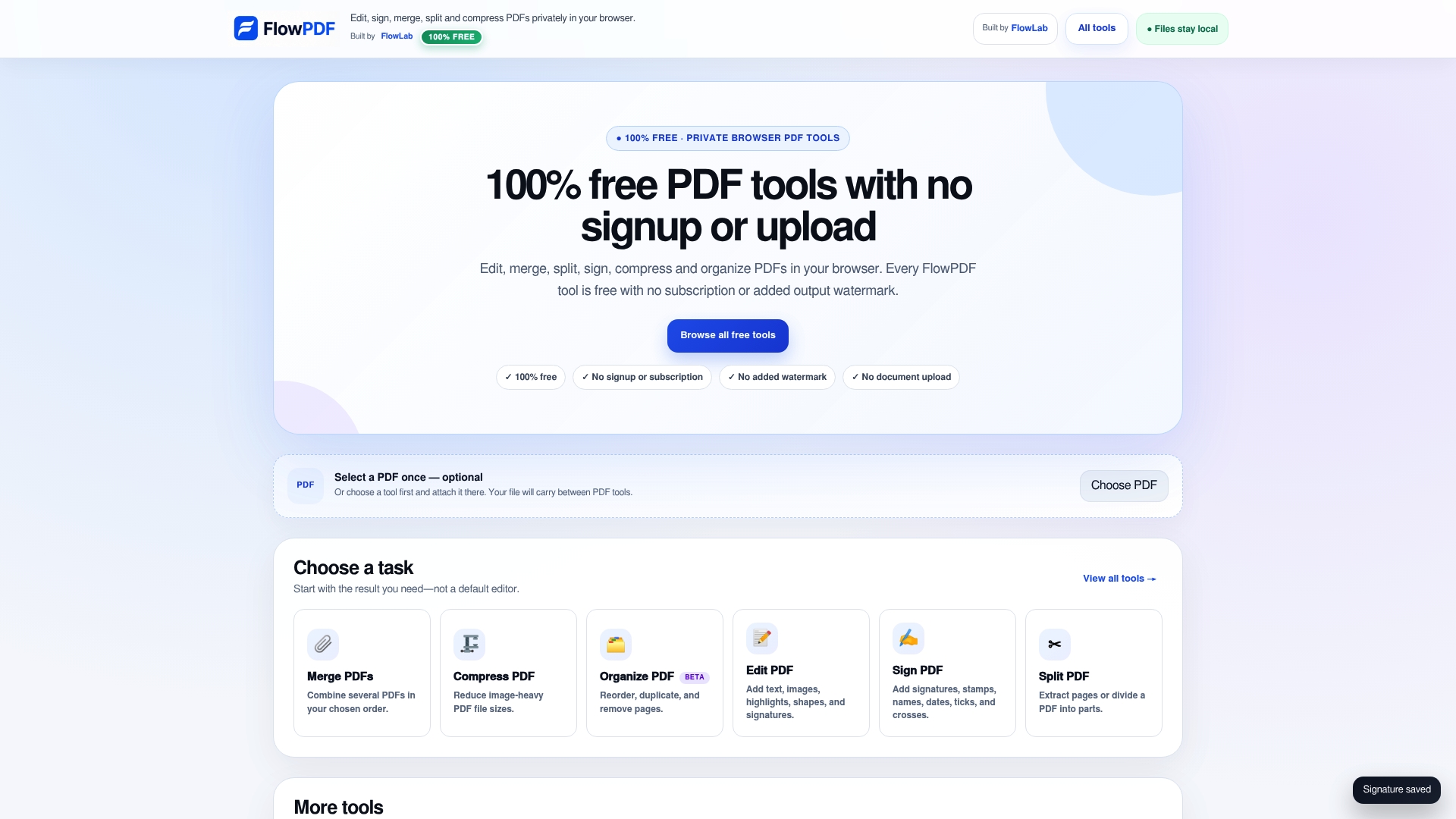
If you are just getting started, the FlowPDF home page lists every tool, so you can see which ones fit your task before you open a file.
FAQ
Can I annotate a PDF in my browser without uploading it?
Yes. With a tool that processes files locally, the PDF is opened and changed inside your browser tab and never sent to a server. FlowPDF works this way, so you can mark up confidential documents without handing them to a third party.
Why can't I highlight text in my PDF?
The usual causes are a scanned file with no text layer, a document with commenting restricted, or a viewer that only previews. Try selecting a single word: if you cannot, the file is a scan and needs OCR first. If you can select words but not mark them, the file is probably restricted.
Why don't my comments show up when I open the PDF in a browser?
Many browser previews and mobile viewers do not display collapsed sticky notes, although visible text on the page appears normally. Open the saved file in a full PDF reader and check its comments panel. For notes that must be seen, use a visible text box instead.
Will annotations still be there after I compress or merge the PDF?
In most cases the marks remain in the saved file, but you should open the finished copy and scroll through it once to confirm. Annotate and review first, then compress, and keep the uncompressed marked copy as your reference.
Is a signature added in the browser legally valid in Singapore?
Singapore's Electronic Transactions Act 2010 treats a signature as any method used to identify a person and show their intention about a record. Some agreements or authorities may ask for a certificate-backed digital signature. If you are unsure, check the requirement with the other party or a lawyer before you sign.