
The fastest way to white out PDF text is to draw a white rectangle over it in a PDF editor, or use a local browser tool like FlowPDF to place a shape and download the result. That works for hiding harmless clutter, but it's still just a visual overlay. If the document contains a Social Security number, medical record, or anything legally sensitive, you need true redaction, which permanently deletes the underlying data instead of covering it.
TL;DR:
- Whiteout with shapes is quick and effective for casual or non-sensitive edits but does not permanently delete underlying data.
- Flattening or rasterizing the PDF prevents shape layers from being reversible, with true redaction required for legally sensitive information.
- Local processing tools like FlowPDF preserve privacy by performing all edits on-device without uploading files to external servers.
- For fully removing sensitive content, deleting entire pages, editing embedded text, or using redaction tools is more reliable than overlays.
- Verifying successful whiteout involves checking if hidden text can still be highlighted or copied, and confirming no metadata or layers remain.
Table of Contents
- Quick Checklist: White Out PDF Text in 60 Seconds
- Step-by-Step: White Out Text in a Browser Editor
- Alternative Ways to Remove Content From a PDF
- How Do You Make a PDF Whiteout Permanent?
- Common Problems When Whiteing Out PDF Text
- Why Local Processing Changes How I Think About PDF Privacy
- Try FlowPDF for Whiteout and Redaction Without the Upload Risk
- Sources
Quick Checklist: White Out PDF Text in 60 Seconds
You don't need special training to cover unwanted text on a page. Here's the fastest path:
- Open your PDF in an editor that supports shape tools, such as FlowPDF's PDF editor.
- Select the rectangle or draw tool, set the fill color to white, and turn off any border.
- Drag the shape over the text or image you want to hide, resize as needed, and repeat for every section.
- Download the finished file.
That covers most everyday cases, like blanking out a signature line before sharing a template or hiding a stray comment. If the page contains anything sensitive, flatten the file or switch to a permanent redaction tool before you send it anywhere.
Step-by-Step: White Out Text in a Browser Editor
Cloud-based PDF tools usually require an upload, which means your document sits on someone else's server, even briefly. A local-processing editor like FlowPDF skips that step entirely. The file loads into your browser, the edits happen on your device, and nothing gets transmitted anywhere, a workflow that matches how privacy-conscious redaction tools are increasingly built for sensitive files.
Here's how the process works in practice:
- Open the file directly in the editor. No account, no upload screen, no waiting for a server to process your document.
- Select the shape tool, choose a plain rectangle, and set the fill to solid white with the border style set to none.
- Zoom in before placing the shape. Text baselines are rarely where they visually appear, and a shape that's a few pixels off can leave a sliver of a letter visible along the edge.
- Use snap-to-grid or alignment guides if your editor offers them, especially when you're covering several lines in a row.
- Layer the shape above the text object, not behind it. If it renders behind the original content, the cover does nothing.
- If you need to replace the hidden text with something else, add a text box on top of the white shape and match the font size roughly to the original.
If you can still highlight or copy the "hidden" text with your cursor, the shape hasn't done its job yet.*
Desktop browsers give you the most control for this kind of precision work. Mobile editors, including some popular mobile PDF apps, tend to limit shape sizing and layering options, which makes small text harder to fully cover on an iPhone or Android screen. If you're on mobile and the content is at all sensitive, finish the job on a desktop before sending the file.
Alternative Ways to Remove Content From a PDF
A white rectangle isn't always the right tool. Sometimes a different method gets you a cleaner result faster.
- Extract or delete whole pages. If the sensitive material fills an entire page, removing that page outright is often quicker and more reliable than covering text line by line. Vendor guides consistently point to page extraction as a preferred approach when a full page needs to go.
- Edit the embedded text directly. If the PDF was built from a form or has editable text fields, deleting the actual text object beats hiding it with a shape. There's nothing left underneath to accidentally expose.
- Convert to images (rasterize). Turning each page into a flat image makes the text non-selectable and non-searchable. The trade-off is fidelity: rasterized pages lose crisp text rendering and can bloat file size.
Pick page extraction when an entire page is the problem, text editing when the source is still editable, and rasterizing when you need to guarantee nothing is copyable, even at the cost of a slightly heavier file.
How Do You Make a PDF Whiteout Permanent?
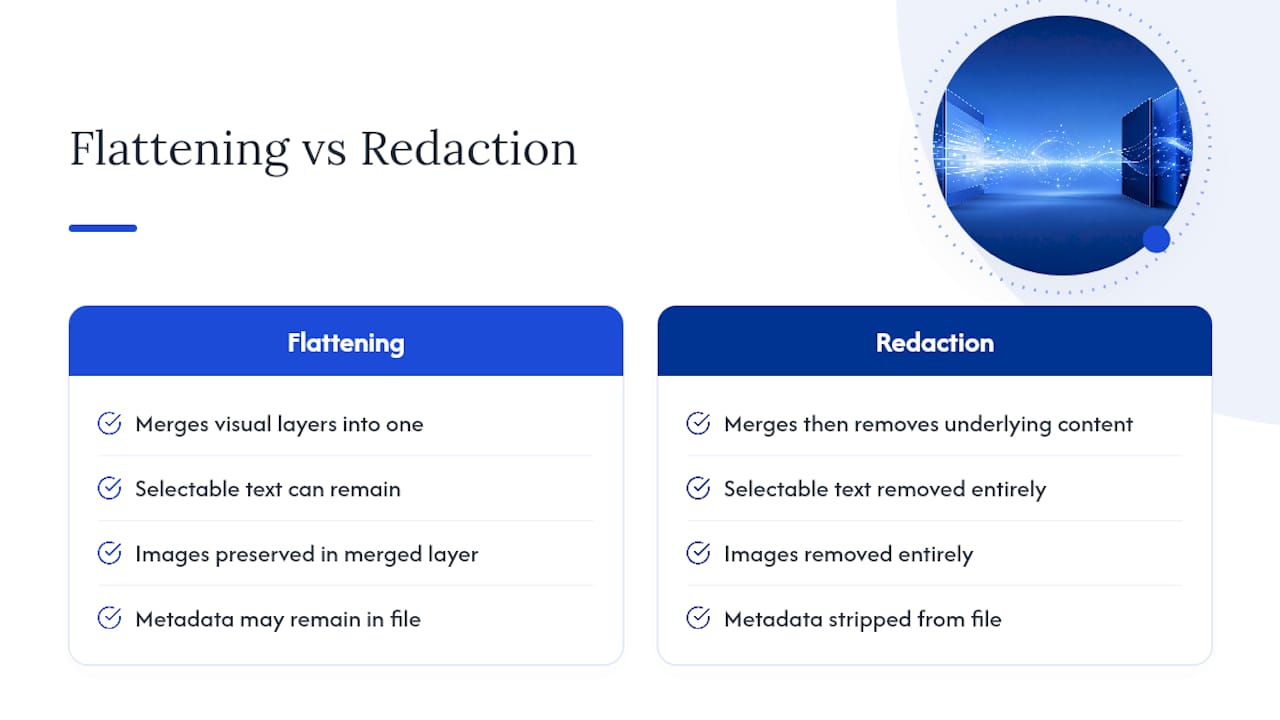
A white box you just drew is, by default, reversible. Someone can select the layer, delete it, or copy the text underneath if the shape and the text weren't properly flattened together. Flattening merges every visual layer, shape, text, and annotation, into a single, non-editable layer, so there's no separate object to peel away. Rasterizing takes it a step further by converting the whole page into a picture, and exporting to a locked format like PDF/A helps lock that structure in place.

Here's the catch: even a flattened overlay can leave selectable text or metadata sitting in the file's underlying structure if the flattening step wasn't thorough. That's precisely why redaction differs from a cosmetic cover: true redaction strips out the underlying text, images, and metadata entirely, so there's nothing left to recover, search, or copy. Some offline redaction tools build this removal in as a core feature rather than an extra step. For legal filings, medical records, or anything containing personally identifiable information, redaction isn't optional. Professional workflows increasingly lean on automated PII detection to catch names, account numbers, and other sensitive fields at scale, though for a single document, a manual pass usually does the job fine.
To verify your work, try selecting text over the covered area and attempt a copy-paste into a blank document. If nothing comes through, and the file's metadata panel shows no leftover text layers, you're in good shape.
Common Problems When Whiteing Out PDF Text
Most whiteout failures trace back to a handful of predictable causes.
- The box looks right but text still highlights. This usually means the shape sits on a separate layer above the text rather than merged with it. Flatten the page and check again.
- Scanned or OCR'd pages behave differently. If a PDF started as a scanned image and later had OCR text layered on top, covering the visible image doesn't remove the invisible OCR text underneath. Treat these pages as image-based and rasterize or redact rather than relying on a simple overlay.
- Password-protected or read-only files won't let you edit. You'll need to unlock the file first, using the correct password, before any shape or redaction tool can touch it.
- Rasterizing increases file size and softens text clarity. Higher output resolution keeps text legible longer but produces a bigger file, so match the resolution to how the document will be used.
Pro Tip: If a whiteout box seems to vanish or shift position after downloading, check whether your editor auto-flattened the page differently than expected. A quick re-export at the same zoom level usually fixes alignment drift.
Why Local Processing Changes How I Think About PDF Privacy
Most people don't think twice about uploading a document to a random web tool until they remember what's actually in it: a lease, a pay stub, a signed contract. I've spent enough time around document workflows to know that the moment a file leaves your device, you're trusting a server you can't see. That's the entire case for local-processing editors. FlowPDF runs its shape tools, flattening, and redaction directly in your browser without uploading files, and does not add a watermark to the result.
My general rule: use a local editor for anything personal or client-facing, and reserve cloud tools for low-stakes files where privacy simply doesn't matter. The extra thirty seconds it takes to double-check your work locally is worth more than the convenience of skipping it.
— Ronald Ang
Try FlowPDF for Whiteout and Redaction Without the Upload Risk
FlowPDF handles the entire whiteout-to-redaction spectrum without ever sending your file to a server. Draw a white shape to cover a stray note, or switch to the redaction tool when you need to permanently strip out a Social Security number or account detail before sharing a contract. Every operation, editing, flattening, page extraction, runs locally on your device.

Unlike tools that gate advanced features behind a subscription or slap a watermark on your output, FlowPDF's PDF editor gives you the full shape tool, layering controls, and export options at no cost. If your document mixes routine edits with genuinely sensitive fields, categories such as those outlined in this guide to confidential legal documents are worth reviewing before you decide which method fits. Open a sample file in the editor now and see how quickly you can cover, flatten, or permanently redact a page, no signup, no upload, no watermark left behind.
Sources
- What does 'redacted' mean in law? — CaseGuard
- Redact PDF - Permanently Remove Sensitive Info Free Offline — GetFileHop
- Redact PDF Online Free — Permanently Black Out Text — PII Blackout