
You can sign a PDF without sending it to anyone's server. Open the file in a tool that works on your own device, draw, type or upload your signature, place it on the page and save the new copy. The document stays with you from start to finish. In Singapore, that kind of signature is generally recognized under the Electronic Transactions Act, as long as it meets a few conditions. Some documents need a stronger signature or cannot be signed electronically at all. This guide covers both the practical steps and the legal limits.
TL;DR
- "Offline" and "local" both mean the same thing in practice: your PDF is processed on your device and is never uploaded to a third-party server.
- With FlowPDF's sign tool, you add a signature in your browser. There is no upload, no account, no watermark and no cost.
- Singapore's Electronic Transactions Act (ETA) gives electronic signatures the same legal standing as wet-ink signatures when the conditions are met.
- A drawn or typed signature is an ordinary electronic signature (OES). When a transaction needs higher assurance, use a secure electronic signature (SES), such as Sign with Singpass through Signify.
- Some documents, such as wills, are excluded from the ETA and need traditional execution.
Table of Contents
- What "sign offline" and "sign locally" really mean
- Ways to sign a PDF without uploading it
- How to sign a PDF locally with FlowPDF
- Is a signed PDF legally valid in Singapore?
- How to check a signed PDF
- Protecting the signed file
- How to tell whether a signing tool works locally
- Perspective: why we built signing to stay on your device
- Sign your PDF now, with no upload
- A short checklist before you sign
- FAQ
- Sources
What "sign offline" and "sign locally" really mean
People search for these phrases for two different reasons. Some have no internet connection on a flight, on a site visit or in a basement office. Others have a connection but do not want a contract, an employment letter or an NRIC-bearing form sitting on a stranger's server.
The second concern is the more common one in daily work, and it is the one a local tool solves. A typical "free online signer" asks you to upload the file, processes it on its servers and sends it back. Your document travels, and you rely on the provider to delete it. A local tool skips that trip. The page loads in your browser and the work happens on your own device.
Three things are worth separating:
- A native app on your device. A PDF app on your phone or computer opens files from your storage. Nothing leaves the device unless you share it.
- A browser tool that processes locally. The page is delivered over the internet, but the signing runs inside your browser. The file is not sent anywhere.
- An upload-based web service. Your file goes to a server, gets signed there and comes back.
Options 1 and 2 answer the "without uploading" question. Option 3 does not, whatever the page says about deleting files later.
Ways to sign a PDF without uploading it
The right choice depends on your device and how often you sign.
| Method | Where the file is processed | Account needed | Best for |
|---|---|---|---|
| Browser tool that works locally, such as FlowPDF | In your browser, on your device | No | Quick signing on any laptop, desktop or phone |
| Built-in markup on your computer or phone | On your device | No | Occasional signing when you already use the built-in viewer |
| Installed PDF desktop software | On your device | Depends on the product | Heavy daily PDF work |
| Upload-based web signer | On the provider's server | Often | Not suited to sensitive files |
| Sign with Singpass via Signify | On the Signify platform | Singpass | Transactions that need a secure electronic signature |
We have written separate walkthroughs for specific devices. If you are on a phone, see how to sign a PDF on Android without uploading it. On a Mac, signing with Preview, the camera or the browser covers the options. If you want to avoid paid desktop suites altogether, signing PDFs locally without Adobe lays out the route.
How to sign a PDF locally with FlowPDF
The steps below take about a minute for a one-page document.
- Open the sign tool. Go to FlowPDF's Sign PDF page. You do not need to register.
- Add your PDF. Choose the file from your device. It is opened in your browser and is not uploaded to a server.
- Create your signature. Draw it with a mouse, trackpad or finger, type it, or use an image of your signature. If you keep a photo of your handwritten signature, our guide to signing a PDF with an image shows how to prepare it so the background stays clean.
- Place it on the page. Drag the signature to the signature line. Resize it so it sits neatly on the line without covering printed text.
- Save the signed PDF. Download the new copy. The tool adds no watermark.
- Check the result. Open the saved file in your usual PDF viewer and confirm the signature is on the right page and in the right spot before you send it.
Keep the original unsigned file as well. If a counterparty asks for a change to the text, you will want a clean copy to edit and sign again.
Filling in the form first
Many documents need details typed in before you sign: name, date, address, company. Fill PDF Forms handles that in the same local way, so you can complete the fields and then sign. Our guide to filling PDF forms in the browser also covers the Singapore signing rules you are likely to meet along the way.
Fixing the document before you sign
It is easier to tidy up a file before the signature goes on than after. If a scan has extra pages, use Remove Pages. If you need a signature on a different page order, Organize PDF lets you reorder and delete pages. If several documents form one agreement, merge them into a single PDF first, then sign once. Edit the text, if needed, with Edit PDF. Make these changes first because a document edited after signing no longer matches what was signed.
Is a signed PDF legally valid in Singapore?
Yes, in most cases. Singapore's Electronic Transactions Act 2010 says an electronic record cannot be denied legal effect, validity or enforceability solely because it is in electronic form. Where a rule of law requires a signature, the requirement can be met with a method that identifies the person and shows their intention, as set out in sections 6 and 8 of the ETA.
The method must also be either as reliable as appropriate for the purpose in the circumstances, or proven in fact to have done the job of identifying the signer and showing intent, according to the text of the Act.
In plain terms, three questions matter:
- Can you show who signed?
- Can you show they meant to sign?
- Is the method reasonable for the kind of document?
A drawn signature placed on a PDF, sent from the signer's own email address and kept with the email trail, answers these questions for many everyday documents. That includes consent forms, quotations, simple service agreements and internal approvals. The more valuable or contested the transaction, the more evidence you want.
OES and SES: two levels of electronic signature
GovTech's guidance says the ETA gives electronic signatures the same legal effect as wet-ink signatures if specified conditions are met. It also distinguishes two types: the Ordinary Electronic Signature (OES) and the Secure Electronic Signature (SES), as explained in the Singapore Government Developer Portal.
The same guidance says SES should be used in exceptional circumstances: where a transaction demands high authenticity and integrity, or has specific witnessing and documentation requirements.
An SES, as defined in the ETA, is unique to the person and capable of identifying them. It is created under the signer's sole control and linked to the record so that any change to the record invalidates the signature. For a deeper comparison, read our electronic signature vs digital signature guide for Singapore, or how OES and SES apply when you sign in the browser.

A local signing tool like FlowPDF places your signature on the document as an OES. It is not a certificate-backed digital signature. If your counterparty, a regulator or the transaction itself calls for an SES, use a service built for that.
When you need an SES
The Singapore government's own route is Signify. In its user guide, the signer receives a document to sign, opens the "Click to sign" boxes, scans Singpass and approves, then downloads the signed document. Signify says signatures made with Sign with Singpass are recognized as Secure Electronic Signatures. Their signing certificates come from an Accredited Certificate Authority (Assurity) under the ETA, according to the Signify authenticity FAQ.
This is a different workflow from local signing. The document goes through the Signify platform and you authenticate with Singpass. Use it when the situation calls for that level of assurance, and use a local tool when an OES is enough and privacy is the priority.

Documents you cannot sign electronically
The ETA has a list of excluded matters in its First Schedule. Singapore Statutes Online lists the creation or execution of a will, along with certain powers of attorney, indentures, trust-related instruments and property-related contracts, as excluded under section 4. If your document falls in one of those categories, a signed PDF is not the right route. Ask a Singapore lawyer which formalities apply.
Signing for people outside Singapore
Electronic signature rules are country-specific. If your counterparty is in the United States, the position there differs from the ETA, and a piece on electronic signature legality in the U.S. is a good place to start before you send a document across the Pacific.
How to check a signed PDF
With a plain electronic signature, the check is practical. Open the saved file and look at it:
- Is the signature on the correct page and line?
- Are the date and name fields filled in?
- Does the page count match the original?
- Does the file open without errors in a second viewer?
For SES signatures from Sign with Singpass, verification is more formal. Signify's guide says you can use Adobe Acrobat Reader and look for a green tick stating that the document is signed and all signatures are valid. The signature panel also shows whether the document was modified, whether the signer identity is valid, the embedded timestamp and whether LTV is enabled. The same guide explains that a message saying certificate validity is unknown appears when the Singpass root signing certificate is not on your device. The verification guide walks through it.
Protecting the signed file
Once a contract is signed, it usually travels by email or chat. Two habits reduce risk:
- Add a password before sending. If the file holds personal data, protect the PDF locally and share the password through a different channel.
- Hide what the other side does not need. If you are sharing a signed agreement as an example or with a third party, redact sensitive details permanently before you send it. Redaction removes the text from the file, so black boxes drawn on top are not a substitute.
If the signed PDF is too large for email, compress it locally. That also keeps it off any server.
How to tell whether a signing tool works locally
This is the question most readers skip, and it decides whether your document stays private. Look for these signs:
- The tool says so, specifically. A page that states processing happens in your browser and nothing is uploaded is making a clear claim. A page that says only "secure" or "encrypted" is describing the upload, not avoiding it.
- The flow has no upload-and-wait step. Upload-based tools show a progress bar, a queue or a "your file will be deleted after one hour" notice. Local tools open the file straight away.
- No account wall. A tool that asks for an email before you sign is collecting data you did not plan to share.
- No usage caps. Limits such as files per hour usually come from server costs. Local processing uses your own device.
- Nothing is stamped on the result. Watermarks on a free tier are a sign the product wants to sell you the clean version.
FlowPDF is built around these points: processing in the browser, no upload, no signup, no watermark and no subscription.
Perspective: why we built signing to stay on your device
We start from a simple view: a document you sign is usually the one you least want to hand around. Contracts, offer letters, tenancy papers and consent forms carry names, addresses and NRIC details. Sending them to a server so that a signature can be drawn on them adds a risk that does not need to exist.
That is why FlowPDF processes your PDF in your browser. There is no upload step, no account and no watermark, and every tool is free. We think a freelancer signing a client contract or a student returning a form should not have to trade privacy for convenience.
We are also clear about where the tool sits. Our signing places an ordinary electronic signature on your document. For a transaction that calls for a Secure Electronic Signature, Singapore has Sign with Singpass through Signify, and we would point you there. For the large share of everyday documents that need a clear, quick signature, signing locally is the simpler and more private route.
Ronald Ang
Sign your PDF now, with no upload
FlowPDF's Sign PDF tool lets you add your signature in the browser. You do not need an account, and nothing is uploaded or watermarked. The same site has more than 20 other tools for editing, merging, splitting and compressing PDFs, all processed locally.
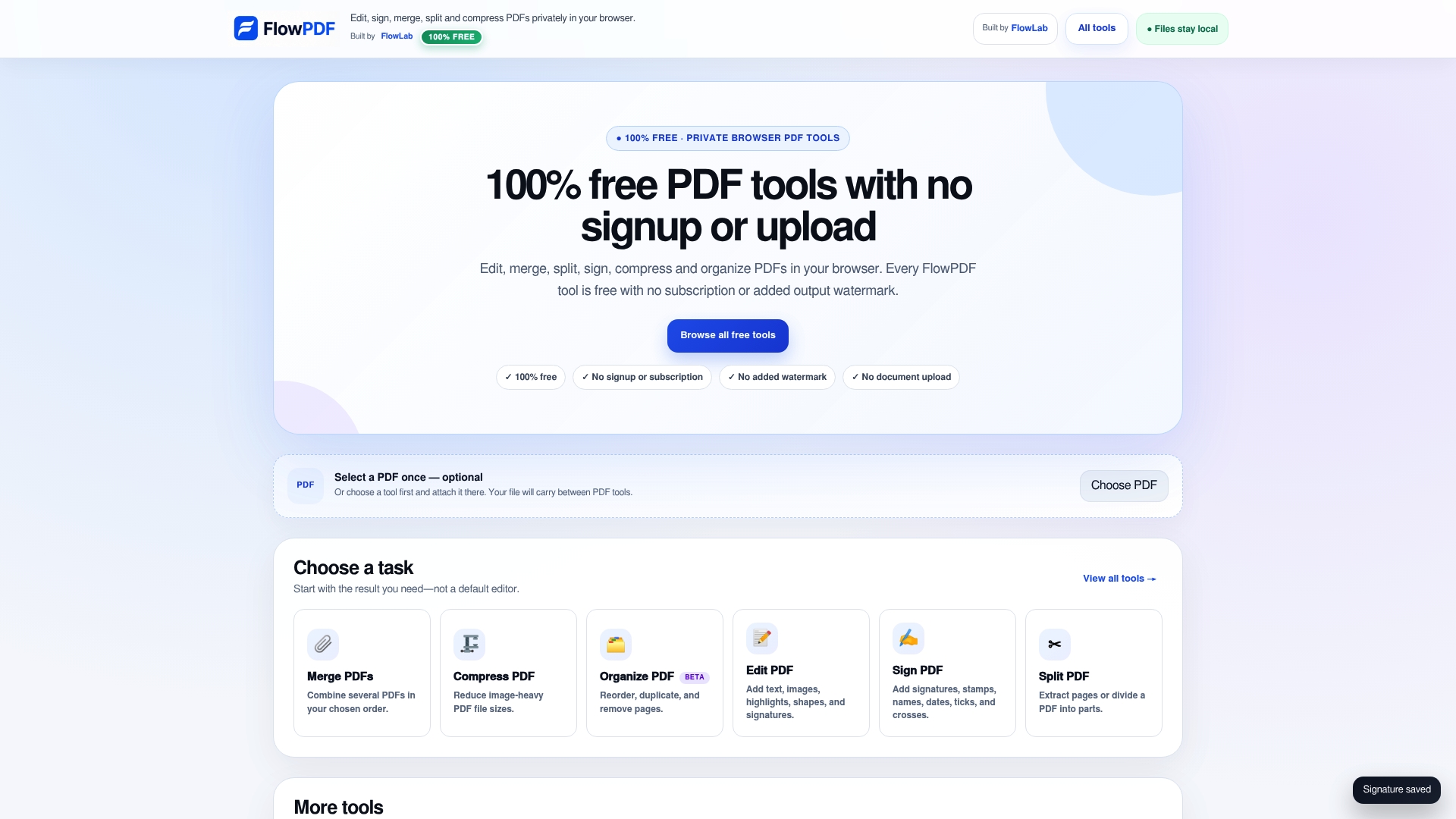
If you want to see everything in one place, browse the full list of FlowPDF tools. For a shorter route to the best option for your device, read our guide to the best PDF signer for Singapore.
A short checklist before you sign
- Confirm the document is not on the ETA's excluded list, such as a will.
- Decide whether an OES is enough or the transaction needs an SES.
- Finish all edits, page changes and form fields first.
- Sign in a tool that processes the file on your device.
- Open the saved copy and check page, position and date.
- Add a password or redact sensitive details if the file will be shared.
- Keep the signed file and the sending email together as a record.
FAQ
Can I sign a PDF without an internet connection?
Yes, if you use software already installed on your device, such as a PDF app or your built-in viewer. If you use a browser tool, the main point is that the file is processed on your device rather than uploaded. FlowPDF works this way: your document is handled in the browser, with no upload.
Is a signature drawn on a PDF valid in Singapore?
It can be. Under the ETA, a signature requirement is met by a method that identifies you and shows your intent, and that is reliable enough for the purpose. This is an OES. Wills and certain property-related documents are excluded, and some transactions may call for an SES.
What is the difference between signing locally and signing with Singpass?
Signing locally puts your signature image on a PDF on your own device. Sign with Singpass goes through Signify, where you approve with Singpass and the result is a Secure Electronic Signature backed by an Accredited Certificate Authority. Choose based on the assurance the document needs.
Does FlowPDF add a watermark or ask me to register?
No. FlowPDF is free, with no watermark, no subscription and no signup. You open the tool, add your file, sign and download.
Can I sign on my phone?
Yes. You can draw your signature with a finger in the browser. For Android, our guide on signing a PDF on Android without uploading it has the full steps.
Sources
- Electronic Transactions Act 2010, Singapore Statutes Online (sections 6 and 8)
- Electronic Transactions Act, IMDA (full text)
- Electronic Transactions Act 2010, First Schedule exclusions
- E-Signatures, Singapore Government Developer Portal
- Signer, Signify User Guide
- Authenticity, Signify User Guide
- Verifying Sign with Singpass signatures, Signify User Guide