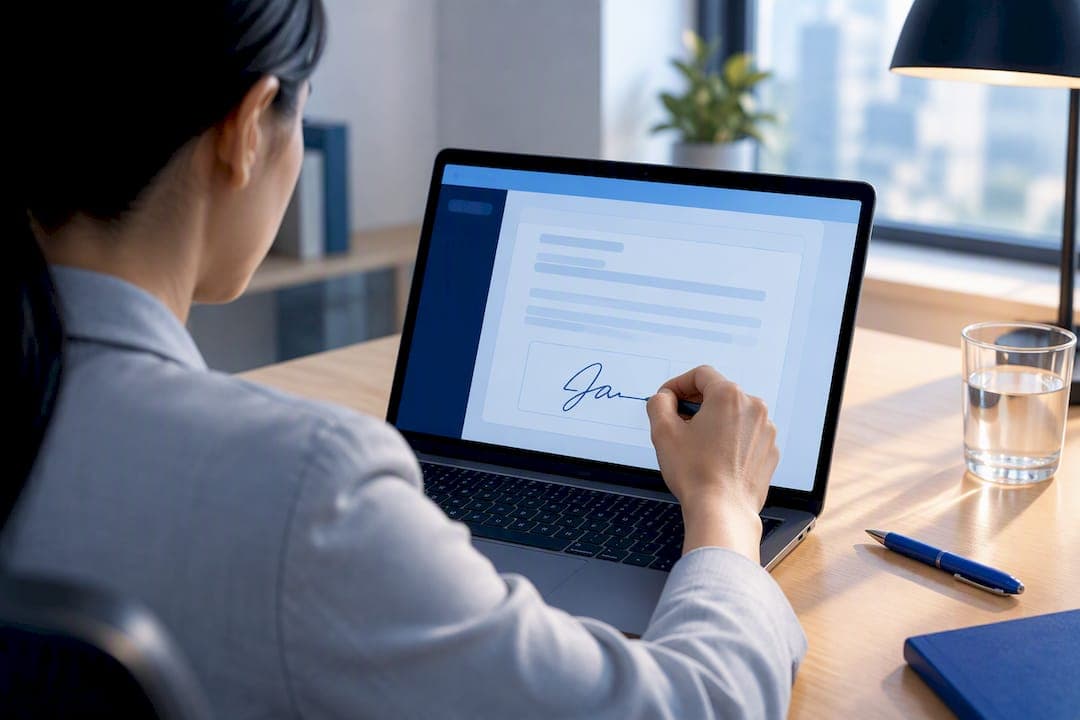
The best practical PDF signer for most people is FlowPDF. It works directly in your browser, never uploads your file to a server, and lets you sign with a drawn, typed, or image-based signature in under a minute. For everyday documents like NDAs and simple contracts, that's usually all you need. For higher-stakes filings, you'll want a Secure Electronic Signature through a service like Singpass, which we cover below.
TL;DR:
- Browser-based signers like FlowPDF process your PDF locally, ensuring your sensitive documents never leave your device, which enhances privacy.
- For high-value or regulated documents, a cryptographically secure signature through Singpass or an accredited authority provides stronger legal proof and presumption of authenticity.
- Free tools with local processing are ideal for occasional, low-stakes signing such as NDAs or contracts, while enterprise plans suit bulk signing or compliance needs.
- Visual signatures created by drawing, typing, or uploading are legally valid for most everyday documents under Singapore law but lack cryptographic proof needed for secure transactions.
- Support for certificate-backed digital signatures is limited to specialized services like Singpass, making these necessary only in regulated or high-value scenarios.
Table of Contents
- What a good PDF signer must do
- Sign a PDF in a browser without uploading it
- When you need Secure Electronic Signature instead of Ordinary Electronic Signature
- How to choose a PDF signer for your needs
- Pricing models and subscription plans compared
- Integrating your signer with the tools you already use
- Security features to expect from a trustworthy signer
- What reviews say about reliability across signing tools
- Getting help when you have a question
- Compatibility with certificate-based digital signatures
- Why privacy-first browser signing works for most people
- FlowPDF: sign your next document in minutes
- Sources
- FAQ
What a good PDF signer must do
A reliable signer gives you more than one way to sign, keeps your document under your control, and doesn't force you to create an account just to add your name to a page. FlowPDF meets each of these expectations without asking for a signup.
You get three signature creation methods, each suited to a different situation:
- Draw: Use your mouse or touchscreen to sketch a signature that looks handwritten. It's the most personal option but can look uneven on a trackpad.
- Type: Pick a script-style font and type your name. Fast and consistent, though it reads as more formal than a drawn signature.
- Upload an image: Add a scanned or photographed signature you already use on paper documents. This keeps your signature consistent across every file you sign.
Once you've created a signature, many browser-based PDF tools let you save it for reuse, so you don't have to redraw or retype it every time you sign a new document. If the PDF has form fields, you can fill those in in the same pass, which matters for anyone signing leases, intake forms, or vendor agreements. The tool works entirely in the browser, which means it runs the same way on a Windows laptop, a Mac, or a mobile browser, without a separate app to install.
Free signers like this one are built for individual and low-volume use. They don't include bulk signing across hundreds of files or certificate-backed signatures tied to a corporate PKI, features enterprise platforms charge subscriptions for. What you gain instead is privacy: because FlowPDF processes your file locally, your document never leaves your device, which matters if you're signing something you'd rather not hand to a third-party server.
Pro Tip: Save your signature once during your first use, so every future document takes seconds instead of minutes.
Sign a PDF in a browser without uploading it
Signing a PDF locally takes only a few steps, and none of them require creating an account or waiting for a file to process on someone else's server.
- Open the sign PDF tool and drag your file into the browser window.
- Choose a signature method: draw, type, or upload an image of your existing signature.
- Drag the signature onto the correct spot on the page, resizing it if needed.
- Fill in any additional form fields the document requires, such as dates or initials.
- Export the signed PDF and open it in a standard PDF reader to confirm the signature appears correctly and the file opens without errors.
- Keep a copy for your own records before sending it to the recipient.
Before you send anything off, run through a short mental checklist: does the file open cleanly, is the signature visible and positioned correctly, and does the recipient's process actually accept a visually signed PDF, or do they require something more formal. That last question matters more than it sounds, and it's the subject of the next section.
When you need Secure Electronic Signature instead of Ordinary Electronic Signature
Under Singapore's Electronic Transactions Act, electronic signatures are legally valid, but the law draws a line between two categories. An Ordinary Electronic Signature (OES), the kind you create by drawing, typing, or pasting an image, is enough for most everyday documents: NDAs, simple service agreements, internal approvals. A Secure Electronic Signature (SES) carries a stronger legal presumption and is the better choice for property transfers, regulated filings, or high-value contracts.
A secure electronic signature is presumed authentic unless rebutted, giving it higher evidentiary weight than an ordinary electronic signature.
The practical difference comes down to how the signature is made. Singpass 'Sign' uses public key infrastructure: a private key on your device paired with a public certificate issued by GovTech, which cryptographically ties the signature to you and the document. A drawn or pasted image doesn't create that link. It looks like a signature, but there's no cryptographic proof behind it, which is why it may carry less weight if a signature is ever disputed.
If your situation calls for SES, the practical path is to use Singpass-enabled signing or a certificate from an accredited Certification Authority, rather than a browser-based drawn signature. For routine paperwork, an OES from a tool like FlowPDF remains a reasonable and widely accepted choice.

How to choose a PDF signer for your needs
Picking the right tool comes down to four questions: how often you sign documents, how much legal weight you need behind the signature, how comfortable you are uploading files to a server, and what you're willing to pay.
- Occasional, low-stakes signing: A free, browser-based tool with local processing is the right fit, since you avoid uploads and subscriptions for something you do a handful of times a month.
- Regulated or high-value agreements: Choose a certificate-backed service such as Singpass, since the statutory presumption favoring SES matters if the document is ever contested.
- Sensitive documents you don't want on someone else's server: Prioritize local, no-upload processing over cloud-based tools, regardless of price.
- Bulk signing or team workflows: Look toward enterprise platforms built for volume, since free consumer tools aren't designed for that scale.
Watch for red flags when evaluating any online signer: a tool that forces a file upload before it will even show you a preview, one that demands account creation for a single simple signature, or one that stamps a watermark on your finished document. None of these are necessary for basic signing, and their presence usually signals a tool built around collecting your data or upselling a paid tier.
Pricing models and subscription plans compared
Most PDF signers fall into one of two pricing structures. The first is subscription-based, often tiered by the number of documents you sign per month, with higher tiers unlocking bulk signing, team management, or audit trails. The second is free with limitations, where basic signing is available at no cost but advanced features sit behind a paywall or the output carries a watermark.
Some browser-based tools offer signing and form filling features for free without requiring signups or applying watermarks. There's no tier to upgrade into and no feature held back for a future payment. That structure suits people who sign documents occasionally and don't want to commit to a monthly fee for something they use a few times a year.
If your signing needs are closer to enterprise territory, expect to pay for what you get. Subscription platforms that offer bulk signing and detailed audit trails are typically priced for teams and regulated workflows, not for someone signing a single lease or NDA. Reviewing your actual signing volume before choosing a plan avoids paying for capacity you won't use.
Integrating your signer with the tools you already use
Most people don't sign a PDF in isolation. The file usually comes from an email attachment, a shared Google Drive folder, or a Dropbox link, and needs to go back out the same way once it's signed.
Because FlowPDF runs in your browser, you can pull a file from any of these sources the same way you'd open it normally: download it from Drive or Dropbox, drag it into the tool, sign it, and export the result back to wherever it needs to go. There's no dedicated Drive or Dropbox plugin, but there's also no extra step of granting a third-party app access to your cloud storage account, which some integrated e-signature platforms require.
If your document needs additional preparation before signing, such as merging multiple attachments into a single file or cleaning up formatting in Microsoft Office before converting to PDF, those steps happen outside the signer itself. Handling each step locally, rather than through a chain of connected cloud services, keeps your document from passing through more servers than necessary on its way to a finished, signed file.
Security features to expect from a trustworthy signer
The biggest security decision in any online signer is whether your file gets uploaded at all. Tools that process documents on a remote server introduce a step where your file sits, even briefly, somewhere outside your control. FlowPDF avoids that step entirely: your PDF is processed locally in the browser, so the document you're signing never leaves your device.
That local-processing model addresses a specific risk. Sensitive contracts, medical forms, or financial documents are exactly the files people are most reluctant to hand to a third-party server, and local processing removes that exposure by design.
Authentication is a separate question from encryption. A visually drawn or typed signature confirms intent, but it doesn't authenticate identity the way a cryptographic signature does. That's the same distinction covered earlier between OES and SES: encryption and local processing protect your file in transit and storage, while identity authentication is what a PKI-based signature like Singpass adds on top. For most everyday signing, local processing plus a clear signature is the practical security baseline; for anything requiring proof of who signed, a certificate-backed method is the stronger choice.
What reviews say about reliability across signing tools
Market coverage of e-signature tools consistently draws a line between two audiences. G2's e-signature category shows enterprise platforms leading on audit trails and compliance features, the kind of capability a legal or procurement team needs when signatures have to hold up to scrutiny. Simpler free tools, by contrast, are positioned for individuals and low-volume signing, where speed and privacy matter more than a paper trail of every action taken on a document.
That split reflects two different jobs. An enterprise platform earns its subscription price by tracking every step of a document's life for compliance purposes. A free, browser-based signer earns its place by being fast, private, and available without a contract. Reliability in the second category isn't measured by audit logs, it's measured by whether the tool opens your file correctly, lets you sign it without friction, and exports a document that looks right in any standard PDF reader. FlowPDF is built around that second job: get you from unsigned to signed with nothing extra required.
Getting help when you have a question
Support expectations differ sharply between free and paid signing tools. Enterprise platforms typically offer dedicated account managers, live chat, and detailed documentation, since their subscription pricing covers that overhead. Free browser-based tools generally rely on straightforward help pages and clear in-product guidance instead of live support staff.
For a tool like FlowPDF, that trade-off makes sense given the price. The features themselves are built to be self-explanatory, drag in a file, choose a signature method, place it, export, so most users won't need to look anything up. When a question does come up, such as how form filling interacts with a saved signature, the answer is usually visible directly in the tool's interface rather than buried in a support ticket queue.
Compatibility with certificate-based digital signatures
Not every signature is created equal, and this distinction matters if you're choosing a tool for anything beyond routine paperwork. A drawn, typed, or image-based signature, the kind FlowPDF and similar free tools produce, is a visual mark that shows intent to sign. It doesn't carry a cryptographic certificate behind it.
A certificate-based digital signature works differently. It's generated using a private key held by the signer, paired with a public certificate issued by a trusted authority, such as GovTech through Singpass. That structure lets anyone verify, mathematically, that the document hasn't been altered since signing and that the signature came from the claimed signer. Free browser-based signers aren't built to issue that kind of certificate, and they shouldn't claim to. If your workflow requires certificate-backed verification, whether for a regulated filing or a partner who requires it contractually, that's a signal to use a Singpass-enabled service or an accredited Certification Authority rather than a visual signature tool. For anyone comparing enterprise options built around this kind of verification, an e-signature platform comparison for sales teams lays out how certificate-backed workflows fit into broader contract processes.

Why privacy-first browser signing works for most people
Most of the documents people sign in a given year are low-stakes: a freelance agreement, a school form, an NDA before a call. For those, a free tool that never uploads your file and lets you draw or type a signature is a sound default, not a compromise.
I reach for a certified signing method only when the document is genuinely high-value, a property transfer, a regulated filing, or a contract where a dispute would be costly. Before you sign anything important, check what the recipient actually requires. A quick question can save you from resigning the whole document later.
— Ronald Ang
FlowPDF: sign your next document in minutes
FlowPDF gives you everything a routine signing task needs, without asking for anything in return. No file upload, no account, no watermark stamped across your finished document. You get three signature methods, the ability to save a signature for reuse, and form filling for documents that need more than just a name at the bottom.

- Free and unrestricted: every signing feature is available with no paywall or usage limit.
- Private by design: your document is processed locally, so it never sits on a server you don't control.
- Multiple signature options: draw, type, or upload an image, whichever fits the document in front of you.
Head to the sign PDF tool to sign your next document directly, or visit the free PDF tools page if you need to merge, compress, or edit a file first. Once you've exported a signed copy, open it in a standard reader to confirm the signature landed exactly where you placed it before you send it on.
Sources
- E-Signatures | Singapore Government Developer Portal
- How our digital signatures work | Sign with Singpass docs
- E-signature tools category | G2
FAQ
Is a PDF signed with a free browser tool legally valid?
Yes, under the Electronic Transactions Act, an ordinary electronic signature created by drawing, typing, or pasting an image is legally valid for most everyday documents. For higher-stakes agreements like property transfers or regulated filings, a Secure Electronic Signature offers a stronger legal presumption.
What's the difference between OES and SES?
An Ordinary Electronic Signature is a visual mark, like a drawn or typed signature, that shows intent to sign but carries no cryptographic proof. A Secure Electronic Signature, created through a service like Singpass, uses PKI to cryptographically link the signature to both the signer and the document.
Can I use an image of my handwritten signature on a PDF?
Yes, most PDF signers, including FlowPDF, let you upload a scanned or photographed image of your signature and place it directly on the document. This creates an ordinary electronic signature, which is sufficient for routine agreements but not the same as a certificate-backed signature.
Does FlowPDF upload my document to a server?
No, FlowPDF processes your PDF entirely within your browser, so the file never leaves your device during signing, editing, or any other operation. This local processing is meant to protect sensitive documents from exposure to third-party servers.
When should I use Singpass instead of a browser-based signature?
Use Singpass when a document requires a Secure Electronic Signature, such as a property transaction, a regulated filing, or a high-value contract where a dispute could arise. For everyday paperwork like NDAs or simple service agreements, an ordinary electronic signature from a browser-based tool is typically accepted.