
The quickest way to sign a PDF with an image is to open the document in a browser-based tool, upload a PNG or JPG of your signature, position it, and download the result. The whole process usually takes under a minute on a modern device. This can be handled entirely in your browser, so your document never leaves your device.
TL;DR:
- Using a transparent PNG for signatures produces a cleaner, more professional appearance than JPG images with white backgrounds.
- The entire signing process with FlowPDF can be completed in under a minute directly in your browser, with no software or account setup required.
- Embedding an image signature locally keeps your sensitive documents private and is widely accepted for most everyday business transactions.
- Adjusting the signature size, rotation, and opacity allows precise placement without needing advanced editing skills, even on large or multi-page PDFs.
- For regulated or legally sensitive documents, a certified e-signature with audit trails is recommended over simple image signatures.
Table of Contents
- How to Sign a PDF With an Image, Step by Step
- How Do You Prepare a Clean Signature Image?
- How Do You Position and Fine-Tune the Signature?
- Is an Image Signature Private and Legally Usable?
- Common Problems When Signing a PDF With an Image
- Why Sign PDFs With FlowPDF?
- When Should You Use an Image Signature vs. a Certified E-Signature?
- Sign Your PDF Right Now
- Further Reading on FlowPDF's Tools
- FAQ
How to Sign a PDF With an Image, Step by Step
Signing a PDF with an image doesn't require software installs or account setup. Here's the process from start to finish.
- Open your PDF in the tool. Drop the file into FlowPDF's sign tool directly in your browser. There's no upload to a remote server, so the file stays local to your device.
- Add your signature image. Upload a PNG or JPG of your signature, or create one on the spot if the tool supports drawing directly with a mouse or touchscreen.
- Choose your page. Select the page (or pages) where the signature belongs.
- Place and adjust it. Drag the image onto the signature line, then resize, rotate, or adjust its opacity until it looks right.
- Apply and download. Embed the signature into the document and save the finished PDF to your device.
A few things make this faster than it sounds:
- Most in-browser tools let you reuse a saved signature image across multiple documents.
- Modern devices typically complete the entire flow, upload to download, very quickly.
- You don't need Adobe Acrobat or any desktop software. A browser tab is enough.
If you're also collecting form data alongside a signature, say for an onboarding packet or a rental agreement, it's worth filling in form fields before you sign, so the signature is the final, locked-in step rather than something you have to redo.
How Do You Prepare a Clean Signature Image?
The image format you choose determines whether your signature looks professional or looks like a sticker slapped over the page. A transparent PNG blends into the document naturally. A JPG, unless you edit it first, carries a solid white or colored background that shows up as an ugly rectangle around your signature.
Here's what actually matters when preparing the image:
- Format: Use PNG with a transparent background whenever possible.
- Resolution: Aim for roughly 300 to 600 pixels wide at 200 to 300 DPI. That's sharp enough to read clearly without bloating the file.
- Aspect ratio: Keep it close to how your real signature looks on paper, wider than it is tall, so resizing later doesn't distort it.
- Source: Sign on paper and photograph or scan it, or sign directly on a phone or tablet screen and export as PNG.
If you're working from a paper signature, scan it or take a well-lit photo, then use an image editor to remove the white background and save as PNG. Many free image editors have a one-click "remove background" feature that handles this in seconds.
If all you have is a JPG with a white background, it's not the end of the world. Lowering the opacity slightly when you place it can help it blend with the printed page, though it won't fully disappear the way a proper transparent PNG will.
Pro Tip: Sign your name several times on a blank sheet of white paper, photograph the cleanest version in good light, and crop tight before removing the background. A crisp original photo saves you from fighting pixelation later.
How Do You Position and Fine-Tune the Signature?
Getting the signature to sit naturally on the page is mostly about small adjustments, not one perfect drag-and-drop.
- Resize with corner handles and keep the aspect ratio locked so your signature doesn't stretch or squash.
- Rotate slightly if the signature line on the document isn't perfectly horizontal, and nudge opacity down a touch so it reads more like ink and less like a pasted sticker.
- Pick your pages deliberately. Contracts usually only need a signature on the final page, while initials often belong on every page or a specific subset.
- Use arrow keys or offset controls for pixel-level placement once the image is selected. This is the fastest way to line up a signature exactly on a printed line without dragging it repeatedly.
Advanced tools also let you apply the same signature across every page in one pass, which saves time on long agreements with initials required throughout.
Is an Image Signature Private and Legally Usable?
Processing your PDF locally in your browser means the file never touches an external server, which matters more than most people realize when a document contains financial details, medical information, or a client's personal data. Local, browser-based processing keeps the entire signing step contained to your own device.
Once you embed an image signature, you get a standard PDF that opens and displays correctly everywhere, no special software required to view it.
That said, an image signature has limits:
- It's widely accepted for everyday business use: invoices, internal approvals, quotes, and most contracts between parties who trust each other.
- It's generally not equivalent to a certificate-backed signature that includes an audit trail, timestamp, and identity verification.
- Scanned or image-only PDFs can still receive a visual signature placed on top of the page, though you'll need OCR first if you also need the underlying text to stay searchable or selectable.
When the stakes are higher, a real estate closing, a regulated financial filing, a court document, ask the recipient what they require, or use a certified e-signing service designed for that purpose.
Common Problems When Signing a PDF With an Image
Most signature problems have a quick fix once you know what's causing them.
- White box around the signature: Your image is a JPG with a solid background. Convert it to a transparent PNG or remove the background in an image editor first.
- Signature is the wrong size: Use the corner handles to resize proportionally, or enter an exact width in millimeters or centimeters if the tool supports it.
- Signature landed on the wrong page: Select the target page before placing the image, not after. Placing first and moving pages later often shifts the position.
- Tool feels slow with a large file: Compress the PDF before you start editing, or use a lower-resolution signature image so the file stays light.
Why Sign PDFs With FlowPDF?
FlowPDF processes every PDF task, including signing with an image, directly in your browser. Your file never gets uploaded to a server, which matters if the document contains anything you'd rather keep off someone else's cloud storage.
The sign tool gives you the controls that actually matter: resize, rotate, adjust opacity, and choose exactly which pages get the signature. There's no account to create, no watermark stamped across your document, and no fee.
Once your PDF is signed, FlowPDF's other free tools can finish the job, compress the file before you email it, redact sensitive sections, or make small edits, all without leaving your browser.
| What you need | What FlowPDF offers |
|---|---|
| Privacy | Local, browser-only processing, no uploads |
| Cost | Free, no subscription or watermark |
| Signature controls | Resize, rotate, opacity, page selection |
| Related tasks | Compress, edit, redact, all local |
When Should You Use an Image Signature vs. a Certified E-Signature?
An image signature works well for the bulk of everyday paperwork: internal approvals, quotes, freelance invoices, and agreements between parties who already trust each other. It's fast, free, and requires nothing from the other side.
Reach for a certified e-signature instead when a transaction is regulated, when a counterparty's compliance team demands an audit trail, or when you're simply not sure. Asking the recipient what they require takes thirty seconds and saves you from resending a document later.
— Ronald Ang
Sign Your PDF Right Now
FlowPDF's Sign PDF tool gives you image-based signing with real placement controls, and your document never leaves your browser to get there.

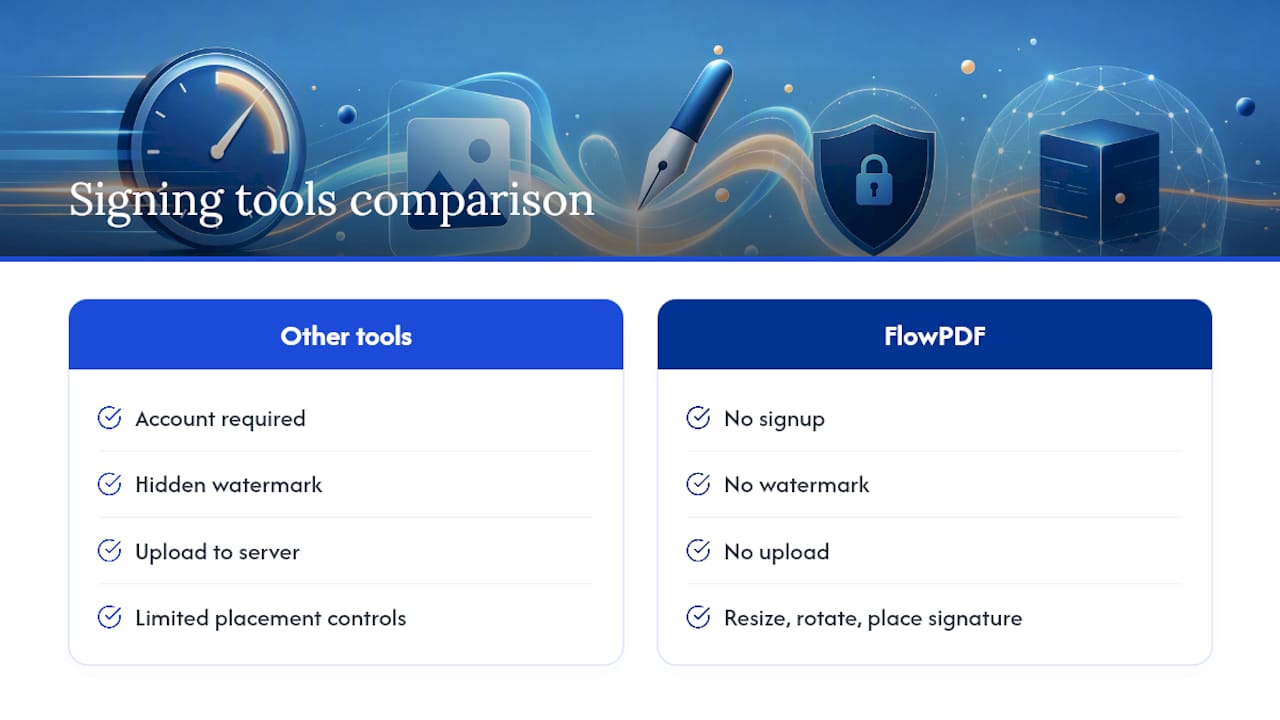
Other signing tools ask you to create an account, watch for a hidden watermark, or upload your document to a server you can't see. FlowPDF skips all three: no signup, no watermark, no upload, and every control you need to resize, rotate, and place your signature exactly where it belongs. If your signed document also needs a template turned into something sellable, partners like BananaSpace help creators package and sell digital files, a useful next step if you're building signed contracts or forms as a product.
Open the Sign PDF tool now, drop in your document, and have it signed before your coffee gets cold.
Further Reading on FlowPDF's Tools
For more on how your files stay private, see how FlowPDF processes PDFs locally. To see the complete toolkit beyond signing, browse FlowPDF's free PDF tools, which cover editing, merging, compressing, and more, all without uploads or fees.
FAQ
What image format works best for a PDF signature?
A transparent PNG gives the cleanest result because it has no visible background. A JPG will show a solid white or colored box around your signature unless you edit the background out first.
Can I sign a scanned or image-only PDF?
Yes. You can place an image signature visually on top of a scanned page, though you'll need OCR first if you also need the underlying text to remain selectable.
Is an image signature legally valid?
Image signatures are widely accepted for everyday contracts, invoices, and approvals. For regulated transactions or when a counterparty requires an audit trail, use a certified e-signature service instead.
How long does it take to sign a PDF with an image?
The full process, uploading the file, placing the signature, and downloading it, typically happens very quickly on a modern device using a browser-based tool.
Does FlowPDF cost anything to sign a PDF?
No. FlowPDF's Sign PDF tool is free to use, with no watermark and no account required.
Why does my signature show a white box around it?
Your signature image is likely a JPG with a solid background. Convert it to a transparent PNG, or remove the background in an image editor, to fix this.