
The most secure PDF editor is one that never receives your file. FlowPDF processes PDFs inside your browser, so your contract, thesis or invoice stays on your own device from the first click to the saved copy. It needs no account, adds no watermark and costs nothing. This guide compares the main kinds of PDF editor available in Singapore, shows what each one means for your documents, and gives a simple way to pick.
TL;DR
- A "secure" PDF editor is defined by where your file is processed. Local processing in the browser keeps the document on your device.
- FlowPDF edits, merges, splits, compresses, signs, redacts and password-protects PDFs locally, with no upload, no subscription and no watermark.
- Upload-based web apps and paid desktop suites cover the same tasks, but they add either a transfer of your file or an account and a recurring cost.
- Match the tool to the document: sensitive contracts and IDs call for local processing, and everyday merging and compressing is faster when no signup stands in the way.
Table of Contents
- What "secure" means for a PDF editor
- The options compared
- Match the tool to the job
- A five-point check before you pick any editor
- Use FlowPDF for your next document
- Perspective
- FAQ
- Sources
What "secure" means for a PDF editor
Most people judge a PDF editor by its features. For security, one question matters more: does the file leave your computer?
There are three common answers.
- The file is processed in your browser or on your device. Nothing is sent anywhere. The editor is code that runs locally.
- The file is uploaded to a server, processed and sent back. The tool may be well run, but your document travels over the internet and sits on someone else's machine for a while.
- The file is opened in installed desktop software. It stays local, but you install, license and update a program.
For a student merging research papers, the difference is small. For a freelancer editing a client agreement, a business team handling invoices with bank details, or anyone working with an NRIC number or an employment contract, it is the main point. The fewer copies of a document exist, the fewer places it can leak from.
If you handle personal data of customers or staff in Singapore, your company also has a legal duty to protect it. The Personal Data Protection Act requires organisations to make reasonable security arrangements. Keeping the file off third-party servers is the simplest way to meet that duty for documents you only need to edit.
The options compared
The table groups the choices Singapore readers meet most often. FlowPDF is listed first because it is the one we recommend for the tasks in this guide.
| FlowPDF | Upload-based web editors | Paid desktop suites | |
|---|---|---|---|
| Where the file is processed | In your browser, on your device | On the provider's server | On your computer |
| Account needed | No | Often, for full use | Yes, for a license |
| Watermark on output | None | Common on free tiers | None once paid |
| Cost | Free, every tool | Free tier plus paid plans | Paid license or subscription |
| Merge, split, compress | Yes | Yes | Yes |
| Edit text and fill forms | Yes | Yes | Yes |
| Redact, protect, unlock | Yes | Varies by plan | Yes |
| Install required | No | No | Yes |
The cost of the paid column is easy to see: a Singapore retailer listing one professional PDF editor for a single PC with a lifetime license shows a price in the region of S$140. A subscription adds a recurring charge on top of that kind of figure. FlowPDF has no such price: no one pays to use it.
Note also how the free tiers of some editors behave. One 2026 ranking of PDF editors describes PDFgear as investor-funded, with no ads and no sale of user data, while its terms describe auto-renewing subscriptions and its roadmap says advanced features may move to paid options. That is a useful reminder: with a free tool, ask how it is funded and whether the free features will stay free. FlowPDF does not charge for its tools, shows no advertising and has no subscription.
FlowPDF: local, free, complete
FlowPDF is a browser-based toolkit. Its free PDF tools include edit, merge, split, compress, organize, rotate, crop, watermark, page numbers, form filling, compare, scan to PDF, extract, remove pages, redact, protect, unlock and sign. It also converts images to PDF and extracts PDFs to Markdown. All processing happens locally, with no document upload, no subscription and no watermark.
That combination fits the four readers who usually search for this topic:
- Students who merge research papers and trim pages.
- Businesses that manage many documents and want one tool for the whole team without licences.
- Individuals who compress a PDF so it fits an email or a form upload limit.
- Professionals who sign a contract without sending it to a third party.
Upload-based web editors
These are the tools that dominate search results: a website where you drop a file, wait, and download the result. They are convenient and many are polished. The trade-offs are structural. The file has to be transferred to a server, and many of them tie the best features, larger file sizes or batch work to an account or a paid plan. If you only edit a public brochure, that is fine. If the document contains personal data or commercial terms, you are adding a copy of it outside your control.
Paid desktop suites
Installed suites such as the long-established Adobe Acrobat line and several rivals keep files on your computer and have deep feature sets. They suit people who work in PDFs all day and need advanced publishing features. For the everyday jobs in this guide, they bring a licence cost, an install and an account, which is more than a merge, a compression or a signature calls for.
Open source tools
Some open source editors also run locally and cost nothing. They tend to focus on specific jobs and are often desktop installs. Our comparison of open source PDF editors goes through them. If you want the same privacy with nothing to install, FlowPDF runs in the browser tab you already have open.
For a wider look at the field, see our ranking of PDF editors for Singapore, or our guides to alternatives for PDFescape, iLovePDF, PDF Expert and PDF Pro.
Match the tool to the job
The right choice depends on what is in the file and what you need done to it. Here is how we would decide.
Merging research papers
A thesis bibliography, lecture notes and a set of journal articles often need to become one file. Open Merge PDF, add the files, put them in order and save. Then use Organize PDF to reorder or delete pages, and add page numbers so the combined file reads as one document. Because processing is local, a large set of papers does not wait on an upload, and an unpublished draft is not sent anywhere.

Compressing a PDF to share it
Email limits and online application forms often cap file size. Compress PDF shrinks the file in your browser. Scanned documents, which are mostly images, usually shrink the most. Check the result by opening the smaller file before you send it, and keep the original.
Editing and filling documents
Edit PDF lets you change text and add content in the browser. Form filling, cropping and watermarking sit in the same toolkit, so a typical admin task, such as filling a form, cropping margins and adding page numbers, happens in one place without a handoff between apps.
Removing sensitive details
Before sharing a statement, a medical letter or a contract with a third party, remove what they do not need. Redact PDF covers text permanently in the file. This is different from drawing a black box over text: a proper redaction removes the content underneath, so it cannot be copied out later. Remove pages and Extract pages let you share only the pages that matter, and Split PDF cuts a long file into parts.
Password-protecting a file
Protect PDF adds password protection locally, so the password is applied on your device and the file is never sent to a service to be encrypted. Send the password through a different channel from the file, for example in a separate message. Our guide to protecting PDFs without Adobe walks through the options.
Signing a contract
Signing is where privacy matters most, because a contract holds names, addresses and terms. FlowPDF's Sign PDF adds your signature to the document in the browser with no upload. For the details of how electronic signatures are treated in Singapore, read our guides on signing PDFs in your browser and signing PDFs locally without an account, and the quick walkthrough in the best PDF signer for Singapore.
A five-point check before you pick any editor
Use this whenever you evaluate a PDF editor, FlowPDF or otherwise.
- Where does processing happen? Local means the file stays with you.
- Is signup required? An account links your documents to an identity and a login you now have to protect.
- Are there watermarks or page limits? A watermark on a final contract is a problem you discover at the worst moment.
- How is the tool funded? A free tool with a clear model is easier to rely on over time. FlowPDF has no subscription, payment or advertising.
- Does it cover your whole workflow? One toolkit for merge, compress, redact, protect and sign saves you from passing a document through several services.
Use FlowPDF for your next document
If you want to try this on a real file, open FlowPDF and pick the tool you need. There is nothing to install and no account to create. The same page lists all 20 tools, and each one runs in your browser.
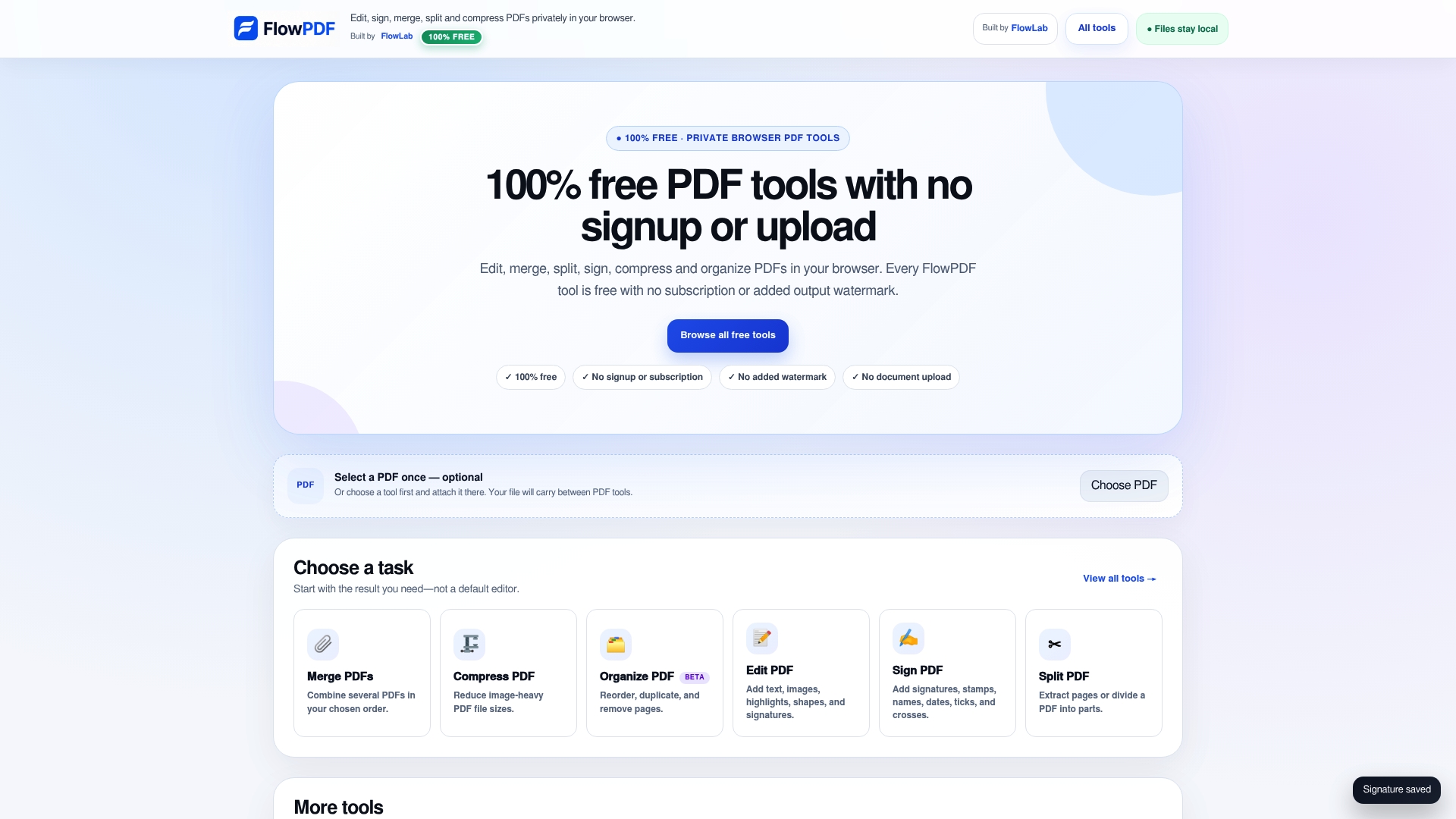
FlowPDF is built for the everyday jobs in this guide: merging papers, compressing a file to send, filling a form, redacting a detail and signing a contract. You can do all of them without a subscription and without handing the document to anyone.
Perspective
We built FlowPDF around one idea: a document tool should not need your document. Most PDF jobs, such as merging, splitting, compressing, rotating or signing, are operations a modern browser can perform by itself. When the work happens on your device, there is no upload to wait for, no server copy and no account tied to your files.
That is why every tool in FlowPDF is free. We have no subscription to protect and no watermark to remove, so the whole toolkit is open to everyone from the first visit. For a student, that means a thesis merged in a minute. For a small business, it means one place for the team's document tasks. For a professional signing a contract, it means the file stays where it belongs.
In Singapore, where businesses handle personal data under the PDPA and individuals share IDs and contracts constantly, we think local processing is the sensible default. Our aim is a tool that is calm, clear and easy to trust.
Ronald Ang
FAQ
Is an online PDF editor safe?
It depends on where the file is processed. An editor that runs in your browser and does not upload the file, as FlowPDF does, keeps the document on your device. For any online tool, a document with personal data or commercial terms is best handled by one that processes locally.
How can I password-protect a PDF for free?
Open Protect PDF in FlowPDF, add your file, set a password and save the protected copy. The protection is applied locally, so the file is not sent to a server. Share the password separately from the document.
Can I merge, compress and sign PDFs in one tool?
Yes. FlowPDF includes merge, compress and sign among its 20 tools, all free and all running in the browser. You can merge your papers, compress the result and sign it without switching services.
Do I need an account or a subscription?
No. FlowPDF requires no signup, has no subscription and adds no watermark to your files. Every tool is available from the first visit.