
If you want to merge, split, compress or sign PDFs without handing your files to a server, the short answer is a tool that runs on your own device. Stirling PDF, BentoPDF, PDFsam and PDF Arranger are the open source names that come up most. For everyday jobs with no install, no account and no upload, we built FlowPDF to run entirely in your browser, and it is free.
This guide compares the options by what they actually do, where they run and what they cannot do, so you can pick one in a few minutes.
TL;DR
- Stirling PDF is the most comprehensive open source toolkit, but it cannot edit existing text or images, according to HowToGeek's March 2026 review.
- BentoPDF runs in the browser and offers 50+ tools, per XDA Developers.
- PDFsam Basic and PDF Arranger are page organizers: they merge, split and reorder, but do not edit content.
- FlowPDF covers 20 tasks in your browser, including edit, merge, split, compress, sign and redact, with no upload, no signup, no watermark and no cost.
Table of Contents
- What "open source PDF editor" really covers
- The options compared
- Where the files go: the privacy check
- Which one for which job
- Perspective
- Try it on your next PDF
- FAQ
- Sources
What "open source PDF editor" really covers
Open source means the program's code is public, so anyone can inspect it and, usually, use it for free. For PDFs, the label covers three different kinds of tool, and mixing them up is the most common reason people pick the wrong one.
- Page organizers merge, split, rotate and reorder pages. They do not change what is written on a page.
- Toolkits bundle dozens of operations: compress, convert, sign, redact, OCR (turning scanned images into searchable text).
- Layout and design programs let you rebuild a document from scratch, which is heavier than most people need.
HowToGeek makes the same split: PDFsam Basic and PDF Arranger are not full-fledged editors because they cannot edit existing content. Decide which job you have before you compare names.
The options compared
| Tool | Runs where | Best for | Main limit |
|---|---|---|---|
| FlowPDF | In your browser, files stay on your device | Merge, split, compress, sign, redact, fill forms in one place | No certificate-backed digital signatures |
| Stirling PDF | Desktop apps or self-hosted server | Full toolkit, OCR, automation | Cannot edit existing text or images |
| BentoPDF | In your browser (self-hostable) | Quick, private everyday tasks | No API |
| PDFsam Basic | Desktop | Merging, splitting, rotating | No text editing, forms or OCR |
| PDF Arranger | Desktop (Linux focus) | Reordering and merging pages | Cannot edit content |
| Scribus | Desktop | Layout and publishing | Built for design, not quick edits |
FlowPDF: the in-browser toolkit with nothing to install
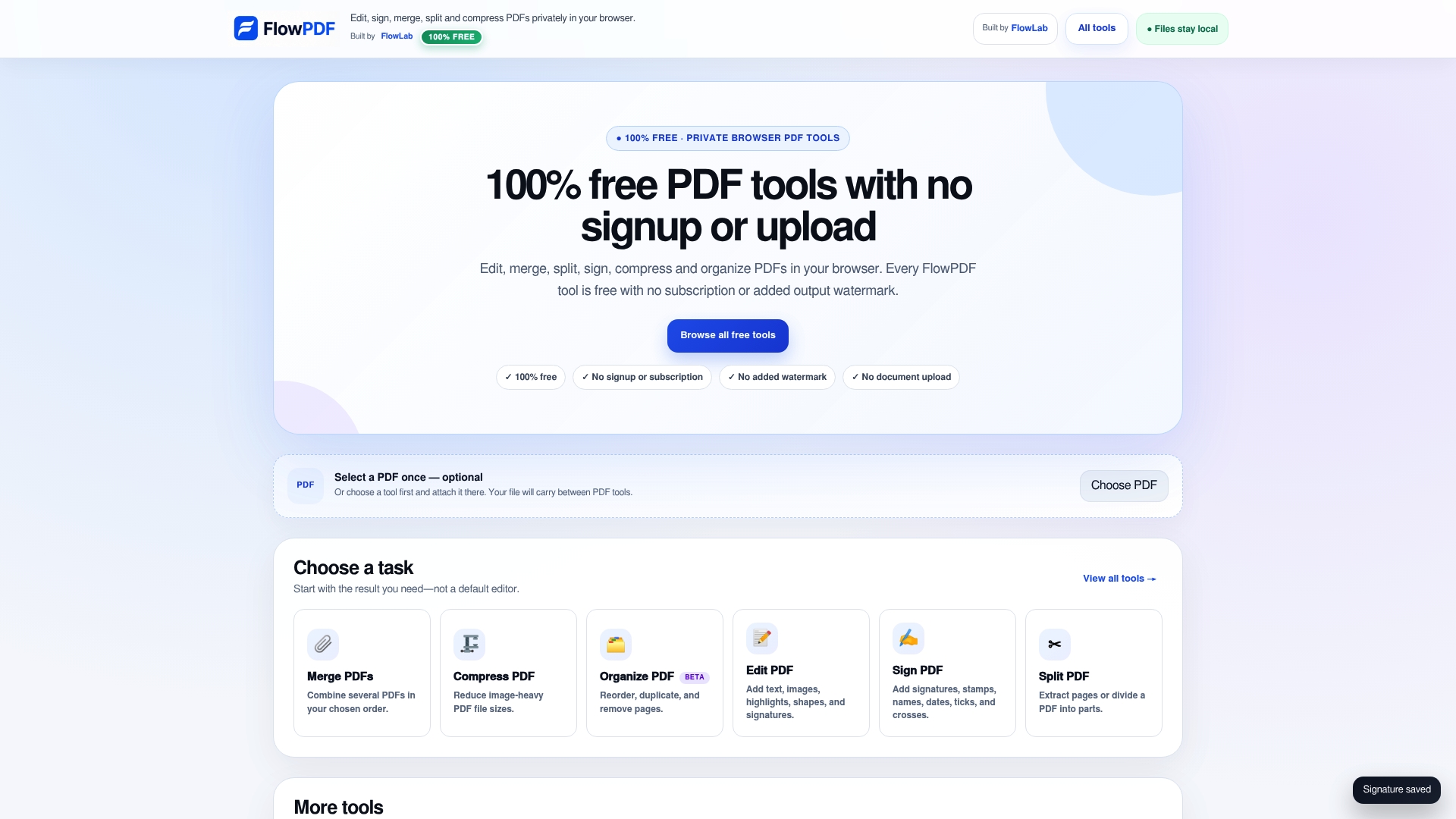
FlowPDF handles edit, merge, split, compress, organize, rotate, crop, watermark, page numbers, form filling, compare, scan, extract, remove, redact, protect, unlock and sign, plus image-to-PDF and PDF-to-Markdown. All processing happens locally in your browser, so your document is never uploaded. There is no subscription, no signup and no watermark.
That suits the four people who search for this most: a student merging research papers, a small business handling many documents, anyone shrinking a file to email, and a professional signing a contract that should not leave their laptop. It also works on Linux, Windows, macOS or a phone, because a browser is all you need. See the full list on the FlowPDF tools page.
Stirling PDF: the biggest feature list
HowToGeek calls Stirling PDF arguably the most comprehensive open source PDF editor. It ships as desktop apps for Windows, macOS and Linux, or you can self-host it with Docker (software that packages an app so a server can run it). The same review notes it cannot correct existing text or resize embedded images.
It is also a heavier project. Contabo's VPS comparison describes a server-side Java backend with an image over 1 GB and a REST API for batch work, and suggests 12 GB of RAM as a reasonable starting point for it. XDA Developers reports that Stirling is free and open source, with paid Pro and Enterprise plans alongside a free plan limited to core tools and self-hosting.
For a team with a server and a technical person to run it, that is a real strength. For a student with one deadline, it is more setup than the job needs.

BentoPDF: browser-based and fast
XDA Developers' reviewer says BentoPDF processes files client-side, so documents do not leave his machine, and counts 50+ tools for merging, splitting, compressing, converting and reorganizing. He also reports near-instant operations and good drag-and-drop page reordering. Contabo adds that it is browser-only with no API and light on server resources.
It is a close cousin of FlowPDF in approach. The difference is where you start: with FlowPDF you open a page and work, with nothing to host.
PDFsam Basic and PDF Arranger: simple page tools
PDFsam Basic handles merging, splitting, rotating, extracting pages, metadata and password encryption. It lacks text editing, annotation, forms, OCR and conversion. PDF Arranger reorders, merges, splits and extracts images, and it also cannot change existing content. Both are sensible if page order is your only job. If you also need to sign, compress or redact, you will end up installing a second tool. FlowPDF's Organize PDF tool covers reordering and deleting pages in the browser.
Scribus: for layout, not quick fixes
Scribus is free desktop publishing software for Linux, macOS and Windows, first released in 2001 and still updated, with a stable 1.6.6 release listed for April 2026. It is the right pick for designing brochures or magazines. For merging two reports or signing a form, it is far more program than you need.
Where the files go: the privacy check
The biggest practical difference between tools is where processing happens. TechRepublic's November 2026 comparison lists Stirling PDF as running on a desktop or self-hosted server, while Smallpdf, iLovePDF and Adobe's online editor process files in the vendor's cloud.

For contracts, ID copies, tax papers or unpublished research, a tool that never sends the file anywhere removes the question. Our guide to private PDF editors explains what to look for, and the same thinking applies when choosing between client-side processing and a self-hosted server: fewer places your data travels means fewer places it can leak.
Which one for which job
Merging research papers
You need page order control and no quality loss. Use Merge PDF in FlowPDF, drag the files into order, then remove cover pages or duplicates with Remove Pages. PDFsam Basic and PDF Arranger also do this on a desktop.
Compressing a file to share
Open Compress PDF, add the file and download the smaller version. It happens on your device, so a private report stays private.
Signing a contract
Sign PDF lets you place your signature without uploading the document. It adds a visual signature, not a certificate-backed digital one, so check whether your counterparty needs the latter. Our guide to filling and signing PDFs in the browser covers Singapore signing rules.
Redacting sensitive details
Redact PDF removes text permanently on your device before you share the file.
Running on Linux
Stirling PDF and PDF Arranger both have Linux options, and Scribus runs there too. If you would rather not install anything, FlowPDF works in any modern Linux browser.
Automating hundreds of files
This is where Stirling PDF's REST API and server setup earn their place. It is a different job from one-off edits.
Perspective
Most people who search for an open source PDF editor do not care about licenses. They want three things: no surprise watermark, no account, and no copy of their file on someone else's server.
That is why we built FlowPDF to run in the browser. Your PDF is processed locally, so the question of what happens to it after upload never comes up. Every tool is free, with no signup.
When you pick any tool, ask where the file is processed first and what it can do second. A long feature list matters less than a clear answer to the first question.
Ronald Ang
Try it on your next PDF
FlowPDF puts edit, merge, split, compress, sign and redact tools in one place, free, with no upload. Open the FlowPDF tools and start with the file in front of you.
For other comparisons, see our guides to Smallpdf alternatives and iLovePDF alternatives for Singapore.
FAQ
Is there a free open source PDF editor that edits existing text?
The leading open source toolkits focus on organizing, signing, compressing and converting. HowToGeek notes that even Stirling PDF cannot correct existing text. FlowPDF's Edit PDF tool works in your browser for the edits you need, with no upload.
Do I need to install anything?
Not with FlowPDF. Open it in your browser and your files stay on your device. Desktop tools like PDFsam Basic and PDF Arranger need installing, and Stirling PDF needs an app or a server.
Are free PDF tools safe for confidential documents?
It depends on where processing happens. Cloud tools handle files on the vendor's servers, as TechRepublic's comparison shows. Tools that process locally keep the file on your device, which is how FlowPDF works.
What is the best all-in-one PDF toolkit?
For breadth without setup, FlowPDF offers 20 tools in one browser page. For automation on your own server, Stirling PDF has the deeper feature set.
Sources
- I trust these open-source apps for all my PDF editing, HowToGeek
- I prefer BentoPDF over StirlingPDF, XDA Developers
- 6 open-source PDF editors I prefer over Acrobat, XDA Developers
- Best Free PDF Editors in 2026: Privacy and Limits Compared, TechRepublic
- BentoPDF vs Stirling PDF: Which Fits Your VPS? Contabo
- Scribus, Wikipedia