
To merge PDFs, add the files to a merge tool, put them in the order you want, and save the result as one new PDF. On a Mac, Preview and Finder can do it. On an iPhone, the Files app can. Windows has no built-in way, so you need a small app or a browser tool. In a browser tool like FlowPDF's merge page, the files are processed on your device and are not uploaded.
This guide covers each device, how to fix the page order, why a merge sometimes fails, and how to keep sensitive files private while you combine them.
TL;DR
- Mac: open the PDFs in Preview, show thumbnails and drag pages from one file into the other, or select files in Finder and use the Create PDF Quick Action.
- iPhone: select the PDFs in the Files app and tap Create PDF. Files are merged in alphabetical order, so rename them first.
- Windows: there is no built-in merge, so use a dedicated app or a browser tool that works locally.
- Failed merge: password-protected PDFs must be unlocked first. Always scroll through the result before you send it.
- Contracts and personal data: pick a method that keeps files on your device.
Table of Contents
- Before you merge: prepare your files
- How to merge PDFs in your browser, without uploading
- How to merge PDFs on a Mac
- How to merge PDFs on Windows
- How to merge PDFs on an iPhone
- How to fix the page order after merging
- Why a PDF merge fails, and what to do
- Check the merged file before you send it
- Merging contracts and personal data safely
- Our perspective
- Merge your PDFs with FlowPDF
- Which method should you choose?
- FAQ
- Sources
Before you merge: prepare your files
Ten minutes of preparation saves a lot of re-merging. Do these four things first.
- Put every PDF in one folder. Merge tools are easier to use when you are not hunting across Downloads, Desktop and email attachments.
- Name files in the order you want. Use
01-cover-letter.pdf,02-resume.pdf,03-transcript.pdf. Several tools, including the iPhone Files app and the Mac Finder action, depend on file order or file names, so this one habit works almost everywhere. - Unlock protected files. A PDF with a password will not merge in many tools. If you know the password, remove it first with Unlock PDF.
- Check file size. If the final file must be emailed or uploaded to a portal with a size limit, plan to shrink it after the merge. We cover that near the end.
How to merge PDFs in your browser, without uploading
A browser tool works on any device with a modern browser: Windows, Mac, Chromebook, even a phone. It is the quickest option when you do not want to install anything.
The difference between tools is where your files go. Many online mergers send each file to a server, merge it there and send the result back. A local tool reads the files into your browser's memory and builds the merged file on your own device. With FlowPDF, the steps are:
- Open Merge PDF.
- Choose your files or drop them onto the page. You can add several at once.
- Drag the files into the order you want.
- Select Merge.
- Download the combined PDF.
There is no signup, no watermark and no fee. Because nothing is uploaded, it suits contracts, payslips, medical letters and school records.
How to merge PDFs on a Mac
Your Mac can merge PDFs without any extra software. There are two built-in routes. We also have a longer walkthrough of keeping PDFs private on a Mac.
Option 1: Preview (best for control)
As Zapier's guide explains, Preview merges by dragging pages between thumbnail sidebars.
- Open the first PDF in Preview.
- Choose View > Thumbnails so the sidebar shows page thumbnails.
- Open the second PDF in its own window and show its thumbnails too.
- Select all the pages in the second PDF's sidebar, or just the ones you need.
- Drag them into the first PDF's sidebar and drop them where they should appear.
- Drag thumbnails up or down to change the order, then choose File > Save.
This route is best when you want only some pages from a file, or want to mix pages from several PDFs.
Option 2: Finder Quick Action (best for speed)
Select several PDFs in Finder, right-click, and choose Quick Actions > Create PDF. Finder combines the files in the order they were selected, according to MakeUseOf. That article also advises opening the result in Preview to check it, and notes that this action cannot merge encrypted PDFs. If the order is wrong, open the new file in Preview and drag thumbnails into place.

How to merge PDFs on Windows
Windows has no general-purpose PDF merge built in. Zapier's January 2025 guide says so directly, and shows a dedicated Windows merger app as the workaround. In that example you add your PDFs, use Move Up and Move Down to set the order, preview or remove files, and save with Merge PDF.
You have three practical choices on Windows:
| Option | Good for | Watch out for |
|---|---|---|
| Browser tool that works locally | One-off merges, no install | Pick one that does not upload your files |
| Desktop PDF editor you already own | Frequent, heavy PDF work | Some editors need a paid plan to combine files |
| Small free merger app | Regular merging on one PC | Download only from the official site |
If you own Adobe Acrobat Pro, an Acrobat Pro help guide describes the path: Tools > Combine Files, add your files, drag them into order, delete anything unwanted, choose Combine, then save. Many people only need to merge a few files once and do not want to pay for that. In a Microsoft Q&A thread, a job applicant asks exactly this: how to join four PDFs without buying an Adobe upgrade. A free browser tool answers that need.
How to merge PDFs on an iPhone
The Files app on iPhone can combine PDFs. As The Mac Observer describes:
- Open Files and go to the folder with your PDFs.
- Tap the More icon, then Select, and choose the PDFs.
- Tap More again and choose Create PDF.
- The merged PDF appears in the same folder, and your originals stay as they were.
The same article notes that Files merges in alphabetical order, so rename the files to control the sequence before you start. A browser tool also works in Safari on an iPhone if you want to drag files into a custom order.
How to fix the page order after merging
A merge that puts one page in the wrong place is common. You do not need to merge again.
- Reorder in a viewer. In Preview on a Mac, drag thumbnails in the sidebar. The University of Georgia's Foxit Pro instructions describe the same idea: open the Pages view and drag thumbnails up or down. Right-clicking a thumbnail lets you delete, duplicate or rotate a page there too.
- Reorder in the browser. Organize PDF shows page thumbnails so you can drag pages into place and delete the ones you do not want. See also our guide to organizing PDF pages privately.
- Delete stray pages. A blank page from a scanner or a duplicate cover sheet can be dropped with Remove Pages.
- Fix sideways pages. Phone scans often arrive rotated. Use Rotate PDF, or read how to rotate PDFs on a Mac.
Why a PDF merge fails, and what to do
Most failures come from a short list of causes.
| Problem | Why it happens | Fix |
|---|---|---|
| Merge button is greyed out or the file is skipped | The PDF is password-protected | Unlock it first with the password, then merge |
| Pages in the wrong order | Tool merges by selection order or file name | Rename files with 01, 02, 03, or reorder pages afterward |
| Pages look sideways | Original scan was rotated | Rotate the affected pages, then save |
| Margins differ between files | Documents have different page sizes | Crop the pages to match |
| File is too large to send | Scans and images add weight | Compress the merged file |
The password issue is the one people miss. MakeUseOf says the Finder Quick Action cannot merge encrypted PDFs, so unlock them before you start. If you have the password, Unlock PDF removes it locally. Only unlock files you have the right to open.
Check the merged file before you send it
Merging takes seconds. Checking takes about a minute and prevents the awkward follow-up email.
- Scroll through every page, not just the first and last.
- Confirm the page count equals the sum of your source files.
- Look for sideways, blank or duplicated pages.
- Check that signatures, stamps and form fields still appear.
- Confirm the file name says what is inside, such as
Tan-Application-Pack.pdf.
If the merged file is too heavy for email or an upload portal, run it through Compress PDF. If you need only part of the result, Extract Pages pulls out the pages you choose.
Merging contracts and personal data safely
The privacy side of merging is easy to overlook. A merged pack often holds an identity card number, an address, salary details or a signed agreement. If you upload those files to a stranger's server to merge them, you have given a copy to a third party.
In Singapore, the PDPA's Protection Obligation requires organisations to make reasonable security arrangements for personal data in their possession or control, according to the PDPC's guide to securing personal data in electronic medium. The same guide recommends encrypting emails or attachments, using encrypted channels, or other secure means when you transmit personal data. If you handle client or employee documents at work, that applies to you. Ask your data protection officer how your organisation applies it.
Some practical habits:
- Merge on your own device with a tool that does not upload files.
- Redact what the recipient does not need before merging, using Redact PDF.
- Protect the final file with a password and share the password by a separate channel.
- Read our guide to sending a PDF securely and removing hidden metadata.
Legal teams in other countries face the same question. A Spanish-language guide to encrypting legal documents covers how law firms approach it.
Our perspective
We built FlowPDF around one idea: merging a PDF should not mean handing it to someone else.
Most people who search for how to merge PDFs have a simple job. They want a CV and a transcript in one file, or three signed pages in one contract. Yet many tools ask them to upload the files, create an account, or accept a watermark. For ordinary documents, that trade-off is unnecessary.
That is why FlowPDF processes your PDFs in your browser. Your files stay on your device while you merge, reorder and download. There is no subscription and no watermark, and every tool is free. We think this matters most for the documents people worry about: contracts, tax papers, school records and anything with personal details.
Our advice is simple. Name your files in order, merge locally, check every page, and compress only if you need to. A tool that does these jobs quietly and respects your files is a tool you can trust.
Ronald Ang
Merge your PDFs with FlowPDF
If you want the fastest route on any device, open Merge PDF. Add your files, drag them into order and download one combined PDF. Nothing is uploaded, and you do not need an account.
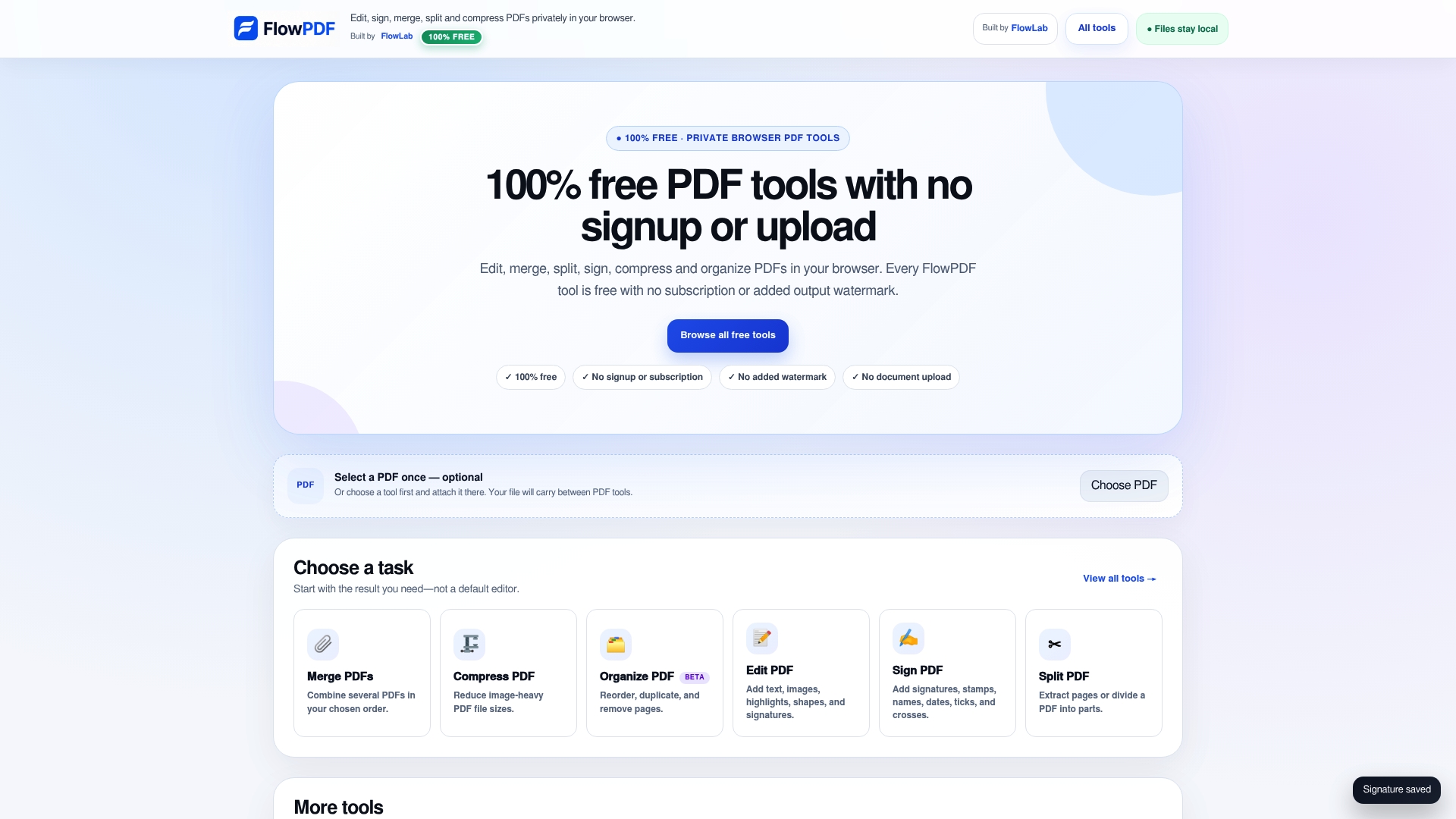
When the merge is done, the rest of the toolkit is on the same site. You can reorder pages, remove extras, compress the result, redact private details or sign. See all of them on the FlowPDF tools page.
Which method should you choose?
- You have a Mac and want only a few pages from each file: use Preview.
- You have a Mac and want a quick join: use the Finder Quick Action, then check the order.
- You are on an iPhone: use Files, after renaming your PDFs in order.
- You are on Windows and want no install: use a local browser tool.
- You handle sensitive files: use a method that keeps files on your device, whatever the system.
- You merge hundreds of files a week: a desktop editor with batch features may suit you better.
For a student merging research papers, a freelancer building a contract pack, or someone sending a job application, a browser tool covers the whole job in one visit: merge, reorder, trim and compress.
FAQ
Can I merge PDFs without uploading them?
Yes. A browser tool can read your files into your device's memory and build the merged PDF there, so nothing goes to a server. On a Mac, Preview and Finder also work offline. FlowPDF is designed to process files locally in your browser.
How do I merge PDFs on Windows for free?
Windows does not include a general PDF merge function, as Zapier notes. Use a free dedicated app or a browser-based merge tool. Add the files, set their order, and save the combined PDF.
How do I choose the order of the merged pages?
Drag files into order before merging, or rename them with 01, 02, 03 so the order is automatic. After merging, you can drag page thumbnails in Preview or in Organize PDF. The merged file does not have to be perfect on the first try.
Why will my PDF not merge?
The most common cause is a password on one of the files. Unlock it first, then merge again. If the merge works but looks wrong, check for sideways pages and mixed page sizes, which you can fix with rotate and crop.
Does merging reduce quality?
Merging combines the pages into one file, so it does not need to change how pages look. Quality loss usually comes from a separate compression step. Compress only when you must meet a size limit, then check the result.
Sources
- How to merge PDF files for free (Mac and Windows), Zapier
- What's the Easiest Way to Merge PDF Files on a Mac?, MakeUseOf
- How to Combine PDFs on iPhone Using Files and Shortcuts, The Mac Observer
- Foxit Pro: Combine Multiple Files into a Single PDF, University of Georgia
- PDF management: How to merge multiple PDFs using Acrobat Pro
- Merging pdf documents into one pdf document, Microsoft Q&A
- Guide to Securing Personal Data in Electronic Medium, PDPC Singapore