
Use a free browser-based PDF organizer to reorder, rotate, add, or delete pages without emailing files to a stranger's server. FlowPDF handles this with local processing, meaning your document never leaves your device. You end up with a reorganized PDF, ready to download, in the time it takes to drag a few thumbnails into place.
TL;DR:
- FlowPDF processes files entirely in your browser, preventing any sensitive data from leaving your device.
- It supports multi-page reordering, page insertion from other PDFs, and bulk rotating, with limits based on file size and page count.
- For detailed editing, splitting large documents before organizing or removing passwords ensures smoother workflow and privacy.
- Mobile use is available but less practical on small screens, making desktop browsers preferable for larger files.
- Cloud-based tools may be necessary for team collaboration or automating large volumes, but local tools like FlowPDF best serve one-off, sensitive edits.
Table of Contents
- How to organize PDF pages online
- Reordering, adding, deleting, and rotating pages: what actually works
- Fixing common problems with large or locked PDFs
- Why local processing matters for your PDFs
- What to look for in a PDF page organizer
- When I reach for a local organizer instead of a cloud tool
- Try FlowPDF for your next PDF cleanup
- Sources
How to organize PDF pages online
Getting a PDF into shape takes a handful of steps, and none of them require installing software.
- Open or drop your file. Drag the PDF into the organizer tool or click to browse and select it from your device.
- Switch to thumbnail view. You'll see every page as a small preview, which makes it obvious where content is out of order.
- Drag pages into place. Click and hold a thumbnail, then drop it where it belongs. Multi-select lets you move several pages at once instead of one at a time.
- Insert, replace, or delete. Pull in pages from another file, swap out a page that's outdated, or remove ones you no longer need.
- Rotate anything sideways. Fix upside-down scans or landscape pages before finalizing.
- Save and download. Export the finished file. It downloads straight to your device, no email link, no waiting for a processing queue.
On mobile, thumbnail drag-and-drop still works, but smaller screens make precise moves trickier. For files over a couple hundred pages or larger than 50MB, a desktop browser gives you more room to work and fewer accidental taps.
Reordering, adding, deleting, and rotating pages: what actually works
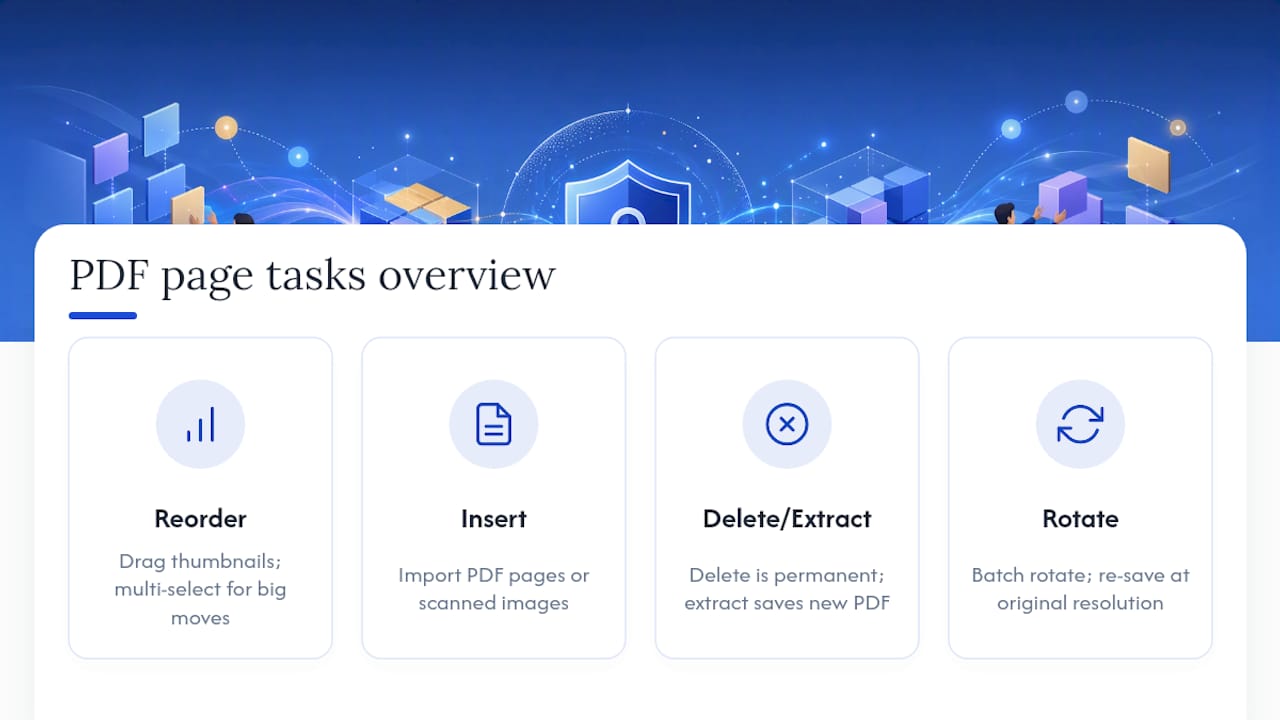
Each task has its own quirks, and knowing them ahead of time saves you from redoing work.
Reordering pages. Drag-and-drop thumbnail organizers remain the fastest way to fix page order in a multi-page PDF without touching layout or image quality. For big reshuffles, like moving fifteen pages from the back of a contract to the front, use multi-select rather than dragging one page fifteen times. Select the block, then move it as a group.

Adding or inserting pages. You can pull pages in from a second PDF or drop in a scanned image. Watch for size mismatches. If your original document is letter size and you insert a page scanned at A4, the layout can look inconsistent when printed. Replacing a page (rather than deleting and re-inserting) keeps your table of contents and any numbering intact.
Deleting and extracting pages. Removing a page is permanent once you save, so work on a copy of the original file. If you need to pull specific pages into a standalone document, extracting is different from deleting: extraction saves those pages as a new PDF while your original stays whole.
Rotating pages. Scanned documents are the usual culprit for pages landing sideways or upside down. FlowPDF's rotate tool fixes single pages or entire batches, so you don't have to rotate a 40-page scan one page at a time.
Pro Tip: If a scanned PDF looks blurry after rotating, re-save it at its original resolution rather than compressing during export. Compression before rotation is what usually causes the quality drop, not the rotation itself.
Fixing common problems with large or locked PDFs
Most organizing headaches trace back to file size, permissions, or formatting, not the tool itself.
- File too large to load smoothly? Split it into smaller sections first, then organize each piece before recombining with a merge tool. Compressing before you split can help too, since a smaller file processes faster in any browser tab.
- Password-protected PDF won't open? Remove the password first if you have authorization to do so, using a tool built for that specific task, then organize the unlocked version.
- Fonts or formatting look off after saving? Choose an export option that preserves fonts rather than flattening the page, unless flattening is what you actually want for a final, non-editable version.
- Worried about losing your original? Always keep an untouched copy before you start moving pages around. Use "save as" for every edit so you can backtrack if something goes wrong.
- Working from a phone? Rotate your device to landscape for a wider thumbnail view, or save heavy reorganizing jobs for a desktop browser where drag-and-drop has more room to work.
Why local processing matters for your PDFs
Local processing means your PDF is reordered, rotated, or edited entirely inside your browser. It never travels to a remote server. Cloud-based tools work differently: they upload your file, process it elsewhere, then send back the result. That round trip is where the privacy trade-off lives, especially for contracts, medical records, or anything with personal information on it.
Offering local processing, with no upload step at all, gives people worried about exposing sensitive documents a practical alternative to cloud tools for one-off edits. It's not a workaround. It's a different architecture entirely.
Before trusting any organizer with a sensitive file, check a few things: does the provider publish how files are processed, is there a stated retention policy (or better, no retention because nothing was ever uploaded), and does the connection use TLS in transit if any data does move. FlowPDF processes files locally in the browser, and its tools carry no signup requirement and no watermark on the output.
Cloud processing still makes sense in some cases, particularly team workflows where multiple people need to touch the same document, or automated pipelines handling hundreds of files a day. If you do upload to a cloud service, confirm its retention terms first. Stripping identifying details is a smart extra layer if the file is heading to an AI tool next, as Safe-Doc's guide on anonymizing PDFs before ChatGPT lays out.
What to look for in a PDF page organizer
Not every organizer handles the same jobs equally well. Run through this before committing to one:
- Processing model. Local processing beats cloud upload for anything sensitive, since your file never leaves your device.
- Feature completeness. Confirm it handles insert, replace, delete, rotate, and extract, not just drag-and-drop reordering.
- Practical limits. Check the max page count and file size, and whether free access caps how many tasks you can run per day.
- Usability. Thumbnail view with drag-and-drop and multi-select saves real time on longer documents; mobile support matters if you're editing on the go.
- Output options. Look for PDF/A export if you need archival compliance, flattening if you want a locked-down final version, and clear versioning so you never overwrite your original by accident.
When I reach for a local organizer instead of a cloud tool
For one-off jobs, like reordering a scanned contract or rotating a batch of pages someone photographed sideways, I default to a browser tool that processes locally. There's no reason to upload a lease agreement or a medical form to a remote server just to move page three ahead of page one.
Cloud tools earn their place when a team needs shared access to the same document, or when a business is automating hundreds of PDFs a week and manual, one-file-at-a-time editing isn't realistic anymore. That's a different problem than the one most individuals actually have.
Most people opening a search for this topic just need to fix a scanned document, delete a blank page, or remove pages from a contract before sending it back. That's a five-minute job, not an infrastructure decision.
— Ronald Ang
Try FlowPDF for your next PDF cleanup
FlowPDF is the free alternative to uploading sensitive files to a cloud service just to move a few pages around. Every reorder, rotation, insertion, or deletion happens locally in your browser, so contracts, scanned IDs, or internal reports never touch a remote server, and nothing comes back with a watermark stamped on it.

Head to the Organize PDF Pages tool to reorder or delete pages directly, no signup, no file limit surprises. If your job involves recombining split documents afterward, the merge tool handles that in the same local-processing environment. Need to fix orientation issues on a scanned batch first? Start there, then organize. Open your file and see how far you get in the next five minutes.