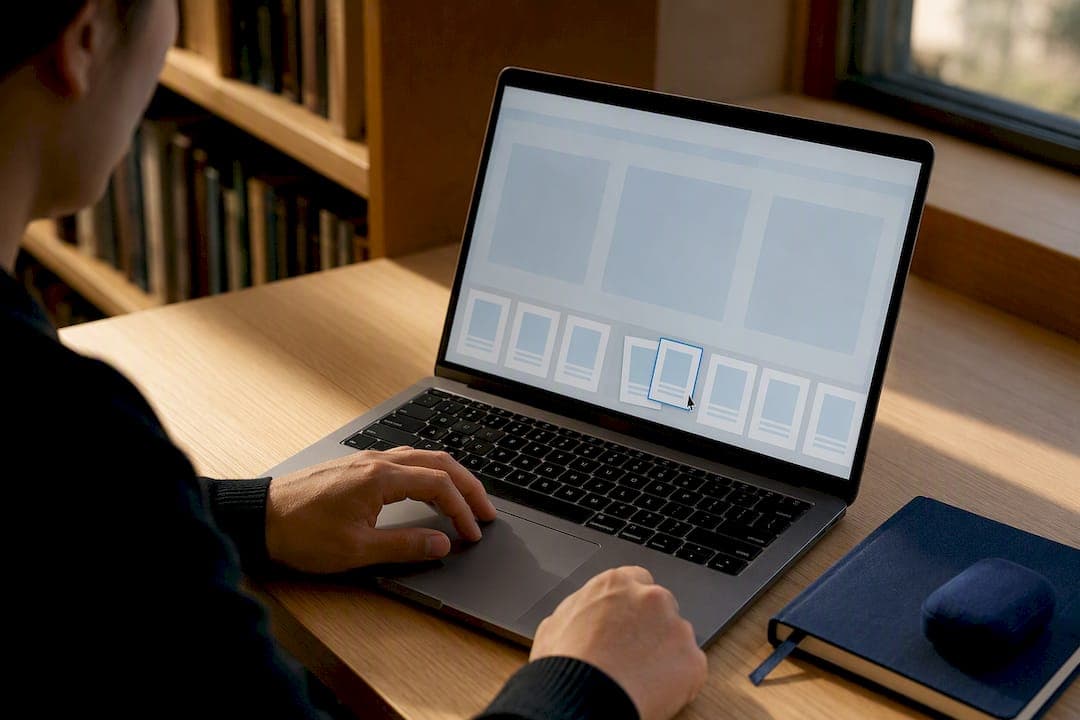
The fastest way to merge PDF files on a Mac is Preview, for small visual jobs, or Finder Quick Actions, for a one-click combine. If you merge often, a Shortcuts automation or the Terminal join.py script handles bulk work. For sensitive files, a local browser tool merges everything on your device with no upload. Just unlock any password-protected PDF first, since none of these methods can merge a locked file.
TL;DR:
- Merging a small number of PDFs is easiest with Preview, but it requires manually unlocking password-protected files before combining.
- Finder Quick Actions can merge multiple files rapidly in the order they are sorted in the folder, but may scramble page sequence if files are not named sequentially.
- Automating merges with Shortcuts saves time for recurring tasks, while terminal commands like join.py are suitable for large batches or scripted workflows.
- Local browser tools process files entirely on your device, ensuring privacy and better control over merging and page reordering compared to macOS’s built-in options.
- Always duplicate files before merging to prevent overwriting originals, and run OCR on scanned PDFs separately to ensure the final merge is fully searchable.
Table of Contents
- How Do You Merge PDF Files on Mac Using Preview?
- What Is the Fastest Way to Combine PDF Files on Mac?
- Can You Automate PDF Merging With Shortcuts?
- How Do You Batch Merge PDFs Using Terminal?
- Are Browser-Based PDF Mergers Actually Private?
- What Should You Do When a PDF Merge Fails?
- Which Merge Method Actually Fits Your Task?
- How Do You Merge Scanned PDFs Without Losing Text?
- Author Perspective: A Privacy-First Recommendation and Workflow
- Merge PDFs Locally in Your Browser With FlowPDF
- Sources
How Do You Merge PDF Files on Mac Using Preview?
Preview is the quickest option when you're working with a handful of files and want to see exactly how the final document will look. It's already on your Mac, and it handles page-level control better than most people expect.
Here's the process:
- Open the first PDF in Preview.
- Show thumbnails with View → Thumbnails, or press Option+Command+2.
- Open your second PDF, then drag individual pages or the whole document into the first file's thumbnail sidebar.
- Reorder pages by dragging thumbnails up or down until the sequence is right.
- Save your work with File → Export, or duplicate the file first if you want to keep the originals untouched.
Preview saves changes automatically once you start dragging pages around, which is convenient but risky if you didn't mean to alter the source file.
Pro Tip: Duplicate both PDFs with File → Duplicate before you start merging. That way your originals stay intact no matter what happens during the drag-and-drop.
Preview is the best pick when you're combining two or three files and want visual confirmation of the order before you finalize anything.
What Is the Fastest Way to Combine PDF Files on Mac?
Finder Quick Actions wins on speed. Select your files, right-click, and let Finder do the rest.
- Select the PDFs you want to combine in Finder.
- Right-click and choose Quick Actions → Create PDF.
- Finder merges the files in the order they appear in the folder's current sort view, which is typically alphabetical by filename.
- If pages land in the wrong sequence, rename files with numeric prefixes like 01_intro.pdf and 02_summary.pdf before merging.
- If Create PDF doesn't show up in your Quick Actions menu, open Finder preferences or the Quick Actions extension settings to enable it.
One detail trips up a lot of Mac users: Finder doesn't ask you for a merge order. It just goes by whatever sort order is active in that window, according to Apple's own documentation. If your files are sorted by date modified instead of name, your merged PDF will follow that order instead, and the result can be scrambled.
Can You Automate PDF Merging With Shortcuts?
Yes, and it's worth setting up if you combine PDFs on a recurring basis, like weekly reports or client invoices.
- Open the Shortcuts app and create a new shortcut.
- Add the "Receive Files" action so the shortcut can accept whatever PDFs you select.
- Add "Make PDF" to combine the received files into one document.
- Add "Save File" and point it to a fixed folder, such as a Merged PDFs folder in your Documents.
- In the shortcut's settings, turn on Use as Quick Action, then set Finder as an accepted input type.
Once that's done, the shortcut shows up right in your Finder right-click menu alongside Create PDF. This setup pays off most when you're merging the same kind of files over and over and want the output landing in the same place every time, without repeating manual steps.
How Do You Batch Merge PDFs Using Terminal?
Terminal is overkill for two files but genuinely useful when you're combining dozens of documents or building a script that runs merges automatically.
- The core command uses Automator's own join.py script, called directly:
"/System/Library/Automator/Combine PDF Pages.action/Contents/MacOS/join.py" -o output.pdf input1.pdf input2.pdf - List your input files in the exact order you want them to appear in the final document. This is the same join.py component macOS uses internally for Combine PDF Pages, so it merges in the left-to-right sequence you type.
- If you use a wildcard like
*.pdfinstead of listing files individually, the shell expands it alphabetically before it ever reaches the script. - Wrap any file path containing spaces in quotation marks, or the command will fail partway through.
Pro Tip: If your files don't sort correctly with wildcards, rename them with two-digit numeric prefixes (01_, 02_, 03_) first. That forces the exact sequence you want, regardless of how the shell expands the wildcard.
Are Browser-Based PDF Mergers Actually Private?
They can be, but only if the tool processes files locally instead of sending them to a server. That distinction matters more than most people realize when the documents in question are contracts, tax forms, or medical records.
Local browser tools run merging code directly in your browser using a JavaScript PDF library, so your files never leave your device's memory. No upload happens, no copy sits on a remote server, and nothing gets logged.
You can confirm this yourself in about thirty seconds:
- Open your browser's Developer Tools and click the Network tab.
- Run the merge.
- Check whether any requests show your file being sent out. A genuinely local tool shows zero upload activity during the entire operation.
This kind of local processing tends to beat the built-in macOS tools on a few fronts: drag-and-drop page reordering across multiple files at once, page-level edits without leaving the app, and the same interface whether you're on a Mac, a Windows machine, or a Chromebook. FlowPDF's merge tool works this way, combining files entirely in your browser with no signup and no watermark added to the output.
What Should You Do When a PDF Merge Fails?
Most merge problems trace back to one of four causes, and each has a quick fix.
- Merge won't start or errors out immediately. Check whether the PDF is password-protected. Most local merge tools, including the built-in Mac options, can't process an encrypted file until it's unlocked. Open it in Preview, enter the password, then export an unlocked copy before merging.
- Pages come out in the wrong order. Rename files with numeric prefixes, or open the merged file in Preview and drag thumbnails into the correct sequence before saving.
- The merged file is too large to email or upload. Use File → Export in Preview and apply the Quartz Filter for Reduce File Size, or run the result through a local PDF compressor after merging.
- You accidentally overwrote an original file. This happens because Preview saves changes automatically. Always duplicate a file with File → Duplicate before you start dragging pages around, so the source stays untouched no matter what you do next.
Which Merge Method Actually Fits Your Task?
Pick based on three things: how many files you have, whether you need to see the order before saving, and how often you'll repeat the job.
- A couple of files, one-time job: Preview, so you can visually confirm the page order.
- Several files, already named in sequence: Finder Quick Actions for the fastest possible merge.
- The same merge repeated weekly or monthly: a Shortcuts automation set up as a Quick Action.
- Dozens of files or a scripted workflow: Terminal's join.py command.
- Sensitive documents you don't want touching a server: a local browser tool, which also lets you reorder pages without touching macOS's built-in UI.
Pro Tip: A dependable everyday habit: rename files with numeric prefixes, run the merge through a Finder Quick Action, open the result in Preview to confirm the order, then save a duplicate before you send it anywhere.
How Do You Merge Scanned PDFs Without Losing Text?
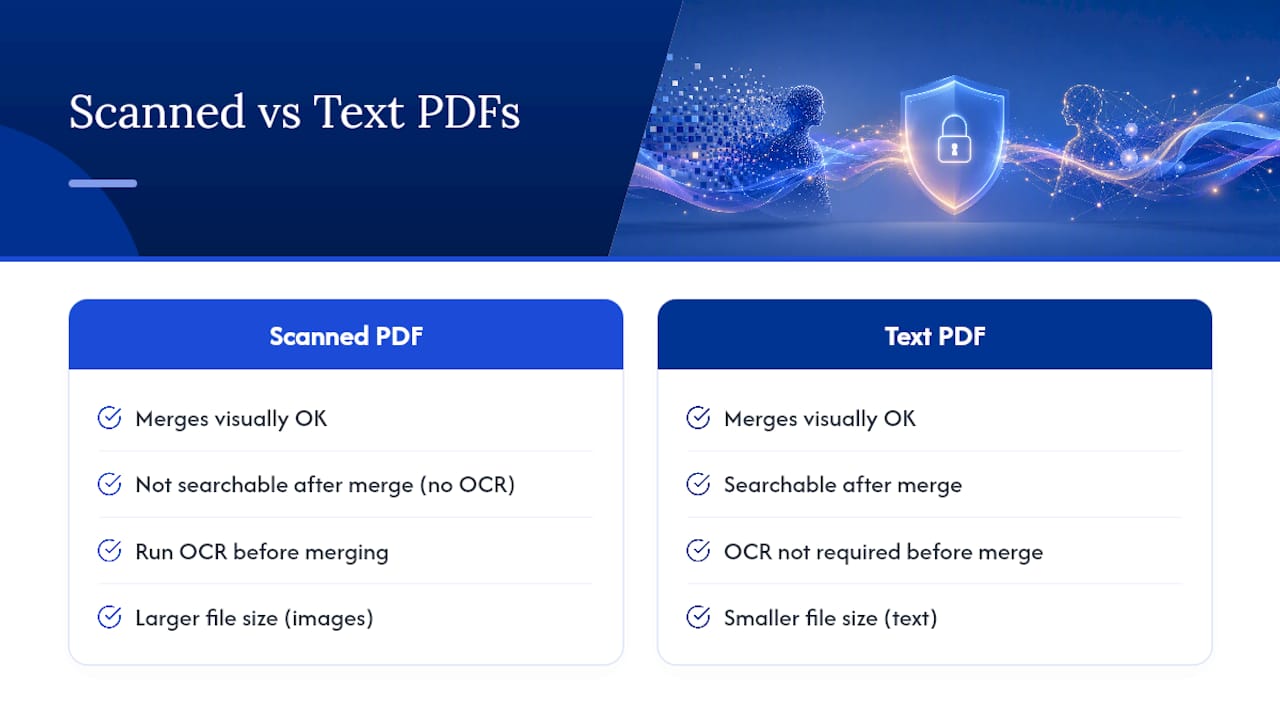
Scanned PDFs behave differently than documents exported straight from Word or a browser, and that difference matters once you start merging them.
A scanned page is essentially a photograph of a document stored inside a PDF wrapper. Unless it went through optical character recognition (OCR) at some point, there's no selectable or searchable text underneath the image, just pixels. Merging scanned pages with a text-based PDF works fine visually. Preview, Finder Quick Actions, and browser tools all combine the pages without complaint, since they're just stitching page objects together.
The problem shows up later, when you try to search the combined document or copy text out of it. If your scans were never run through OCR, that merged file will look complete but won't return any search results for the scanned pages, even though the typed pages next to them search fine.
If you need the scanned pages to be searchable, run OCR before you merge, not after. Most scanning apps, including the Continuity Camera feature and many standalone scanner apps, offer an OCR option at the point of scanning. Some third-party tools can also apply OCR to an already-scanned PDF. Either way, doing it first avoids a mismatch where half your merged document is searchable and half isn't, which is confusing for anyone who opens the file later and assumes the whole thing works the same way.
One more wrinkle: scanned pages tend to be larger in file size than text pages, since they're storing image data rather than text characters. A merge that mixes several scanned documents can produce a noticeably bigger file than the same page count in text-based PDFs, so factor that into whether you'll need to compress the result afterward.
Author Perspective: A Privacy-First Recommendation and Workflow
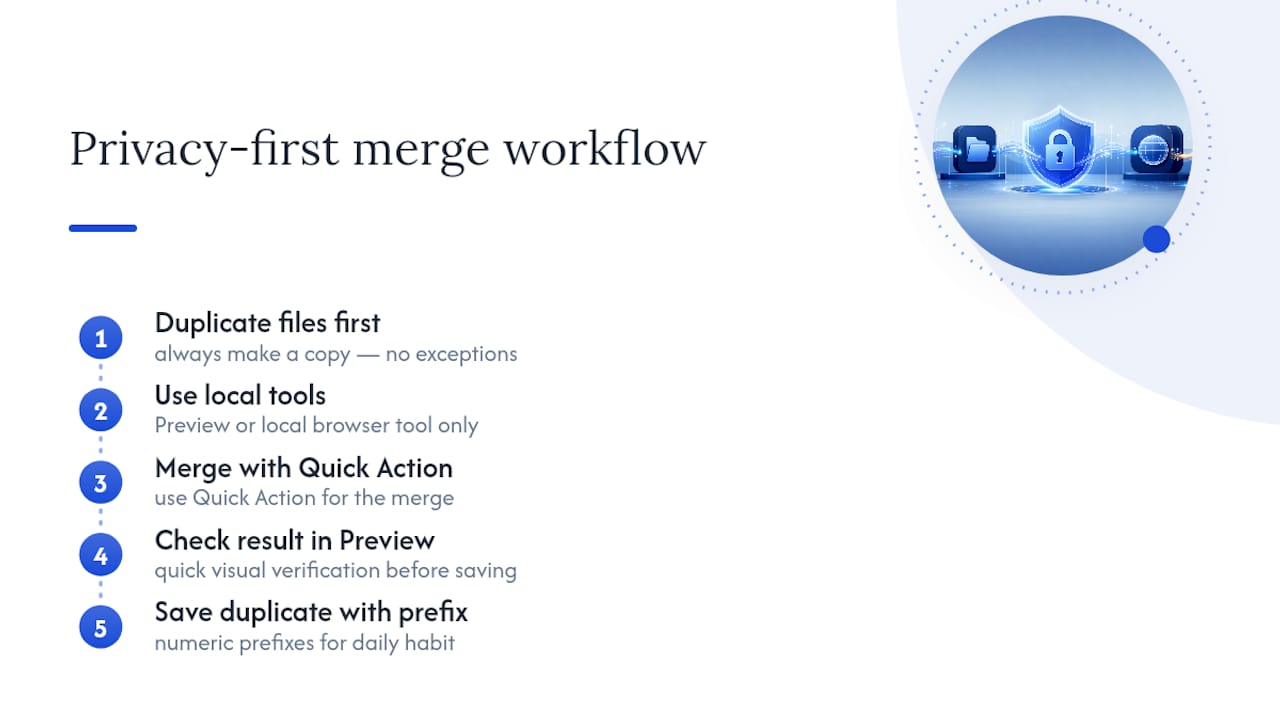
Most guides treat merging as a solved problem: pick a tool, click merge, move on. What they skip is the moment right after, when you realize you've overwritten a file you needed. Duplicate first, every time, no exceptions.
The bigger issue is where your documents go. Tax forms, contracts, medical scans, none of that belongs on a server you don't control. Stick to Preview or a local browser tool for anything sensitive. My daily habit: numeric prefixes, Quick Action merge, quick check in Preview, save a duplicate.
— Ronald Ang
Merge PDFs Locally in Your Browser With FlowPDF
Every method above works, but they all live inside macOS's own toolset, which means you're stuck with Apple's interface choices and its automatic-save quirks. some browser-based tools let you drag your files into the browser, reorder pages visually, and download the merged result, all without a single byte leaving your device.

The process takes under a minute. Open the merge PDF tool, drag in your files, drag pages into the order you want, then click merge and download. There's no signup screen, no watermark stamped across your pages, and no file size cap forcing you into a paid tier. If your merged document ends up too large afterward, FlowPDF's compression tool handles that in the same browser tab, and its page organizer lets you fine-tune order after the fact without redoing the whole merge. Try the merge tool on your next batch of files and see how it compares to the built-in route.
Sources
- How to Merge PDF Files on Mac | Preview, Finder, Shortcuts and Terminal Compared
- Combine PDFs in Preview on Mac - Apple Support
- Merge PDF Files — Free, No Upload, Runs in Your Browser