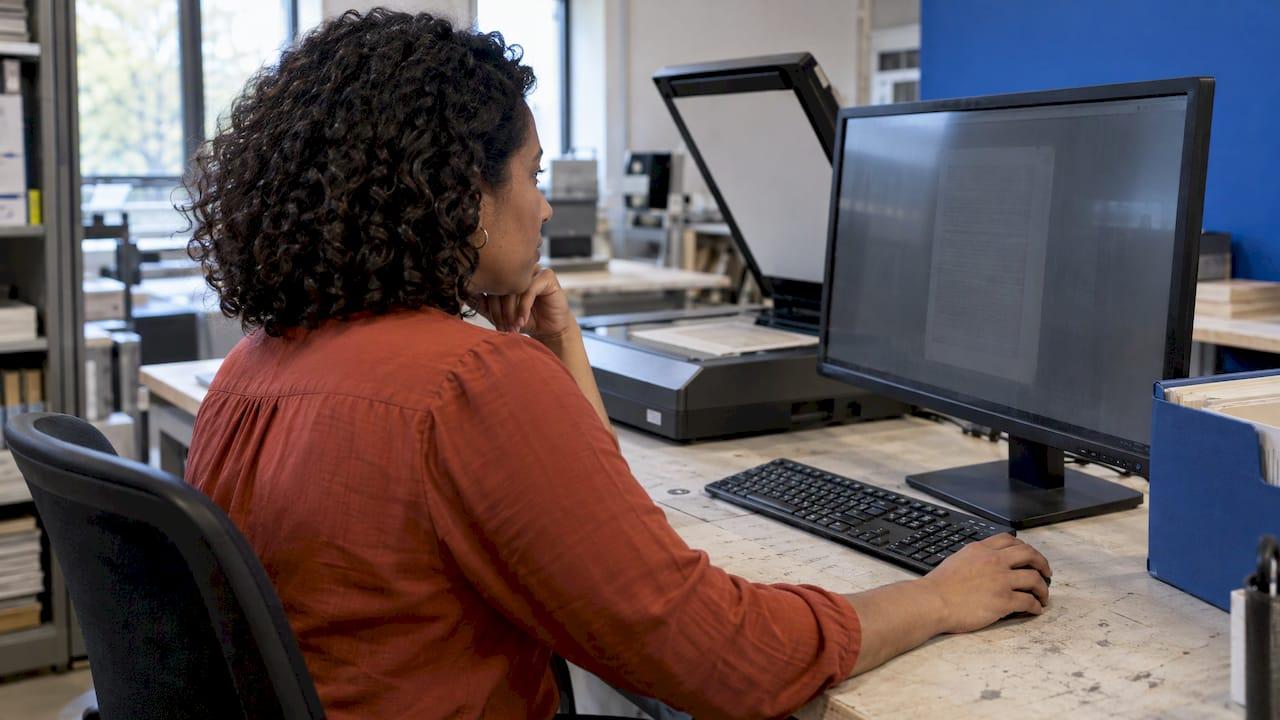
To compress a scanned PDF, you reduce the resolution and quality of the page images, because a scan is mostly pictures of pages. Aim for about 150 DPI for screen reading, keep grayscale for text, check the result at full zoom, and keep your original. You can do all of this in your browser with FlowPDF's compress tool, and the file never leaves your device.
This guide explains why scans get so large, what to change first, what happens to searchable (OCR) text, and what to do when a portal such as ICA still rejects your file.
TL;DR
- A scanned PDF is a stack of page images, so the fix is lowering image resolution, colour depth and quality, not trimming text.
- 150 DPI grayscale is a sound starting point for readable documents. Go lower only for on-screen reading.
- OCR adds a small invisible text layer. It is not the reason your file is big, and you can usually keep it.
- Singapore's ICA asks for uploads under 2 MB per file, so plan your target size before you compress.
- For contracts, IDs and other sensitive pages, compress locally in your browser so nothing is uploaded.
Table of Contents
- Why scanned PDFs are so large
- Compress a scanned PDF step by step
- Settings that keep text readable
- Does OCR make a scanned PDF bigger?
- If the file is still too large
- How to check the result before you send it
- Our perspective on compressing scans privately
- Compress your scan with FlowPDF
- FAQ
- Sources
Why scanned PDFs are so large
A normal PDF stores text as characters, which take almost no space. A scan stores each page as a photograph. A single A4 page scanned at 300 DPI in colour holds millions of pixels, and a 20-page contract can easily reach tens of megabytes.
Three settings decide the size:
- Resolution (DPI). Doubling DPI roughly quadruples the number of pixels. A 600 DPI scan carries far more data than most readers can use.
- Colour mode. Full colour stores three channels. Grayscale stores one. Black and white stores almost nothing, but it has a cost for readability (see below).
- Image compression. The same pixels can be stored at high or low JPEG quality. Phone scanner apps often pick a high-quality default.
That is why a short scanned document can be larger than a 300-page text report. If you want the general principles behind image settings, this overview of image optimization basics explains how resolution and compression trade off against visual quality.
Compress a scanned PDF step by step
You do not need an account or a desktop installation. These steps use FlowPDF in your browser.
- Keep the original. Save a copy of the source file first. Compression discards image data and cannot be undone.
- Remove what you do not need. Blank pages and unrelated appendices add weight. Use Organize PDF to delete pages, or Extract Pages to keep only the ones you must send.
- Open the compress tool. Go to Compress PDF and add your file. It is processed locally, so there is no upload step.
- Compress and compare. Download the result and note the new size against your target.
- Inspect at full zoom. Open the new file, zoom to 100% and read the smallest text, such as footnotes, stamps and signatures. If any of it is hard to read, redo the compression from your original, not from the compressed copy.
- Name the files clearly. Something like contract-small.pdf next to contract-original.pdf avoids sending the wrong one.
Recompressing an already compressed file stacks quality loss. Always start from the original scan.
Settings that keep text readable
Text is what people care about in a scan, so protect the letter shapes first and cut elsewhere.
Pick 150 DPI for most documents
For reading on a screen and for ordinary office printing, 150 DPI is a common middle ground. One privacy-focused guide reports that Ghostscript's 150 DPI ebook preset typically cuts PDFs by 50 to 70%, while its 72 DPI screen preset typically cuts 70 to 90%. Your result depends on the scan, but the pattern is useful: the move from 300 DPI to 150 DPI delivers most of the saving, and going to 72 DPI costs sharpness you will notice in small print.
| Use | Suggested resolution | What to expect |
|---|---|---|
| Archive or legal record | 200 to 300 DPI | Large file, sharp small print |
| Email, forms, general sharing | 150 DPI | Good balance of size and clarity |
| On-screen reading only | 100 to 120 DPI | Small file, fine print may blur |
| Thumbnails or previews | 72 DPI | Smallest file, not for printing |
These are working guidelines, not rules. Documents with tiny type, such as bank statements or certificates, need the higher end.
Prefer grayscale to black and white
It is tempting to convert a text scan to pure black and white because it gives the smallest file. The trade-off is that thresholding can erase thin strokes and fine detail. A Macworld guide to OCR notes that grayscale generally gives better OCR accuracy than monochrome because it keeps tonal detail in the characters. If your page is plain text, grayscale at 150 DPI is a safer choice than 1-bit black and white.

Keep colour only when colour carries meaning: a coloured stamp, a highlighted clause, a photograph.
Straighten and crop before you compress
Dark scanner borders and skewed pages waste pixels and make the file harder to compress well. Rotate crooked pages and crop the margins first with FlowPDF's rotate and crop tools, which are listed on the full tool page.
Does OCR make a scanned PDF bigger?
OCR (optical character recognition) reads the page image and adds an invisible layer of real text on top, so you can search and copy it. The layer is small compared with the image underneath.
According to Litera's support documentation, OCR adds roughly 5 KB per page, plus about 50 KB per document for each unique standard font style. Complex fonts, such as Asian character sets, can add several MB. Trumpet's support page puts the increase at 1 to 5% for a black-and-white scan and under 1% for grayscale or colour images.
Three practical points follow:
- OCR is not why your scan is big. The page images are. Compressing images is where the savings are.
- You do not have to throw away searchable text to reach a smaller size, as long as your compression keeps the text layer in place. After compressing, try selecting a word or pressing Ctrl+F (Cmd+F on Mac) to confirm it still works.
- Fonts matter in multilingual documents. If you work with Chinese, Tamil or Malay and English mixed in one file, the font data in an OCR layer can be a noticeable part of the total.
Some desktop editors offer an alternative OCR output that rebuilds text as vector shapes instead of keeping page images. Adobe's ClearScan is one example, and a tutorial on it reports files about one-third the size at 300 DPI. That approach replaces the original image of the page, so keep your untouched scan for records.
If your goal is the text itself rather than a smaller PDF, see our guide to extracting text from a PDF without uploading it.
If the file is still too large
Sometimes one pass is not enough. Work through these in order.
- Cut pages. Send only the pages the recipient needs. Splitting a long scan into two parts is often more practical than squeezing everything into one file.
- Lower the DPI one step. Move from 200 to 150, or from 150 to 120, and check legibility again.
- Switch colour pages to grayscale. Do this when the colour has no purpose.
- Re-scan at a lower setting. If you have the paper, scanning at 150 DPI grayscale from the start gives cleaner results than shrinking a 600 DPI file. FlowPDF's Scan to PDF tool works in your browser for this.
- Aim for a specific target. Our guides show how to reach 200 KB and 1 MB without wrecking quality.
Meeting government upload limits in Singapore
Portals often have strict limits, and a rejected upload usually means the file is too big or in the wrong form. The Immigration and Checkpoints Authority states in its technical help document that each uploaded file must be under 2 MB, in .jpg, .jpeg or .pdf format, and not password-protected. ICA suggests compressing the file or re-saving it through Adobe Reader or Chrome's Print to PDF if an upload fails.
So for ICA, compress to a safe margin below 2 MB, for example around 1.5 MB, and remove any password before uploading. If you are also preparing papers for use abroad, this note on document upload and authentication requirements covers the related paperwork. Other agencies and employers set their own limits, so check the figure on the page you are uploading to.

How to check the result before you send it
A smaller file is only useful if the recipient can read it. Run this short check on every compressed scan:
- Zoom to 100% and read the smallest line on the page.
- Check numbers closely. Digits such as 3, 5, 6 and 8 blur first, and they matter in invoices, IDs and statements.
- Look at signatures and stamps for jagged edges or lost detail.
- Print one page if the document will be printed. Screens forgive what paper does not.
- Test search on a word if the file had OCR text.
- Compare sizes. Note the before and after, and confirm the file meets the limit you were given.
If the result fails any step, return to your original and use a gentler setting.
Our perspective on compressing scans privately
Scanned documents are often the most sensitive files people own: signed contracts, identity pages, payslips, medical letters. Yet the usual advice is to drop them into a website that uploads them to a server you know nothing about.
We built FlowPDF so that compression happens inside your browser. Your file is processed on your own device, with no upload, no account and no watermark. We think a tool that handles a scanned contract should not need a copy of it.
Our advice for scans is simple. Keep the original, compress a copy, favour 150 DPI grayscale for text, and check the result at full zoom. The same private workflow also covers the steps around compression: removing pages, cropping, merging and signing, all in one place and all free.
Ronald Ang
Compress your scan with FlowPDF
If you have a scan to shrink right now, open FlowPDF's Compress PDF tool, add your file and download a smaller copy. There is no signup, no watermark and no cost, and your document stays on your device.
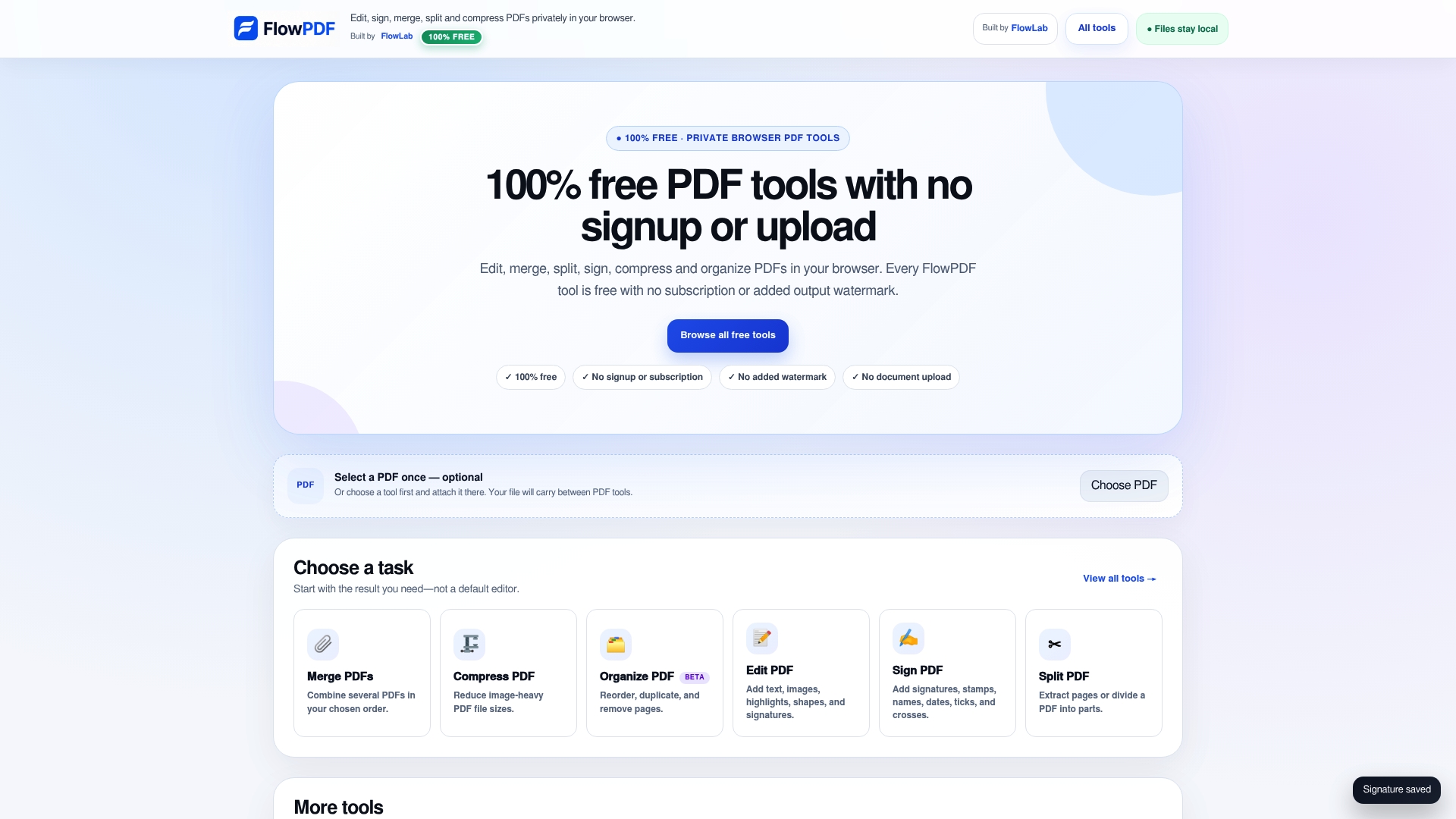
Need more than compression? The full set of free PDF tools includes merge, split, redact, protect and sign. You can redact personal details before sharing, or sign the document once it is the right size. For related situations, see our guides on compressing a PDF for email, on Android or offline.
FAQ
Can I compress a scanned PDF and keep it searchable?
Yes, in most cases. The OCR text layer is small, adding about 5 KB per page according to Litera's documentation, so the saving comes from the page images. After compressing, search for a known word to confirm the text layer survived. If it did not, run OCR again on the compressed copy.
What is the best DPI for a compressed scanned PDF?
For most documents, 150 DPI in grayscale balances size and clarity. Use 200 to 300 DPI when the page has very small print or you need an archive copy. Drop to 100 to 120 DPI only when the file will be read on screen.
Why is my scanned PDF still large after compression?
The original may be a high-resolution colour scan with many pages, so one pass cannot remove enough. Delete unneeded pages, convert colour pages to grayscale, and compress again from the original at a lower resolution. Splitting the file into parts also works when a single file must stay under a limit.
Is it safe to compress a contract or ID scan online?
It is safer when the file is not uploaded at all. FlowPDF processes your PDF in your browser, so the document stays on your device. Whichever tool you use, keep the original and share the compressed copy only with the people who need it.
How small should a scanned PDF be for ICA uploads?
ICA's technical help page says each file must be under 2 MB and not password-protected. Aim for a comfortable margin below that, and confirm the current requirement on the ICA page for your application.
Sources
- Technical Help, Immigration and Checkpoints Authority
- How an image PDF becomes a text searchable PDF, Litera
- How much does OCR increase file size?, Trumpet
- Secrets of the paperless office: optimizing OCR, Macworld
- Compress PDFs on Mac Without Uploading Anywhere
- Better PDF OCR: ClearScan is smaller, looks better
- Optimizing Images for Web: A 2026 Performance Guide
- Singapore Apostilles guide