
To compress a password-protected PDF, unlock it with the password you already know, compress the unlocked copy, then protect the smaller file again. You can do all three steps in your browser with FlowPDF, so the document never leaves your device, and there is no signup, subscription or watermark.
That order matters. An encrypted PDF is scrambled on purpose, so a compressor cannot shrink what it cannot read. Most "compress encrypted PDF" problems come from skipping the unlock step, or from sending a confidential file to a server just to make it smaller.
TL;DR
- ✓ A PDF with an open password has to be unlocked before it can be compressed. You need the password; no tool should be expected to bypass it.
- ✓ The routine is: unlock, compress, protect again with the same or a new password.
- ✓ A PDF that opens freely but blocks printing or editing has a permissions restriction, which is a different case and is removed with a different tool.
- ✓ FlowPDF runs all three steps locally in your browser, free, so your contract, transcript or payslip is never uploaded.
- ✓ Check the result before you send it: open the final file, confirm the password prompt appears and confirm the pages are still readable.
Table of Contents
- Why a locked PDF will not compress properly
- Who does this and why
- Step by step: compress a password-protected PDF
- A worked example
- Choosing the right compression level
- Other things that shrink a PDF before you compress
- Why local processing matters for encrypted files
- Use FlowPDF for the whole routine
- Our view: privacy first, size second
- Frequently asked questions
- Sources
Why a locked PDF will not compress properly
A PDF is a container of text, fonts, images and page descriptions. Compression works by rewriting that content more efficiently: shrinking oversized images, dropping unused data, and tidying how the file is stored.
When a PDF is protected with a password to open it, the content is encrypted. Until the password is entered, a tool sees scrambled data. It cannot recompress images it cannot see. Some tools will simply refuse the file with an error. Others will produce a file that is barely smaller, or will ask you to enter the password first.
This is why the three-step routine is the reliable answer. The password is the key to the content, and compression needs the content.
Two kinds of PDF password
People say "password-protected" for two different things, and the fix differs.
| Type | What happens | What you need to compress |
|---|---|---|
| Open password (also called a document password) | The PDF asks for a password before it shows anything | The password. Unlock first, compress, then protect again |
| Permissions restriction | The PDF opens freely, but printing, copying or editing is blocked | Remove the restriction first, then compress |
If your PDF asks for a password the moment you open it, you have the first type. If it opens fine but the Print button is greyed out, or you cannot copy text, you have the second. Our guide on removing PDF restrictions without uploading covers that case, and the one on removing print protection locally covers the print-only version.
The rest of this article is about the first type, because that is what "compress encrypted PDF" almost always means.
Who does this and why
The need is common and practical:
- Students merging research papers and journal articles, some downloaded with a password from a university portal, and finding the combined file too large for a submission system.
- Freelancers and professionals holding a signed contract that is encrypted and too big for a client's inbox.
- Businesses archiving invoices, payslips or statements that arrive from banks and payroll systems already password-locked, often with a rule that attachments stay under a limit.
- Individuals sending an application, a medical letter or a tax document that must stay private but needs to fit in an email.
In each case the document is sensitive, which is the whole reason it has a password. That is the strongest argument against the usual "upload it to a website" approach: you would be handing the password and the file to a third-party server in order to make it smaller.
Step by step: compress a password-protected PDF
Here is the full routine, with what each step takes and where it goes wrong.
Step 1: Unlock the PDF with your password
Open Unlock PDF, add your file and enter the password. FlowPDF is built for the case where you know the password, and it processes the file in your browser, so the document and the password are not sent to a server.
Where it goes wrong:
- Typing errors. Passwords are case-sensitive. If the file is rejected, retype it rather than pasting a version with a trailing space.
- Confusing the two passwords. Some PDFs have a separate owner password for permissions. The open password is the one that appears when you first open the file.
- Forgetting the password. Compression cannot help here. Ask whoever issued the file, such as your bank, your employer or the sender, to reissue it.
Our separate walkthrough, how to remove a PDF password safely and for free, goes through this step in more detail.
Step 2: Compress the unlocked copy
Now open Compress PDF and add the unlocked file. Compression runs locally, so there is no upload wait and no file-size ceiling imposed by a remote server. Choose the level that suits where the file is going, then download the result.
Where it goes wrong:
- Over-compressing. A heavily compressed scan can turn small print and signatures into blur. If the file will be read on screen, a moderate level is usually enough. If it needs to be printed or legally read, keep it sharper.
- Compressing the wrong thing. A PDF made of text is already small. Large files are almost always full of images or scans, which is where the savings come from.
- Losing the original. Keep your original locked file until you have checked the new one.
If your file is big because it is a scan of paper pages, it can help to understand where the size comes from. A 20-page scan saved at a high resolution can be many times larger than the same pages exported from a word processor. Files from design software behave the same way: the AutoCAD PDF export settings you choose at the start decide how heavy the PDF is before any compressor touches it.
For a wider look at the offline approach, see compressing PDFs offline in under a minute.
Step 3: Protect the smaller file again
If the document was locked for a reason, lock it again. Open Protect PDF, add the compressed file and set a password. The protection is applied locally with AES password encryption, in your browser, so the unlocked version never travels anywhere.
Where it goes wrong:
- Reusing a weak password. Pick a long passphrase rather than a short word or a birth date.
- Sending the password with the file. Share the password through a different channel, such as a phone call or a separate message, never in the same email as the attachment.
- Skipping the check. Open the final file in a different viewer or on another device. You should see a password prompt, and after entering it, readable pages.
If you want more options for this step, our guide on how to password protect a PDF with free, private methods walks through it.
A worked example
Say you are a final-year student in Singapore and need to submit one file made of three papers. Two are journal downloads from a library portal, each locked with a password. Combined, they come to 34 MB, and the submission form accepts less.
- Unlock each locked paper with the password the portal gave you.
- Merge the three PDFs into one document in the order you want.
- Compress the merged file, using a moderate setting so figures and tables stay legible.
- Protect the result if your department asks for a password-protected submission.
The figures here are an illustration, not a promise: how much a file shrinks depends on what is inside it. A scan-heavy file can drop a great deal. A text-only file will barely move.
Note the order. Merging before compressing means you compress once, rather than compressing three files and then merging them. Each extra round of image compression costs a little quality.
Choosing the right compression level
The right setting depends on where the file is going.
| Where the file goes | What matters | Suggested approach |
|---|---|---|
| Email attachment | Staying under the size limit | Check the limit, then compress only as far as needed |
| Online application or portal | Upload cap and legibility | Moderate compression, then read the result at full zoom |
| Printing or legal filing | Sharp text and signatures | Light compression, or none if the file already fits |
| Archive on your own drive | Space | Stronger compression is fine for text-heavy files |
The email limit is the most common trigger. Gmail, for example, lets you attach files up to 25 MB per message, and other providers set their own limits, including company mail servers. Check your recipient's limit before you decide how hard to compress.
A useful habit: compress to the size you need, not the smallest size you can reach. Smaller than necessary only costs you quality.
Other things that shrink a PDF before you compress
Compression is not the only lever. If the file still feels heavy, these steps reduce what there is to compress. All of them work on the unlocked copy, and all run in your browser with FlowPDF.
- Remove pages you do not need. Blank pages, cover sheets and duplicate scans add weight. Remove pages from the PDF before compressing.
- Split a long file. If a recipient accepts several attachments, splitting the PDF into parts keeps each one small without any quality loss.
- Extract only what the reader needs. If someone needs pages 4 to 9 of a long report, extract those pages instead of sending the whole thing.
- Crop margins on scans. Cropping away dark scanner borders tidies the pages.
For sensitive files, there is a related point: before sending, consider whether the document holds details the recipient does not need. Redacting the PDF removes them permanently, and the guide to sending a PDF securely and removing hidden metadata explains what else travels inside a file.
Why local processing matters for encrypted files
The password on your PDF is a decision you made, or someone made for you, about who should read it. Online compressors that take uploads ask you to override that decision. To compress, the service must receive the file and, for an encrypted one, usually the password as well.
Local processing avoids the question. FlowPDF does the work inside your browser tab. The file is read from your device, changed on your device, and saved back to your device. There is nothing to upload, so there is no upload to intercept, no copy sitting on someone else's server and no account to create.
This suits the readers who most often search for this topic: people handling contracts, financial statements, identity documents and unpublished research.

Use FlowPDF for the whole routine
FlowPDF is a free, browser-based PDF toolkit. The unlock, compress and protect steps above are three of its tools, and the same site also covers merging, splitting, editing, signing, filling forms and more. Everything runs locally, with no subscription, no signup and no watermark on your output.
Start with Compress PDF if your file is already unlocked, or Unlock PDF if it still asks for a password. You can see the full set on the free PDF tools page.
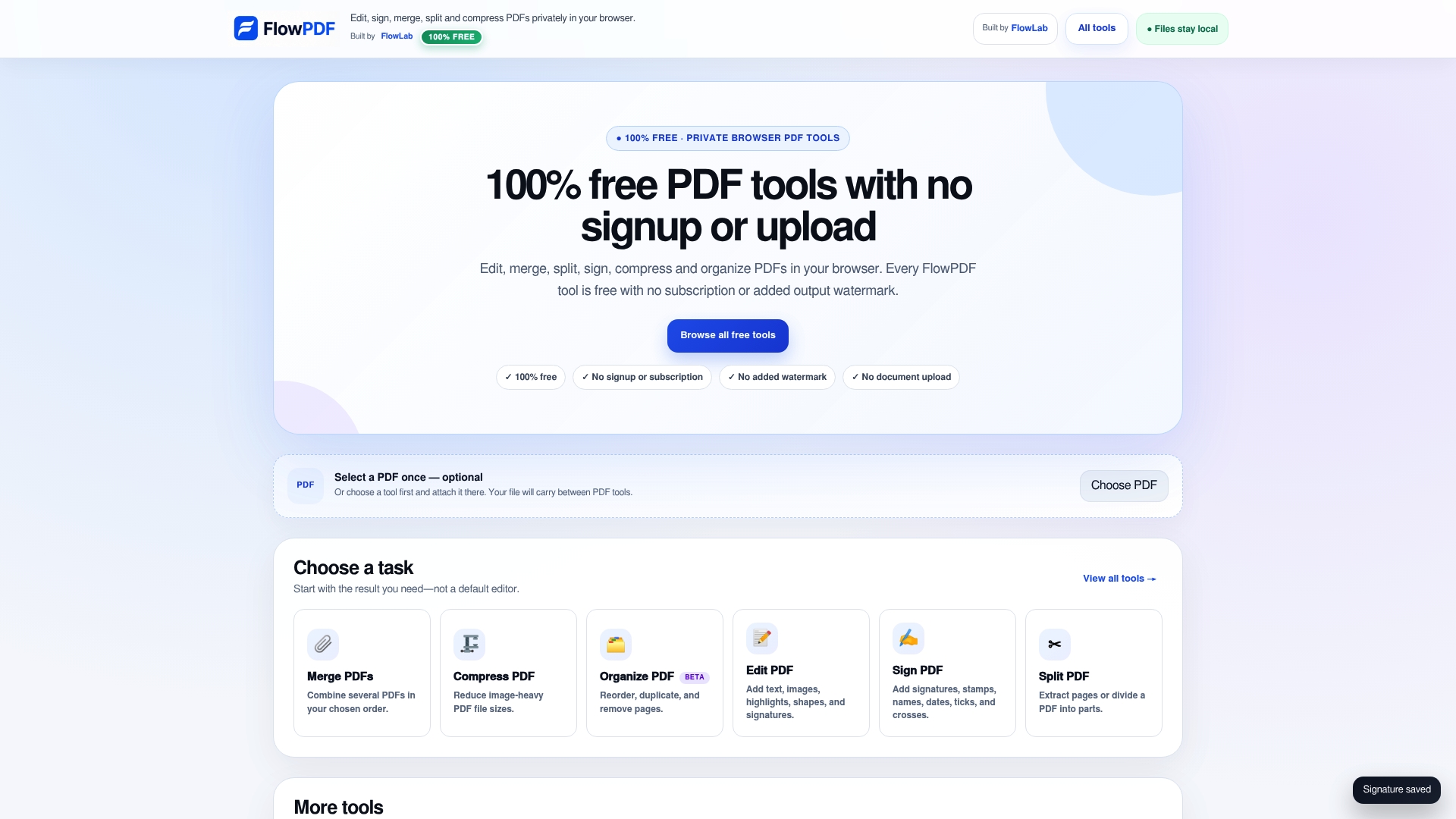
If you sign documents too, the same browser handles that step, so a contract can be unlocked, signed, compressed and locked again without ever leaving your device.
Our view: privacy first, size second
We built FlowPDF around one idea: the file stays with you. Compression is a small job, and it should not require trusting a stranger's server with a document you took the trouble to lock.
The usual advice for a protected PDF is to upload it somewhere and hope. We prefer the order that respects the password: unlock on your own device, compress, lock again. Every step runs in your browser, so the contract, transcript or statement never travels.
We also think this should cost nothing. Our tools are free, with no signup and no watermark, because a basic task like shrinking a file should not sit behind a subscription. Whether you are a student merging papers or a business tidying a folder of invoices, the routine is the same, and it is short.
The one habit we would ask you to keep is simple. Keep your original, check the final file, and share the password separately from the attachment.
Ronald Ang
Frequently asked questions
Can I compress a password-protected PDF without knowing the password?
No. If the file has an open password, the content is encrypted and a compressor cannot read it. You need the password to unlock it first. If you have lost it, ask the person or organization that issued the file to send a new copy.
Is compressing an encrypted PDF the same as compressing a normal one?
Once the file is unlocked, yes. The compression works on the images and content in the same way. The difference is only the extra unlock step at the start and the protect step at the end if you want the password back.
Will compressing remove my password?
Unlocking removes the password from the copy you work on, so compress that copy and then add protection again with Protect PDF. Your original locked file stays unchanged on your device. Always check the final file asks for a password before you send it.
My PDF opens without a password but I cannot edit or print it. What do I do?
That is a permissions restriction, not an open password. Remove the restriction first, using the steps in our guide on removing PDF restrictions without uploading, then compress as normal.
Is it safe to compress a confidential PDF in the browser?
With FlowPDF, processing happens locally in your browser and the file is not uploaded to a server. That is why it suits contracts, financial records and other sensitive documents.