
If your PDF opens but printing is grayed out, an in-browser owner-permission remover or a desktop editor with the owner password will strip that flag in seconds. If the file demands a password just to open it, no unlock tool can bypass that. You need the actual password. Whenever you have a choice, use a local-processing tool instead of an upload-based one, since sensitive documents shouldn't leave your device to get unlocked.
TL;DR:
- Removing owner permissions with a browser tool does not decrypt the file but edits metadata to disable printing and copying without a password.
- Using a desktop editor like Acrobat requires the owner password and provides a permanent fix by removing security entirely.
- Chrome's "Save as PDF" workaround can bypass print restrictions for quick, one-time printing on owner-restricted files, but not for password-protected open files.
- Unlocking PDF restrictions may invalidate digital signatures and is only legal if you have explicit rights or ownership of the document.
- Local browser tools are safest for sensitive documents, as they process files on your device without uploading to external servers.
Table of Contents
- How Do You Remove Print Protection From a PDF?
- Remove Owner-Permission Restrictions in Your Browser (No Password Needed)
- Use a Known Owner Password to Remove Printing Restrictions
- Quick Browser Workaround: Print to PDF Instead
- What Are the Risks of Removing PDF Print Protection?
- How FlowPDF Removes Owner Restrictions Locally
- Why Won't My PDF Unlock? Troubleshooting Guide
- A Note on Responsible PDF Unlocking
- Unlock and Edit PDFs Without Uploading Anything
- Sources
- FAQ
How Do You Remove Print Protection From a PDF?
Not every "locked" PDF is locked the same way, so the right fix depends on what's actually blocking you.
- Owner-permission remover (browser-based): Best when the file opens fine but printing, copying, or editing is disabled. No password needed.
- Known owner password in a desktop editor: Best when you have the security password and want the most direct, permanent fix.
- Chrome's "Save as PDF" print workaround: Best for a quick one-time print job when you don't want to install anything.
- A local tool like FlowPDF: Best when the document is sensitive and you'd rather not upload it to a stranger's server.
Two of these only remove permission flags, they never touch encryption. Owner-permission removers and the Chrome workaround both fall into that category, since the PDF's content was never actually encrypted, just tagged with restrictions your reader chooses to honor. The owner-password removal method works precisely because of this: the file opens normally, so a tool can rewrite the security dictionary without ever needing to decrypt anything.
The desktop-editor route, by contrast, requires you to already hold the password. That makes it the most authoritative fix, but useless if you don't have that credential. Privacy-wise, browser-local tools win outright: nothing leaves your machine. Upload-based services vary, and you should check each one's stated behavior before feeding it a confidential contract or medical record.
Remove Owner-Permission Restrictions in Your Browser (No Password Needed)
PDFs use two very different lock types, and confusing them wastes time. An open password (also called a user password) encrypts the entire document. You cannot view a single page without it. An owner password sets permission flags, printing, copying, editing, while leaving the content itself unencrypted. Anyone can open the file; the flags just tell compliant readers to disable certain buttons.

That distinction is why browser-based unlock tools can strip owner restrictions without asking for a password at all. They're not breaking encryption. They're editing metadata.
Here's the workflow:
- Open a local-processing unlock tool in your browser.
- Load the restricted PDF (drag and drop, or select the file).
- Run the "remove restrictions" or "unlock" function.
- Download the newly unlocked copy to your device.
- Open it and test the print command to confirm it works.
Before you trust the result, run a quick security check: confirm the tool says it processes files locally rather than routing them through a server, and open the downloaded file in a separate reader to make sure the print option is genuinely active, not just visually unlocked in one app.
Pro Tip: If the unlock tool throws an error or simply won't open the file, that's usually a sign the PDF is user-password encrypted, not owner-restricted. No permission remover can fix that; you need the actual open password.
Use a Known Owner Password to Remove Printing Restrictions
If you already hold the owner or security password, a desktop editor gives you the cleanest, most permanent fix. Adobe Acrobat is the standard tool here, and the process is short.
- Open the PDF in Acrobat and go to File > Properties.
- Click the Security tab.
- Enter the owner password when prompted.
- Change Security Method to "No Security."
- Save a copy of the file.
- Reopen it and test printing to confirm the restriction is gone.
This method is only necessary when the file's owner encryption is actively enforced by your reader. Acrobat's official guidance confirms that once you set Security Method to "No Security" and save, the printing restriction is gone for good, not just hidden for that session. You don't need this route at all if a browser-based permission remover already did the job for you. Save it for cases where you specifically need the password-authenticated, permanent version of the fix.
Quick Browser Workaround: Print to PDF Instead
Need to print something right now and don't want to install or upload anything? Open the PDF in Chrome, hit print, and choose "Save as PDF" as the destination instead of a physical printer.
- Open the file in Chrome (drag it into a new tab works fine).
- Press Ctrl+P (or Cmd+P on a Mac).
- Set the destination to "Save as PDF."
- Save the new file, then print that copy normally.
This trick works because Chrome's print engine often ignores the original file's permission flags and generates a fresh PDF without them. It's a genuinely fast fix for a one-off job. The catch: it only helps with owner-restricted files. If the PDF requires a password just to open, Chrome won't even render it, so there's nothing to "print to PDF" in the first place.
What Are the Risks of Removing PDF Print Protection?
Before you strip any restriction, ask a simple question: do you actually have the right to do this? Unlocking a PDF you own, or one you have explicit permission to modify, is a normal and legitimate task. Stripping protections from copyrighted material you don't have rights to, or a document someone else deliberately locked to control its distribution, can cross into infringement or violate the terms you agreed to when you received it.
There's also a technical consequence worth flagging: removing restrictions can invalidate digital signatures, since unlocking and re-saving a PDF changes the underlying file bytes and breaks the cryptographic check that proves who signed it and that nothing was altered afterward. If a signature matters (a signed contract, a notarized form), check its validity status before you unlock anything, and keep the original signed file untouched as your reference copy.
One more thing: uploading a confidential PDF to an unfamiliar online tool means trusting a stranger's server with your document. That's the whole case for local, in-browser processing.
How FlowPDF Removes Owner Restrictions Locally
Some browser-based tools handle the entire unlock process inside your browser, so your file never touches a server. That matters if the document is a signed lease, a client contract, or anything else you'd rather not hand to a third party just to enable printing.
Here's the walkthrough:
- Open the FlowPDF unlock PDF tool (no account, no upload).
- Drop your restricted PDF into the browser window.
- Run the restriction-removal step.
- Download your unlocked copy directly to your device.
- Print a test page to confirm the restriction is actually gone.
Pro Tip: After unlocking, open the file in a second PDF reader before you rely on it. Some readers cache the old permission state, and a fresh app gives you an honest test of whether printing really works.
If the document needs to retain formal authenticity, say it's a signed agreement, keep the original file alongside your unlocked copy rather than replacing it. For everyday tasks like reorganizing pages or tidying up a document once it's unlocked, FlowPDF's organize PDF tool and edit PDF tool run the same way: locally, with nothing uploaded.
Why Won't My PDF Unlock? Troubleshooting Guide
If an unlock attempt fails, start by figuring out which lock type you're dealing with. A PDF that refuses to open without a password is user-password encrypted; no permission remover touches that. A PDF that opens fine but still blocks printing after you've run an unlock tool has a different problem.
- Check whether the file carries a digital signature. Some readers re-lock printing behavior when a signature is present.
- Try opening the "unlocked" file in a different PDF reader. Cached settings occasionally cause a false negative.
- Ask the sender for an unrestricted copy if the document was distributed to you specifically with printing disabled.
- Stop and reconsider if you don't have clear rights to modify the file. Not every restriction is meant to be worked around.
A Note on Responsible PDF Unlocking
Removing print restrictions is easy once you understand the two lock types, but ease shouldn't override judgment. If a document isn't yours to modify, ask first. If it's signed, preserve the original before you touch anything. And whenever a document is sensitive, a local, in-browser tool beats an upload every time, since your file simply never leaves your device.
— Ronald Ang
Unlock and Edit PDFs Without Uploading Anything
Some local-processing web tools provide an alternative to upload-based unlock services for anyone who'd rather not hand a confidential PDF to an unfamiliar server. These let you remove restrictions, edit, merge, or convert PDFs directly in your browser, often with no signup, watermark, or subscription required.
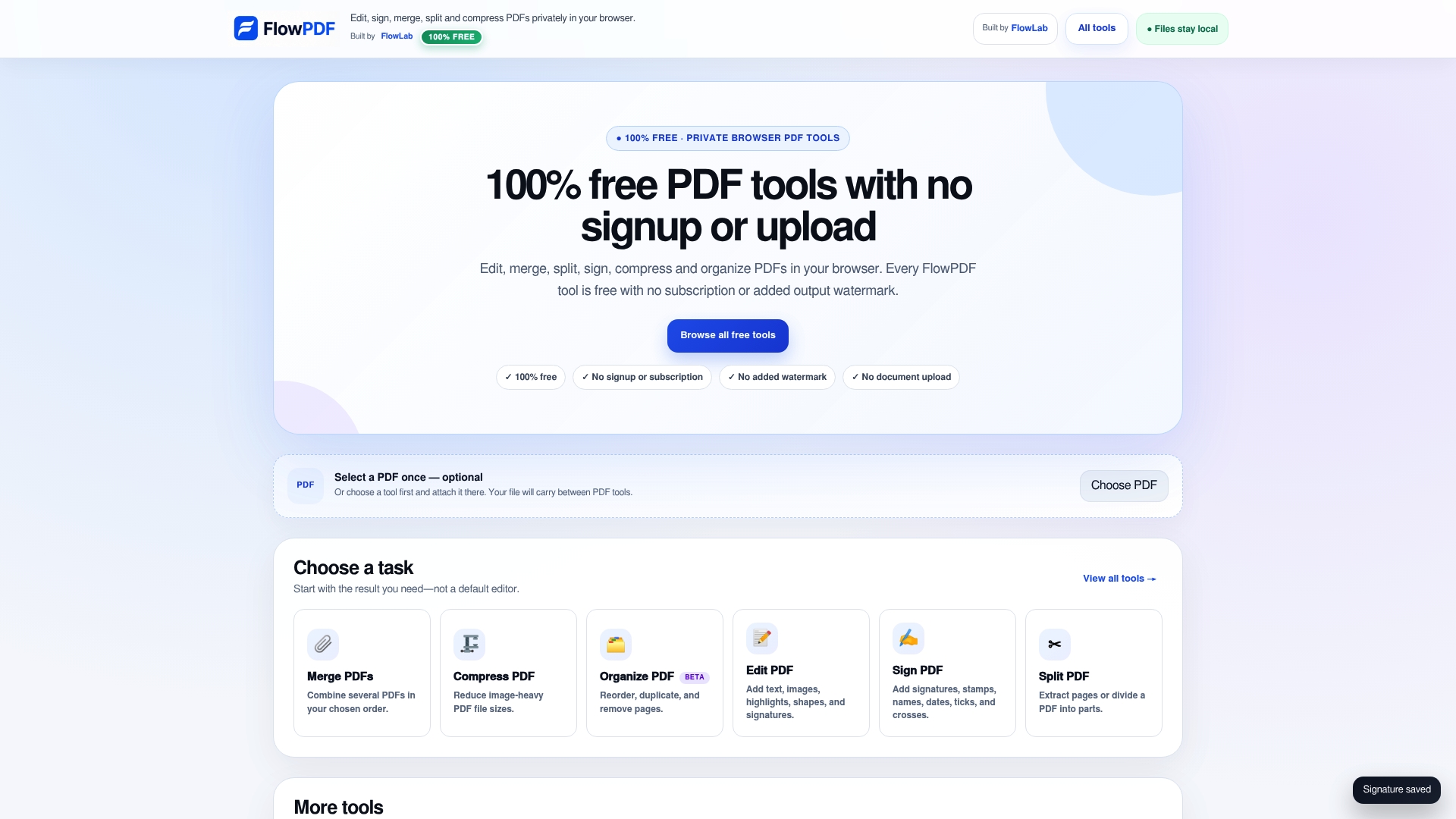
Once your file is unlocked, FlowPDF's other tools pick up right where the unlock flow leaves off. Crop a scanned page with the crop PDF tool, tidy up page order with organize PDF, or shrink a bulky file with compress PDF, all without a single upload. If you're not sure where to start, the FlowPDF homepage lists every tool in one place. Open your restricted PDF in the unlock PDF tool now and get a printable copy in under a minute.
Sources
- Remove copying and printing restrictions from a pdf?
- Unlock PDF (Owner-Password Removal)
- How to remove digital signatures from a PDF
FAQ
How Do I Disable PDF Print Protection?
Use a browser-based owner-permission remover if the file opens without a password, or enter the owner password in a desktop editor like Acrobat and set Security Method to "No Security."
How Do I Convert a Protected PDF to a Normal PDF?
Run it through an owner-permission removal tool, which rewrites the security dictionary and saves a new copy without any restriction flags, assuming the file doesn't require a password to open.
How Do I Print a PDF When Printing Is Not Allowed?
Try Chrome's print dialog and select "Save as PDF" as the destination, which often generates a new file free of the original permission flags; alternatively, run the file through FlowPDF's unlock tool first.
How Do I Print a PDF That's Protected With a Password?
If the PDF requires a password just to open, you need that exact password. No unlock tool, browser trick, or workaround can decrypt a user-password-protected file without it.
Will Removing Print Protection Break a Digital Signature?
Yes, often. Unlocking and re-saving a PDF changes its file structure, which can invalidate any digital signature attached to it, so check signature status before you unlock a signed document.