
To password protect a PDF, open it in a tool that supports encryption, set an opening password, save a new copy and share the password through a different channel from the file. You can do this for free in your browser, and your document does not need to be uploaded anywhere. Below are the steps, the choices that matter and the mistakes that leave a locked file easy to open.
TL;DR
- An opening password stops anyone without it from viewing the PDF. Save the result as a new copy and keep your original.
- Pick a password longer than the 8-character minimum that Singapore's PDPC guidance describes, and send it by a different channel from the file.
- Print, copy and edit restrictions depend on the software honoring them. An opening password is the stronger lock.
- Free local tools, including FlowPDF's Protect PDF, let you add a password in your browser without uploading the file.
- A forgotten password usually cannot be recovered, so store it before you send the file.
Table of Contents
- What a PDF password actually does
- How to password protect a PDF for free without uploading it
- Choosing a password that holds up
- Sharing the password without undoing the protection
- Which method suits you
- Encryption strength: what to know
- If the password is lost, or the file will not protect
- Our perspective
- Protect your PDF now
- A simple checklist before you send
- FAQ
- Sources
What a PDF password actually does
A PDF can carry two kinds of protection, and people often mix them up.
An opening password (also called a user or document-open password) encrypts the file. Without the password, the contents cannot be read. This is the one you want for contracts, payslips, IDs, medical letters or financial statements.
A permissions password limits what a reader may do: print, copy text, edit or comment. The file still opens for anyone. These limits are a request to the PDF software, not a lock. The open-source pdfio library notes in its source code that enforcement of usage permissions depends on the consuming software honoring them. If the password is known or the user password is blank, the permissions can be bypassed completely.

In practice: if the file is confidential, set an opening password. If you only want to discourage casual edits or copying, restrictions can be an extra layer, but do not rely on them alone. Our guides on preventing edits to a PDF and on what disabling copy will and won't stop go deeper.
How to password protect a PDF for free without uploading it
Many free online protectors ask you to upload the file to a server. That is a poor fit for a document that is sensitive in the first place. A browser tool that processes the file on your own device avoids that step.
Here is the process with FlowPDF:
- Open the Protect PDF tool.
- Add your PDF. It stays on your device, because the processing happens locally in your browser.
- Type the opening password you want, and confirm it if asked.
- Apply the protection and download the new file.
- Open the new copy once and check that it asks for the password.
- Store the password in a password manager or another safe place, then send the file.
There is no signup, no subscription and no watermark. That matters if you only need to protect one file today.
Other ways to add a password
On a Mac, Preview has this built in. Apple's instructions say to open the PDF, choose File > Export, click Permissions, select "Require Password To Open Document", enter and verify a password, then click Apply and Save. Apple Support notes the change takes effect the next time the PDF is opened.
With Adobe Acrobat, password protection sits in the paid tiers. According to one 2026 pricing review, Acrobat Standard costs $12.99 a month on an annual plan and Pro costs $19.99 a month on an annual plan, while the free Reader is for reading and signing. If you want to avoid a subscription, our comparison of ways to protect PDFs without Adobe in Singapore covers four no-upload options.
Choosing a password that holds up
The strength of the lock is the strength of the password. A short, guessable word makes encryption pointless.
Singapore's Personal Data Protection Commission (PDPC) sets a floor in its Guide to Securing Personal Data in Electronic Medium, revised 20 January 2017. It recommends passwords of at least 8 characters with at least 1 letter and 1 number. Treat that as the minimum, not the target.
Some simple habits go further:
- Go longer. A passphrase of four or five unrelated words is easy to type and hard to guess.
- Avoid personal details. Do not use birthdays, NRIC digits, phone numbers or the recipient's name.
- Use a different password for each file or recipient. One leak should not unlock everything.
- Never reuse your email or banking password.
- Change default or shared passwords early. Singapore's Charities Authority guide for charities, which draws on PDPC guidance, says default passwords should be changed to strong ones at the earliest opportunity, and it suggests changing passwords once every 6 months as good practice.
If you are setting up passwords for a team, a clear policy on security and data handling is a useful reference for access controls and password strength.
Sharing the password without undoing the protection
Most leaks happen here. If you email the locked PDF and put the password in the same email, anyone who sees the message can open the file.
The guidance is consistent on this:
- The Charities Authority guide advises that attachments with higher-risk personal data should be encrypted or password protected, with the password communicated separately from the file.
- Boise State University's IT office recommends sending the password through a different channel, such as phone, encrypted chat or in person, rather than by email.
- PDPC's guide on preventing accidental disclosure says organisations could set an email policy that documents containing personal data are password-secured when sent, to internal as well as external recipients.
A practical routine: email the file, then message the password on a different app, or read it out on a call. For more on protecting client information when sharing files, the same principle applies: the password never travels with the document.
Before you send anything, also check what the file carries besides its visible pages. Our guide to five local ways to send a PDF securely shows how to remove hidden metadata. If part of the content should not be seen by anyone, redact it permanently first and then add the password.
Which method suits you
| Situation | Good fit | Why |
|---|---|---|
| One-off file, sensitive content, any device | Local browser tool such as FlowPDF | No upload, no account, no cost |
| You use a Mac and only need an opening password | Preview | Built into macOS |
| You already pay for Acrobat | Acrobat Standard or Pro | Password protection is part of the paid plan |
| You want to stop printing or copying only | Permissions, with an opening password | Restrictions alone rely on software honoring them |
Encryption strength: what to know
Not all PDF encryption is equal. The pypdf documentation explains that PDF encryption uses RC4 and AES algorithms with different key lengths, and it recommends AES-256. It also warns that RC4 is insecure. The pdfio notes mentioned earlier say older PDF security handlers rely on obsolete MD5 and RC4 algorithms.
You do not need to configure this by hand in a typical tool. The takeaway is simple: a modern tool with AES encryption plus a long, unique password is the combination to aim for. Be wary of anything that only adds restrictions and calls it encryption.
If the password is lost, or the file will not protect
Plan for the lost-password case before it happens. Boise State's guide states plainly that if you lose or forget the password for an encrypted PDF, the file cannot be accessed. So:
- Keep the unprotected original in a safe place, if its content allows.
- Save the password in a password manager at the moment you set it.
- Do not email the password to yourself in the same thread as the file.
If you cannot add a password, these are the usual causes:
- The file already has restrictions. Open it with its current password first. If you know the password, use Unlock PDF to remove it, then protect the file again with a new one. Our guide on removing a PDF password safely walks through it.
- Your software does not include the feature. Free readers usually only read and sign. Use a tool that offers protection.
- The file is very large. Compress it first, then protect the smaller copy.
- Print or copy limits block other work. See how to remove print protection locally when you own the file and know the password.
For files where you hold the password and need to lift restrictions, removing PDF restrictions in Singapore without uploading covers the steps.
Our perspective
Most people ask how to put a password on a PDF. We think the better question is where the file goes while you do it.
A document worth protecting is usually one you would not want sitting on a stranger's server, even for a few seconds. That is why we built FlowPDF to run in your browser. Your PDF is processed on your own device, with no upload, no account, no watermark and no cost.
We also want you to use protection well. Choose an opening password, not just restrictions. Make it long. Send it by a different channel from the file. Keep a copy of the original. Those four habits do more for your privacy than any setting.
Freelancers sending contracts, students sharing drafts and teams passing around staff records all have the same need: a quick lock that does not create a new risk. That is the job we designed Protect PDF to do.
Ronald Ang
Protect your PDF now
If you have a PDF open in another window right now, you can lock it in a minute. FlowPDF's Protect PDF adds a password in your browser, with no signup and no upload.
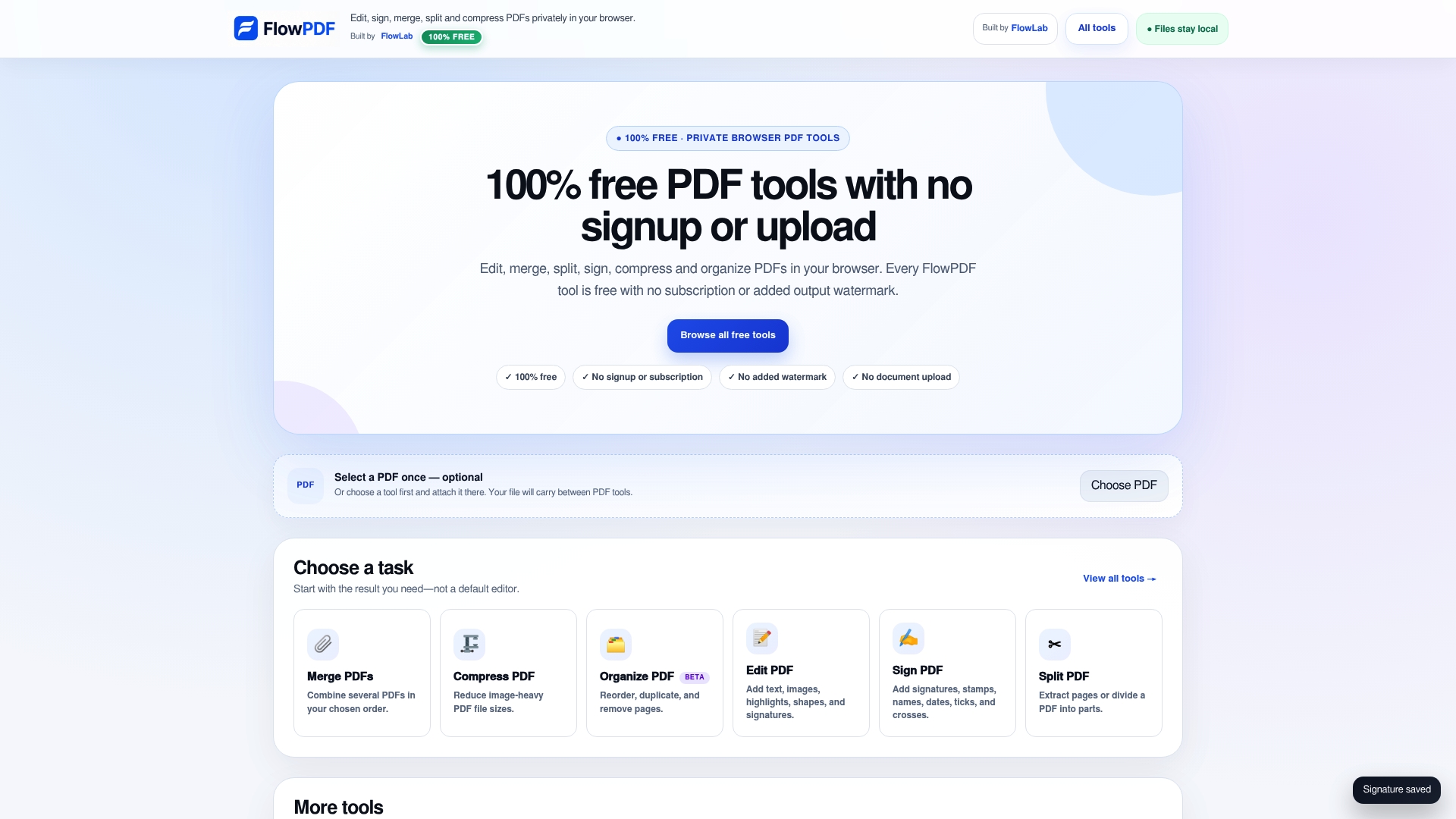
Need to prepare the file first? The same toolkit lets you merge PDFs, split a PDF, edit a PDF and more. See all of them on the FlowPDF tools page.
A simple checklist before you send
- Remove anything the recipient does not need, by redaction or by extracting only the pages they should see.
- Add an opening password of your own, long and unique.
- Save as a new file, with a name that does not reveal the contents.
- Open the protected copy and confirm it asks for the password.
- Send the file by email or a file link.
- Send the password on a different channel.
- Store the password where you can find it later.
FAQ
How do I password protect a PDF for free?
Use a free tool that supports encryption. In a browser tool like FlowPDF, you add the file, enter an opening password, apply it and download the protected copy. On a Mac, Preview can do the same through File > Export and the Permissions option.
Can I add a password to a PDF without uploading it?
Yes. A tool that processes files locally in your browser keeps the document on your device. FlowPDF works this way, so the file is not sent to a server during protection.
What is the difference between an opening password and a restriction?
An opening password encrypts the file so it cannot be read without the password. A restriction limits printing, copying or editing, but the file still opens, and enforcement depends on the software honoring those limits. For sensitive content, use an opening password.
How should I share the password?
Send it separately from the file and by a different channel, such as a phone call, an encrypted chat or in person. Singapore's PDPC-related guidance and university IT guidance both point this way. Do not put the password in the same email as the attachment.
What if I forget the password?
An encrypted PDF generally cannot be opened without its password. Keep the original file and store the password in a password manager when you set it.
Sources
- Password-protect a PDF in Preview on Mac, Apple Support
- pdfio-crypto.c, pdfio on GitHub
- Adobe Acrobat pricing in 2026, The Business Dive
- Guide to Securing Personal Data in Electronic Medium, PDPC
- Data Protection Guide for Charities, Charities Authority Singapore
- Guide to Preventing Accidental Disclosure, PDPC
- Encryption and Decryption of PDFs, pypdf documentation
- How to Encrypt a PDF Document, Boise State University OIT
- Security and data handling, Bright Info
- Protecting client information when sharing files