
You can sign a PDF on a Windows PC in under a minute, and you don't need to print anything. The fastest options are the Draw tool in Microsoft Edge, the signing tools in Firefox, a browser-based signer such as FlowPDF's Sign PDF tool that keeps your file on your computer, or Adobe Acrobat Reader if you need a certificate-based signature. Which one fits depends on what you are signing and who will rely on it.
This guide walks through each method step by step. It also explains how Singapore law treats a signed PDF, and how to check that the signature survived saving.
TL;DR
- Quickest built-in option: open the PDF in Microsoft Edge, click Draw, sign with your mouse or touchscreen, then save.
- Chrome has no built-in PDF signing, but Firefox does, so use one of those or a dedicated tool.
- For privacy, use a tool that processes the file locally. FlowPDF signs in your browser with no upload, no signup and no watermark.
- In Singapore, an ordinary electronic signature (a typed name, a drawn mark or a scanned signature) is legally recognized for most documents. Some document types are excluded.
- Certificate-based signatures (Adobe Acrobat Reader, Singpass) are a separate route for high-value or high-risk transactions.
Table of Contents
- Which method should you pick?
- Method 1: Sign a PDF in Microsoft Edge
- Method 2: Sign in Firefox, not Chrome
- Method 3: Sign locally in your browser with FlowPDF
- Method 4: Certificate-based signing in Adobe Acrobat Reader
- Is a signed PDF legally valid in Singapore?
- Add, place and save your signature properly
- Check that a signed PDF is intact
- Our view: signing should not mean handing over your file
- Sign your PDF without uploading it
- FAQ
- Sources
Which method should you pick?
Start with what the document needs. A rental agreement, a school form and a vendor contract can all be signed with an ordinary electronic signature. A transaction where someone may later dispute who signed may call for a stronger, certificate-backed one.
| Method | Software to install | Saves your signature for reuse | Best for |
|---|---|---|---|
| Microsoft Edge (Draw) | None, built into Windows | No, you redraw each time | One-off signing of a simple form |
| Firefox PDF viewer | Firefox | Not covered here | Quick signature when you already use Firefox |
| FlowPDF Sign PDF | None, runs in your browser | See the tool page | Contracts and private documents you don't want uploaded |
| Adobe Acrobat Reader (certificate) | Acrobat Reader | Uses your digital ID | Certificate-based digital signatures |
The rest of this article covers each in turn.
Method 1: Sign a PDF in Microsoft Edge
Edge is already on your Windows PC, so there is nothing to install. According to The Intelligence's Windows signing guide, the steps are:
- Right-click the PDF and open it with Microsoft Edge, or drag the file into an Edge window.
- Click Draw on the toolbar.
- Sign with your mouse, or with your finger if your screen is a touchscreen.
- Use Add Text if you want to type a date next to your signature.
- Save the document when you are done.
The limit is repetition. The Verge notes that Edge cannot save your signature, so you repeat the process every time. One workaround it describes is to write your signature on paper, photograph it and download it as a PDF or graphic file.
A mouse signature is also rarely neat. If you sign often, a tool that lets you type your name or place a clean image of your handwriting will look more professional.
Method 2: Sign in Firefox, not Chrome
Many people open PDFs in Chrome out of habit, then look for a signature button. According to The Intelligence, Google Chrome does not offer built-in PDF signing, while Mozilla Firefox does. Firefox places Draw and Text buttons near the top right of its PDF viewer.
So if your default browser is Chrome, you have two easy choices: open that one PDF in Edge or Firefox, or use a web tool that adds the signature for you.
Method 3: Sign locally in your browser with FlowPDF
The built-in viewers work, but they give you limited control over how the signature looks and where it sits. A dedicated signer fixes that. The privacy question matters too. Many online signers ask you to upload the file to a server, which is awkward when the document is a contract, an employment letter or anything with your NRIC details.
FlowPDF takes a different approach: all processing happens locally in your browser, so your document is not uploaded. It also has no subscription, no watermark and no signup. Here is the general flow:
- Open the Sign PDF page in Edge, Chrome or Firefox on your Windows PC.
- Choose your PDF from your computer.
- Create your signature. Typed, drawn and image signatures are all forms an electronic signature can take (more on that below).
- Place the signature on the signature line and resize it so it sits cleanly on the page.
- Download the signed copy and open it once to confirm the signature is where you want it.
If you also need to type a date, a name or an address on the page, FlowPDF's guide to adding text to a PDF covers that in under a minute. For a longer walk-through of the whole process, see our guide to signing a PDF for free in Singapore.
Keep the signing process private
Before you sign anything sensitive, a few habits help:
- Use a local tool. If the file never leaves your computer, nobody else can read it in transit or from a server.
- Remove what the signer doesn't need. If you are sending only part of a long file, use Split PDF or Extract Pages first.
- Black out personal data before sharing. Redact PDF removes text locally and permanently.
- Keep the original. Save the unsigned version under its own name so you can always return to it.
Method 4: Certificate-based signing in Adobe Acrobat Reader
Some transactions need more than a drawn name. A certificate-based digital signature ties the signature to a digital ID and flags later changes to the document. Acrobat Reader on Windows can apply one if you already have a certificate.
According to this Windows signing guide, the steps are:
- Open the PDF in Adobe Acrobat Reader.
- Go to Tools > Certificates.
- Choose Sign Digitally.
- Drag to define the signature area.
- Select your certificate and confirm with Sign.
- Save the document.
This route needs a certificate, which a basic drawn or typed signature does not. FlowPDF's signing is an ordinary electronic signature and does not provide certificate-backed digital signatures, so use Acrobat or another certificate-capable service when your counterparty specifically asks for one. Our explainer on electronic signatures versus digital signatures in Singapore lays out the difference in more detail.
Is a signed PDF legally valid in Singapore?
In most everyday cases, yes. Singapore's Electronic Transactions Act (ETA) gives e-signatures the same legal standing as wet-ink signatures, according to the Singapore Government Developer Portal. The portal recognizes two kinds: Ordinary Electronic Signatures (OES) and Secure Electronic Signatures (SES), which have different legal and technical requirements.
What counts as an electronic signature
Under the ETA, an e-signature can be a scanned signature, a signature drawn on an electronic device, or a typed name. That covers everything the Edge, Firefox and FlowPDF methods above produce.
The test is about function, not appearance. Under section 8 of the ETA, a signature requirement is met if the method identifies the person and shows their intention about the electronic record. The method must also be either as reliable as appropriate for the purpose, or proven in fact to have done those jobs, according to Lexology. The IMDA's 2019 consultation paper says the same thing from the court's angle: judges generally look at whether the method fulfils the authenticating function of a signature, not whether the form is commonly recognized.
In practice, that means a clear, deliberate signature on the right document, sent from an address the other side associates with you, is a sound basis. Identity matters. Lexology gives the example that, in a legal assignment, an email signed off with a nickname is unlikely to satisfy section 8, because the method must reliably identify the person. If you want to see how e-signing is built into a business workflow, e-signing within a CRM is one example of tying signatures to customer and contract records.

Ordinary versus secure signatures
A secure electronic signature has stricter conditions. It must be unique to the person using it, capable of identifying that person, created under their sole control, and linked to the record so that changing the record invalidates the signature (Lexology).
The difference shows up when a signature is disputed. According to the Government Developer Portal, with an SES the disputing party must prove tampering or misuse, while with an OES the burden of proof works the other way. The portal says SES is reserved for high-risk or high-value transactions. For routine paperwork, an OES is the usual fit.

Documents that are excluded
Not everything can be signed electronically. The IMDA's 2019 consultation paper listed what Part II of the ETA then excluded: wills; negotiable instruments and documents of title; indentures, declarations of trust and powers of attorney (with exceptions for certain trusts); contracts for the sale or other disposition of immovable property; and conveyances of immovable property (IMDA). That was the position when the paper was published, and the rules can change. If your document falls near one of these categories, confirm the current position with a Singapore lawyer before relying on a PDF signature.
Add, place and save your signature properly
The signing itself is quick. Most mistakes happen in placement and saving. Work through this checklist:
- Choose the form that suits the document. Draw it for a personal feel, type it for a clean look, or use a clear image of your handwritten signature.
- Place it on the line, not over text. A signature that covers printed words can be questioned later.
- Add the date next to it. In Edge, use Add Text. In FlowPDF, use the text option described in our add text guide.
- Save as a new file. Use a name such as
contract-signed.pdfso the unsigned original stays untouched. - Reopen the saved file. Scroll to the signature page and confirm the mark is still there at the right size.
- Check file size before emailing. If the signed file is too big for an inbox, Compress PDF reduces it locally.
If the contract is several files, join them first with Merge PDF, then sign the combined document once. Dropping a page you don't need takes a moment with Remove Pages.
Check that a signed PDF is intact
A drawn or typed signature is a visual mark, so the check is simple: open the saved file and look. A certificate-based signature gives you more to verify.
For documents signed with Sign with Singpass, Singapore's official guide says to open the file in Adobe Acrobat Reader and look for a green tick with the message that it is signed and all signatures are valid. Then check the signature panel for document modification, signer identity, an embedded timestamp and long-term validation (Signify user guide).
If you edit a document after a certificate-based signature is applied, the signature will normally show as altered. Finish every edit, merge and page change first, and sign last.
Our view: signing should not mean handing over your file
We built FlowPDF around one idea: a document you need to sign is often a document you would rather not send to a stranger's server first. A lease, an offer letter or a freelance contract carries names, addresses and amounts. So the signing step should happen on your own computer.
That is why FlowPDF processes PDFs locally in your browser. There is no upload, no account to create and no watermark across your signed page. Every tool is free, so you don't have to weigh a subscription against a single signature.
We also think people should know what kind of signature they are applying. Most Singapore paperwork is well served by an ordinary electronic signature, and our tool is designed for exactly that. When a counterparty asks for a certificate-backed signature, that is a different route, and we explain the difference in our guides rather than blur it.
Windows already gives you a quick option in Edge. We built FlowPDF for the moments when you want a cleaner signature, more control over placement, and the confidence that the file stayed with you.
Ronald Ang
Sign your PDF without uploading it
If you want a signature that looks tidy, a file that never leaves your PC and no cost, FlowPDF's signer is built for that. Open the page, choose your PDF, add your signature and download the signed copy. No signup is needed.
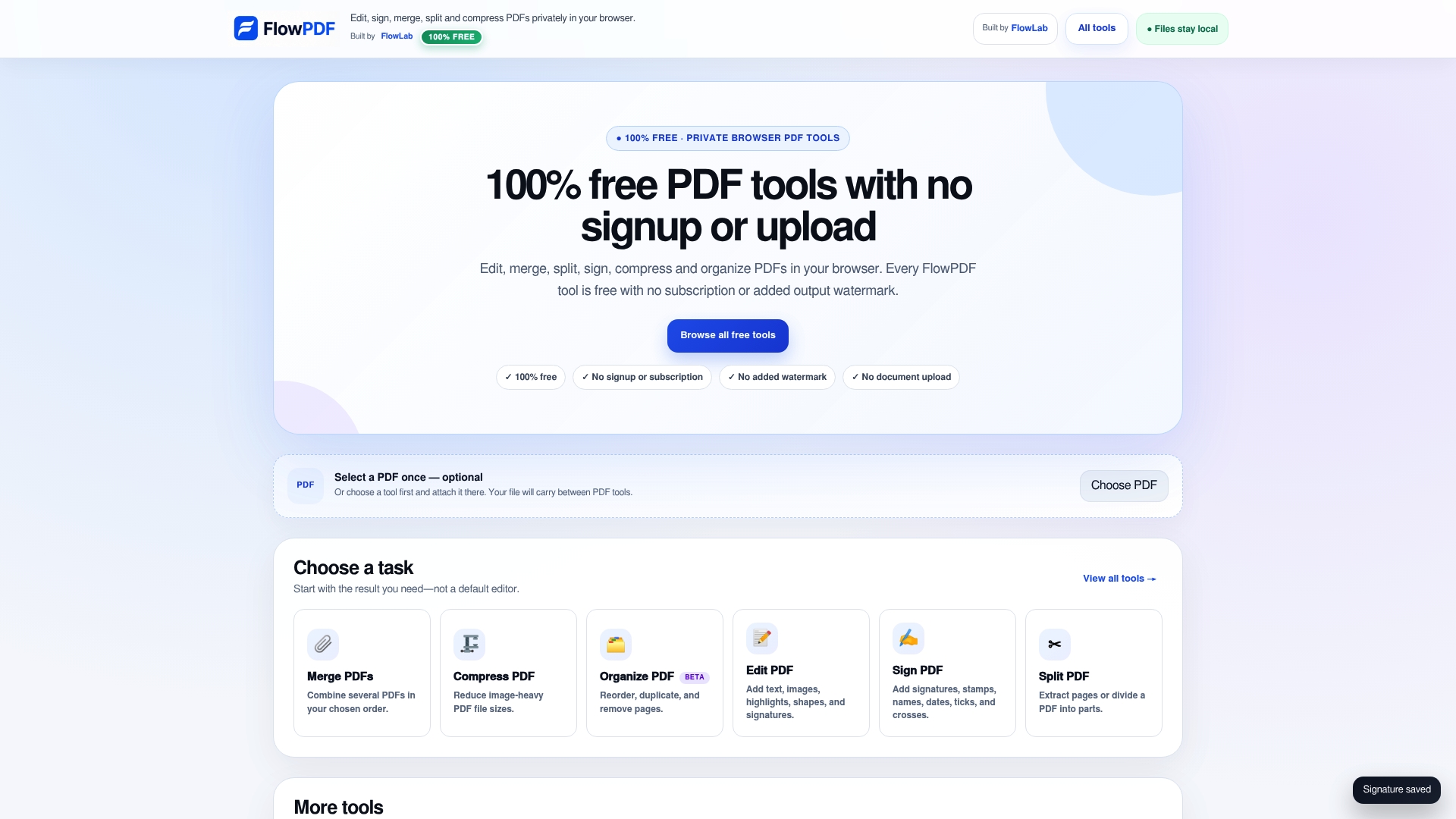
Try the Sign PDF tool, or browse all of FlowPDF's free PDF tools if the document needs merging, trimming or compressing before it goes out. You can also read how our approach compares in signing PDFs locally without Adobe.
FAQ
Can I sign a PDF on Windows without installing anything?
Yes. Microsoft Edge is built into Windows and has a Draw button for signing. A browser-based tool such as FlowPDF also needs no installation, because it runs in the browser tab you already have open.
Does Chrome let me sign a PDF?
Not on its own. According to The Intelligence, Chrome has no built-in PDF-signing feature, while Firefox and Edge do. You can open the file in one of those browsers or use a web tool that adds the signature.
Is a typed or drawn signature on a PDF legal in Singapore?
In most cases, yes. Under the ETA, an e-signature can be a scanned signature, a drawn signature or a typed name, as long as it identifies you and shows your intention. Some documents, such as wills and certain property documents, were excluded under the ETA as described by the IMDA in 2019, so check the current rules with a lawyer for those.
Do I need a digital certificate to sign a PDF?
No, not for an ordinary electronic signature. A certificate is needed only for certificate-based digital signatures, such as those made in Adobe Acrobat Reader through Tools > Certificates, or when the other party specifically requires one.
Can I sign on Windows without uploading my document?
Yes. Edge and Firefox open the file on your PC, and FlowPDF processes it locally in your browser. Avoid signers that require you to upload the file when the document is confidential.
Sources
- How to sign PDF documents on Windows | The Intelligence
- How to create a signature for PDF documents on a PC | The Verge
- Digitally signing documents in Windows: a complete guide
- E-Signatures | Singapore Government Developer Portal
- The Use Of E-signatures In Documents | Lexology
- IMDA consultation paper on the review of the Electronic Transactions Act (27 June 2019)
- Verifying Sign with Singpass signatures | Signify user guide