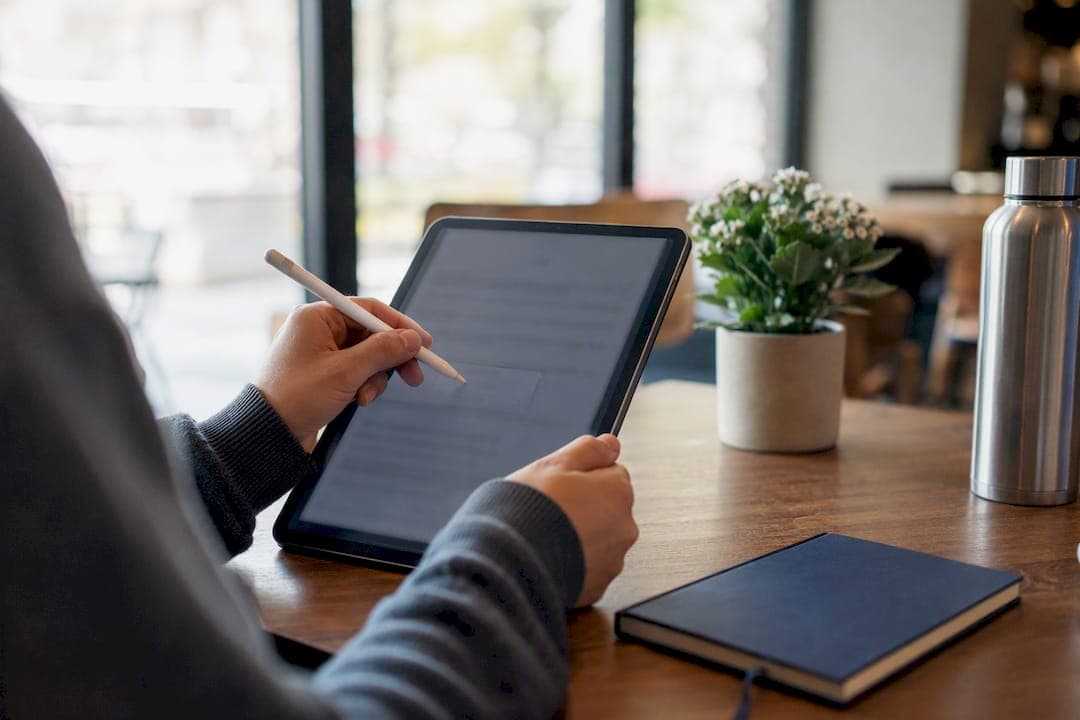
The fastest way to add text to a PDF is to open it in a PDF editor, select the text or type tool, click where you want your words, and type with ease using trusted content creation tools like those featured on ChillPod's content-creation tools list. For contracts, IDs, or anything private, skip the upload step entirely and use a local-in-browser tool like FlowPDF instead. If the file won't open for editing, it's likely password-protected, and you'll need the password or owner's permission before you touch it.
TL;DR:
- Local-in-browser tools like FlowPDF provide the best privacy for editing sensitive PDFs without uploading files to external servers.
- Most PDF editors support simple text insertion via text boxes, but editing embedded text directly often requires desktop apps or OCR conversion.
- When working on critical documents, always test editing on duplicates to prevent layout shifts or font issues upon saving.
- Password-protected PDFs restrict editing based on the type of encryption; owner passwords limit actions, while user passwords lock entire files.
- Large or complex files may require compression or splitting before editing, and font embedding during export ensures visual consistency.
Table of Contents
- Quick Steps to Add Text to a PDF
- Online, Desktop, or Local-in-Browser: Which Method Fits?
- Adding a Text Box vs. Editing the Original Text
- Why Your Fonts Change After Editing
- Can You Edit a Password-Protected PDF?
- Fixing Common Problems: Big Files, Scans, and Broken Layouts
- Why Local Processing Matters for Sensitive Documents
- File Size, Upload Limits, and Keeping Your Data Private
- What I'd Actually Do: A Simple Workflow
- Add Text to Your PDF Privately, Right Now
- Sources
Quick Steps to Add Text to a PDF
You don't need training to do this. Most editors follow the same basic pattern, whether you're working in a browser tab or a downloaded app.
- Open the PDF in your editor of choice, ideally one that runs locally in your browser.
- Find the Text or Type tool, sometimes labeled "Add text" or "Text annotation," and click where you want to type.
- Type your content, then adjust font, size, and color from the toolbar that appears.
- Drag the text box to reposition it, or resize it by pulling a corner.
- Save or export the file, and keep the original PDF as a backup before you overwrite anything.
That last step matters more than people think. A saved-over original with no backup is the number one reason people redo work they already finished once.
Online, Desktop, or Local-in-Browser: Which Method Fits?
The right tool depends on what's in the file and how big it is, not just what's fastest to open.
- Online editors work instantly with no install, and most let you drop in text boxes and annotations right in the browser. The tradeoff: many require an actual file upload to their servers, cap file size around 100 MB, and sometimes gate features behind a paywall.
- Desktop editors handle large or complex files well and give you the deepest feature set, but they require an install and often a license fee.
- Local-in-browser tools process the file in your browser's memory instead of sending it anywhere, which is the strongest privacy option for sensitive documents. The catch is that very large files can strain browser memory limits.
If you're editing a public flyer or a school handout, an online editor is fine. If you're editing a signed contract, a medical form, or anything with a name and address on it, local-in-browser is the sensible default. Save desktop software for the days you're restructuring a 200-page report.
Pro Tip: Test any new editor on a duplicate copy first. That way, if the export mangles your fonts or resizes a page, you haven't touched the only version that matters.
Adding a Text Box vs. Editing the Original Text
These are two different jobs, and mixing them up is where most people get stuck.
Inserting a new text box is the easier of the two. Select the Text or Type tool, then click or drag to create a box wherever you need it. Type your content, format the font and size, and drag the box into position. This works on almost any PDF, scanned or not, because you're adding a new layer rather than touching what's already there.
Editing embedded text means changing words that already exist in the document, like fixing a typo in a paragraph someone else wrote. Look for an "Edit" mode in your tool. Click directly on the existing text, and if the editor supports it, you can select and retype it in place. Desktop apps built on the PDFium rendering engine tend to handle this cleanly, offering in-place, what-you-see-is-what-you-get edits even offline.
When direct editing isn't supported, you have three fallbacks. Run OCR on scanned pages to make the text selectable and editable. Convert the file to Word for heavy rewrites, then convert it back to PDF when you're done. Or lay a new text box directly over the old text as a cosmetic patch, which works fine for quick corrections that don't need to be perfect.
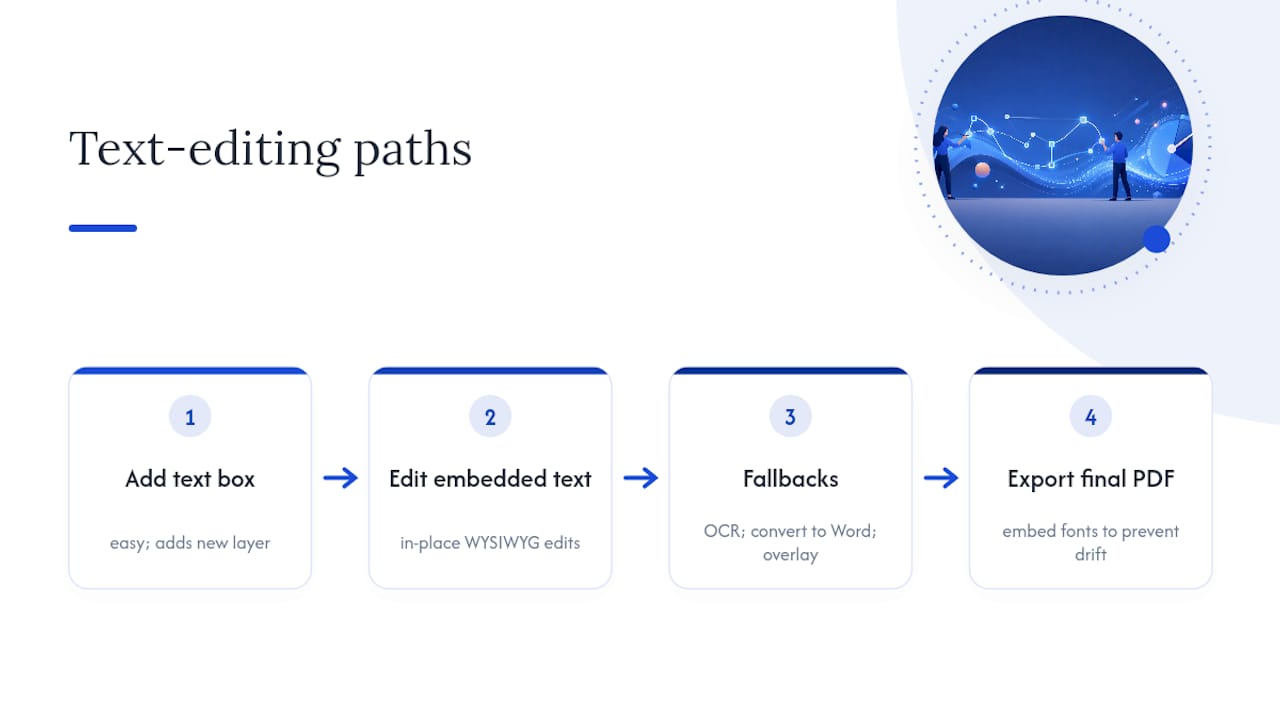
Whatever method you use, export with fonts embedded whenever the option is available. That single setting prevents most of the layout drift people blame on "buggy" editors.
Why Your Fonts Change After Editing
You add one sentence, save the file, and suddenly the whole page looks different. This almost always comes down to fonts, not a bug.
- PDFs often embed the exact font a document was designed with; if your editor doesn't recognize that font, it substitutes a system font, and spacing shifts.
- Choose a font as close as possible to the original, match the size and line spacing manually, and always test the result on a saved copy before you commit.
- Export with font embedding turned on, or flatten the PDF, to lock in the appearance you see on screen. Guidance from Evernote's PDF editing tools points to embedding fonts on export as the single most reliable fix for this.
- If you're doing heavy style work, like reflowing paragraphs or changing headers throughout, convert to an editable format instead of fighting the PDF directly.
Can You Edit a Password-Protected PDF?
Not every locked PDF is locked the same way, and that distinction changes what you're allowed to do.
- A user password blocks the file from opening at all. You need that password from whoever sent it, no way around it.
- An owner or permissions password lets the file open but restricts editing, printing, or copying. This is common on forms and finalized contracts.
- If you're not the document's owner, ask the person who created it for either the password or explicit permission to edit.
- Avoid feeding sensitive files into random "PDF unlock" websites. If you're the rightful owner and just need your own file unlocked, a local tool that never uploads your document is the safer route.
Fixing Common Problems: Big Files, Scans, and Broken Layouts
Most PDF headaches trace back to one of four things, and each has a fast fix.
- File too large to load smoothly: compress it first, or split it into smaller sections before editing.
- Text won't select on a scanned page: run OCR to convert the scan into searchable, editable text, or drop an overlay text box on top as a quick workaround.
- Font looks wrong after saving: swap in a visually close system font, or embed fonts during export.
- Layout shifts on another device: keep the original file untouched and open your export on a second machine to confirm it holds up before you send it anywhere.
Pro Tip: Split large PDFs into smaller chunks before you start editing rather than after something breaks. It's much easier to troubleshoot a 10-page file than a 200-page one.
Why Local Processing Matters for Sensitive Documents
Local processing means your PDF never leaves your device. Instead of uploading a file to a server somewhere and downloading the edited version back, the entire job happens inside your browser's memory. For anything with personal or financial details, that difference is worth caring about.

FlowPDF is built around this model. It lets you edit PDF content, including adding and adjusting text, without ever uploading the file, and without a subscription, account, or watermark attached to the output. Local-in-browser handling keeps the document on your machine the entire time, which is a real privacy advantage over tools that route files through a remote server.
Think about where this matters most: a signed lease with your address on it, a scanned ID for a visa application, an internal report with client names in it. None of those need to touch a third-party server just so you can add a signature line or correct a date. For that category of file, a local-in-browser editor isn't a nice extra. It's the reasonable default.
File Size, Upload Limits, and Keeping Your Data Private
Most online editors cap uploads somewhere in the range of 100 MB, which covers the vast majority of everyday documents like contracts, resumes, and scanned forms. Where you start running into trouble is with design-heavy files or long reports packed with high-resolution images. Those can balloon well past typical limits and either fail to upload or take a long time to process.
Local-in-browser tools sidestep the upload limit conversation entirely in one sense, since there's no server queue to wait on, but they still depend on your browser's available memory. A file that's small enough to email is almost always small enough to edit locally without any lag.
The privacy angle deserves equal weight here. When you upload a PDF to a remote server, you're trusting that company's retention policy, its security practices, and its definition of "temporary" storage. Some services delete files within hours; others keep them longer than users expect. Open-source, local-first projects have pushed back against this pattern, favoring tools that skip the server step altogether and process everything on the device you're already using.
If you're editing a grocery list template, upload limits and privacy policies barely matter. If you're editing a tax form, a lease, or a medical record, they matter a lot. Match the tool to the sensitivity of the document, not just to whatever result shows up first in a search.
What I'd Actually Do: A Simple Workflow
Start with a local-in-browser editor for anything private or quick, like FlowPDF, since there's no upload step and no cost to worry about. Reach for desktop software only when you're restructuring a genuinely large or complex file. If a PDF won't open at all, stop and request the password from whoever sent it rather than searching for a workaround. Most people overcomplicate this step when the simplest tool already does the job.
— Ronald Ang
Add Text to Your PDF Privately, Right Now
FlowPDF skips the part every other free editor makes you deal with: uploading your file to someone else's server and hoping it gets deleted on schedule. Everything happens in your browser, so a signed contract or a scanned ID stays on your device from open to export, with no watermark stamped across it and no account wall blocking the save button.

Beyond adding text, FlowPDF handles merging, compressing, and organizing pages with the same no-upload approach, so you're not switching tools every time a document needs a different fix. If you've got a PDF sitting open right now that just needs a name, a date, or a note added, head to the FlowPDF text editor and try it on that exact file before you do anything else with it.