You can edit a PDF for free in three ways: with the software already on your computer, with a desktop editor, or with a browser tool that processes the file on your own device. The right choice depends on what you need to change. Small fixes such as adding text, filling a form, signing or removing a page are easy. Rewriting whole paragraphs in the original layout is the hard part, and no free tool does it perfectly.
This guide shows each method step by step, explains where each one breaks down, and covers the privacy question that matters in Singapore: what happens to your contract, payslip or NRIC copy when you edit it.
TL;DR
- Decide the job first. Markup, form filling, signing and page changes are simple. Rewriting body text is not.
- On Windows, Word can convert a PDF into an editable file. On Mac, Preview handles text boxes, forms and signatures.
- Check the page breaks after any conversion. Layout can shift.
- For PDFs with personal data, pick a tool that works locally so the file never leaves your device.
- FlowPDF edits, merges, splits, compresses and signs PDFs in your browser, free, with no signup and no watermark.
Table of Contents
- Know what kind of edit you need
- Edit the original file first, if you have it
- How to edit a PDF on Windows
- How to edit a PDF on Mac
- How to edit a PDF in your browser, without uploading
- Fix the document, not just the text
- Why local editing matters in Singapore
- Signing while you edit
- When the PDF is locked
- Our perspective
- Edit your PDF now, free and private
- Common problems and quick fixes
- FAQ
- Sources
Know what kind of edit you need
People search for "edit PDF" and mean very different things. Sort your task into one of these groups before you pick a tool.
| Task | Difficulty | What you need |
|---|---|---|
| Add text, check marks or notes on top of a page | Easy | Any browser tool, Preview, or Edge |
| Fill in a form | Easy | A form-filling tool |
| Sign a document | Easy | A signing tool |
| Delete, reorder, rotate or crop pages | Easy | A page organizer |
| Merge or split files | Easy | A merge or split tool |
| Shrink file size | Easy | A compressor |
| Hide sensitive details | Medium | A true redaction tool |
| Rewrite existing paragraphs | Hard | Word conversion, a desktop editor, or the original file |
A PDF is a finished page, not a flowing document. Text sits in fixed positions, often broken into small pieces, so a tool cannot always reflow a paragraph the way Word does. That is why "change this one sentence" can go wrong even in expensive software.
Edit the original file first, if you have it
If the PDF came from a Word, Excel or other Office file that you still have, edit that file and export a new PDF. Microsoft recommends this approach when the PDF was created from Excel, Publisher or another Office program. You keep the original formatting and avoid any conversion.
If the original is gone, which is common with contracts, forms from a school or a PDF someone emailed you, use one of the methods below.
How to edit a PDF on Windows
Windows gives you two built-in routes. They do different jobs.
Option 1: Word, for real text changes
Microsoft Support says Word for Microsoft 365, Word 2024, 2021, 2019 and 2016 can open a PDF, make a copy and convert it into an editable Word document, leaving the original PDF unchanged. The steps:
- Open Word and choose File > Open.
- Select your PDF.
- Accept the message that Word will convert it to a format it can display.
- Make your edits.
- Choose File > Save As and save as PDF.
After saving, scroll through every page. Microsoft notes that lines and pages may break in different places from the original. Tables, columns and unusual fonts are the usual trouble spots. This method suits text-heavy documents such as letters and reports, and suits designed brochures poorly.
Option 2: Microsoft Edge, for markup
Edge can add text, highlights, form entries and signatures to a PDF. Per the same Microsoft guidance, it cannot rewrite text that is already in the document. Use it for annotating, not for rewording.
Option 3: LibreOffice Draw
HP lists LibreOffice Draw as a free alternative for modifying PDF text and images and exporting an updated PDF. It works offline once installed. Expect each text line to be its own box, so editing a long paragraph takes patience.
How to edit a PDF on Mac
Preview is already on your Mac and covers most light edits. Apple's guide explains that you can fill out a PDF form by opening it in Preview, clicking a field and typing. If the PDF will not accept typing directly, show the form filling toolbar and use the Text Box tool to place text where you need it.
Preview can also add shapes, highlights and signatures, and it can reorder or delete pages through the thumbnail sidebar. What it cannot do is edit existing body text. For that, you need a different tool or the original file.
If you mostly need to sign, our guide to signing a PDF on Mac compares Preview, the iPhone camera and a browser option.
How to edit a PDF in your browser, without uploading
Most "free online PDF editors" work by sending your file to a server. That is fine for a restaurant menu. It is a poor idea for a tenancy agreement, an employment contract or a form carrying identity numbers.

A browser tool that processes files locally works differently. The page loads, your device does the work, and the document stays in your browser memory. You can check this yourself: open your browser's network tab while you use the tool and see whether your file is sent anywhere.
Here is how it works with the FlowPDF PDF editor:
- Open the editor in any modern browser. No account is needed.
- Drop in your PDF.
- Add text, drawings, shapes or images where you want them, or whiteout and replace small details.
- Review each page.
- Download the edited file. There is no watermark.
Because everything runs on your device, this approach also suits an offline workflow once the page has loaded, and it works the same on Windows, Mac, Linux and Chromebooks.
Adding text, notes and images
Place a text box over the area you need, match the size to nearby text, and keep it short. Use image insertion for logos, stamps or a scanned signature. When the change is a single word or number, a text box on top of a cleaned area gives a tidy result in under a minute.
If you annotate PDFs for hobby projects, such as pattern charts, there are also practical ways to annotate a PDF that suit marking up dense grids and keeping count.
Filling in a PDF form
Open the form, click each field and type. If a field is not interactive, which happens with scanned or flattened forms, add a text box instead. Tick boxes with a check mark or an "x". Then save a copy under a new name, so you keep the blank form for next time.

For forms that need a signature, add it in the same session. See our walkthrough of signing a PDF in your browser for how Singapore treats ordinary and secure electronic signatures.
Fix the document, not just the text
Many edits are not about words at all. These are the other jobs people end up doing in the same sitting.
- Remove or reorder pages. Use Organize PDF to drag pages into order, or Remove Pages to delete the ones you do not want. This is the fastest way to strip a cover sheet or a blank page.
- Crop margins. Crop PDF trims white space or scanner borders.
- Merge several files. Students combining research papers, or admins assembling an application pack, can use Merge PDF to join files in the order they choose.
- Shrink the file. Email limits and portal upload caps are a daily annoyance. Compress PDF reduces size locally, so you can compress a sensitive file without sending it anywhere. Check the result at full zoom, since heavy compression can soften images.
- Hide private details. Drawing a black box over text is not redaction, because the text underneath can still be selected and copied. Use Redact PDF, which removes the content permanently.
Why local editing matters in Singapore
If your PDF contains personal data, such as names, NRIC numbers, addresses, salary details or medical information, the way you handle the file has legal weight for organisations.
Singapore's Personal Data Protection Act requires organisations to make reasonable security arrangements to protect personal data against unauthorised access, collection, use, disclosure, copying, modification, disposal and similar risks. The same Act says organisations should stop retaining personal-data documents, or remove the means of association, when it is reasonable to assume the purpose of collection is no longer being served, subject to the Act's conditions.
The PDPC's own starter kit points the same way: cease retaining or anonymise personal data once it is no longer needed for business or legal purposes.
For a small business, a practical reading is simple:
- Do not upload documents with personal data to a service you have not reviewed.
- Edit locally where you can, so no extra copy sits on someone else's server.
- Delete working copies once the job is done.
- Use password protection when you must send a sensitive file.
This is not legal advice. If your organisation handles large volumes of personal data, ask your data protection officer or a lawyer how the Act applies to your case.
Signing while you edit
A lot of PDF editing ends with a signature. In Singapore, a typed name, a drawn signature or an image of your handwriting can count as an electronic signature for many everyday documents. The OECD Observatory describes the Sign with Singpass ecosystem as providing secure electronic-signature capabilities through compatible third-party signing applications and the Electronic Transactions Act.
That is a different level from a quick drawn signature. A browser signing tool is suitable for routine agreements where both sides accept a simple signature. It is not a certificate-backed digital signature. If a counterparty, agency or regulator requires one, you need a provider that issues certificates. Our guide to electronic versus digital signatures in Singapore explains the difference, and Sign PDF handles the everyday case without an upload.
When the PDF is locked
Some PDFs refuse edits because of a password or permission restriction. If you own the file or have the right to change it, you can remove PDF restrictions locally instead of sending it to a stranger's server. Only unlock documents you are entitled to modify.
Our perspective
We built FlowPDF around one observation: most people who need to edit a PDF are not doing anything exotic. They are fixing a date, adding a signature, merging three files, shrinking a scan. Yet the usual route asks them to create an account, upload the document, wait, and then hit a watermark or a paywall at the last step.
We think the file should stay with you. That is why every tool runs in your browser, and why we do not ask for registration, charge for downloads or add watermarks. For a contract, a bank letter or an application with ID details, not uploading is the simplest security measure there is, because no copy exists elsewhere to protect.
We are also honest about limits. Browser editing is excellent for overlaying text, filling forms, signing and reorganising pages. If you need to rewrite long paragraphs while keeping a complex layout, the original source file is still your best option, and Word conversion is the next best. We would rather you know that before you spend an hour on it. We also do not issue certificate-backed digital signatures, so use a certified provider when a document requires one.
— Ronald Ang
Edit your PDF now, free and private
If your task is adding text, filling a form, signing, merging, splitting, compressing or reorganising pages, you can finish it in a couple of minutes. FlowPDF offers more than 20 tools in one place, including edit, redact, protect, unlock, compare and scan to PDF, and none of them upload your document.
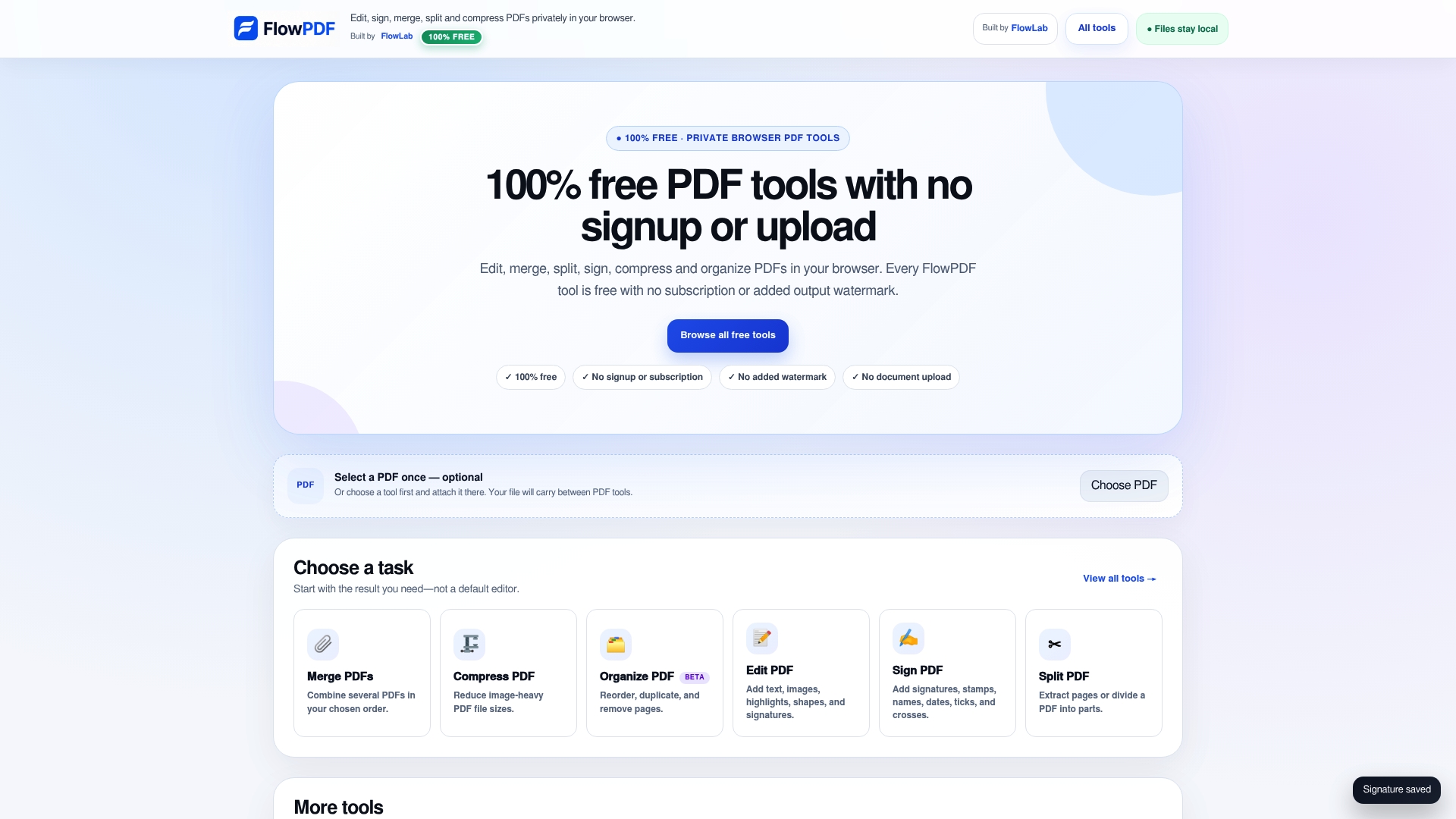
Open the FlowPDF editor, or browse the full set of free PDF tools. There is no signup, no subscription and no watermark.
Common problems and quick fixes
The text I add looks different from the rest. Match font size and colour to the nearby text. If the original font is unusual, choose the closest standard font and keep the edit short.
Word changed my layout. This is expected with conversion. Check page breaks, tables and images, and fix them before saving to PDF. If the layout is complex, use a text overlay instead.
My file is too large to email. Compress it, then check the pages at 100% zoom. If it is still too big, split it into parts or remove pages you do not need.
The form fields do not respond. The PDF may be flattened or scanned. Add text boxes over the lines instead.
I need to compare two versions. Use a compare tool rather than reading both side by side, so you catch small changes in contracts.
I do not trust the tool with this file. Choose a local tool, or work in an offline desktop program such as Word or LibreOffice Draw. For comparisons of other options, see our lists of PDF Expert alternatives and PDF Pro alternatives for Singapore users.
FAQ
Can I edit a PDF for free without Adobe Acrobat?
Yes. You can use Word on Windows, Preview on Mac, Edge for markup, LibreOffice Draw, or a free browser tool such as FlowPDF. Each handles light edits well. Rewriting large blocks of text is the one job where results vary.
Can I edit a PDF offline?
Yes. Word, Preview and LibreOffice Draw all work without a connection. A browser tool that processes files locally, like FlowPDF, also keeps your document on your device, so nothing is sent to a server while you work.
How do I type into a PDF form that will not let me click?
The form is probably flattened or scanned, so it has no live fields. Add a text box on top of each line and type there. On a Mac, Apple's Preview offers a Text Box tool for exactly this case.
Why did my PDF change layout after I converted it?
A PDF stores fixed positions, and Word has to rebuild them as flowing text. Microsoft warns that lines and pages may break differently. Edit the original Office file when you have it, and review every page after converting.
Is it safe to edit a PDF with personal data online?
It is safer when the file never leaves your device. Singapore's PDPA expects organisations to protect personal data with reasonable security arrangements. Use a local tool, delete working copies when done, and ask your data protection officer if you are unsure.
Sources
- Edit a PDF, Microsoft Support
- Edit or make changes to a PDF file, Microsoft Support
- Fill out and sign PDF forms in Preview on Mac, Apple Support
- How to Edit PDF Files on Windows, HP
- Personal Data Protection Act, Singapore Statutes Online
- Data Protection Starter Kit, PDPC
- Singapore's National Digital Identity, Singpass, OECD Observatory of Public Sector Innovation