
The quickest way to compare two PDF files is a dedicated comparison tool that lines up both versions and marks what was added, removed or changed. If the documents are sensitive, pick one that works inside your browser so neither file leaves your device. Our free PDF compare tool does this with no upload, no signup and no watermark.
This guide covers the ways to compare PDFs, what each approach can and cannot detect, which tools suit which job, and how to check privacy before you open a file.
TL;DR
- Use a comparison tool, not your eyes. Reading two long PDFs side by side misses small edits such as a changed figure or a deleted clause.
- Check where the processing happens. Many online tools upload your files to a server. Browser-based tools process them locally.
- Scanned PDFs are images, so they need OCR (text recognition) before a text comparison can work. Adobe Acrobat Pro and ABBYY FineReader PDF offer it.
- Match the tool to the job: a free local tool for everyday contracts and papers, a paid desktop suite for scans and heavy enterprise use.
- Our compare tool is free, runs locally and needs no account.
Table of Contents
- What "comparing PDFs" actually means
- How to compare two PDF files step by step
- Your options compared
- Which tool fits which reader
- Scanned documents and large files
- Privacy: what to check before you compare
- What free tools usually limit
- Our perspective
- Compare your PDFs with FlowPDF
- A practical checklist for contract versions
- FAQ
- Sources
What "comparing PDFs" actually means
A PDF is a fixed layout, not a flowing document. That is why comparison is harder than it looks. Two files can have identical words and still look different, or look identical and hide a changed number. Tools usually check one or more of three things.
Text changes
The tool reads the text layer of each file and finds words, numbers and lines that were added, deleted or edited. This is the most useful check for contracts, policies, reports and research drafts. It answers a simple question: what did the other party change between version 2 and version 3?
Layout and formatting changes
Some tools also flag moved paragraphs, different fonts, shifted tables or altered spacing. This matters when a document has to keep an exact look, such as a printed form or a design proof.
Visual (pixel) changes
A visual comparison overlays the rendered pages and highlights anything that looks different, including images, logos, stamps and signatures. The open-source command-line tool diff-pdf works this way: its job is visually comparing two PDFs. Visual mode is the only option that catches a swapped image, but it also reports harmless differences such as slightly different rendering.

A good workflow uses text comparison first, then a visual check on pages where layout matters.
How to compare two PDF files step by step
The steps are nearly the same in every tool. Here is a reliable routine.
- Name your files clearly. Keep the older one as "original" and the newer one as "revised". Most tools treat the first file as the baseline, so the order decides whether a change shows as an addition or a deletion.
- Check that both files have a text layer. Try selecting a sentence with your cursor. If you can't highlight text, the file is a scan and needs OCR first.
- Open both files in the comparison tool. Add the original first, then the revised version.
- Read the results page by page. Look at added, removed and changed passages. Don't stop at the summary.
- Verify the important changes in the source files. Numbers, dates, names and clause references deserve a second look in the actual documents.
- Save or note your findings. If you need to send feedback, list the page and the change.
If the two files have different page counts, tidy them first. You can remove pages from a PDF that don't belong in the comparison, or extract only the pages you need to check. This keeps the report short and focused.
Your options compared
The pages that rank for this topic keep returning to the same names. Here is how the main options differ in what they are built for. We have not listed prices, because plans and regional pricing change often. Check each provider's own page for the current Singapore price before you commit.
| Tool | Type | Best suited to | Things to check |
|---|---|---|---|
| FlowPDF Compare | Browser, local processing | Everyday contracts, drafts, papers; sensitive files | Free, no upload, no signup, no watermark |
| Adobe Acrobat (Pro) | Desktop and cloud suite | Enterprise teams already using Adobe; scanned files | Paid plan; OCR available |
| ABBYY FineReader PDF | Desktop suite | Scanned documents | Paid software; OCR |
| Draftable | Dedicated comparison service | Formatting-heavy comparison | Check plan, and whether files are uploaded |
| Diffchecker | Online diff tool | Quick, basic text comparison | Check file handling and free limits |
| iLovePDF | Online PDF suite | Casual online comparison | Check upload policy and free limits |
| Soda PDF | Desktop and online suite | Budget-minded users wanting a full suite | Check current plans |
| Filestage | Review and approval workflow | Teams collecting feedback on versions | A workflow platform, not a quick diff |
| DiffPDF / diff-pdf | Desktop and command-line | Technical users; visual or text modes | Less friendly interface |
Two patterns stand out. First, only some tools handle scans: according to one 2025 test roundup, ABBYY FineReader PDF and Adobe Acrobat Pro have OCR for scanned documents, while DiffPDF offers visual and text-based modes. Second, tools differ sharply in whether your document travels to someone else's server.
Which tool fits which reader
The same roundup advises choosing by your needs and budget, including whether you need scanned-document support or a feature-rich tool. Here is what that looks like in practice.
Students and researchers
You usually compare a draft against a revised draft, or a paper against an earlier submission. Both files are typically born-digital, so text comparison works well. A free local tool is enough. If you are combining sources afterwards, you can merge PDF files privately in the same place.
Freelancers and small businesses
Contracts, quotes and statements of work go back and forth many times. The risk is a quiet change in a payment term or a deadline. Compare every returned version against the one you last approved, and keep the comparison open while you read. Because these documents carry client information, a no-upload tool removes a whole category of worry.
Legal, finance and enterprise teams
If you handle large archives of scanned paperwork, or you need audit trails and team review workflows, a paid suite such as Acrobat Pro, ABBYY FineReader PDF or a review platform like Filestage may justify its cost. These tools are built around scale and process, not just the diff itself.
Designers and print teams
When the look of the page is the point, use a tool with visual or formatting comparison and check the pages that matter by eye.
Scanned documents and large files
Scans are the most common reason a comparison fails. A scanned PDF stores each page as a picture, so there are no words for a text comparison to read. You have two paths:
- Run OCR first. Acrobat Pro and ABBYY FineReader PDF can recognize text in scans, as noted above. Then compare the resulting text.
- Use a visual comparison. This works on the picture itself, but it flags every speck, skew or shadow, so the results are noisy.
If you only have a phone photo or a paper copy, you can scan to PDF first, then check whether the result has selectable text.
Large files bring a different problem: speed and memory. A browser tool works within your device's memory, so a very large file on an old laptop may be slow. Shrink the file first with a local PDF compressor, or split it into sections and compare section by section. Splitting also makes the report easier to read. You can split a PDF privately before you start.
Privacy: what to check before you compare
A comparison needs both documents, and those documents are often the ones you least want to leak: agreements, financial statements, HR files, unpublished research. Before you use any tool, ask four questions.
- Does the file upload? Many online tools send your PDFs to a server for processing. A tool that runs in your browser keeps them on your device.
- Is an account required? Signup ties your usage and sometimes your files to an identity.
- Are files stored, and for how long? If a tool uploads, read how long it keeps copies and who can access them.
- Is there a watermark or a paywall at the end? Some free tools only reveal limits after you have uploaded your documents.
If you handle personal data in Singapore, your organization's own data protection policy decides what may be sent to third-party services. A local tool avoids that question for the comparison step. Before you share the final version, you can also redact sensitive details permanently so names and numbers don't travel with it.
For more on choosing privacy-minded software, see our guide to the best PDF editor for privacy in Singapore and our note on what to check in a free PDF editor with no sign up.
What free tools usually limit
Free versions of paid products tend to restrict in predictable ways: a cap on the number or size of files per day, a watermark on the output, a limit on pages compared, or a requirement to create an account. Some give you the comparison but lock the saved report. When you test a tool, run a real-sized document through it before you rely on it for a deadline.
The lists below show what to test in any free comparison tool.
- Does it accept the file size you actually have?
- Can you see the full result without registering?
- Does the output carry a mark you would have to remove?
- Does it work without a network connection once the page is loaded?
If you are weighing wider alternatives, our write-ups on Smallpdf alternatives, Foxit alternatives and PDF Pro alternatives for Singapore go through the same questions for editing.
Our perspective
Most people compare PDFs at the worst possible moment: a contract is due back, someone has sent "a few small changes", and the file contains terms you cannot afford to miss. That is also the moment people upload documents to the first site they find.
We built FlowPDF on a simple idea: the comparison, like every other task, should happen in your browser. Your files stay on your device. There is no subscription, no watermark and no account to create. We think that is the right default for any document you would not post publicly.
Our approach is to keep the tool simple. Pick two files, see what changed, check the details that matter, and move on. When you need to tidy the files first, the same toolkit lets you merge, split, extract, rotate, redact and sign without switching sites.
We would rather you spend your attention on the changes than on wondering where your document went.
Ronald Ang
Compare your PDFs with FlowPDF
FlowPDF runs its PDF tools directly in your browser, so your documents are not uploaded. Compare PDFs is one of 20 tools, all free, with no signup and no watermark. Open the PDF compare tool, add your original and revised files, and review the differences.
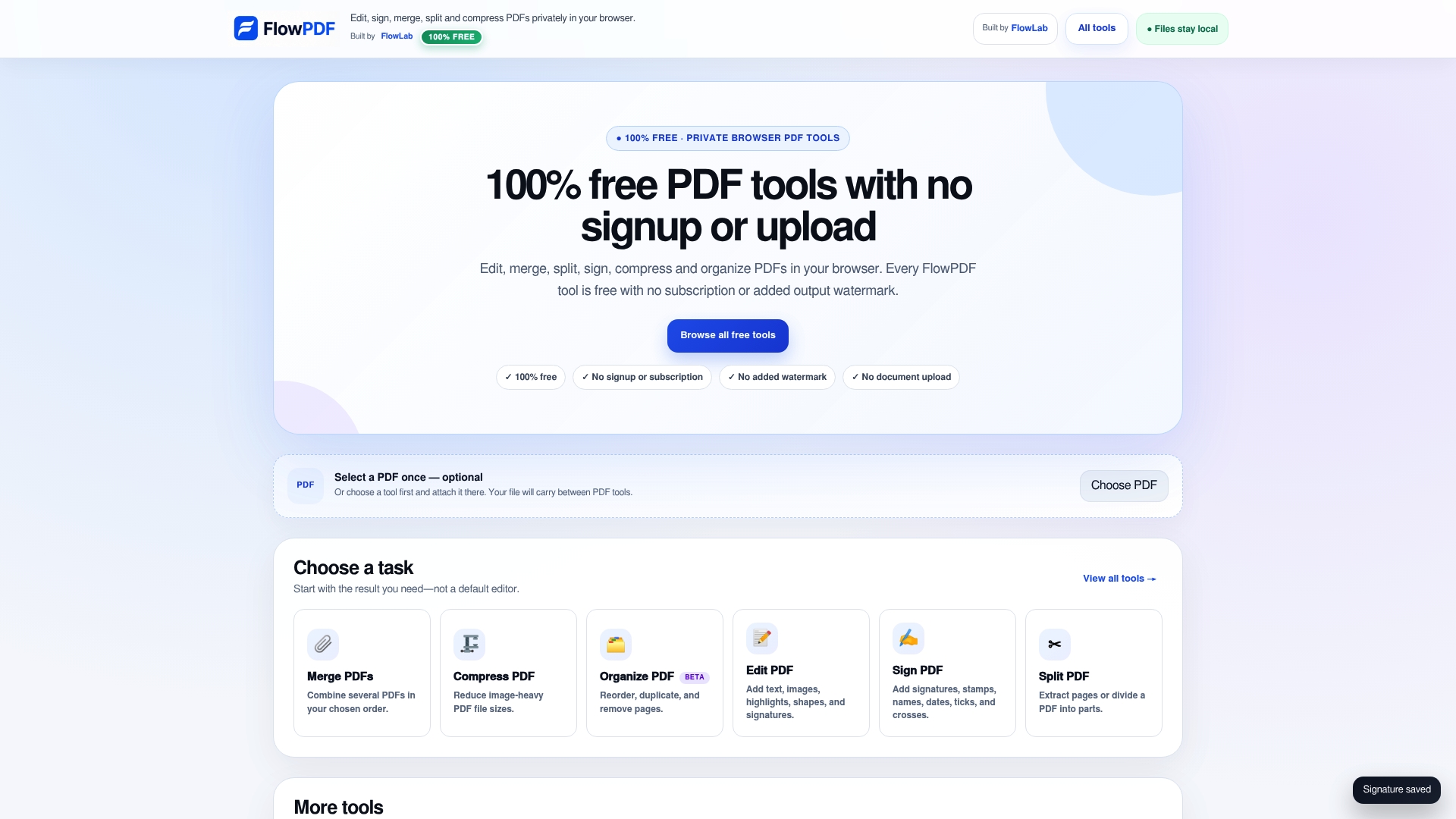
After you compare, you can stay in the same toolkit: edit the PDF to fix what you found, sign it without uploading once it is final, or browse the full set of free PDF tools. We do not offer certificate-backed digital signatures, so if your counterparty requires one, you will need a separate service for that step.
A practical checklist for contract versions
For documents where a missed change has a cost, add these habits to the routine above.
- Always compare against your last approved version, not against the previous email attachment. Changes can creep in across several rounds.
- Compare the whole file, including schedules, appendices and footers, not only the pages the sender mentioned.
- Watch numbers closely. Amounts, percentages, dates and clause cross-references are where small edits hide.
- Re-run the comparison after every new version. A "final" file is often not the last one.
- Keep the comparison result with the final file so you can show what changed and when you accepted it.
- Protect the final copy. If it will circulate, add a password locally before you send it.
These steps work in any tool. The difference a private, free tool makes is that you can follow them for every version without thinking about cost or where the files go.
FAQ
Can I compare two PDFs for free?
Yes. Several tools offer a free comparison, though some limit file size, daily use or the saved report. FlowPDF's comparison tool is free with no signup and no watermark, and it processes your files in your browser.
Do PDF comparison tools upload my documents?
Many online tools do, because the comparison runs on their server. Browser-based tools can process files locally instead. Check the tool's privacy statement, and prefer a local tool for contracts, financial records and personal data.
Can I compare a scanned PDF with a digital one?
Only after the scan has a text layer. Scanned pages are images, so you need OCR first. Acrobat Pro and ABBYY FineReader PDF offer OCR for this, according to a 2025 tool roundup. A visual comparison is the fallback, but it tends to show many false differences.
What is the difference between text and visual comparison?
Text comparison reads the words and shows what was added, deleted or edited. Visual comparison overlays the rendered pages and highlights anything that looks different, including images and stamps. Use text mode for wording changes and visual mode when appearance matters.
How do I compare two PDFs when they have different page counts?
Remove or extract pages so both files cover the same section, then compare. Comparing section by section also keeps the results readable on long documents.