
To split a PDF, open a splitting tool, choose your file, pick the pages or page ranges you want to keep, and download the result as one or more new PDFs. It takes under a minute for most files. With a browser-based tool such as FlowPDF's Split PDF, the file is processed on your own device, so a contract, payslip or medical report never has to travel to someone else's server.
This guide covers the three things people usually mean by "split": pulling out a few pages, cutting a document into ranges, and breaking it into single pages. It also covers how to do it without Adobe Acrobat, what to check on a phone or tablet, and how to keep personal data safe while you work.
TL;DR
- Splitting means creating new PDFs from the pages of an existing one. Your original stays untouched.
- Pick the method first: extract a few pages, split by range, or split into single pages.
- You do not need Acrobat or an account. FlowPDF runs in your browser, with no signup, no watermark and no cost.
- For sensitive files, choose a tool that processes locally and password-protect the pieces before you send them.
- Always open each new file and check the page count before you delete or share anything.
Table of Contents
- Pick the right way to split first
- How to split a PDF in your browser, step by step
- How to split a PDF by page range
- How to split a PDF into single pages
- How to split a PDF without Acrobat
- Can you split a PDF on a phone, tablet or computer?
- Keep sensitive PDFs private while you split them
- Check and share your split files
- Our view: splitting should not cost you your privacy
- Split your PDF with FlowPDF
- Common problems when splitting a PDF
- FAQ
- Sources
Pick the right way to split first
Most wasted time comes from choosing the wrong method. Decide what you want at the end, then pick the matching approach.
| What you want | Best method | Example |
|---|---|---|
| A few pages from a long document | Extract pages | Pages 12 and 18 from a 90-page report |
| One document cut into sections | Split by range | Chapters 1-3, 4-6 and 7-9 as three files |
| Every page as its own file | Split into single pages | A scanned stack of receipts, one per file |
| The document without certain pages | Remove pages | A form with a blank back page |
| A new page order | Organize pages | Moving an appendix to the front |
Splitting and extracting overlap. If you only need a handful of pages, extracting pages from a PDF is often the quicker description of the job: you name the pages, and you get a new file containing only those. If you need several files at once, use the split tool.
How to split a PDF in your browser, step by step
These steps work the same way for most browser-based splitters. In FlowPDF, nothing is uploaded, so the steps happen entirely on your device.
- Open the splitter. Go to FlowPDF Split PDF in any current browser. You do not need to create an account.
- Add your PDF. Drag the file onto the page or choose it from your device.
- Choose how to split. Select the pages you want, or enter the page ranges you need.
- Run the split. Start the process. Because everything runs locally, speed depends on your device and the file size.
- Download the results. Save the new files to a folder you can find again.
- Check each file. Open every new PDF and confirm the first page, last page and total page count.
A useful habit: name the output files before you send them anywhere. A file called contract-part-2-signatures.pdf is much harder to attach by mistake than split_3.pdf.
How to split a PDF by page range
Splitting by range means telling the tool where each new file starts and ends. This is the right choice when a long document has natural sections.
Here is a worked example. You have a 60-page project report and need to send three people different parts:
- Finance team: pages 1-4 (summary) and 41-50 (budget)
- Operations team: pages 5-25
- Legal: pages 51-60 (agreements)
Note that the finance team needs two separate blocks. You have two options. Either create two ranges and then merge the two pieces into one file, or extract pages 1-4 and 41-50 together in a single extraction so they land in one PDF. Either way, the total page count is a quick check: 4 + 10 = 14 pages for Finance.
Tips for getting ranges right
- Count from the PDF's own page numbers, not the printed ones. A report with a cover and roman-numeral front matter may print "1" on what is really the fifth page of the file. Use the page position shown in your viewer or in the tool's preview.
- Do not overlap ranges by accident. If chapter 2 ends on page 25, the next range starts on 26, not 25.
- Write your ranges down first. A short list on paper beats guessing halfway through.
- Leave gaps on purpose. Pages you do not include in any range simply do not appear in your outputs, which is handy for dropping blank pages or internal notes.
If your plan is to drop a page or two rather than create sections, the Organize PDF tool lets you reorder and delete pages in one pass.
How to split a PDF into single pages
One-file-per-page splitting suits scanned batches: receipts for an expense claim, signed forms collected into one scan, or a set of invoices that came in as a single file.
The process is the same as above, except you choose to separate every page. Two things to prepare for:
- You will get many files. A 40-page document becomes 40 PDFs. Create an empty folder first so they do not scatter across your downloads.
- Names matter. Most tools number the outputs in order. Sort by name to keep them in sequence, and rename the ones you will actually use.
If your pages were scanned sideways or upside down, fix them before you split. The Rotate PDF tool handles that locally, and it is easier to rotate one document than forty pieces. If you are starting from paper, scanning to PDF in your browser creates the source file in the first place.
How to split a PDF without Acrobat
You do not need a paid desktop program to split a PDF. A browser tool covers the same job for everyday needs: cutting by pages, ranges or into single files. The practical differences are these:
- No installation. Open the page and work. This helps on a locked-down work laptop or a shared computer.
- No subscription. FlowPDF is free to use and does not add watermarks to your output.
- No account. There is nothing to sign up for and nothing to remember.
Other routes exist too, such as your operating system's print-to-PDF option or desktop splitting programs. Printing a page range to a new PDF works for a one-off, but it can change the file's fonts or layout and drop features like form fields and bookmarks, so check the result before you rely on it. For repeat work, a dedicated splitter is cleaner.
Need to go beyond splitting? FlowPDF covers editing, merging, compressing and more in the same place, which saves you from collecting five different tools.
Can you split a PDF on a phone, tablet or computer?
A browser-based splitter works wherever you can open a modern browser, so the approach is the same on a laptop, a tablet or a phone. A few practical differences are worth knowing:
- Computer: best for long documents and precise range work. A larger screen makes the page preview much easier to read.
- Tablet: a comfortable middle ground. Page thumbnails are easy to tap.
- Phone: fine for pulling a page or two out of a short file. Because processing happens on your device, a very large PDF may be slow on an older phone. If it struggles, try a computer.
On any device, make sure the downloaded files go somewhere you can find them. On phones, downloads often land in a general downloads folder rather than the one you expect.
If the file is too large to handle comfortably, compress it locally first, then split. You can also split first and compress only the pieces you need to email.
Keep sensitive PDFs private while you split them
Most PDFs that need splitting are not casual files. They are contracts, tax documents, staff records, student results and medical letters. Where the splitting happens matters.
When an online tool uploads your file, a copy sits on someone else's server, even if only briefly. Singapore's guidance on handling personal data points in the same direction. The Personal Data Protection Commission's guide to securing personal data in electronic medium warns that files containing personal data must not be accidentally exposed through websites or web applications, even when the links are unpublished.
For organisations, there is a further point. The government's Data Protection Guide for Charities says that when personal data sits in cloud services, the organisation gives up some control over it, and should assess the provider's security, the laws that apply, where data is stored, and its certifications and audits. That is a lot of due diligence for a task as simple as cutting a PDF in two.

A tool that never uploads the file avoids most of that question. In FlowPDF, processing stays in your browser, so the document stays on your device from start to finish.
A short privacy checklist
- Split on your own device, using a tool that processes locally.
- Split first, then send only the pages the recipient needs. A shorter file exposes less.
- If a page contains data the recipient should not see, redact it permanently instead of covering it with a shape.
- Delete working copies you no longer need, including from shared or portable devices.
- Check document properties for hidden metadata before sending. Our guide to sending a PDF securely and removing hidden metadata walks through it.
Check and share your split files
Before you send anything, do a two-minute check.
- Open every output file. Confirm that it starts and ends on the right page.
- Add up the pages. If you split a 60-page file into three parts, the page counts should total 60 (or the total of the ranges you chose).
- Look for stray content. A page that looks harmless can contain a name, a number or a signature you did not mean to share.
- Rename the files clearly. Include the recipient or purpose, and a version number if it will go back and forth.
When the files go out by email, the Data Protection Guide for Charities recommends that sensitive attachments be encrypted or password-protected, with the password communicated separately, and that you check recipients before sending. You can do the first part locally: password protect each piece and share the password by a different channel, such as a message rather than the same email. If you receive a protected file and need to work on it, remember the password first; the Unlock PDF tool removes protection when you already know the password.
If you want a wider view of keeping documents private, see our overview of private PDF editors.
Our view: splitting should not cost you your privacy
We built FlowPDF around one idea: the simple jobs people do with PDFs every day should not require handing documents to a stranger's server.
Splitting is the perfect example. It is a small task, but it is often done on the most sensitive files: a signed contract that has to be sent in parts, a bundle of staff records, a thesis that needs to go to different examiners. Asking someone to create an account, accept a limit or upload the file first feels out of proportion to the job.
That is why our tools run locally in your browser. Your PDF stays on your device while you split, extract, merge or compress it. There is no signup, no subscription and no watermark on what you download. We think that is how a basic document tool should work, and we would rather you spend your attention on the pages you need than on the terms of a service.
Our advice is simple. Choose the method before you start, check every output, and protect what you send. Do those three things and splitting becomes routine.
Ronald Ang
Split your PDF with FlowPDF
FlowPDF is a free, browser-based PDF toolkit. The split and extract tools let you cut a document into the pieces you need, and the rest of the toolkit handles what usually comes next: merging, compressing, rotating, protecting and signing. Everything runs on your device, with no upload, signup or watermark.
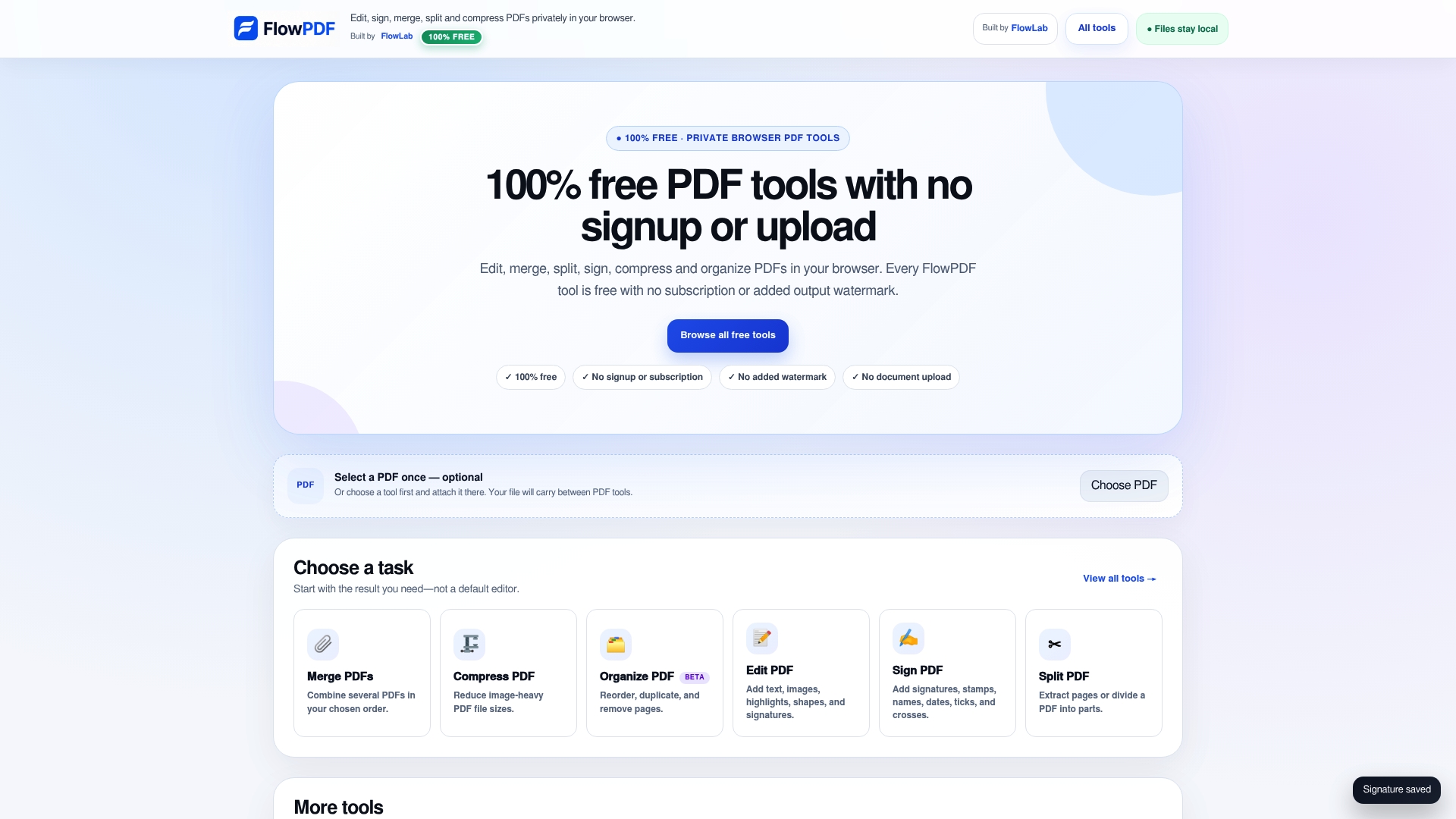
Ready to try it? Open Split PDF and have your first file ready in under a minute, or browse all FlowPDF tools if you need something else first.
Common problems when splitting a PDF
The file will not open in the tool. The PDF may be password-protected. Many splitters cannot read a locked file. If you know the password, remove the protection first with the Unlock PDF tool, split the file, then protect the pieces again.
The file is very large and the tool is slow. Local processing relies on your device's memory and speed. Close other tabs, try a computer instead of a phone, or compress the file first.
The pages come out in the wrong order. Check your ranges. A range typed in reverse or overlapping another range is the usual cause. Reorder afterwards with the Organize tool if needed.
A scanned page is sideways. Rotate it before splitting, so every output opens the right way up.
The output is missing a page. Compare page counts with your plan. A page left out of every range will not appear in any file. Run the split again with corrected ranges; your original is unchanged.
You need to compare the result with the original. Use the Compare tool to see differences between two versions when you are unsure what changed.
FAQ
How do I split a PDF into separate files?
Open a splitting tool, add your PDF, and choose to separate it by pages or ranges. Run the split and download the new files. In FlowPDF, all of this happens in your browser, and you can open each result to confirm the pages are right.
Is splitting a PDF free?
Yes, it can be. FlowPDF's tools are free to use, with no subscription, no signup and no watermark on your output. If you use any other service, check for page limits, file-size limits and watermarks before you start.
Can I split a PDF without Adobe Acrobat?
Yes. A browser-based tool does the same basic job without installing anything. Open the page, add your file, choose the pages, and download the new PDFs. You do not need a paid desktop program for everyday splitting.
Is it safe to split a confidential PDF online?
It is safer when the file never leaves your device. Choose a tool that processes locally in your browser, as FlowPDF does, and avoid tools that upload the file to a server. Singapore's data protection guidance warns against exposing files with personal data through web applications, so treat uploads of sensitive documents with caution.
How do I split a PDF by page range?
Enter the start and end page of each section you want, for example pages 1-10 for one file and 11-25 for the next. Make sure the ranges do not overlap, and use the page positions in the file rather than the printed page numbers. Check the total page count of the outputs against your plan.
Sources
- Guide to Securing Personal Data in Electronic Medium, Personal Data Protection Commission Singapore
- Data Protection Guide for Charities: Managing and Securing Electronic Personal Data, Charity Portal Singapore