
For most one-off conversions, a browser-based local tool is the right call: it converts your PDF to Markdown without uploading the file anywhere. Reach for a CLI or API when you're converting in bulk or wiring conversion into a pipeline. Scanned PDFs are the exception. Those need OCR before any method will give you usable Markdown.
TL;DR:
- Local browser tools like FlowPDF offer privacy for sensitive files, but scanned PDFs require OCR before conversion.
- Bulk or pipeline conversions are best handled by CLI or API methods, which automate and scale processing but need setup.
- Automatic table detection struggles with complex tables, merged cells, and multi-page layouts, often requiring manual review or correction.
- Quick output checks should focus on heading levels, list and table integrity, link validity, and removing line break artifacts.
- Converting scanned or heavily formatted PDFs generally involves OCR first, then manual cleanup on tables and formulas for best results.
Table of Contents
- What Are the Four Ways to Convert PDF to Markdown?
- How Do You Convert a PDF to Markdown Step by Step?
- How Do You Handle Scanned PDFs and Complex Tables?
- How Do You Check and Clean Up Markdown Output Fast?
- Why Local Processing Matters for PDF to Markdown
- Which Conversion Method Should You Actually Use?
- Try FlowPDF's PDF to Markdown Tool Free
- Where to Go Deeper on CLI and API Options
- Sources
What Are the Four Ways to Convert PDF to Markdown?
Every practical pdf to markdown workflow falls into one of four camps, and picking the right one comes down to how sensitive the file is and how often you're doing this.
Browser-local converters run entirely on your device. Tools built on PDF.js parse the PDF's text layer in memory and never send the file to a server. This is the best default for contracts, medical records, financial statements, or anything you wouldn't want sitting on someone else's disk. The tradeoff is that heavy OCR work can be slower without server-side horsepower.
Server-based online converters upload your file to process it remotely. They're often faster on huge or scanned documents and sometimes offer more polished table detection, but you're trusting a third party with the file, and most impose daily quotas or file-size caps.
CLI tools give developers scriptable, repeatable control. A tool like Microsoft's MarkItDown runs from the command line or a Python script, which makes it a natural fit for batch jobs.
API solutions handle conversion at scale, feeding documentation pipelines, RAG systems, or internal knowledge bases automatically.
- Browser local: private, free, best for single sensitive files
- Server online: convenient, faster on bulk OCR, requires upload
- CLI: automatable, scriptable, needs basic command-line comfort
- API: built for pipelines and integration at volume
How Do You Convert a PDF to Markdown Step by Step?
The mechanics differ by method, but each one takes only a few minutes once you know the flags and buttons that matter.
Browser-local walkthrough:
- Open a local converter such as FlowPDF's PDF to Markdown tool in your browser.
- Drop the PDF file onto the page. Nothing uploads.
- Preview the generated Markdown side by side with the original layout.
- Copy the output or download the
.mdfile directly. - Confirm privacy by opening your browser's DevTools, clicking the Network tab, and watching for zero upload activity during conversion.
CLI example: MarkItDown supports a zero-install run through npx markitdown yourfile.pdf -o output.md, or a Python call like markitdown.convert("file.pdf"). Useful flags typically include output path, table-of-contents generation, and how aggressively tables get converted to GitHub-Flavored Markdown tables.
API example: A typical flow is a POST request with the PDF as form data to a conversion endpoint, returning a JSON payload with the Markdown body and a status field. Expect an API key in the header for authentication, and check documented rate limits before running anything in a loop.
Pro Tip: Name your output files with the source filename plus a version tag (report_v1.md) before running batch conversions. It saves you from silently overwriting a good result with a worse one.
How Do You Handle Scanned PDFs and Complex Tables?
A scanned PDF has no selectable text layer. If you can't highlight a sentence with your cursor, the file is image-only and needs OCR before Markdown conversion means anything. A text-layer PDF, by contrast, converts cleanly because the structure is already encoded in the file.
Most browser converters flag scanned pages automatically and route them into an OCR step, whether that's a local OCR engine or a cloud-based one. Local OCR keeps the privacy guarantee intact but runs slower on large batches; cloud OCR is faster but means the page leaves your device.
Table detection works by reading column and row boundaries from the PDF's layout data. It handles simple grids well but tends to struggle with merged cells, multi-column layouts, or tables that span multiple pages, and those usually need a manual pass in the Markdown output.
- Check for a text layer before choosing a conversion method
- Route flagged scanned pages through OCR first
- Extract embedded images and formulas as separate linked files rather than forcing them into Markdown text
- Flag pages with irregular layout for manual review instead of trusting auto-detection blindly
Pro Tip: If a page has more than three merged cells or a formula rendered as an image, don't fight the auto-converter. Pull that page out, fix it by hand, and paste it back in.
How Do You Check and Clean Up Markdown Output Fast?
A quick first-pass review catches most conversion problems before they become a cleanup project. Structural preservation, headings, lists, tables, links, and images, is where most conversions fail, and a bad structure hurts AI ingestion just as much as it hurts a human reader.
- Scan headings first. Confirm heading levels match the document's actual outline, not a flattened mess of
####everywhere. - Check that lists and tables rendered as Markdown syntax instead of collapsing into plain paragraphs.
- Verify links and image references point somewhere real instead of dangling.
- Look for line breaks in the middle of sentences, a common PDF-extraction artifact, and join them with a find-and-replace or regex pass.
- Normalize repeated spaces and stray characters left behind by the extraction process.
If the Markdown feeds an AI or RAG pipeline, prioritize clean heading hierarchy and table structure over cosmetic formatting. If it's headed for human reading, prioritize readability and line flow. Editors like Obsidian work well here since they support live Markdown preview and frontmatter, while a plain text editor with regex find-and-replace handles bulk fixes faster than doing it by hand.
Why Local Processing Matters for PDF to Markdown
FlowPDF converts PDF to Markdown entirely inside your browser. No file upload, no account, no watermark on the result. The conversion runs on your device using the same local text-layer parsing approach that privacy-focused browser tools rely on, which means the document never touches a remote server.
If you want proof beyond a privacy policy, open your browser's DevTools, click the Network tab, and convert a file. No upload request firing during that process is the clearest sign the tool is doing what it claims.
FlowPDF's PDF to Markdown feature preserves headings, lists, tables, and links the same way other local converters do, and it stays free with no feature locked behind a paywall. The honest limitation: scanned, image-only PDFs still need an OCR step somewhere in the process, whether that's local or server-based, before conversion can produce anything usable.
Which Conversion Method Should You Actually Use?
Match the method to the document, not the other way around. A single sensitive contract or financial statement belongs in a browser-local tool, full stop. Bulk conversion or anything feeding a pipeline is a CLI or API job, and MarkItDown handles that role well for developers who want Python or command-line control. Scanned or heavily formatted documents almost always need a hybrid pass: OCR first, then manual cleanup on tables and formulas no automated tool handles perfectly. None of these methods is universally best. The right one depends entirely on what you're holding and who else might see it before you're done.
— Ronald Ang
Try FlowPDF's PDF to Markdown Tool Free
FlowPDF gives you the exact workflow this article recommends for one-off, sensitive files: drop a PDF in, get clean Markdown out, and never send the document anywhere. That's the practical edge over server-based converters that quietly upload your file to process it, and over paid tools that gate table detection or OCR behind a subscription.

The PDF to Markdown tool preserves headings, lists, and tables the same way the browser-local method described above works, and it costs nothing to use. If your file needs prep first, tools like merge or compress run the same way, locally, with no upload. Drop your next PDF in and check the output before you decide whether it needs a manual pass.
Where to Go Deeper on CLI and API Options
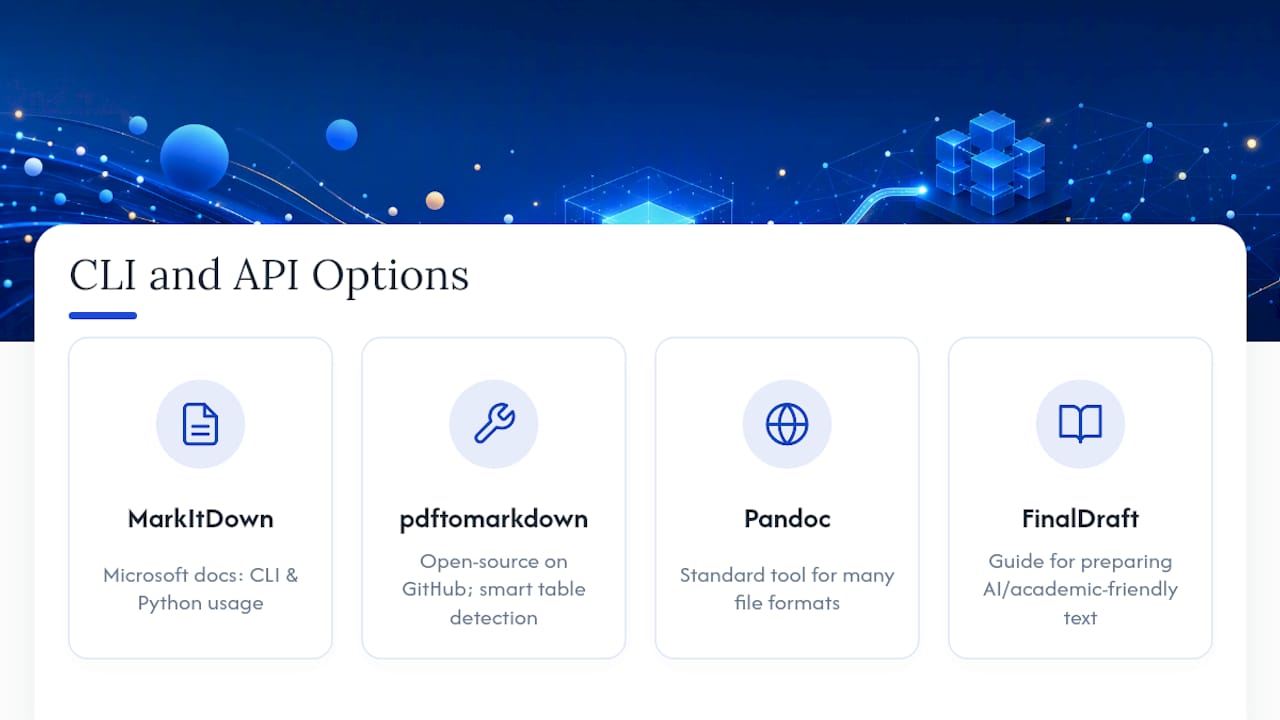
For scripting bulk conversions, Microsoft's MarkItDown documentation covers both CLI and Python usage. Developers wanting an open-source option with smart table detection can review pdftomarkdown on GitHub. If you need conversion across many file formats beyond just PDF, Pandoc remains the standard reference tool. For preparing converted Markdown for AI or academic workflows, FinalDraft's guide on AI-friendly text is worth a read.
Sources
- MarkItDown — Microsoft’s tool for converting almost anything to Markdown
- HEMANT16/pdftomarkdown — PDF to Markdown converter
- Free PDF to Markdown Converter - No Upload, OCR, Tables, Formulas
- PDF to Markdown Converter Online - Free, Private & Accurate
- Pandoc — Universal document converter