
If you know the password or the file only has owner restrictions, use Preview's Export option or a Terminal command with qpdf to save an unrestricted copy in seconds. If it opens but blocks printing or editing, browser Print → Save as PDF works just as fast. For batch jobs, pair qpdf with an Automator Quick Action. If you don't have the open password at all, no local trick will get you in.
TL;DR:
- Preview's Export method easily removes owner restrictions if the file is viewable, but cannot bypass open passwords without them.
- Browser print-to-PDF can recreate a printable copy quickly, but fails on encrypted files that require an open password.
- qpdf offers the most precise control, decrypts with known passwords, and preserves the original layout without re-encoding.
- Automator Quick Actions can batch unlock multiple files, saving time but requiring initial setup and careful backup precautions.
- FlowPDF provides a local, browser-based solution that processes files without uploading, suitable for users prioritizing privacy.
Table of Contents
- Which method to use for unlock PDF on Mac situations
- How do you use Preview to remove PDF restrictions on Mac?
- Can Safari or Chrome strip PDF restrictions too?
- How does qpdf remove PDF passwords from Terminal?
- Can you set up a Quick Action to unlock PDFs in bulk?
- What if you don't know the PDF's open password?
- Is it legal to remove a PDF's password protection?
- How FlowPDF unlocks PDFs locally, right in your browser
- Why native tools beat online unlockers most of the time
- Unlock your next PDF without opening Terminal at all
- Sources
Which method to use for unlock PDF on Mac situations
Your fastest path depends entirely on what kind of lock you're dealing with. A PDF can have an open password (you need it just to view the file) or an owner password (the file opens fine, but editing, printing, or copying is blocked). Those two situations call for completely different tools.
- You know the open password or only see owner restrictions: Preview's Export feature is the quickest fix, no Terminal required.
- You need a repeatable, scriptable process: qpdf in Terminal handles single files or entire folders identically every time.
- You're unlocking dozens of files at once: an Automator Quick Action built around qpdf saves you from manual work entirely.
- You want a no-install, no-command-line option: a local, in-browser tool like FlowPDF keeps the file off any server while still handling the unlock.
Privacy matters here more than people assume. Preview, qpdf, and Automator all run entirely on your Mac, so nothing ever leaves your machine. Browser-based tools that process files locally in memory, rather than uploading them, offer that same local processing model without needing you to touch the command line.
How do you use Preview to remove PDF restrictions on Mac?
Preview is built into every Mac, and it's the first thing worth trying before you install anything else. The trick works because once macOS has decrypted a file for viewing, saving a fresh copy can leave the old permission flags behind entirely.
- Open the PDF in Preview. If it's protected by an open password, enter it when prompted.
- Go to File → Export as PDF (not Save, and not Cmd+S).
- In the export dialog, confirm the Encryption checkbox is unchecked before saving.
- Save the new file under a different name so you keep the original as backup.
This only works if the document is already viewable. Preview can strip owner-level restrictions on a file you can open, but it cannot generate a copy without permissions from a file it can't decrypt in the first place. Watch for digitally signed PDFs too. Exporting a signed document usually invalidates the signature, so keep a signed original untouched if you need it for verification later.
Pro Tip: Always use Export, never plain Save. Save can silently preserve the original encryption container even when the content looks unlocked on screen.
Can Safari or Chrome strip PDF restrictions too?
Yes, and it takes about ten seconds once the file is open. Browsers render PDF content independently of the original permission settings, so printing to a new PDF often produces a clean copy.
- Drag the PDF into a Safari or Chrome tab, or right-click and choose Open With your browser.
- Once it renders on screen, press Cmd+P to open the print dialog.
- Set the destination to Save as PDF and save the new file.
This method fails immediately if the file needs an open password you don't have. Browsers can't render an encrypted document any more than Preview can, since rendering has to happen before printing can produce a file. Expect minor differences in fonts or embedded metadata compared to the original, since print-to-PDF effectively rebuilds the document from scratch.
How does qpdf remove PDF passwords from Terminal?

qpdf gives you the most precise control of any Mac-native method, and it's the tool serious users reach for once they've outgrown Preview. Install it through Homebrew if you don't already have it:
brew install qpdf
If you know the open password, decrypt the file directly:
qpdf --password=YOURPASSWORD --decrypt input.pdf output.pdf
If the file opens without a password but carries owner restrictions, drop the password flag entirely:
qpdf --decrypt input.pdf output.pdf
qpdf strips encryption metadata without re-encoding the page content, which means better fidelity than print-to-PDF and a lower chance of breaking embedded signatures.
| Method | Preserves original layout | Handles batch jobs | Requires install |
|---|---|---|---|
| Preview Export | Yes | No | No |
| Browser print | No (rebuilds file) | No | No |
| qpdf | Yes | Yes | Yes (Homebrew) |
Pro Tip: Never type a real password directly into a shell script you plan to keep or share. Store it in macOS Keychain and reference it in your script, or type it interactively each time.
Can you set up a Quick Action to unlock PDFs in bulk?
Automator turns qpdf into a one-click Finder tool, which matters if you're clearing restrictions from a folder full of scanned contracts or reports. The setup takes about five minutes.
- Open Automator, create a new Quick Action, and set it to receive PDF files in Finder.
- Add a Run Shell Script action with a loop like:
for f in "$@"; do qpdf --decrypt "$f" "${f%.pdf}-unlocked.pdf"; done - Save the Quick Action, then test it on two or three sample files before running it on your full folder.
- If the action doesn't appear in your right-click menu, enable it under System Settings → Keyboard → Shortcuts → Services.
Open-source batch tools built around qpdf follow this same pattern, often adding recursive folder scanning and automatic backups so you never overwrite an original by mistake.
Always create a
.bakcopy of your source folder before running a batch unlock script. A loop that works perfectly on three test files can behave unpredictably across three hundred, and there's no undo once output files start overwriting originals.
What if you don't know the PDF's open password?
This is where expectations need to reset. An owner password blocks permissions but leaves the content readable, so Preview, qpdf, or a browser can all get around it. An open password encrypts the content itself, and there's no local trick, no Terminal flag, and no Automator script that will decrypt it without the actual key.
- Ask whoever sent the file for the password again, or request an unprotected version.
- Check Keychain Access and any password manager for a saved credential tied to that document.
- Look for the original file source. Many locked PDFs are duplicates of an unprotected version sitting somewhere else.
- Professional recovery services exist, but they're slow, often costly, and largely ineffective against modern AES encryption.
- Avoid "PDF cracker" sites that promise instant recovery. Most either fail outright or exist to harvest uploaded documents.
Is it legal to remove a PDF's password protection?
Every method in this guide assumes you have the right to alter the file, whether it's your own document, one you're authorized to edit, or a client file you have permission to modify. Removing protections from someone else's PDF without consent can violate the file owner's rights, even when the technical steps are trivial.
Stick to local tools like Preview, qpdf, Automator, or an in-browser processor for anything sensitive. Contracts, financial statements, and medical records have no business passing through a server you don't control. If you do reach for an online tool, confirm it processes files in your browser rather than uploading them, and check what it says about retaining your data afterward.
How FlowPDF unlocks PDFs locally, right in your browser
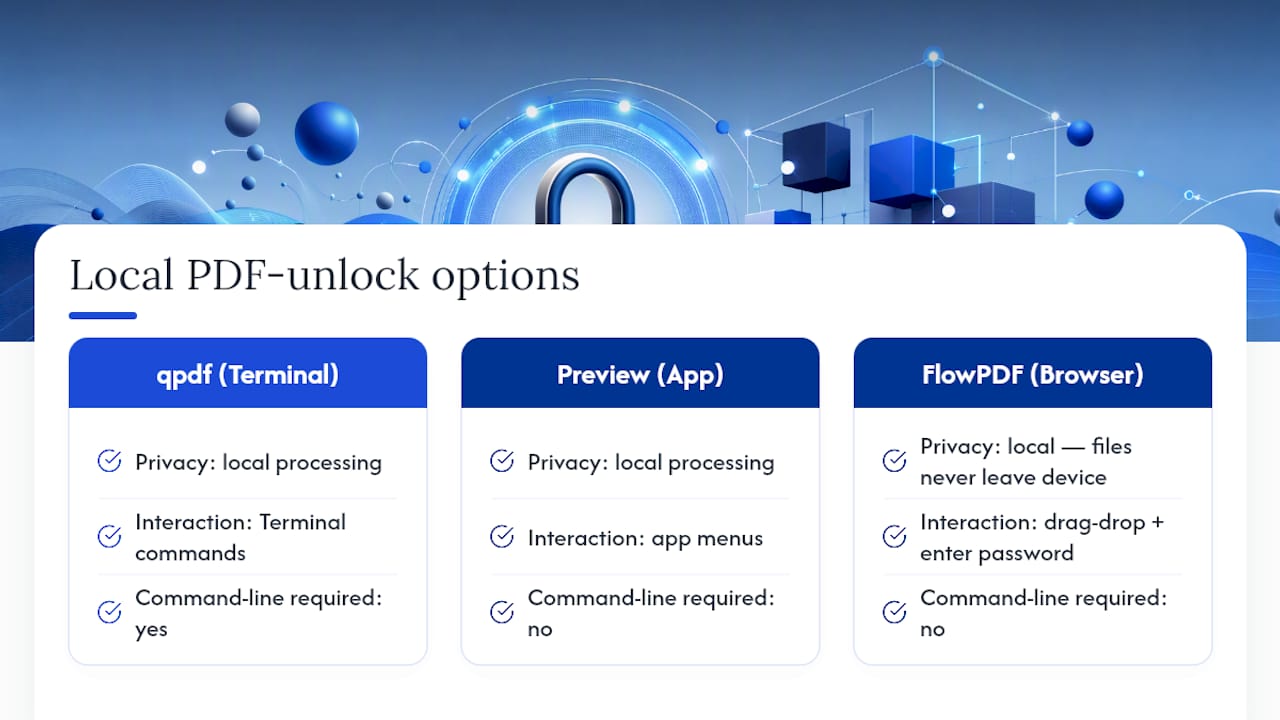
FlowPDF handles the same job Preview and qpdf do, but without opening Terminal or digging through menus. Drop your file into the unlock tool, enter the password if the file needs one, and download the result. Files never leave your device during processing, since FlowPDF runs the entire operation locally in your browser.
The tool works the same way whether you're removing owner restrictions from a file that opens freely or supplying a known password to decrypt one. It's the same underlying logic as setting a password with defined permissions in reverse. For readers weighing native tools against a browser option, this is where FlowPDF fits: same privacy guarantees as qpdf, none of the command-line syntax.
Why native tools beat online unlockers most of the time
The advice you'll find scattered across forums tends to push people toward whichever online unlocker ranks highest in a search, and that's backward for anyone handling a tax return, a signed contract, or a medical record. Preview and qpdf already do the job, they're already installed or a single Homebrew command away, and nothing about your file ever has to leave your Mac.
Where the conventional advice really falls short is specificity. Most guides tell you to "try an online tool" without explaining the actual difference between an open password and an owner password, so readers waste time attempting to strip protections that structurally can't be removed without the real key. Understanding that distinction first saves more frustration than any tool recommendation.
If you're setting priorities, learn the qpdf command syntax before you bother with anything else. It's faster than any GUI, it scales to a hundred files as easily as one, and it preserves your document's original fidelity in a way that print-to-PDF workarounds never quite manage. Automator is worth the ten minutes it takes to set up only after qpdf itself feels comfortable.
— Ronald Ang
Unlock your next PDF without opening Terminal at all
If Preview's export menu or a qpdf command feels like more setup than a single unlock job deserves, FlowPDF gets you the same result without installing anything and integrates smoothly with content creation tools that young creators rely on. Visit the unlock PDF tool, drop in your file, enter the password if one's needed, and download a clean copy. No file upload happens at any point, no watermark gets added, and your content stays exactly as it was.

One thing worth knowing before you rely on it for a signed document: removing encryption from a digitally signed PDF typically invalidates that signature, the same limitation you'd run into with Preview or qpdf. For everything else, from a password-protected lease to a locked invoice, the output preserves formatting and content precisely.
Once your file is unlocked, you might need to reorganize its pages, merge it with other documents, or compress it before sending it back out. All of it runs through the same local, browser-based process at Flowpdf, with no account and no subscription required.
Sources
- How to use the new PDF features in macOS Monterey's Preview app | Macworld
- Unlock PDF on Mac: Preview, Terminal & Automator Guide
- mortolian/pdf-password-remover