
Use Preview for a one-off split. It handles thumbnails, drag-and-drop page extraction, and page ranges in about a minute, with zero installs. For repeat jobs, build an Automator or Shortcuts workflow, or run a Terminal command with pdftk or ImageMagick. If you'd rather skip uploading a sensitive file anywhere, a browser tool like FlowPDF that splits pages locally without sending your document to a server.
TL;DR:
- Preview's drag-and-drop method is practical for small jobs but becomes tedious when splitting large PDFs into numerous pages.
- Automator and Shortcuts can automate splitting tasks, making recurring splits faster after initial setup, especially for multiple files.
- Command-line tools like pdftk and ImageMagick offer scriptable, batch processing for extensive or automated PDF splitting needs.
- Browser tools such as FlowPDF allow local, no-upload splitting suitable for sensitive documents, avoiding privacy concerns associated with online services.
- The choice of method hinges on split frequency, file sensitivity, and desired automation level, with each approach offering distinct advantages.
Table of Contents
- How Do You Split a PDF on Mac Using Preview?
- Can You Automate PDF Splitting With Automator or Shortcuts?
- What Terminal Commands Split a PDF on Mac?
- Is It Safe to Split a PDF Online?
- Choosing Between Preview, Automation, CLI, or FlowPDF
- Try FlowPDF for Private, No-Upload PDF Splitting
- Sources
- FAQ
How Do You Split a PDF on Mac Using Preview?
Preview is already on your Mac, and it's a fast way to pull pages out of a PDF without touching a third app. No install, no upload, no learning curve.
Here's the process:
- Open the PDF in Preview, then choose View > Thumbnails to see every page in a sidebar.
- Click a single page to select it, or Command-click and Shift-click to grab several at once.
- Drag the selected thumbnails out of the sidebar and drop them onto the desktop or into a Finder folder. This creates a new PDF containing only the pages you dragged.
- To pull out a continuous page range instead, go to File > Print, set the Pages field to something like "3-7," then click the PDF dropdown in the print dialog and choose Save as PDF.
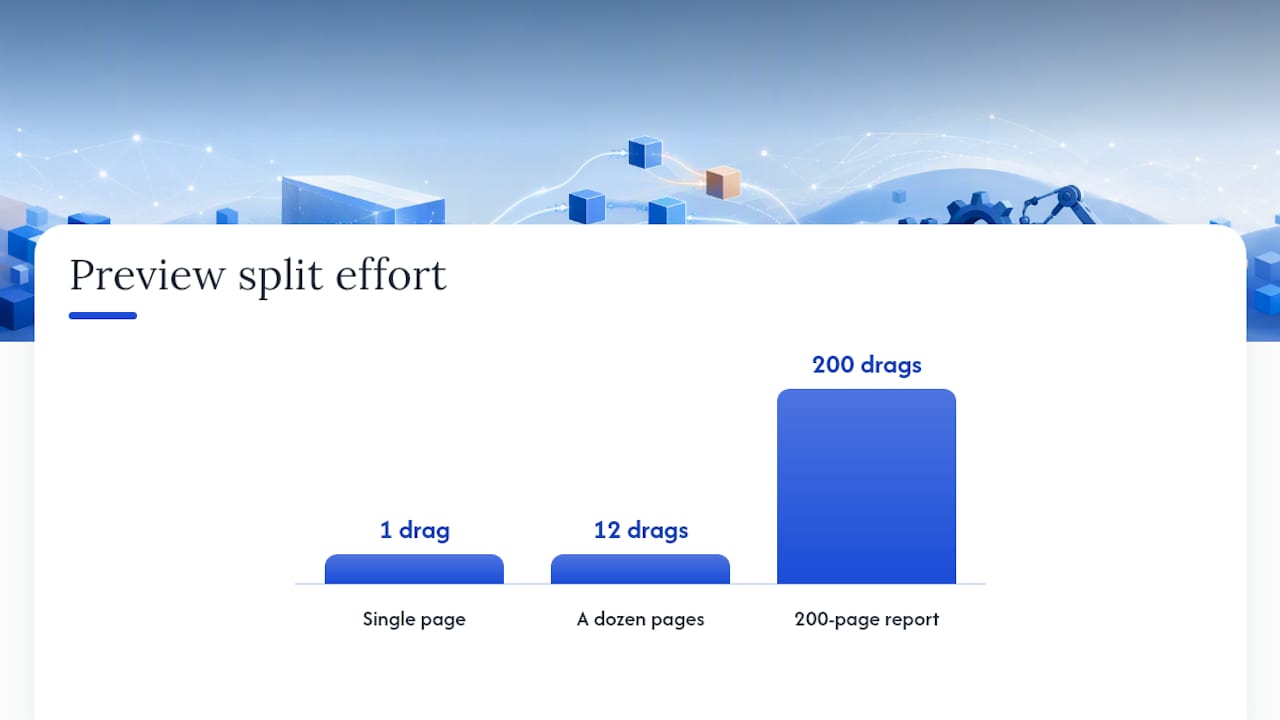
Apple documents this drag-out method as the built-in way to add, delete, or move pages in Preview, and it works identically whether you're pulling one page or a dozen.
The catch is scale. Preview has no batch export, so splitting a 200-page report into 200 single-page files means 200 individual drags. It's manual by design. Fine for a contract or a chapter. Painful for anything larger.
Pro Tip: Rename each exported file immediately after dragging it out. Preview names new files generically, and it's easy to lose track of which page went where once you have five or six loose PDFs on your desktop.
Can You Automate PDF Splitting With Automator or Shortcuts?
Yes, and it's worth the ten minutes of setup if you split PDFs more than occasionally. Both Automator and Shortcuts include a built-in Split PDF action you can chain into a repeatable workflow, which is the fix for Preview's one-at-a-time limitation.
Here's how to build one in Automator:
- Open Automator and choose New Document, then select Quick Action (so it runs from Finder) or Workflow for a standalone tool.
- Add the Ask for Finder Items action so the workflow prompts you to pick a PDF each time it runs.
- Add the Split PDF action right after it. This step generates one file per page automatically.
- Add Move Finder Items as a final step to route the output into a dedicated folder, which keeps split pages from cluttering your desktop.
- Save the Quick Action. It now appears in Finder's right-click menu, ready whenever you need it.
This "Ask for Finder Items, then Split PDF, then Move Finder Items" chain is a pattern documented by Mac users on Apple's own support community, and it holds up whether you're processing one file or setting it up to watch a folder.
Setapp's guidance echoes this trade-off directly: Preview is fine for simple, one-off splits, but Automator or a dedicated app earns its keep once splitting becomes a recurring task rather than a rare one.
Pro Tip: Give your output folder a naming convention before you run the workflow the first time, like "Split_[original filename]." Future you will thank present you when there are twelve of these folders on the desktop.
What Terminal Commands Split a PDF on Mac?
Command-line tools are the fastest route when you need reproducible, scriptable splitting, especially across dozens of files. You'll need Homebrew installed first, since it's the standard way to get pdftk and ImageMagick onto macOS.
Install both with:
brew install imagemagickbrew install pdftk-java(the actively maintained pdftk build for macOS)
Once installed, splitting every page of a PDF into separate files takes one line:
pdftk input.pdf burst output page_%02d.pdf
This creates page_01.pdf, page_02.pdf, and so on, one file per page, with zero manual dragging. The zero-padded numbering matters more than it looks. Community threads on Superuser note that files sort correctly in Finder only when the numbers are padded, so page_02 doesn't accidentally sort after page_10.
ImageMagick offers a similar path for extracting specific pages or converting them to images first:
magick input.pdf[2-5] output_range.pdf
ImageMagick's PDF handling sometimes needs Ghostscript installed alongside it for reliable rendering, so if a command throws a delegate error, that's usually the fix.
Pro Tip: Always run these commands against a copy of the original file, not the source document itself. A typo in a burst command can overwrite output silently.
Is It Safe to Split a PDF Online?
Browser-based splitters make sense for a quick, low-stakes job when you're on a machine where you can't install anything, but not every "online" tool works the same way under the hood.
- Some services upload your file to a remote server, process it there, and send back the result, which means your document leaves your machine.
- Others, including FlowPDF, process the file locally in the browser itself, so nothing gets transmitted anywhere.
Setapp's review of PDF splitting options draws exactly this distinction between upload-based and local-processing tools, and it's the detail most people skip when picking a web splitter for a tax form, a signed contract, or anything with a client's name on it.
Some browser tools split and extract pages entirely in your browser, with no file upload, subscription, or watermark stamped across the output. Before trusting any online splitter with a sensitive document, check whether it mentions "upload" anywhere in its process. If it does, that file is leaving your computer.
Choosing Between Preview, Automation, CLI, or FlowPDF
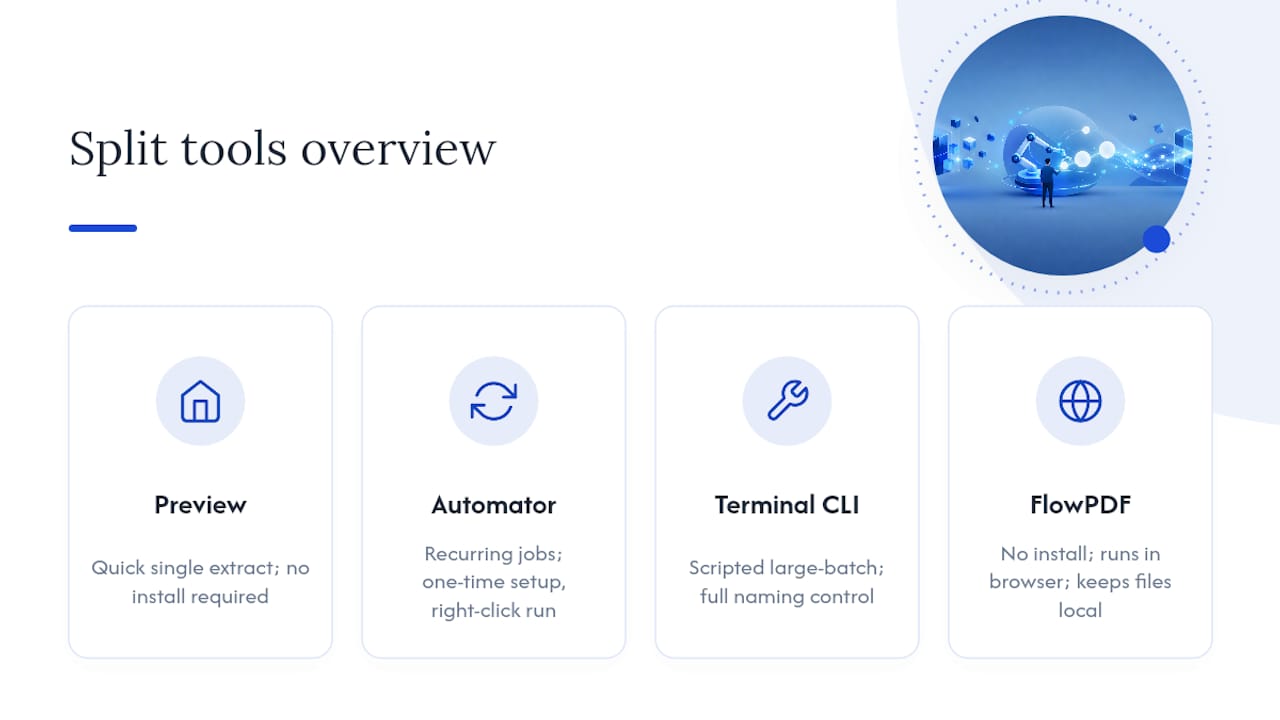
The right method depends on how often you split PDFs and how sensitive the files are, not on which tool sounds most impressive.
Preview wins for a single quick extract. It takes a minute or two and requires nothing beyond what's already on your Mac. Automator or Shortcuts pays off once splitting becomes a recurring chore. The setup takes longer the first time, but every run after that is a right-click. The command line is the right call for scripted, large-batch processing where you need control over naming and output structure, and it runs fastest once installed. Browser tools fit the gap between all three: no install, no waiting on a script, and no file leaving your browser when the document is something you'd rather not upload anywhere.
— Ronald Ang
Try FlowPDF for Private, No-Upload PDF Splitting
Some web tools give you the convenience of a browser-based PDF splitter without the trade-off that your file leaves your browser, with no account needed and no subscription or watermark.

If you've just walked through Preview's drag-and-drop steps or weighed whether to learn a pdftk command, FlowPDF is the shortcut that skips both without sending your document anywhere. Open the split PDF tool, drop in your file, select the pages or range you need, and download the result directly. Files stay local the entire time, a process explained in more detail on how FlowPDF handles processing. Need to pull a handful of specific pages instead of splitting the whole document? The extract pages tool handles that same job with a narrower focus. Once you're ready, head to FlowPDF and split your first file in under a minute.
Sources
- Add, delete, or move PDF pages in Preview on Mac — Apple Support
- Split PDF pages easily: Step-by-step guide — Setapp
- ImageMagick
- Is there a command-line method to split a multi-page PDF file into single pages? — Superuser
FAQ
How do I split a 2 page PDF into 2 separate pages?
Open the file in Preview, switch to View > Thumbnails, then drag each page individually out of the sidebar onto your desktop to create two separate single-page PDFs.
How can I split a PDF into multiple files?
For a few pages, drag thumbnails out of Preview one at a time. For an entire document at once, run pdftk input.pdf burst output page_%02d.pdf in Terminal, or use a browser tool like FlowPDF to split every page locally without installing anything.
How do I combine two separate PDFs into one on Mac?
Open one PDF in Preview, show thumbnails, then drag the second PDF's thumbnails into the first document's sidebar to merge them, or use a dedicated merge tool for files you'd rather not combine manually.
Can I split a PDF without Adobe?
Yes. macOS includes Preview for free, and it needs no Adobe product to split, extract, or export PDF pages. Command-line tools like pdftk and browser tools like FlowPDF also split PDFs with no Adobe software involved.