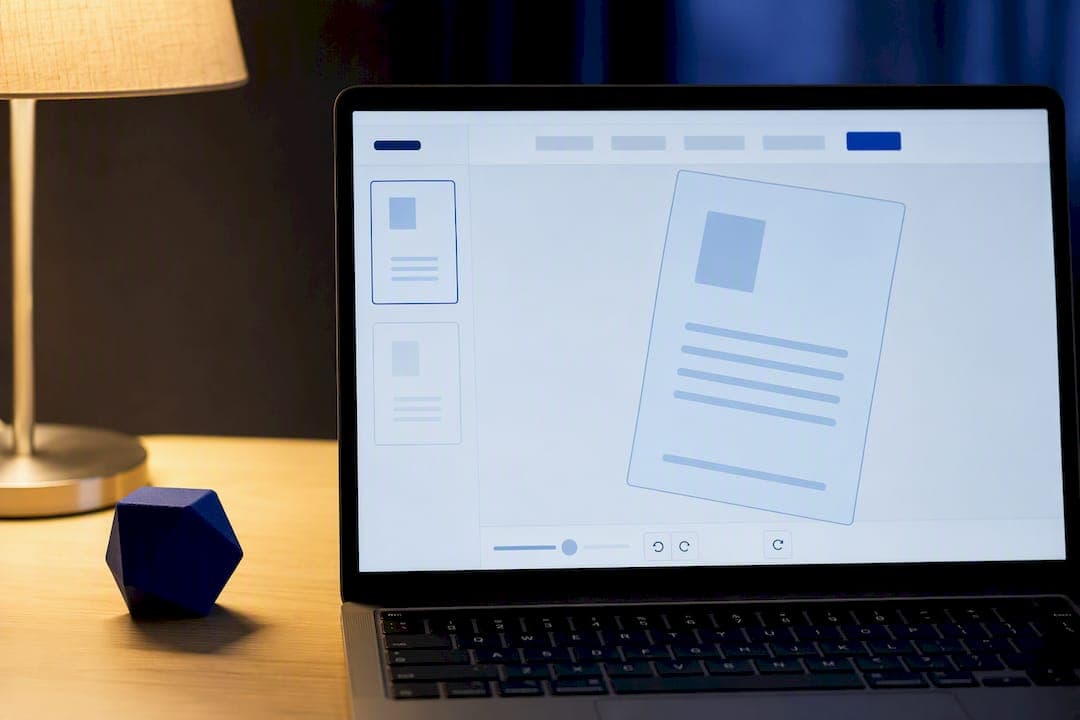
Yes, you can rotate one page in a PDF without touching the rest of the document. The fastest way is a browser-based rotator that shows page thumbnails, so you click the sideways page, spin it 90 degrees, and download a corrected copy. This can be handled locally in your browser with no upload and no watermark, which makes it a solid first stop for anyone in a hurry.
TL;DR:
- Most online PDF rotating tools process files on the server, but in-browser options like FlowPDF keep your document on your device, ensuring higher privacy for sensitive files.
- To rotate a single page, load your PDF, select the specific thumbnail, click the rotate icon, then download and verify the change across multiple viewers.
- Locked PDFs or cached views often block rotation; unlocking permissions and clearing browser cache typically resolve these issues.
- For files over several hundred pages or very large documents, desktop software handles scaling better than browser-based tools.
- Always save and verify the rotated file in multiple viewers before overwriting the original, and choose a tool that offers page-specific edits for precise control.
Table of Contents
- How Do You Rotate a Single Page in a PDF Fast?
- Step-by-Step: The Full Rotation Workflow Explained
- Server Upload vs. In-Browser Processing: Which Is Safer?
- Why Won't My PDF Rotate? Common Fixes
- Making the Rotation Permanent: Save and Verify
- Why FlowPDF Is Built for This Exact Job
- A Quick, Honest Take on When to Skip the Browser
- Rotate a Page Right Now, No Upload Required
- Sources
- FAQ
How Do You Rotate a Single Page in a PDF Fast?
If you just need to fix one crooked page before sending a document off, you don't need a full editing suite. A browser-based rotate tool gets you there in under a minute.
- Open a rotate tool, such as FlowPDF's rotate page tool, directly in your browser.
- Load your PDF and scroll through the thumbnails until you spot the sideways page.
- Click the rotate left or rotate right icon on that specific thumbnail, then confirm the change.
- Download the corrected PDF and open it again to check that only the intended page moved.
That's the whole job for most people. The rest of this guide covers the details worth knowing if something doesn't go as smoothly, plus why the "no upload" part of step one actually matters.
Step-by-Step: The Full Rotation Workflow Explained
Most online rotate tools follow a nearly identical pattern once you look past the branding. Understanding that pattern means you can jump into almost any tool and know exactly where to click.
Loading the file. You typically have two options: click to browse your device or drag the PDF straight into the browser window. Some tools also offer a cloud import button for files stored in Google Drive or Dropbox, but for a quick single-page fix, loading directly from your device is faster and keeps the file off a third-party server.
Finding and selecting the page. Once the file loads, you'll see a grid of page thumbnails, each numbered and previewed in miniature. This layout is standard across PDF rotator tools, which show thumbnails specifically so you can target one page instead of guessing. Click once to select a single thumbnail. If you need to rotate two or three related pages, most tools let you hold a modifier key or check a small box on each thumbnail to multi-select before rotating them together.
- Single click selects one page for rotation.
- Shift-click or checkbox selection grabs multiple pages at once.
- A highlighted border usually confirms what's currently selected.
Rotating and undoing. Two arrow icons handle the actual rotation: one turns the page clockwise, the other counterclockwise. Each click moves the page 90 degrees, so two clicks flip it upside down. Most tools include an undo button or a reset icon if you overshoot.
Applying and naming the file. Clicking "apply" or "save" writes the rotation into the page data itself, not just the on-screen view. You'll usually get a chance to rename the output file before downloading, which helps you tell the corrected version apart from your original.

Pro Tip: Rotate one page and download it before making other edits. If something looks off, you'll know exactly which change caused it instead of untangling five edits at once.
Server Upload vs. In-Browser Processing: Which Is Safer?
Most online PDF tools work by uploading your file to a remote server, processing it there, and sending back a download link. In-browser tools skip that step entirely. The rotation happens using your device's own processing power, and the file never leaves your machine.
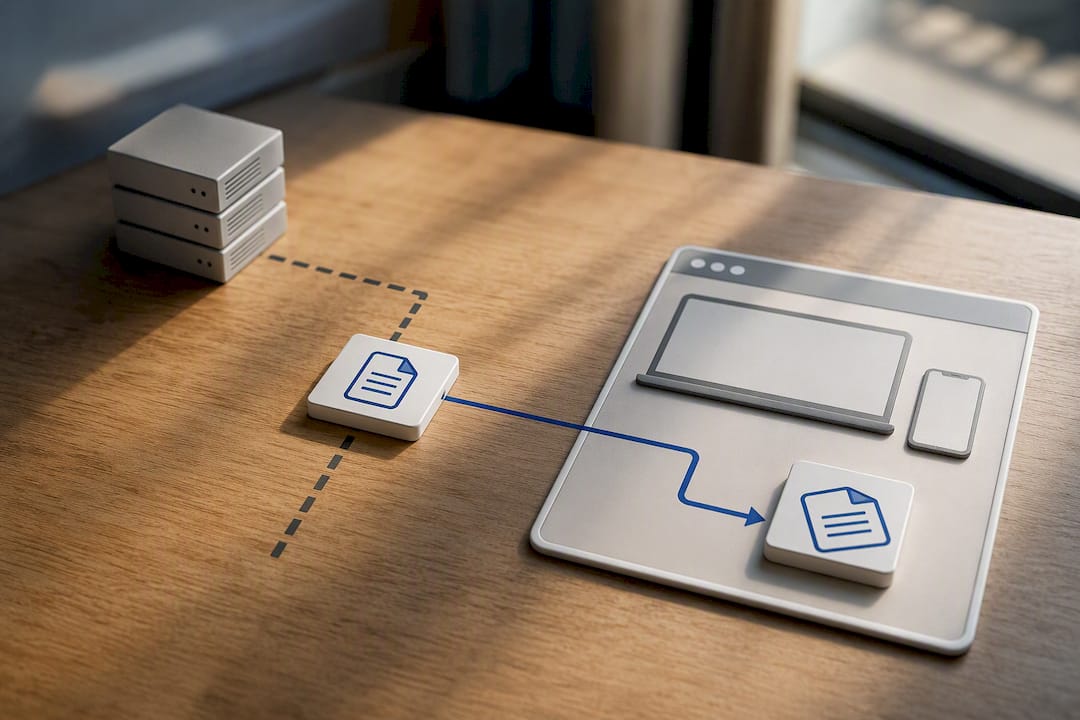
For anything sensitive, contracts, medical records, financial statements, in-browser processing is the safer default. There's no upload to intercept, no server copy to worry about, and no waiting on someone else's infrastructure to finish the job. Extension listings and browser add-ons increasingly advertise client-side processing as a selling point, which tells you privacy-conscious users are actively looking for this feature rather than assuming it's standard.
A few practical habits help regardless of which type of tool you use:
- Look for an explicit "no upload" or "processed locally" statement before trusting a tool with private files.
- Use a secure, private network rather than public Wi-Fi when handling sensitive documents online.
- If you do use a server-based tool, check whether it deletes uploaded files automatically and within what timeframe.
- Save any downloaded copies to a folder you control, then delete temporary browser downloads once you've confirmed the fix worked.
Server-side tools aren't inherently unsafe for low-stakes files like a school handout or a public flyer. The risk climbs fast once the document contains anything you wouldn't want sitting on someone else's server indefinitely.
Why Won't My PDF Rotate? Common Fixes
A page that refuses to rotate almost always traces back to one of four issues, and each has a straightforward fix.
Locked or permission-restricted files. Some PDFs are locked against editing by their original creator. Check the file's properties or try opening it in a different viewer to confirm. If you have legal rights to the document, you'll need to remove that restriction before rotation will stick.
- Locked PDFs need permission removal before any edit, including rotation, will save.
- Scanned image pages rotate the same as text pages, but running OCR afterward is a separate step if you also need searchable text.
- A viewer showing the old orientation after you've saved is almost always a caching issue, not a failed rotation.
- Very large files can hit browser memory limits, especially on older hardware.
If your PDF viewer still shows the wrong orientation after saving, close the file completely and reopen it, or clear your browser's cache. That single step resolves the majority of "it didn't work" reports. For files running into the hundreds of pages, consider splitting the document first or switching to a more current browser build before rotating.
Making the Rotation Permanent: Save and Verify
Clicking download doesn't just create a preview. It writes an entirely new PDF file with the rotated page's data updated at the byte level, which is why the change holds no matter which app opens it afterward.
To confirm the fix actually took, open the downloaded file in two different PDF readers, and check it on your phone if you'll be sharing the document on mobile. A handful of viewers occasionally apply a temporary display rotation without saving it, though this is rare with modern tools. Comparing the file across two readers rules that out completely.
- Keep your original, unrotated file until you've verified the new one opens correctly everywhere.
- Rename the downloaded file clearly, something like "contract_rotated_final.pdf," so you don't confuse versions later.
- Store the backup in a separate folder rather than overwriting the original on save.
Why FlowPDF Is Built for This Exact Job
FlowPDF's rotate page tool runs the entire process inside your browser. Nothing gets uploaded to a server, which matters if the document you're fixing is a lease, a tax form, or anything else you'd rather keep off someone else's infrastructure.
The tool is available without a sign-up wall and without a watermark stamped across your corrected pages, unlike some rotate utilities that gate full downloads behind a paywall. This also connects to a broader set of page-level tools, so once a page is rotated the right way, you can immediately reorganize or trim the document without switching platforms.
- Rotate individual pages or several at once, directly from the thumbnail view.
- No file upload means your document stays on your own device throughout processing.
- Access is provided with no watermark on the downloaded PDF.
- Follow-up tools like page reordering and page extraction handle cleanup after rotation without exporting to a new app.
A Quick, Honest Take on When to Skip the Browser
For nearly everyone fixing one crooked page, a privacy-first browser tool like FlowPDF is the right call: it's fast, private, and free. Where I'd reach for a desktop app instead is heavy batch work, hundreds of pages, or files large enough to strain browser memory. Desktop software handles that scale more comfortably than any browser tab.
— Ronald Ang
Rotate a Page Right Now, No Upload Required
Fixing one sideways page shouldn't require installing software or handing your file to a stranger's server. FlowPDF's rotate PDF tool runs entirely in your browser, so the document never leaves your device while you spin the page into place and download the corrected version.
There's no sign-up form standing between you and the fix, and no watermark stamped across your output when you're done. If the file needs more than a rotation, say a page in the wrong order or a section you want pulled out on its own, FlowPDF's organize pages tool and full toolset cover that without exporting anywhere else. Open your PDF, find the sideways page, and rotate it now.
Sources
FAQ
How Do I Rotate Some Pages in a PDF, Not All of Them?
Use a tool with a thumbnail grid, select only the pages that need fixing, and rotate those. The other pages stay untouched since the rotation applies per selected thumbnail rather than to the whole document.
How Do I Rotate a Single Page in Adobe PDF?
In Adobe's tools, you open the organize or thumbnail view, click the specific page thumbnail, and use the rotate left or right icon before saving. Browser tools like FlowPDF follow the same basic pattern without requiring a paid Adobe subscription.
Is There a Way to Rotate All Pages in a PDF at Once?
Yes, most rotate tools include a "select all" option or a rotate-all button that applies the same turn to every page in one action, which is faster than clicking through pages individually.
Why Can't I Rotate a PDF?
The most common causes are a locked or permission-restricted file, a browser cache still showing the old view, or a file large enough to strain your browser's memory. Checking permissions and clearing your cache resolves most cases.
Does Rotating a Scanned PDF Page Work the Same Way?
Rotating works identically on scanned image pages and text pages since the tool is repositioning the page itself, not the content type. If you also need the scanned text to be searchable, that requires a separate OCR step.