The fastest way to reverse PDF pages is a one-click browser tool that runs locally, like FlowPDF, which flips your entire page order in seconds with no upload. Mac users can also use Preview for a quick manual fix, and anyone comfortable with a terminal can run qpdf for instant, scriptable results. Reversing never touches image quality or text. It's your fastest, safest fix. Full steps for each method are below.
TL;DR:
- Browser-based tools like FlowPDF handle large PDFs quickly and process files locally without uploading, ensuring privacy and no quality loss.
- Preview on Mac is suitable for short documents but becomes inefficient over 20 pages due to manual drag-and-drop reordering.
- Command-line tools such as qpdf offer the fastest batch processing for reversing numerous files with no visible processing delay.
- Reversing a PDF only reorders pages without altering images, text, or annotations, making it safe even for signed and permission-restricted files.
- For sensitive or large files, using local or browser-based reversal methods is recommended over desktop or online servers to maintain privacy and efficiency.
Table of Contents
- Which Method Should You Pick to Reverse PDF Pages?
- How to Reverse Pages With a Browser Tool
- How to Reverse Pages in Preview on Mac
- Can You Reverse PDF Pages From the Command Line?
- How to Choose the Right Reversal Method
- Why Won't My PDF Save or Show Thumbnails?
- How FlowPDF Handles Page Reversal and Privacy
- A Practical Look at Everyday Reversal Problems
- Try FlowPDF to Reverse and Organize Pages Privately
- A Few Things Worth Knowing Before You Reverse a File
- Sources
- FAQ
Which Method Should You Pick to Reverse PDF Pages?
Three tools cover almost every situation, and picking the right one comes down to your file, your device, and how much control you want over the process.
- One-click browser tool (like FlowPDF): best for most people, especially with large scanned PDFs from a document feeder. You drop the file, click reverse, and download. No installs, no uploads.
- Preview on Mac: built in and free, but better suited to short documents where you're comfortable dragging thumbnails one at a time.
- Command-line or desktop editors (qpdf, pdftk, paid PDF software): the right call when you're batch-processing dozens of files or need to handle signed, permission-locked documents.
If you only remember one rule, remember this: browser tools handle bulk and scanned files better, Preview handles quick one-off edits, and command-line tools handle repetition.
How to Reverse Pages With a Browser Tool
A browser-based PDF tool is the quickest route because it skips manual dragging entirely and reverses the whole document in a single action.
- Open a browser-based reverse tool such as FlowPDF's page organizer.
- Drop your PDF file into the tool.
- Confirm you want to reverse the full page order, not just a section.
- Click "Reverse" or "Apply."
- Download the new file.
Most tools built this way process everything locally in your browser rather than sending your document to a server, which is why they can flip a scanned PDF's page tree instantly without any quality loss. Reversing doesn't re-render or recompress a single page. It just changes the order they appear in, so annotations, bookmarks, and form fields stay exactly where they were. That also means it works on scanned PDFs with zero need for OCR, since nothing about the actual page content changes.
Pro Tip: If your scanned pages came out upside down from a feeder, rotate them first and then reverse the order. Reversing after rotating avoids a second round of fixes.
How to Reverse Pages in Preview on Mac
Preview works fine for a five-page contract, but the process is manual, so you're doing the reordering yourself rather than letting software do it in one pass.
- Open the PDF in Preview and go to View > Thumbnails (or View > Contact Sheet on older macOS versions).
- Drag each thumbnail to its new position, working from the last page backward to the first.
- Once the order looks right, go to File > Export as PDF and save a new copy rather than overwriting the original.
There's also a print-dialog trick worth knowing: press Command+P, open the Paper Handling panel, check Reverse Page Order, then choose Save as PDF instead of printing. Apple documents both approaches for adding, deleting, or moving pages in Preview.
Preview's drag-and-drop approach gets clunky fast once you're past a small number of pages, and a browser grid tool scales much better for longer documents. If you're staring down a 100-page scan, skip Preview entirely.
Can You Reverse PDF Pages From the Command Line?
Yes, and it's the fastest method available if you're comfortable typing a single command. The tool qpdf handles this with one line:
qpdf --reverse input.pdf output.pdf
This reorders the PDF's internal page tree instantly, with no re-encoding and no visible processing delay even on large files.
- pdftk offers similar functionality and is popular for scripting batch jobs across folders of PDFs.
- Paid desktop editors become necessary when you're working with signed documents or files carrying strict permission locks, since command-line tools can choke on those without the right credentials.
- Command-line tools shine when you need to reverse dozens or hundreds of files the exact same way, every time.
How to Choose the Right Reversal Method
Run through a short checklist before you pick a tool, and you'll skip the trial-and-error most people go through.
- Device: Mac owners have Preview built in; Windows users generally need a browser tool or desktop app.
- File size: small documents tolerate manual dragging; large scans need a one-click tool.
- Page count: under 20 pages, anything works; over 20, avoid manual thumbnail dragging.
- Privacy needs: if the document is sensitive, choose a tool that processes locally rather than uploading to a server.
- Batch or automation needs: qpdf or pdftk if you're touching more than a handful of files regularly.
As a rule of thumb: reach for a browser tool by default, use Preview for quick single-file fixes, and use qpdf when you're automating. If a scan also needs merging or splitting first, handle that step before you reverse, not after.
Why Won't My PDF Save or Show Thumbnails?
Most reversal problems come down to three predictable issues, and each has a quick fix.
- Changes not sticking in Preview: use File > Export as PDF instead of a plain save. Preview's save behavior can get confusing with versioning, and exporting a fresh copy sidesteps that entirely.
- Thumbnails won't load: check whether the PDF has security restrictions blocking preview generation, then try a browser tool that processes the file locally instead.
- Pages come out reversed twice when printing: check your printer's own "reverse pages" setting. If both your PDF and your printer driver reverse the order, you end up back where you started.
- File is password-protected: unlock it with the correct permissions before attempting any page edits.
Practitioners generally agree that manual drag-reordering is fine for very short files, but one-click reversal cuts down on the kind of human error that causes these exact save and reorder failures on longer documents.
How FlowPDF Handles Page Reversal and Privacy
FlowPDF reverses, reorders, and deletes pages entirely inside your browser, which means your file never leaves your device during processing. That local-only approach mirrors how other browser-based reverse tools handle privacy, giving you the same protection as a desktop app without installing anything.
- No file upload at any point in the process.
- No cost and no watermark added to your finished PDF.
- Reorder, delete, or extract specific pages alongside reversing.
- Works on scanned documents without requiring OCR first.
This setup fits best when privacy matters, when you'd rather not install software, or when you're dealing with a scanned document that needs a fast, one-click fix. You can read more about the mechanics on how FlowPDF processes files locally.
A Practical Look at Everyday Reversal Problems
Reversed page order shows up constantly in ordinary office and home tasks: a scanner's automatic document feeder flips pages backward, double-sided printing needs a specific sequence, and archived files often land in the wrong reading order.
A couple of habits save real time. Split large scanning jobs into smaller batches so a single misfeed doesn't ruin the whole stack, and always check the first and last page before you print or archive anything.
Try FlowPDF to Reverse and Organize Pages Privately
FlowPDF gets your pages back in the right order without asking you to install anything, create an account, or hand your file to a server somewhere. Compare that to Preview's manual thumbnail dragging or a command-line tool's learning curve, and the appeal is obvious: one click, done, and your document never leaves your browser.

The page organizer reverses, reorders, or deletes pages in a single pass, and every feature stays free with no watermark added to your output. If your scan also needs rotating first, FlowPDF's rotation tool handles that in the same browser session before you reverse. Open the PDF editor, drop in your file, fix the page order, and download the corrected version right away.
A Few Things Worth Knowing Before You Reverse a File
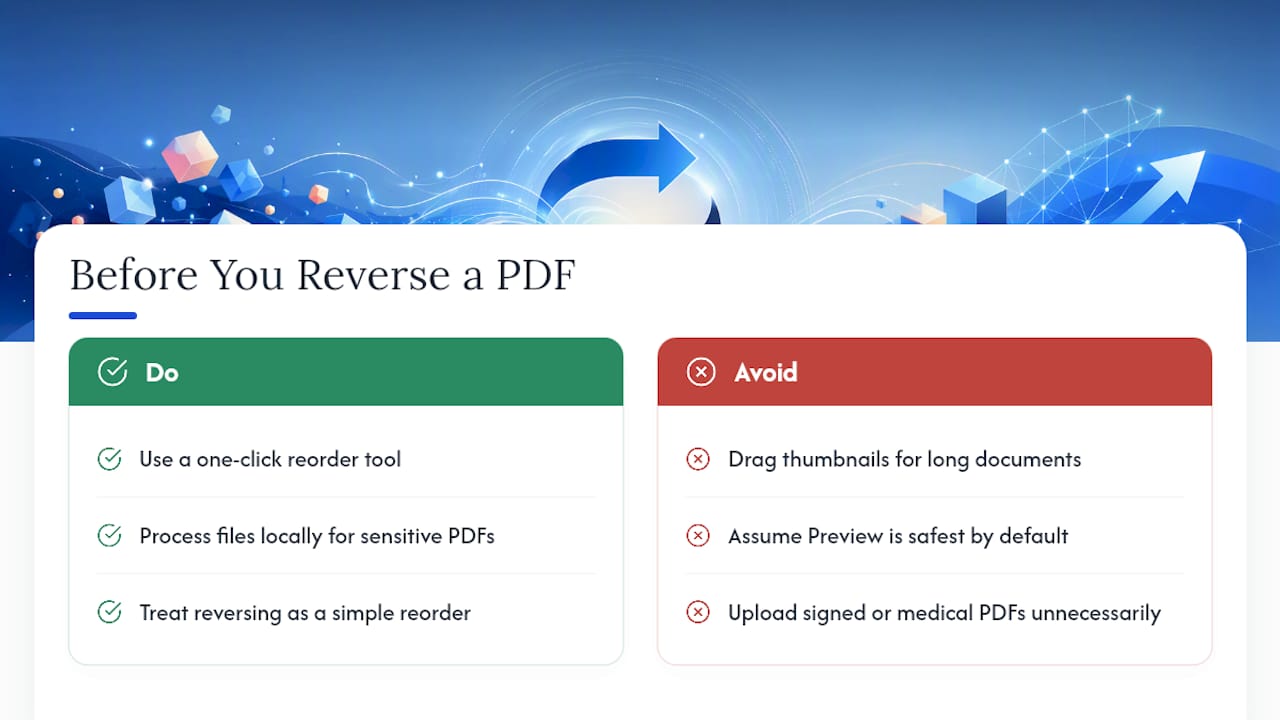
Reversing a PDF gets treated like some kind of technical repair job, and it isn't one. It's a single, mechanical change to the order of an array, nothing more. The confusion comes from people assuming any change to a PDF risks the content itself, so they either avoid fixing an obviously backward scan or they reach for a full desktop editor when a five-second browser action would have done the job.
The bigger misconception, in my view, is that Preview is always the "safe" default just because it's built into macOS. It's safe for a two-page letter. For a 60-page scanned contract, dragging thumbnails one at a time is where actual mistakes happen, not in a one-click tool that reorders the whole page tree at once. Local processing isn't a nice bonus feature either. For anyone reversing a signed contract or a medical scan, it's the difference between a file that never left your machine and one that briefly lived on someone else's server.
— Ronald Ang
Sources
- Add, delete, or move PDF pages in Preview on Mac - Apple Support
- Reverse Pages - Free Online PDF Tool | noll
FAQ
Does Reversing a PDF Reduce Image or Text Quality?
No. Reversing only changes the order pages appear in, without re-rendering or recompressing any page, so text, images, and annotations stay untouched.
Can I Reverse a Scanned PDF Without Running OCR First?
Yes. Page order and page content are separate, so a browser tool or qpdf can reverse a scanned PDF's sequence with no OCR step required.
Why Won't Preview Save My Reordered Pages?
Preview's save behavior can be inconsistent with versioning; use File > Export as PDF to create a fresh, reliably saved copy instead of overwriting the original.
Is FlowPDF Actually Free to Reverse PDF Pages?
Yes. FlowPDF's page organizer reverses, reorders, and deletes pages at no cost, with no watermark added to the downloaded file.
What's the Quickest Command to Reverse a PDF's Page Order?
Running qpdf --reverse input.pdf output.pdf reorders the page tree instantly, making it the fastest option for anyone comfortable with a command line.