Remove white margins from a PDF by using an online crop tool, like FlowPDF's crop feature, that works directly in your browser. Choose auto-trim to detect and cut uniform white space automatically, or switch to manual crop when you need exact control over each side. Because some tools process your file locally, nothing uploads to a server, so the fix stays fast and private.
TL;DR:
- Auto-trim is effective for clean, consistent margins but may misfire on scanned pages with gray backgrounds or noise, requiring threshold adjustments.
- Manual cropping offers precision for irregular or noisy documents, especially when uniform margins across all pages are needed.
- Cropping adjusts only the viewing area without reducing the file size, so compression must be done separately for smaller files.
- Batch cropping works best when pages share the same margin pattern; otherwise, manual or uniform cropping is preferable.
- Processing locally in the browser preserves confidentiality and speeds up the workflow compared to server-based tools.
Table of Contents
- How to Trim PDF Margins Online, Step by Step
- Auto-Trim or Manual Crop: Which One Do You Need?
- Getting Auto-Crop to Work on Scanned or Noisy PDFs
- Why Cropping Doesn't Shrink Your File (and What Does)
- Fixing Common Problems After You Crop
- Why I Recommend a Local, No-Upload Crop Workflow
- Crop Your PDF Free With FlowPDF, No Upload Required
- Sources
- FAQ
How to Trim PDF Margins Online, Step by Step
Cropping a PDF sounds technical, but the actual workflow takes less than a minute once your file is open. Here's the process for a browser-based cropper like FlowPDF's crop tool:
- Open the crop tool. Go to the crop page and skip any account creation or plan selection.
- Load your file. Drop the PDF into the browser window. Since tools like this process locally, the document never leaves your device.
- Pick a crop mode. Select auto-trim for standard documents with even white space, or switch to manual mode when the layout is irregular.
- Set the scope. Decide whether the crop applies to the current page only or every page in the document, and check the thumbnail previews before committing.
- Download and verify. Save the cropped file, then open it and check the first page, a middle page, and the last page.
A few things matter more than they seem at first glance:
- Auto-trim works best on documents with consistent, clean white borders.
- Manual crop is worth the extra time on scanned pages or mixed layouts.
- Applying crop to "all pages" only works well when every page shares the same margin pattern.
Pro Tip: Before you download, zoom into at least three separate pages in the preview. A crop that looks perfect on one page can clip a footer on another if margins vary across the document.
Most browser-based croppers, including FlowPDF, show a page-count summary before processing, so you know exactly how many pages will change.
Auto-Trim or Manual Crop: Which One Do You Need?
Auto-trim renders each page, scans inward from the edges, and stops the moment it hits a non-white pixel. That method works well for the vast majority of standard PDFs with clean, even margins, since the tool is essentially hunting for where the "real" content starts.
It breaks down in a few predictable situations:
- Gray or off-white scan backgrounds that don't register as pure white
- Marginal annotations, stamps, or page numbers sitting inside the white space
- Documents that mix portrait and landscape pages, or mix scanned and native pages
Manual crop solves these cases by letting you drag a selection box or enter exact per-side margins. Precision matters here: PDF measurements run in points, and 72 points equals 1 inch, so a margin you want at half an inch should be entered as 36 points. Many tools also offer a uniform percent mode, which trims the same percentage off every side and clamps automatically so the visible page never shrinks to nothing.
For documents with one repeating layout, the fastest approach is often to manual-crop a single page as a template and apply that same margin to the rest, rather than trusting auto-trim page by page.
Getting Auto-Crop to Work on Scanned or Noisy PDFs
Scanned documents trip up auto-detection more than any other file type, mostly because scanner backgrounds are rarely pure white. A slight gray cast, a faint shadow along the binding edge, or dust specks near the border can all fool an algorithm that's looking for a hard white-to-content transition.
Three adjustments fix most of these problems:
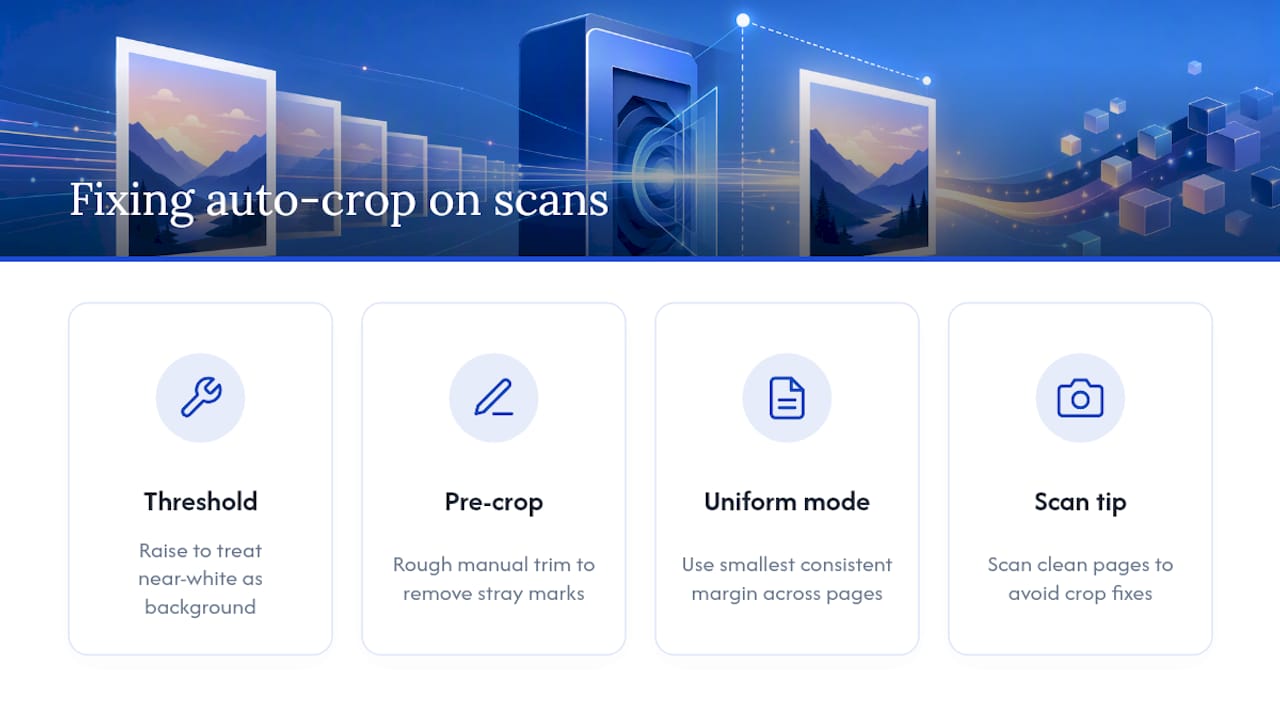
Loosen the detection threshold. If your cropper offers a threshold setting, raising it tells the tool to treat near-white gray tones as background instead of content. Tools like pdfCropMargins build this in specifically for scanned documents, alongside a default percent-retain setting that keeps a small buffer around detected content.
Pre-crop before auto-detecting. If a page has a stray mark or annotation sitting out in the margin, a rough manual crop first, ignoring the largest outlier margins, often gives auto-trim a cleaner edge to work from on the second pass.
Use uniform cropping across the batch. When you need every page to end up the same visible size, uniform mode calculates margins based on the smallest consistent margin found across pages, rather than letting one noisy page throw off the whole batch.
Pro Tip: If you're scanning fresh pages before cropping, a clean scan avoids most of this work entirely. FlowPDF's scan-to-PDF tool helps produce a flatter, more consistent background from the start.
Why Cropping Doesn't Shrink Your File (and What Does)
Cropping a PDF changes the CropBox and MediaBox values, the coordinates that tell a PDF viewer what area to display. It does not touch the underlying content stream, which means the text, images, and data outside your new visible border are still sitting inside the file. That's why cropping typically leaves file size nearly unchanged, even after you've trimmed away half the page.
If your real goal is a smaller file, cropping is the wrong tool. You need one of these instead:
- Compress the PDF to re-encode images and reduce overall size, which is a separate operation from cropping.
- Resize or fit-to-paper if you're trying to print on a standard sheet size rather than remove visible white space.
- Crop first, compress second if you want both a clean-looking page and a lighter file.
For that second step, FlowPDF's compress tool handles the size reduction locally, the same way the crop tool does.
Fixing Common Problems After You Crop
Most post-crop issues trace back to one of three causes, and each has a quick fix.
- Text got cut off. Undo the crop and try again with a larger percent-retain value or a slightly wider manual margin. Auto-trim can occasionally clip a descender on letters like "g" or "p" if the margin was set too tight.
- White lines or artifacts remain. Lower the detection threshold, run a rough pre-crop on the noisy pages first, or clean up the scanned image with a despeckle pass before cropping.
- Pages end up different visible sizes. Switch to uniform crop or a "same page size" option so every page shares the same final CropBox dimensions instead of each page cropping independently.
If a page has a stray mark or note in the margin causing repeated false detections, it's sometimes faster to remove that page and re-add a clean version than to keep fighting the auto-trim settings.
Why I Recommend a Local, No-Upload Crop Workflow
Local processing protects contracts, IDs, and financial statements the moment you skip the upload step, and it's simply faster for a one-off job since there's no wait for a server round trip. That said, very large batch jobs or advanced OCR cleanup on hundreds of scanned pages sometimes call for a desktop tool with more processing headroom. For the everyday task of trimming margins on a handful of PDFs, a browser-based, no-upload tool is the more practical choice.
— Ronald Ang
Crop Your PDF Free With FlowPDF, No Upload Required
Some tools offer a no-upload alternative to server-based croppers that require you to upload sensitive files before processing. Everything runs locally in your browser, so sensitive documents never leave your device, and downloads are free of watermarks or signup walls.

The crop tool includes auto-trim for standard documents, manual crop with per-side margin controls, and an option to apply your settings to a single page or the entire file. Once you're done, the same free toolkit covers compressing the result or merging it with other files, all without leaving your browser. Preview a few pages before you download, then head to the crop page and try it on your next PDF.
Sources
FAQ
How Do I Remove White Margins From a PDF?
Open a browser-based crop tool, load your PDF, and choose auto-trim to detect and remove white space automatically. For files with irregular layouts, switch to manual crop and set exact margins in points or percent before applying the change to one page or all of them.
How Can I Remove White Space From a PDF Document?
The fastest method is an online cropper with auto-trim, which scans each page's edges and cuts the white border without any manual measuring. If auto-trim misses spots due to a gray scan background, lowering the detection threshold usually solves it, a setting available in tools like pdfCropMargins.
How Do I Remove White Space in an Adobe PDF?
Adobe's own editing tools require a paid subscription for full crop access, but you don't need that software to trim margins. A free browser tool like FlowPDF opens any standard PDF, including ones originally created in Adobe products, and crops it the same way.
Why Does My PDF Have White Lines?
White lines usually come from scanning artifacts, uneven page alignment, or a crop that was set slightly too aggressive on one edge. Lowering the detection threshold, despeckling the scanned image first, or redoing the crop with a small percent-retain buffer typically clears them.
Does Cropping a PDF Reduce Its File Size?
Cropping changes the page's CropBox and MediaBox, which controls what's visible, not the actual content stream, so file size usually stays about the same. If you need a smaller file, compress the PDF separately after cropping.