
Yes, you can remove most watermarks from a PDF, but the method depends on how the watermark was added. Overlay text and logo stamps come off cleanly with a layer-aware tool in seconds. Watermarks baked into a scanned page or flattened image are a different story: they often can't be stripped without editing the image itself. Your best first move is a local, browser-based tool that never uploads your file.
TL;DR:
- Removal of overlay watermarks is quick and effective with local, layer-aware tools, but flattened or scanned watermarks often require manual image editing.
- Browsers-based tools are safest for sensitive files, as they process files locally without upload, while online services may offer more aggressive removal at the cost of privacy.
- Watermarks embedded directly into the page content, such as flattened images or tiled patterns, are nearly impossible to remove automatically without manual or complex editing.
- Previewing the first page before processing helps determine if the watermark is a removable object or permanently baked in, saving time on lengthy documents.
- Manual editing methods like PDF stream adjustments or image reconstruction are used only when automated tools fail to remove stubborn watermarks.
Table of Contents
- How to Remove a Watermark from a PDF in 3 Steps
- Which Tool Should You Actually Use?
- Why Some Watermarks Can't Be Removed Cleanly
- Advanced Fixes When Automated Tools Fail
- Keeping Sensitive PDFs Safe During Removal
- Removing a Watermark Locally with FlowPDF
- What to Do When the Watermark Won't Go Away
- Why FlowPDF Prioritizes Local Processing
- Get Your Watermark-Free PDF with FlowPDF
- Where to Learn More About Advanced Watermark Removal
- Sources
How to Remove a Watermark from a PDF in 3 Steps
You don't need special software or a design background to get a clean file. Most overlay watermarks (the kind layered on top of your text, like "DRAFT" or a company logo) can be removed quickly with the right tool. Here's the fast path.
-
Open a local watermark removal tool. Choose one that processes files in your browser rather than uploading them to a server. This keeps contracts, transcripts, or financial statements off someone else's storage. A browser-based PDF editor that handles the file locally is the safer starting point for anything sensitive.
-
Run detection, then preview before committing. Good tools scan the document and flag what they believe is the watermark layer, sometimes with a confidence score showing how certain the detection is. Look at the first page before processing the whole file. If the preview shows the watermark gone and your actual text intact, proceed.
-
Download and verify. Once the tool processes the file, open the result and search for the watermark's text (Ctrl+F for "CONFIDENTIAL" or whatever phrase was stamped). Scroll through a few pages visually to confirm nothing else moved or disappeared.
This sequence works for the overwhelming majority of watermarks you'll encounter: text stamps, semi-transparent logos, and diagonal "SAMPLE" banners added by document generators.
Which Tool Should You Actually Use?
Not every watermark calls for the same fix, and picking the wrong tool wastes time on a file that needed a different approach from the start. The right choice depends on three things: how sensitive the document is, how the watermark was applied, and how much manual control you're willing to exercise.
- Local/browser tools work best for privacy-sensitive files and standard overlay watermarks. Because the PDF never leaves your device, there's no upload risk, and these tools generally preserve the underlying text so the document stays searchable and copyable.
- Online upload services sometimes use more aggressive AI-based image inpainting, which can help with watermarks that touch image content. The trade-off is that your file goes to a server, and some services charge credits or limit you to a free preview of just the first page.
- Desktop editors like Adobe Acrobat or similar software give you object-level control. You can click directly on a watermark layer and delete it, which is useful when automated detection guesses wrong. Windows users have reported that some common desktop editors struggle with more complex watermarks, so results vary by software and by how the watermark was constructed.
- Manual/command-line methods, covered in detail further down, are the fallback when everything else fails on a stubborn, flattened watermark.
Pro Tip: Before you commit to any tool, check whether it lets you preview just the first page. A quick look tells you whether the watermark is a removable object or baked into the page, which saves you from processing an entire 200-page file only to find nothing changed.
Why Some Watermarks Can't Be Removed Cleanly
Not every watermark is created the same way, and that's the reason removal sometimes fails even with a capable tool. Whether a watermark can be stripped comes down to a structural question: is it a separate object sitting on top of your content, or has it been merged permanently into the page itself?
- Flattened or scanned watermarks are part of the page image. If someone scanned a stamped document or exported a PDF as a flat image with the watermark burned in, there's no separate "watermark layer" to delete. The mark is now just pixels, indistinguishable from the rest of the page content.
- Aggressive, keyword-based removal can delete real text. Some tools hunt for words like "DRAFT" or "CONFIDENTIAL" and strip anything matching. That works fine when those words only appear in the watermark, but it backfires if your document legitimately contains the word "confidential" in a header or a clause.
- Tiled watermarks require page reconstruction. Some PDFs repeat a small watermark image across the page in a grid pattern rather than as one large object. Standard layer-stripping tools often miss these entirely, since there's no single element to target.
A tool that shows a detection confidence score before running is worth trusting more than one that just deletes blindly. When confidence is low, that's your signal to preview first rather than process the whole document.
Advanced Fixes When Automated Tools Fail
When a watermark is truly stuck in the page structure, automated removal tools hit a wall. That's when you move to manual methods, which take more time but work on cases nothing else touches.
- The pdftk stream-editing route. Advanced users can uncompress a PDF's internal streams with pdftk, open the resulting file in a text editor, and search for the watermark's content stream using regex patterns. Once identified, you delete or edit that stream, then recompress the file with pdftk. This requires comfort with command-line tools and some understanding of PDF internals, but it reaches watermarks nothing else can touch.
- Export, edit, rebuild. For image-based watermarks, export each page as an image, remove the mark with an image editor or AI inpainting tool, then rebuild the PDF from the cleaned images. The catch: you'll likely lose selectable text unless you run OCR again afterward, so this method trades searchability for a clean visual result.
- Know when to stop. If a file has dozens of pages with a tiled or deeply embedded watermark, the time cost of manual editing may exceed the value of doing it yourself. At that point, accepting a partial result or hiring someone who specializes in document recovery is often the more practical call.
Keeping Sensitive PDFs Safe During Removal
A watermark removal task often involves a document you'd rather not hand to a stranger's server, whether that's a signed contract, a medical record, or a client deliverable. A few habits keep the process safe without slowing you down.
- Prefer tools that process files locally in your browser instead of uploading them anywhere. This removes the upload step entirely, which removes the biggest privacy risk.
- If you do use an upload-based service, check its privacy terms first and stick to previewing just the first page before committing your full file, especially for anything containing regulated personal data.
- Always keep an unedited backup copy before running any destructive removal pass, since manual stream edits and aggressive removal modes can corrupt files or strip content you meant to keep.
- Confirm you actually have the legal or contractual right to remove the watermark before you do it. Watermarks sometimes exist to protect copyright or track document distribution, and removing one from a file you don't own or haven't licensed can cross into legal and ethical gray areas.
Removing a Watermark Locally with FlowPDF
Here's the walkthrough for handling this the way FlowPDF is built to handle it: entirely in your browser, with nothing sent to a server.
- Load your PDF into a local editing tool. The file opens and processes directly in your browser tab. Nothing uploads, so a confidential contract or an unpublished manuscript never leaves your machine.
- Run the automatic removal pass, or select manually. If the watermark is a standard overlay, automatic detection usually finds it. If it's unusual or the detection looks uncertain, you can select the watermark element directly using FlowPDF's PDF editing tools and delete it by hand.
- Preview the first page before running the full file. This single habit catches most problems before they matter, especially on longer documents where you don't want to scroll through fifty pages checking for mistakes.
- Download and verify. Search the finished file for the watermark's text, compare the visual layout against the original, and confirm your real content, including any text you need to stay selectable, is still intact.
Pro Tip: If your document also contains sensitive information you want gone permanently rather than just visually covered, a PDF redaction tool handles that separately. Watermark removal and redaction solve different problems: one restores appearance, the other permanently deletes content.
What to Do When the Watermark Won't Go Away
Sometimes the first pass doesn't fully work. Here's how to recover without starting over.
- If the watermark remains after a conservative pass, switch to a more aggressive detection mode, or export the first page as an image to inspect exactly how the watermark was constructed. That tells you whether you're dealing with an overlay or something flattened.
- If legitimate text disappeared along with the watermark, restore from your backup copy immediately. Rerun the process in conservative mode, or use your tool's undo function if it offers one, rather than trying to patch the damaged file.
- If the file becomes corrupted after manual stream edits, recompress it with pdftk or run it through a dedicated PDF repair tool before assuming the document is unrecoverable.
Why FlowPDF Prioritizes Local Processing
Server-side AI tools have their place, particularly for badly flattened image watermarks where inpainting genuinely outperforms a simple layer deletion. But that power comes with a trade-off: your file has to leave your device, and you're trusting a third party with content you may never have wanted to share in the first place.
Most watermark problems don't need cloud-scale AI. They need a tool that can see the layer, show you a preview, and let you decide before anything changes permanently. If you run into a file the tool can't clean up, that's useful information for developers; edge cases are how tools like this get better.
— Ronald Ang
Get Your Watermark-Free PDF with FlowPDF
There are tools that allow you to remove watermarks without paying a subscription, hitting a credit limit, or uploading files to a server. Some run locally in your browser so the watermark comes off, no new watermark gets added, and the document never leaves your device.

Once your file is clean, you'll likely have follow-up tasks. Use FlowPDF's redaction tool to permanently delete sensitive sections, its page removal tool to drop pages you no longer need, or its compression tool if rebuilding the file left it larger than before. Every one of these runs the same way: free, local, and without a watermark stamped on your output.
Head to the PDF editor now and load your file. You'll see the first-page preview before anything permanent happens, so you can confirm the result before you commit.
Where to Learn More About Advanced Watermark Removal
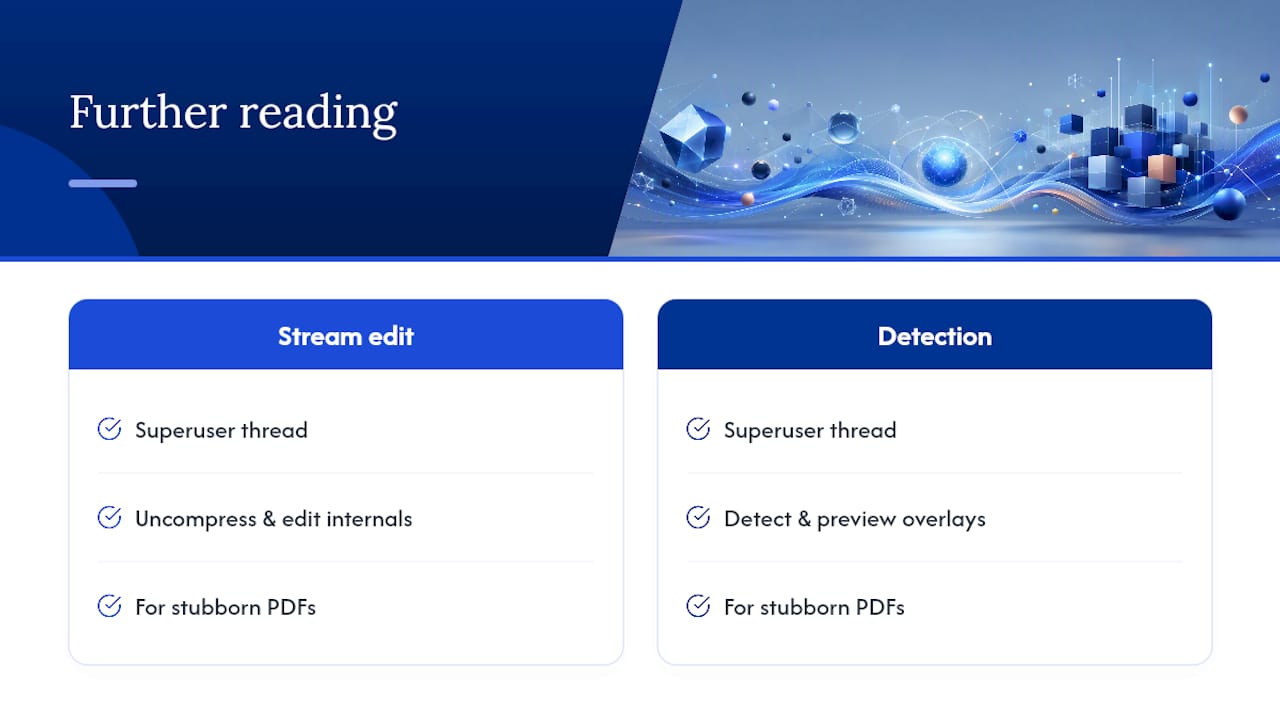
For readers who want to go deeper into the manual side of watermark removal, two community discussions cover the technical ground well. The pdftk-based stream editing thread on Superuser walks through uncompressing and editing PDF internals directly. A related Superuser discussion covers detection and preview considerations for distinguishing overlay watermarks from flattened ones. Both are worth bookmarking if you regularly deal with stubborn, non-standard PDFs.
Sources
- How to remove watermark from PDF using pdftk (Superuser)
- How do I remove watermark from PDF on a Windows PC? (Microsoft Community)