
The fastest way to make a PDF non-clickable is to flatten it or run a link-removal tool that strips link annotations. Either option keeps your visible text intact while disabling every click. Some tools handle this locally in your browser, so nothing uploads to a server. One thing to know before you start: the URL text itself often stays on the page unless you also redact it.
TL;DR:
- Flattening a PDF disables all clickable links quickly and keeps the visible text intact but does not remove the URL text unless redacted separately.
- Converting a PDF to Word allows complete removal of link styling and visible text, but may alter formatting and requires reconversion to PDF for final use.
- Removing individual links with a PDF editor is precise and preserves the rest of the document, especially when only specific outdated URLs need deletion.
- Local processing tools ensure privacy by avoiding file uploads, which is crucial for sensitive documents like contracts or medical records.
- Rechecking the original source file and testing in multiple PDF viewers prevents leaving active links in the final shared files.
Table of Contents
- Quick Options: Pick the Right Method to Remove Links From Your PDF
- How Do You Flatten a PDF to Remove All Links at Once?
- Can You Convert a PDF to Word to Remove Link Text and Styling?
- How Do You Remove a Single Link Without Touching the Rest?
- Can You Remove Links From a PDF on Your Phone?
- Why Local Processing Matters for Sensitive PDFs
- Why Do Removed Links Sometimes Still Work?
- Why I Default to Flattening and Local Tools First
- Remove Links From Your PDF Privately With FlowPDF
- Sources
- FAQ
Quick Options: Pick the Right Method to Remove Links From Your PDF
Not every PDF link problem needs the same fix. If you just want clicks disabled before printing or archiving a document, flattening is the quickest route. If you need the blue underlined text gone entirely, you'll need a different approach.
- Flatten the PDF when you want every link dead fast and don't care about the visible URL text staying on the page.
- Use an online link-removal tool when you want to see every hyperlink listed first and remove them selectively, similar to how the PDF Link Manager lists each URL by page number before you strip it.
- Convert to Word, edit, then reconvert when you need the visible link text or blue styling gone completely, not just the clickability.
- Edit directly in a PDF editor when you only want to delete one or two links out of many and don't want to touch the rest of the file.
Privacy matters here more than most guides admit. A browser-based tool that processes files locally never sends your document anywhere, while a server-based remover has to receive your PDF before it can edit it. If your file contains client contracts, medical records, or anything with a name and address on it, that distinction is worth pausing on before you pick a tool.
How Do You Flatten a PDF to Remove All Links at Once?
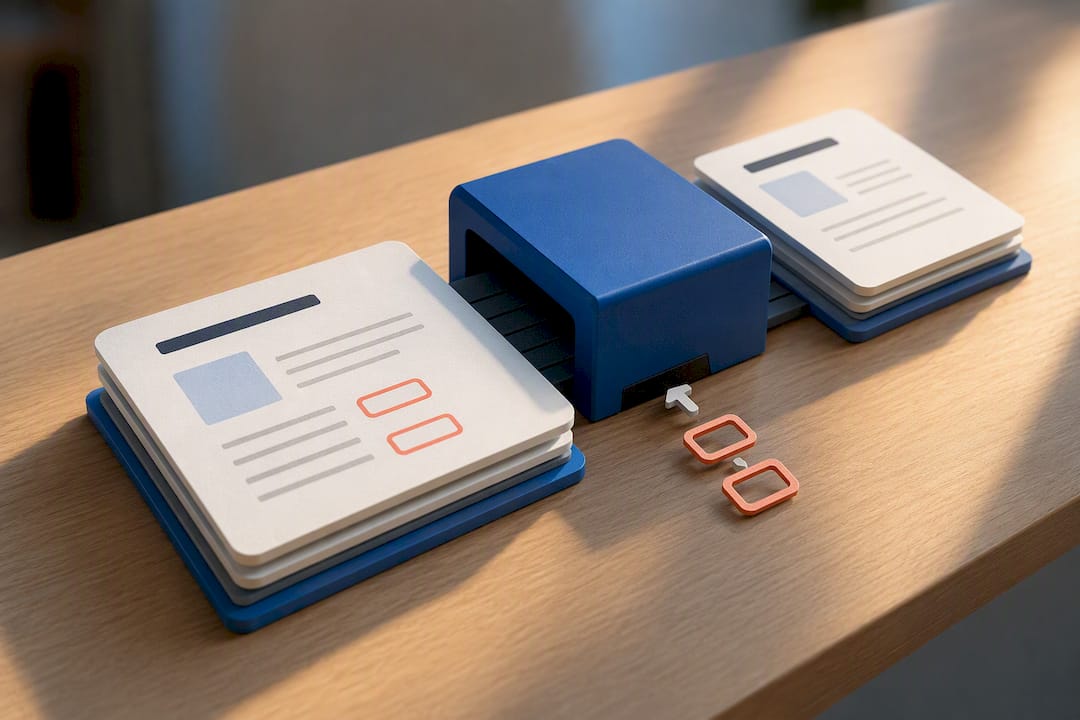
Flattening turns the interactive layer of a PDF, the layer that holds clickable links, form fields, and annotations, into a flat, static layer. Once flattened, nothing on the page responds to a click anymore. The text stays exactly where it was; it just stops acting like a hyperlink.
Here's how to do it:
- Open the PDF in a flattening tool or a local-in-browser option like FlowPDF's page removal and cleanup tools.
- Select the flatten or "remove annotations" function if the tool offers one directly.
- Run the process. Most tools finish this in seconds regardless of file size.
- Download the cleaned file and rename it so you don't confuse it with the original.
- Open the new PDF in a viewer and click on every link you remember being active.
- Confirm nothing highlights, jumps to a new page, or opens a browser tab.
If a link no longer responds but the blue underlined text is still visible and bothers you, flattening alone won't remove it. You'll need to redact that specific text, which is a separate step from disabling the click.
Pro Tip: Keep the original file untouched until you've fully tested the flattened version. If a client catches a broken link in the copy you sent, you'll want the source file ready to redo the job.
Can You Convert a PDF to Word to Remove Link Text and Styling?
Converting to Word is the most reliable way to strip both the hyperlink and its formatting, according to WorkinTool's documentation on link editing. Use this method when flattening isn't enough because you actually want the blue color and underline gone, not just the click.
Here's the process:
- Convert your PDF to a Word document using a converter that preserves formatting.
- Open the file in Word and select a link. Right-click and choose "Remove Hyperlink."
- For bulk removal, select the entire document (Ctrl+A) and use Word's "Clear Formatting" option, though this also strips bold, italics, and other styling you may want to keep.
- Manually check paragraphs where links sat close to other formatted text, since clearing formatting broadly can flatten headings too.
- Save the cleaned document as a PDF using "Save As" or "Export," selecting PDF as the output format.
- Open the new PDF and check fonts, spacing, and page breaks against the original.
The tradeoff is real: PDF to Word conversion sometimes shifts line spacing or reflows text, especially in documents with tables or multi-column layouts. Always compare the reconverted PDF against your original page by page before sending it anywhere important.
How Do You Remove a Single Link Without Touching the Rest?
Sometimes you don't want to nuke every link in a 40-page report. You just need one outdated URL gone. This is where a PDF editor with a dedicated link tool earns its place over blanket flattening.
- Open the PDF in an editor that shows link annotations, sometimes labeled "Edit Links" or "Manage Hyperlinks."
- Click directly on the link box surrounding the text you want to change.
- Delete just that annotation, leaving every other link in the document untouched.
- For documents with dozens of scattered links, a batch tool like PDF Link Editor can remove, replace, or extract them in one pass, which saves time over clicking through each one manually.
If the visible URL text needs to disappear along with the link itself, deleting the annotation isn't enough. You'll need to use a redaction or content-editing tool to remove the actual characters from the page, not just the clickable box around them.
Pro Tip: Before deleting a link annotation, zoom in and check whether it overlaps an image or a table cell. Some editors leave a faint outline behind if the annotation box doesn't match the visible text exactly.
Can You Remove Links From a PDF on Your Phone?
Removing links on a phone works, but the tools are more limited than what you'd find on a laptop.
- On iPhone: open the PDF in a mobile app that supports flattening, or convert it to Pages first, remove the links there, then export back to PDF.
- On Android: use a PDF editor app that lists annotations directly, since most browser-based tools on mobile lose some of the batch-editing features available on desktop.
- Either way, test the result by opening the file in a second app. A link that looks dead in one PDF viewer can still be active in another.
If you have access to a computer later, re-check the file there. Desktop tools generally give you a clearer view of every annotation left behind.
Why Local Processing Matters for Sensitive PDFs
Local processing means the PDF never leaves your device, whether that's your laptop's browser or a desktop app running offline. Nothing gets uploaded to a server, which removes an entire category of risk: a breach on someone else's system, a retention policy you didn't read, or a support team that technically has access to your file.
Server-based tools aren't automatically unsafe, but they require homework. Before uploading anything with names, account numbers, or internal business terms, check three things:
- Does the site state a retention window for deleted files?
- Does it require an account, and what does that account see?
- Is the connection secured over HTTPS?
Some services are upfront about this. Remove Links Online states that uploaded files are deleted after a one-hour retention window, which is a reasonable disclosure, but it still means your file sat on their server for that hour. For anything genuinely sensitive, redact confidential text first, then use a local tool like FlowPDF, or fall back to an offline desktop editor entirely.
Why Do Removed Links Sometimes Still Work?
If you flattened or edited a PDF and the links still click, the fix usually isn't in the file you tested. It's in the file you actually sent.
- You may have edited a copy but attached the original by mistake.
- Some PDF viewers cache an older version of the file, especially in email previews.
- The link annotation wasn't fully removed, just visually hidden behind another element.
Fix this by opening the source file directly, confirming there's no annotation layer left, then flattening or re-exporting again before saving. Test the fresh file in two different PDF viewers, not just one, since rendering engines don't always agree on what counts as "clickable."
Why I Default to Flattening and Local Tools First
For most people trying to remove links from a PDF, I recommend starting with flattening or a local-in-browser tool rather than any service that requires an upload. It's faster, it doesn't ask you to trust a stranger's retention policy, and it handles the vast majority of "I just need this link dead" requests in under a minute.
FlowPDF fits this recommendation well: it processes files locally, skips the upload step entirely, and doesn't gate features behind a subscription or slap a watermark on your output. That combination, free, local, and functional, is rarer than it should be in this category.
— Ronald Ang
Remove Links From Your PDF Privately With FlowPDF
Some browser-based tools run locally so your document never leaves your device while you strip out hyperlinks, clean up formatting, or prep a file for sharing.
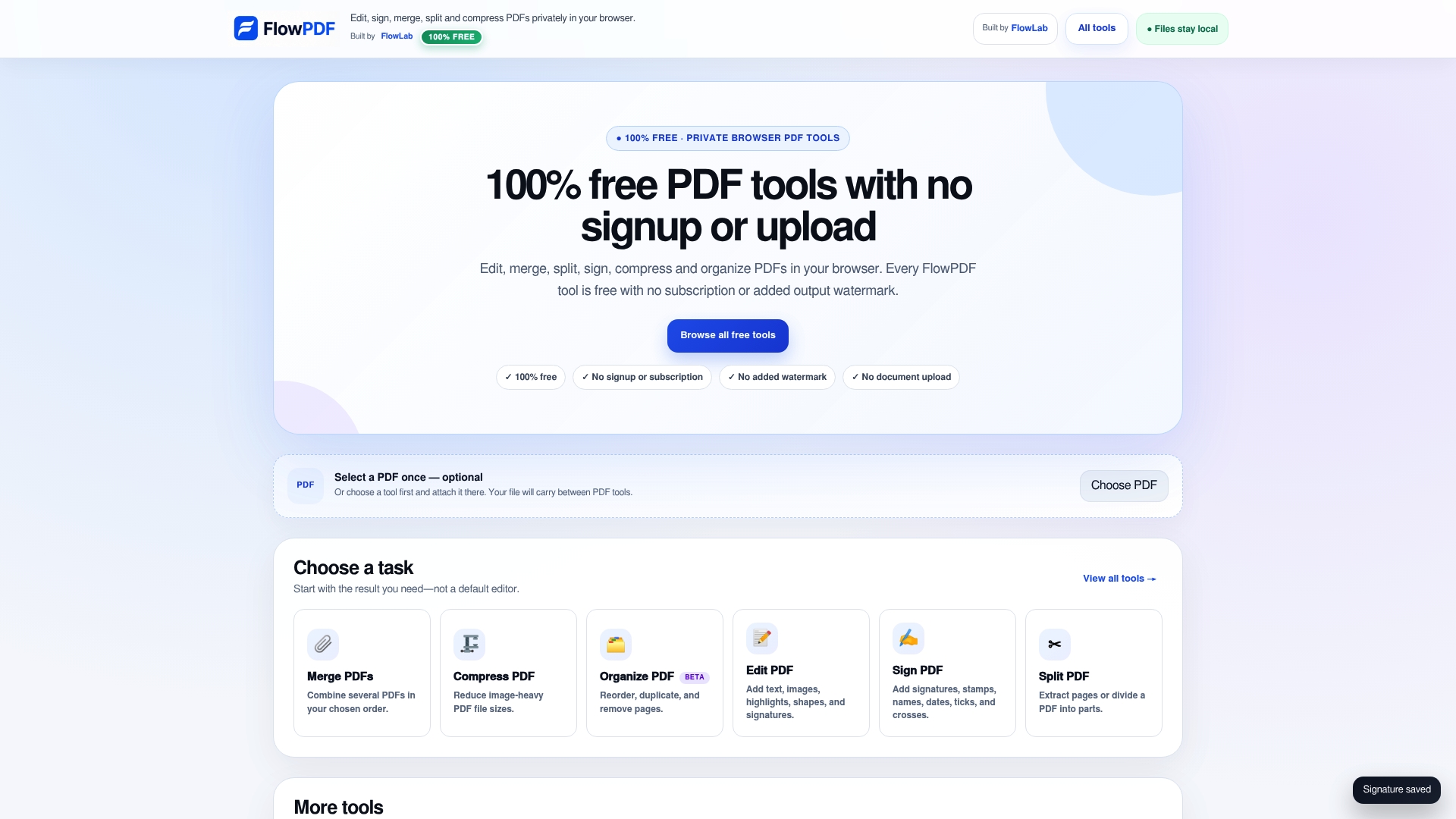
Getting started takes three steps: open FlowPDF's edit PDF tool, select the pages or elements you want to change, and download your cleaned file when you're done. No account, no watermark, no hidden retention window to worry about. If your document also needs sensitive text permanently removed rather than just the clickable link, FlowPDF's redaction tool handles that in the same local workflow. Try it the next time you need a PDF that's clean, quiet, and completely non-clickable.
Sources
FAQ
How Do You Remove All Hyperlinks From a PDF at Once?
Flatten the PDF or run a link-removal tool that strips every link annotation in one pass. This disables all clicks while leaving the visible text unchanged, though some tools also offer a bulk "remove all" option that clears every hyperlink, including internal page links, in a single step.
How Do You Save a PDF Without Hyperlinks?
Flatten the file or convert it to Word, remove the hyperlinks there, and save the edited document back to PDF format. Always open the final file in a viewer and click through it to confirm no links remain active before you save it as final.
How Do You Get a Link Out of a PDF Completely?
Removing the clickable annotation only disables the click; the visible URL text usually stays unless you redact it separately. To get the link out entirely, both the annotation and the visible text, use a redaction tool or edit the underlying page content directly.
How Do You Remove All Hyperlinks at Once Without a Paid Tool?
A free local tool like FlowPDF or a batch-capable online link editor can strip every hyperlink annotation in one operation without a subscription. Flattening the entire PDF works just as fast if you don't need to preview each link before removing it.