
Flattening a PDF merges form fields, annotations, and layers into permanent page content, so nothing can be edited through those interactive elements anymore. The fastest privacy-first route is a local browser tool that flattens the file without uploading it, though print-to-PDF works as a universal fallback. One caveat: flattening secures form fields and annotations, but it doesn't stop someone from editing the underlying text with a full PDF editor.
TL;DR:
- Flattening a PDF turns form fields and annotations into static page content but does not prevent future editing with a full PDF editor.
- Local browser tools provide the most privacy-sensitive flattening method, especially for confidential documents, while print-to-PDF is a universal but less precise fallback.
- Adobe Acrobat offers detailed control for flattening, with settings to fine-tune transparency and layer merging, but print-to-PDF on Windows or Mac also works for basic needs.
- Batch processing with command-line tools like qpdf is ideal for processing large volumes of files efficiently and automatically.
- Flattening alone does not secure a document against skilled editing; layered protection like permissions, watermarks, or digital signatures is necessary for sensitive files.
Table of Contents
- What Are the Best Methods to Flatten PDF Files?
- How Do You Flatten a PDF Using a Local Browser Tool?
- How Do You Flatten a PDF in Adobe Acrobat or With Print-to-PDF?
- Can You Flatten a PDF Using the Command Line?
- What Flattening Doesn't Protect Against
- When Should You Flatten a PDF (and How Do You Verify It Worked)?
- Why Local Processing Matters for Sensitive PDFs
- Flattening Gets Oversold as a Security Fix. It Isn't One.
- Flatten Your PDF Privately With FlowPDF
- Sources
What Are the Best Methods to Flatten PDF Files?
Four practical methods cover almost every situation you'll run into, and each one trades off privacy, accuracy, and control differently.
- Local browser tools process your file on your device instead of a server, which matters if the PDF contains contracts, medical forms, or anything you'd rather not send to a third party.
- Print-to-PDF works on any operating system and flattens everything by treating the document as an image of itself, though it can strip searchable text.
- Adobe Acrobat offers the most precise control through its Flattener Preview, useful when you need to fine-tune how transparency and layers merge before output.
- qpdf (a free command-line tool) handles bulk or automated flattening jobs where clicking through a browser tool one file at a time isn't practical.
Before you flatten, check your file size. Large PDFs with embedded images or scanned pages can slow down browser-based tools or hit upload limits on server-side options. If your file feels sluggish to open, compress it first or split multi-hundred-page documents into smaller batches. A 40-page scanned form flattens in seconds; a 400-page one with high-resolution images might not, depending on the tool.
How Do You Flatten a PDF Using a Local Browser Tool?
This is the method to use when the document contains anything sensitive: tax forms, signed contracts, HR paperwork.
- Finish filling out every field first. To flatten locks in whatever values exist at that moment, so double-check names, dates, and checkboxes before moving on.
- Open a local-processing tool and load your PDF directly from your device, not through a server upload.
- Select the flatten or "flatten annotations" option. If the tool offers appearance regeneration, turn it on. This rebuilds how filled text visually renders, which matters if values sometimes disappear after flattening.
- Process the file and download the result.
If a field's value vanishes after flattening, the appearance stream for that field probably wasn't regenerated correctly. Some pure JavaScript flattening tools handle this by burning the visible text directly into the page rather than relying on stored appearance data. If fonts look wrong or substituted, the original font likely wasn't embedded in the source file.
Pro Tip: Keep an unflattened backup of every form before you convert it. Once flattened, fields are gone for good, and you'll want the editable version if you ever need to make a correction. Open the flattened result in two different PDF viewers to confirm it displays identically in both.
How Do You Flatten a PDF in Adobe Acrobat or With Print-to-PDF?
Adobe Acrobat gives you the most granular control, and it's worth learning if you flatten documents regularly.
- Open the PDF in Acrobat and go to Advanced > Print Production > Flattener Preview to see how transparency and layers will merge before committing.
- Alternatively, use File > Print, select "Adobe PDF" as the printer, and print to a new file. This flattens everything in one pass.
- Save the flattened version as a separate copy so the original stays intact.
If Acrobat isn't available, print-to-PDF on Windows (via the Microsoft Print to PDF driver) or macOS (via the PDF dropdown in the print dialog) does the same basic job. Choose "Actual Size" rather than "Fit to Page" in your print settings, since scaling can shift form values out of alignment or crop content unexpectedly. The tradeoff: print-to-PDF sometimes converts text to a flattened image layer, which can make the document harder to search or copy from later.
Can You Flatten a PDF Using the Command Line?
qpdf is the go-to option once you're flattening more than a handful of files. It's free, scriptable, and works well in automated pipelines.
The core command looks like this:
qpdf --flatten-annotations=all input.pdf flattened.pdf
This flag converts every annotation and form field into static page content in one pass, with no browser or manual clicking required.
- Use qpdf when you're processing dozens or hundreds of files, running a CI pipeline, or flattening documents server-side; for more on workflow automation and streamlining document processes, see the Assignify blog.
- After running it, spot-check a handful of outputs: confirm fields are actually gone, values are visible, and fonts render correctly rather than falling back to a substitute.
There's no universal benchmark for how much faster batch flattening is versus manual conversion, but for teams processing high form volumes, the difference between clicking through a browser tool 200 times and running one script is the whole point of using qpdf at all.
What Flattening Doesn't Protect Against
Flattening removes interactive fields and annotations, turning them into fixed page content. It does not stop someone from opening that flattened file in a full PDF editor and altering the underlying text or images. That's a common misunderstanding: flattening locks the form structure, not the document's content.
For stronger protection, layer flattening with other tools depending on what you're protecting against:
- Add an owner permissions password to restrict copying, printing, or further editing at the viewer level.
- Apply a watermark if you need to visibly mark a document as final, draft, or confidential.
- Use a certified digital signature when you need tamper-evidence, since any post-signing edit will invalidate it.
- Choose redaction instead of flattening when the goal is permanently removing sensitive content, not just locking a form field.
Pro Tip: Match the protection to the actual threat. A permissions password stops casual editing but not a determined user with the right software. If the document is going to court or a regulator, flattening plus a certified signature is a stronger combination than flattening alone.
When Should You Flatten a PDF (and How Do You Verify It Worked)?
Flatten a PDF when you've finished filling out a form and need to send it somewhere it shouldn't change: court filings explicitly require flattened forms so nothing gets altered after submission. The same logic applies to printing jobs, since flattening keeps layouts consistent across different printers and viewers, and to long-term archiving, where you want the document to look the same in ten years as it does today.
Before you flatten, run this quick checklist:
- Save an editable backup copy somewhere safe.
- Confirm form values are visible, not blank, in a preview.
- Check that fonts are embedded so text doesn't shift or substitute on other devices.
- Test the flattened file: try clicking a field (it shouldn't respond), search for text, and compare the print preview against the original.
If a field still accepts input after flattening, the process didn't complete correctly. Repeat it before sending the file anywhere final.
Why Local Processing Matters for Sensitive PDFs
Uploading a filled form, contract, or medical document to a server adds a step you don't control: someone else's storage, someone else's retention policy. Tools that flatten entirely in your browser skip that step, which matters most for documents with names, signatures, or financial details.
Some browser-based PDF tools process every flatten, edit, and compress job locally, with no file upload, no watermark, and no account required. That's not a marketing claim so much as a design choice: your PDF never leaves your device.
Flattening Gets Oversold as a Security Fix. It Isn't One.
Here's what the how-to guides tend to skip: flattening is a formatting operation, not a security control. It stops a form field from being editable. It does nothing to stop someone from lifting text out of your "finalized" PDF and pasting it into a new document, or opening the file in an editor and typing right over your locked-in values. Treating flattening as the end of your document security checklist is the single most common mistake I see people make with it.
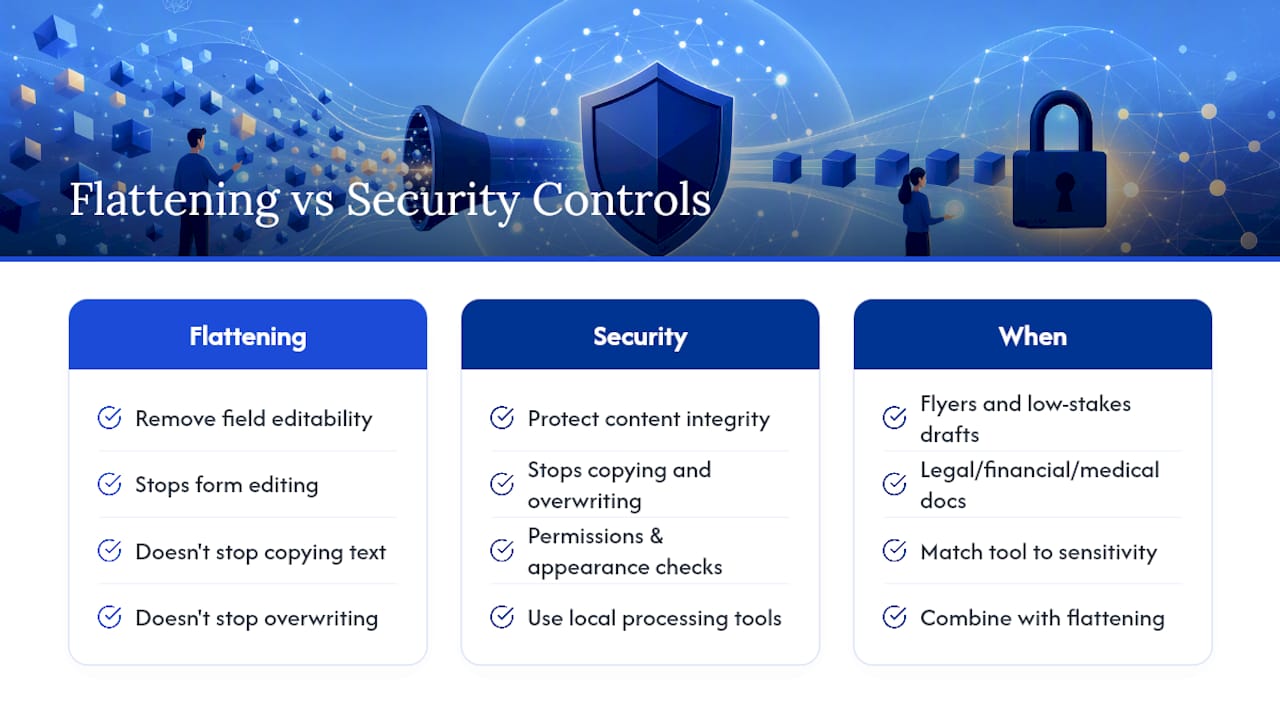
The conventional advice, "flatten it and you're done," works fine for internal drafts and print jobs where the stakes are low. It falls apart the moment a document has legal, financial, or medical weight. In those cases, flattening is step one of two or three, not the whole process.
What should you prioritize first? Match the tool to the sensitivity of the document before you match it to convenience. A quick print-to-PDF is fine for a flyer. A signed lease or a court filing deserves a local-processing tool, an appearance-stream check, and probably a permissions password on top. Skipping that ordering is where most people run into trouble, not with the flattening step itself, but with everything they assumed it covered.
— Ronald Ang
Flatten Your PDF Privately With FlowPDF
Some local browser tools offer a faster path to a locked, non-editable PDF than uploading your file to a server and hoping it gets deleted afterward: everything processes in your browser, so nothing ever leaves your device. That means no waiting on uploads, no account, and no watermark stamped across your finished document.

Use FlowPDF's editing tools to finalize form values before you flatten, or head straight to FlowPDF's homepage to try the flatten tool on your next contract, form, or print job. If your file needs trimming first, FlowPDF's compression tool handles that in the same browser tab, no extra software required.
Sources
- Pdf4
- How to Flatten PDF Forms — Court filing guidance (example procedural instructions)
- PDF24 help documentation