
The fastest, safest way to pull images out of a PDF is to use a browser-local extractor. It reads the file on your device, never sends it to a server, and hands you the original images at full resolution. Flowpdf works this way, and it's the option we'd try first for anything personal or sensitive.
Two backup routes exist. Online extractors handle quick batch jobs when you don't mind a brief server upload. Desktop apps step in for huge files or unusual image formats a browser can't decode.
A successful extraction gives you:
- Every embedded image at its original pixel size, not a shrunk-down copy
- A single download or a ZIP file if the PDF contains several images
- No leftover watermark or altered file format
Key Takeaways
Browser-local extraction preserves original image resolution and keeps sensitive PDFs off external servers, making it the most reliable default method for most users.
| Point | Details |
|---|---|
| Choose extraction over conversion | Extracting pulls embedded images at native resolution; converting pages rasterizes and often reduces quality. |
| Match format to purpose | Use PNG for transparency, JPEG for smaller photo files, and TIFF for archival needs. |
| Watch for privacy claims | Look for explicit "not uploaded" or "auto-deleted" language before trusting an online extractor. |
| Plan for large files | Split PDFs over roughly 200 MB before processing, especially on mobile devices. |
| Try Flowpdf for sensitive files | Flowpdf extracts images entirely in your browser with no upload, no account, and no watermark. |
Table of Contents
- How to Extract Images From a PDF Step by Step
- Online, Desktop, or Browser-Local: Which Method Fits Your File?
- Extraction vs. Conversion: Why Image Quality Depends on the Method
- Is It Safe to Extract Images From a PDF Online?
- Why FlowPDF's Browser-Local Approach Works for Sensitive Files
- Comparing Popular Extraction Tools by Speed and Ease of Use
- How to Extract Images Using Free Desktop Software
- Command-Line Tools for Batch Extraction
- The Editor's Take: Extraction Isn't Conversion, and That Confuses Most Guides
- Try FlowPDF for Private, Full-Quality Image Extraction
- Frequently Asked Questions
- Sources
How to Extract Images From a PDF Step by Step
The process takes under a minute for most documents, whether you use an online tool or a browser-local one like Flowpdf.
- Open the extractor and load your file. Drag the PDF into the browser window or click to select it from your device.
- Pick "extract images," not "convert pages." This distinction matters more than most guides admit. Extraction pulls the actual embedded picture files. Conversion rasterizes the whole page, which can blur or downsample the image inside it.
- Set your output format. PNG keeps transparency and avoids compression loss. JPEG works fine for photos where file size matters more than pixel-perfect fidelity. TIFF suits archival work.
- Apply filters if available. A minimum-size slider skips tiny logos and decorative icons. A deduplication option removes repeated copies of the same image at different embedded resolutions, a detail one browser-based extractor's documentation calls out directly.
- Run the extraction and download. Grab individual files or the full batch as a ZIP.
If nothing happens when you upload the file, two problems usually explain it. A view-only or password-protected PDF blocks the extractor from reading its contents until you unlock it. A PDF running past a few hundred pages can also choke a browser tab, so split it into smaller chunks first and process each piece separately.
Pro Tip: If your PDF is a scanned document, every "image" on the page is really just one big raster of the whole page. There's nothing to extract beyond that single scan, so treat the page itself as the image you need.
Online, Desktop, or Browser-Local: Which Method Fits Your File?
Not every PDF calls for the same tool. Here's how the three main approaches stack up.
- Server-side online extractors work well for a quick, one-off batch job. Check for an explicit auto-delete window and a file-size cap before uploading anything you'd rather keep private.
- Desktop applications earn their place with very large PDFs or unusual encodings like JPEG2000 and JBIG2 that browsers sometimes struggle to decode. They also handle offline batch processing without needing an internet connection at all.
- Browser-local extractors split the difference. They parse the PDF right inside the tab using client-side libraries such as PDF.js, so the file never leaves your device while you still get the convenience of a web tool.
Run through a short checklist before picking one: How sensitive is the document? How big is the file? Does it use a common format like standard JPEG, or something rarer? And how much memory does your device actually have to spare? A tax return or medical scan points you toward browser-local processing every time. A 500-page technical manual with embedded JBIG2 scans might need desktop software instead.
Extraction vs. Conversion: Why Image Quality Depends on the Method
True extraction reads the PDF's internal image objects and pulls them out at their native pixel dimensions. Converting a page to an image instead rasterizes the entire page, which typically means lower fidelity than lifting the embedded asset directly.
Format choice matters just as much as the method:
- PNG for lossless quality and transparency, ideal for graphics or screenshots
- JPEG for photographic images where a smaller file size beats pixel-perfect detail
- TIFF for archival storage or high-fidelity printing needs, a format Adobe lists among its supported export options
You'll sometimes see several near-identical images after extraction. That's usually because a designer embedded the same picture at multiple resolutions for different layouts. A good extractor's deduplication filter catches these duplicates automatically, saving you from sorting through five copies of the same logo. Before downloading anything, check three things: the format matches what you need, the resolution looks native rather than upscaled, and the tool actually extracted the asset instead of quietly converting the page.
Is It Safe to Extract Images From a PDF Online?
The real question isn't whether a tool looks trustworthy. It's whether your file ever leaves your device. Server-based tools upload your PDF, process it remotely, then (ideally) delete it. Client-side tools skip the upload step entirely, which is why client-side processing avoids server-side storage even temporarily.
Look for explicit language before trusting any online extractor: phrases like "files are not uploaded" or "deleted after 1 hour" tell you exactly what's happening behind the scenes. Vague privacy claims without specifics deserve skepticism.
Extraction fails for a handful of predictable reasons:
- The PDF is password-protected or locked to view-only mode
- Images use JBIG2 or a proprietary stream filter the extractor can't decode
- The "image" is actually a single scanned page, not a separable asset
When extraction stalls, try these fallbacks in order: unlock the PDF with the correct password first, switch to a desktop tool built for unusual encodings second, and capture a high-resolution screenshot as a last resort when an image uses an encoding like JPEG2000 that resists automated extraction.
Pro Tip: Modern desktops handle PDFs up to roughly 200 MB in the browser without trouble. Phones hit that ceiling much sooner, so split oversized files on a computer before trying to extract images on mobile.
Why FlowPDF's Browser-Local Approach Works for Sensitive Files
Flowpdf processes every PDF locally in your browser. No upload, no account creation, no watermark stamped across your images. That matters most when the file in question is a signed contract, a medical record, or anything else you wouldn't want sitting on a stranger's server, even briefly.
Client-side processing means your document is decoded, parsed, and rendered entirely within your own browser tab. Nothing gets transmitted, and nothing gets stored remotely, even for a few seconds.
A few Flowpdf features pair naturally with image extraction:
- Extract pages when you need whole pages instead of individual embedded images
- Split PDF to break a massive document into smaller files before processing
- Compress PDF to shrink a file that's too large for comfortable browser handling
- Scan to PDF for turning paper documents into files you can work with locally
Pick this route whenever you're handling anything sensitive, need a fast local edit without setting up an account, or simply don't want your file touching a server you don't control. Visit Flowpdf's extract pages tool directly if page-level extraction is what you're after.
Comparing Popular Extraction Tools by Speed and Ease of Use
Speed and simplicity don't always come from the same tool. Server-based online extractors tend to feel fast for small files because the interface is minimal: drop the file, wait a few seconds, download the result. But that speed advantage shrinks fast once file size grows, since every megabyte has to travel up to a server and back down again.
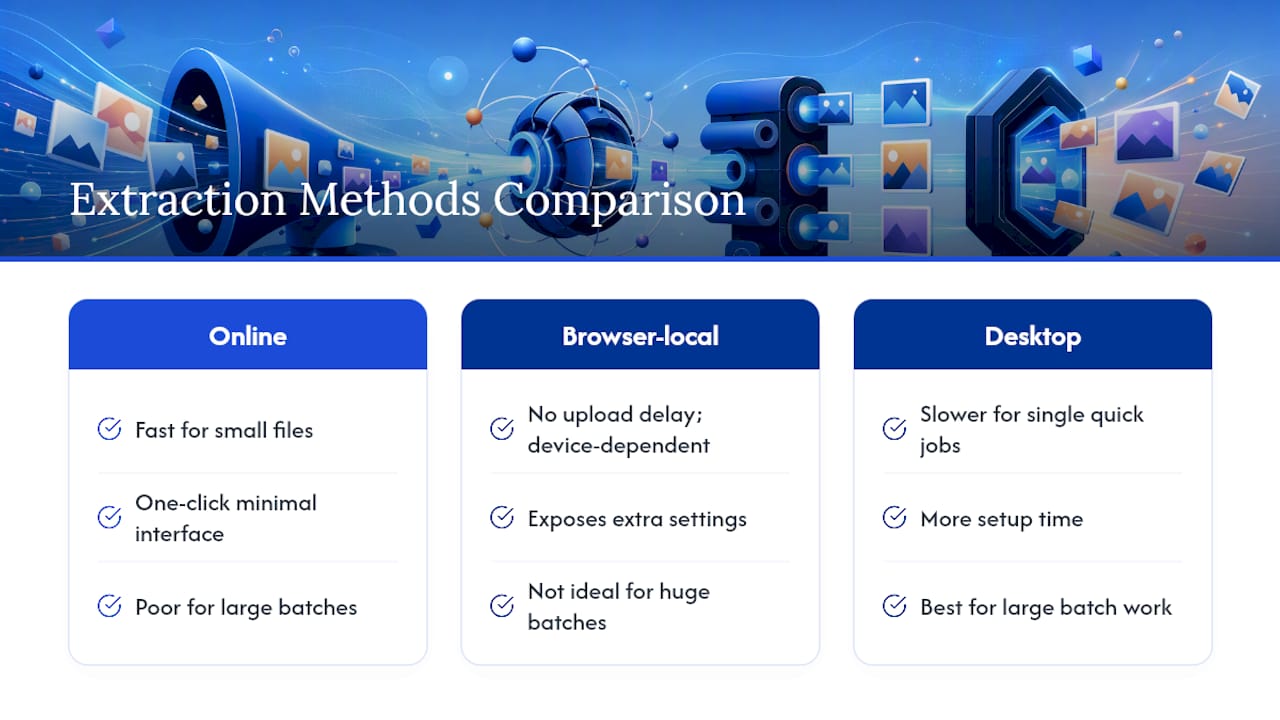
Browser-local tools flip that equation. There's no upload delay because there's no upload at all. The tradeoff is that processing speed depends entirely on your own device's memory and processor, so a ten-year-old laptop will feel slower than a fresh one, while a five-year-old desktop handles most PDFs without issue.
Ease of use splits along a different line. Online tools usually win on simplicity for someone who wants a one-click result and doesn't care about extra options. Browser-local tools like Flowpdf tend to expose a few more settings, such as format choice or minimum-size filters, which take an extra click but give you more control over the final output.
Desktop software sits at the opposite end. It's rarely the fastest for a single quick job, but it wins decisively for batch work across hundreds of files or PDFs using formats that trip up web-based tools. If you're extracting images from one document a week, a browser tool wins on convenience every time. If you're processing thousands of scanned pages for an archive, desktop software's batch capabilities become worth the setup time.
How to Extract Images Using Free Desktop Software
Adobe Acrobat Reader offers a straightforward path if you already have it installed. Open the PDF, select the image you want with the selection tool, right-click, and choose the export or copy option. Adobe's own documentation confirms that exporting pages or copying images directly are both supported methods when you don't need every embedded asset at once, just a specific picture.
For bulk extraction across an entire document, a dedicated PDF viewer with an export-all-images function saves considerable time over clicking through page by page. These tools typically scan every page, pull each embedded image object, and save them into a folder you choose, often letting you pick JPEG, PNG, or TIFF as the output format in one pass.
Desktop software has one clear advantage over browser tools: no memory ceiling tied to a browser tab. A 500-page technical manual that would choke a web-based extractor processes just fine in a proper desktop application, since it can use your computer's full available memory rather than whatever a browser session allows.
The tradeoff is setup. You need to install something, which takes a few minutes and disk space you might not want to spare for a one-time task. For occasional use, that installation cost outweighs the benefit. For someone regularly processing scanned archives or engineering drawings full of embedded diagrams, it pays for itself quickly.
Command-Line Tools for Batch Extraction
Anyone comfortable with a terminal has a faster option for extracting images across dozens or hundreds of files at once: pdfimages, part of the open-source Poppler utility suite. It's built specifically to pull embedded image objects out of a PDF and save them as separate files, without any interface to click through.
The basic command looks like this: pdfimages -all input.pdf output_prefix. That single line extracts every embedded image from input.pdf and saves each one with the prefix you specify, automatically detecting the right format for each image rather than forcing everything into one output type.
The real advantage shows up with batch jobs. Pair pdfimages with a simple shell script and a folder full of PDFs, and you can extract images from every file in that folder in one run, something that would take hours of manual clicking through a graphical tool. This is the same category of technique general PDF extraction troubleshooting discussions point toward for users comfortable with more technical approaches.
Command-line tools aren't for everyone. There's no visual preview, no drag-and-drop, and mistakes in a script can process files in the wrong order or overwrite output you meant to keep. But for a student archiving scanned lecture slides or an office worker pulling images from a folder of scanned invoices, the time saved on repetitive tasks makes the learning curve worth it.
The Editor's Take: Extraction Isn't Conversion, and That Confuses Most Guides
Most advice on this topic treats "get images out of a PDF" as one problem with one answer. It isn't. Extracting an embedded image and converting a page into an image are two different operations that happen to produce similar-looking results, and conflating them is where quality gets lost.
The conventional wisdom, upload your file, click extract, download, undersells how much the underlying method matters. A tool that quietly rasterizes pages instead of pulling native image objects will hand you a technically usable file that's worse than what was originally embedded in the PDF. Nobody notices until they zoom in.
What should come first isn't speed or format options. It's confirming the tool actually extracts rather than converts, and doing that check before you ever touch a privacy setting or output format. Once you know you're getting the real embedded asset, everything else, PNG versus JPEG, ZIP versus single download, becomes a minor preference. Get that first decision wrong, and no amount of resolution setting fixes it afterward.
Try FlowPDF for Private, Full-Quality Image Extraction
Flowpdf gives you the same result as any online extractor, original images pulled straight from your PDF, without ever sending that file to a server. That's the real difference for anyone handling contracts, medical records, or client work: no upload window, no account to create, no waiting on a server queue during a busy afternoon.

Beyond extraction, the same browser-local toolkit handles the surrounding tasks you'll likely need anyway. Split a bloated file before extracting from it, compress a scanned PDF that's too large for comfortable handling, or organize pages before pulling out the images that matter. Every one of these runs locally, with no subscription and no watermark added to your files.
If you're ready to see how it works on your own document, open Flowpdf's extract pages tool and drop in a file. You'll have your images downloaded before a typical online upload would even finish processing.
Frequently Asked Questions
What's the difference between extracting images and converting a PDF page to an image? Extraction pulls the embedded image file exactly as it exists inside the PDF, at its original resolution. Conversion rasterizes the entire page, including text and white space, into a new image, which usually reduces quality compared to the original embedded asset.
Can I extract images from a password-protected PDF? Only after unlocking it with the correct password first. Most extractors, browser-local or server-based, can't read the file's contents while it's locked, so removing the password protection is a required first step.
Why do I see the same image multiple times after extraction? PDFs sometimes embed the same picture at several different resolutions for different layout uses. A deduplication filter, when available, catches these and skips the redundant copies.
Is it safe to extract images from a PDF using a free online tool? It depends entirely on whether the tool uploads your file to a server or processes it locally in your browser. Look for explicit statements about no upload or automatic deletion, and prefer browser-local tools like Flowpdf for anything sensitive.
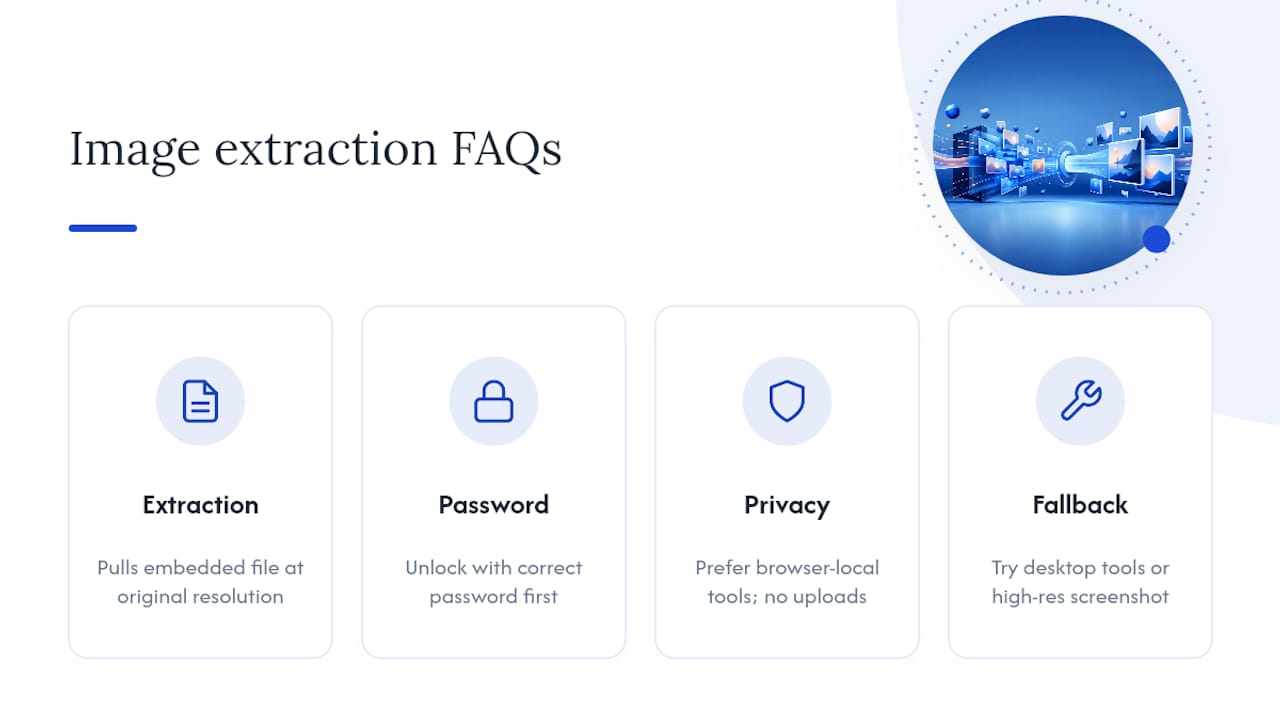
What should I do if extraction fails completely? Check whether the PDF uses an uncommon encoding like JBIG2 or JPEG2000, try a desktop tool built to handle those formats, or fall back to a high-resolution screenshot if nothing else works.