Convert JPG to PDF by uploading your image or images to a browser-based converter, choosing your page settings, then converting and downloading. No install, no account, no software. The whole process takes seconds for a single photo and under a minute for a full batch, and it works the same way on a laptop, a tablet, or a phone.
Some tools handle the job privately, processing files locally instead of sending them to a remote server. That distinction matters if your JPGs are IDs, receipts, or anything you'd rather not upload anywhere.
- Upload one JPG or several at once
- Set page size, orientation, and margins
- Convert and download your PDF immediately
Key Takeaways
Converting JPG to PDF takes seconds when you upload, set your page options, and download, and choosing local browser processing keeps sensitive images off remote servers entirely.
| Point | Details |
|---|---|
| Fastest method | Upload your JPGs, set page size and orientation, convert, and download, all in one browser tab. |
| Order matters before conversion | Reorder thumbnails or name files 01_, 02_ before uploading to avoid splitting the PDF later. |
| Match settings to purpose | Use PDF Digital for screen sharing and PDF Print with higher resolution for physical printing. |
| Privacy depends on processing location | Local, in-browser conversion keeps files off remote servers, which matters for sensitive documents. |
| FlowPDF handles it privately | FlowPDF converts, merges, and reorders JPGs into a PDF locally, free, with no watermark or signup. |
Table of Contents
- How Do You Convert JPG to PDF on a Desktop Browser?
- What Do Orientation, Page Size, and Margin Settings Actually Change?
- How Do You Convert JPG to PDF on a Phone?
- Is It Safe to Convert Sensitive Images Online?
- Fixing Common JPG to PDF Conversion Problems
- Why FlowPDF Handles JPG to PDF Conversion Privately
- An Editorial Take on the One-Minute PDF Habit
- Try FlowPDF for Your Next Conversion
- Frequently Asked Questions
- Sources
How Do You Convert JPG to PDF on a Desktop Browser?
Desktop conversion is the most reliable path if you're batching several images or need precise control over page settings. Here's the full sequence:
- Open your JPG to PDF tool in any browser tab, no download required.
- Add your files by dragging them in or clicking to browse your folders.
- Reorder the images by dragging thumbnails into the sequence you want your final PDF to follow.
- Choose your page options: size (A4, US Letter, or original image dimensions), orientation, and margins.
- Convert the batch into a single document.
- Download the finished PDF to your device.
Most online converters let you arrange images with drag-and-drop before you ever click convert, which saves you from having to reorder pages afterward. If you're combining a large batch, sort your files by name first. Naming them 01_, 02_, 03_, and so on before upload means the uploader's default sort usually matches the order you actually intended.
Pro Tip: If you're printing the PDF later, check your original photo's pixel dimensions before converting. A 400x300 pixel image will look sharp on a screen but blurry on paper, no matter what settings you pick during conversion.
What Do Orientation, Page Size, and Margin Settings Actually Change?
These four settings determine whether your PDF looks right on screen and prints cleanly on paper.
- Orientation: Portrait suits vertical photos and standard documents; landscape suits wide images like receipts or panoramic shots.
- Page size: "Original size" keeps the image's native dimensions without cropping, while A4 or US Letter fits the photo into a standard page, which can add white space or trim edges depending on the aspect ratio.
- Margins: Wider margins protect content from being cut during physical printing; zero margins maximize image coverage for screen viewing.
- Image fit: "Preserve aspect ratio" avoids distortion; "fill" or "stretch" can warp a photo that doesn't match the page's proportions.
There's also a distinction worth knowing before you convert: many tools offer PDF Digital and PDF Print modes. PDF Digital keeps the file small and loads fast on screens. PDF Print preserves higher resolution, which matters if the document is headed to a printer rather than an inbox.
How Do You Convert JPG to PDF on a Phone?
Your phone's browser handles this exactly like a desktop does, just with touch gestures instead of a mouse.
- Open the converter site in Safari, Chrome, or your default mobile browser.
- Upload directly from your Photos app or Files app, no separate app install needed.
- Tap and hold a thumbnail to drag it into the correct position in your page sequence.
- Set orientation and page size using the same on-screen menus you'd see on desktop.
Dedicated apps exist too. Tools like Drawboard PDF on Microsoft Store show that app-based options are out there, but a browser converter skips the install entirely, which is faster for a one-off conversion. One habit worth breaking: some messaging apps auto-compress photos before you save them. Pull images straight from your camera roll rather than a forwarded chat thread to keep resolution intact.
Is It Safe to Convert Sensitive Images Online?
Where your file actually goes during conversion is the real security question, not how polished the tool's interface looks.
Some converters process everything locally in your browser, meaning the image never leaves your device. Others upload your file to a server, convert it remotely, then send back a download link. For a birthday photo, that difference barely matters. For a passport scan, a bank statement, or a signed contract, it matters quite a bit.
Run through this checklist before uploading anything sensitive:
- Confirm the site uses HTTPS (look for the padlock icon in your address bar).
- Look for an explicit "no upload" or "processed locally" statement.
- Check for a stated auto-deletion policy if the tool does use server processing.
- Avoid granting broader file-system access than the single conversion requires.
Pro Tip: If a tool asks for storage permissions beyond what's needed to pick a file, that's worth a second look. A converter should only need read access to the specific images you select.
For genuinely sensitive documents like passports or financial records, an offline desktop tool may be the safer call over any online option, however well the site presents itself.
Fixing Common JPG to PDF Conversion Problems
Most conversion complaints trace back to one of four issues, and each has a quick fix.
- Pages in the wrong order: Reorder thumbnails before converting rather than after. Most tools let you drag files into sequence directly in the upload screen, and fixing it there beats splitting and rejoining the PDF later.
- Unexpected cropping: Switch your image fit setting from "fill" to "preserve aspect ratio," or adjust your margins to give the photo more room on the page.
- Blurry printed output: Check the source image's DPI or pixel dimensions. Low-resolution originals stay low-resolution no matter which conversion settings you choose, so select PDF Print mode and start from the highest-quality image file you have.
- Need to split or merge afterward: Use an in-browser organize tool to reorder or delete pages, or a merge tool to combine separate PDFs into one document without starting the conversion over.
Why FlowPDF Handles JPG to PDF Conversion Privately
FlowPDF converts your JPGs to PDF entirely inside your browser. Your images never get uploaded to a server, which means there's nothing sitting on someone else's storage after you close the tab.
The tool covers the settings that actually matter for a clean result:
- Merge multiple JPGs into a single PDF with drag-and-drop reordering
- Choose orientation and page size before converting
- Get a finished file with no watermark and no subscription required
You'll find the JPG to PDF tool alongside FlowPDF's other document tools, ready to use the moment you open it. No signup screen stands between you and your download.
An Editorial Take on the One-Minute PDF Habit
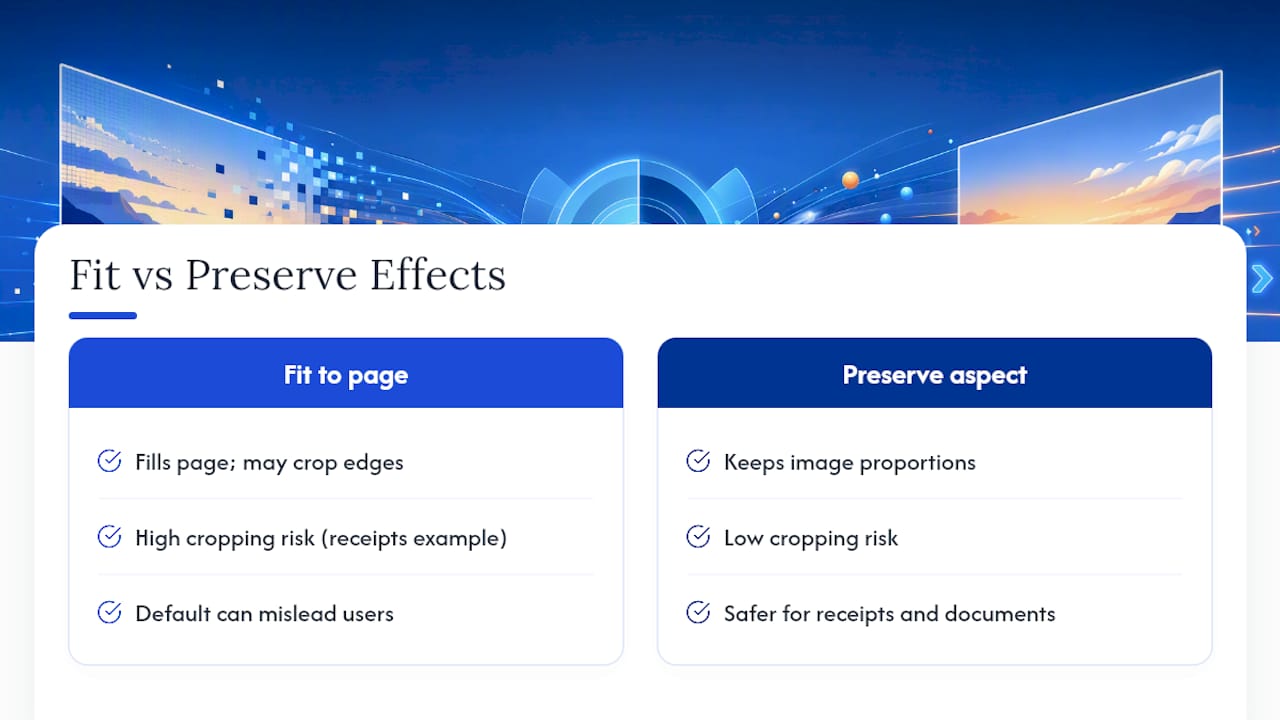
The advice around JPG to PDF conversion has gotten stuck on speed, and speed was never really the hard part. Most tools convert fast. What trips people up is the settings screen they click past without reading. Someone converts a stack of receipts for an expense report, picks the default page size, and ends up with cropped edges because nobody explained that "fit to page" and "preserve aspect ratio" produce different results.
The privacy question deserves more attention than it gets, too. People will hesitate to email a bank statement but won't think twice about dropping the same document into an unfamiliar converter site. Local, in-browser processing solves a problem most readers didn't realize they had until it's pointed out.
My take: prioritize the tool's processing method before you touch a single setting. Once you know your file isn't leaving your device, the rest, page order, orientation, print quality, is just a few clicks of attention. Get that part right and the one-minute conversion actually stays one minute.
Try FlowPDF for Your Next Conversion
FlowPDF converts your JPGs to PDF locally in your browser, free, with no watermark and no account. Merge several photos into one document, reorder pages by dragging thumbnails, and pick your orientation before you download.

If you've got a stack of receipts, a signed form, or a batch of product photos to turn into a single file, FlowPDF's free PDF tools handle the conversion without asking for your email or your file upload. Once you've got your PDF, you can crop the margins or compress the file size using the same browser, no new tab required. Open the converter now and download your first PDF in under a minute.
Frequently Asked Questions
Can I convert multiple JPGs into one PDF? Yes. Upload all your images at once, drag them into the order you want, and convert them into a single multi-page PDF instead of separate files.
Does converting JPG to PDF reduce image quality? Not if you choose PDF Print mode and start with a high-resolution original. PDF Digital mode compresses more aggressively to keep file sizes small for screens.
Do I need to install anything to convert JPG to PDF? No. Browser-based converters, including FlowPDF, run entirely in your tab. There's no software to download and no account to create.
What page size should I use for printing? Choose US Letter or A4 depending on your region, and select PDF Print mode so the output resolution holds up on paper rather than just on screen.
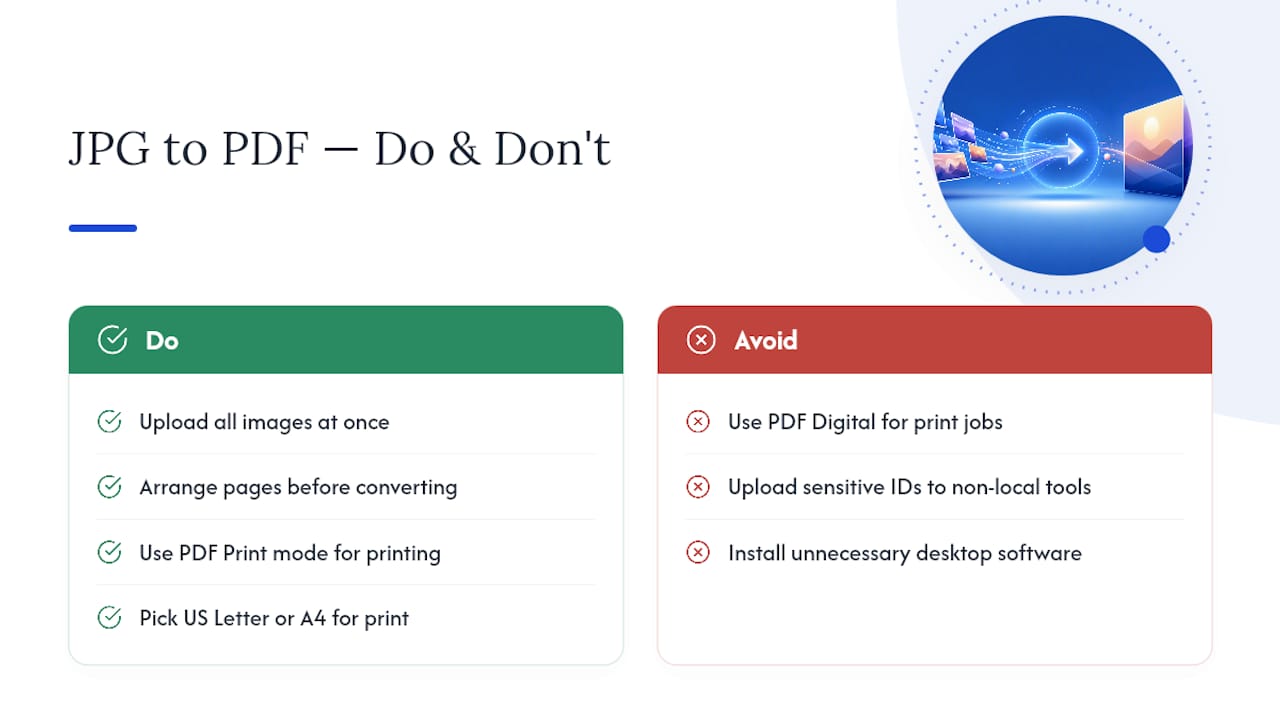
Is it safe to convert sensitive documents like IDs online? Only use tools that explicitly state local, in-browser processing with no upload. For highly sensitive files, an offline converter remains the more cautious choice.