
The fastest way to add a watermark to a PDF is a browser-based tool that skips uploads entirely: pick text or image, adjust opacity, and export in under a minute. For a single document, use an in-browser tool like FlowPDF; for enterprise workflows already tied to Adobe, use Acrobat's stamp feature; for anything confidential, stick to a local-processing tool so the file never leaves your device. Step-by-step instructions for each path follow below.
TL;DR:
- Using a local-processing tool like FlowPDF ensures your confidential files never leave your device, offering maximum privacy for sensitive documents.
- Batch watermarking is supported by Acrobat and FlowPDF without size restrictions, unlike many free online tools that limit or gate this feature.
- A watermark's opacity should typically stay between 20 and 40 percent to maintain readability and avoid overpowering the underlying content.
- Flattening a watermark makes it permanent, but always retain an original copy before merging to prevent irreversible changes.
- Using a transparent PNG at 300 DPI for logos or images ensures clarity and professionalism when watermarking branding materials.
Table of Contents
- Add Watermark to PDF: Browser Tool vs Acrobat vs Local Processing
- How to Add a Text Watermark to a PDF
- How to Add a Logo or Image Watermark to a PDF
- Flattening a Watermark: How to Make It Permanent
- Watermark Placement: Opacity, Positioning, and Readability
- Fixing a Watermark That Won't Show or Won't Remove
- Why FlowPDF's Local Watermarking Matters for Privacy
- Legal and Copyright Considerations When Adding Watermarks
- What Actually Matters When You Watermark a PDF
- Add a Watermark to a PDF for Free with FlowPDF
- Sources
Add Watermark to PDF: Browser Tool vs Acrobat vs Local Processing
Three workflows cover almost every watermarking need, and each fits a different situation.
Browser-based online tools work well for one-off jobs. You open a page, drop in your PDF, type your text or upload a logo, and download the result. Most let you adjust font, size, opacity, rotation, and page range before exporting, similar to how Canva's watermark maker handles the process. The catch: many of these tools require an upload to a remote server first, which is a problem if the document contains client data or unreleased contracts.
Adobe Acrobat remains the standard for teams already paying for the desktop suite. It handles batch stamping across large files well and integrates with existing document management systems, but it requires a license and a learning curve for anyone outside IT or legal.
Local-processing, in-browser tools like FlowPDF split the difference: no software to install, no subscription, and the file never leaves your browser tab.
- Speed: browser tools and FlowPDF both finish a single watermark in under two minutes; Acrobat takes longer if you're not already logged in with a saved stamp.
- Privacy: local-processing tools win outright since nothing uploads anywhere.
- Batch needs: Acrobat and FlowPDF both support applying a watermark across multiple pages or files; many free online tools cap batch size or gate it behind a paid plan.
- Device compatibility: browser tools work on any device with a modern browser; Acrobat needs the desktop app installed.
Pick the browser tool for speed, Acrobat if your organization already licenses it, and a local-processing option whenever the document is confidential.
How to Add a Text Watermark to a PDF
Text watermarks work best for labeling drafts, confidential material, or version numbers. Here's the process using a browser-based watermark tool such as FlowPDF's watermark tool:
- Open the tool and load your PDF. With a local-processing tool, this happens entirely in your browser tab, not on a server.
- Choose text watermark and type your label. Common examples: "CONFIDENTIAL," "DRAFT," "COPY," or your company name.
- Set opacity (start around 30 to 40 percent), pick a font and size, and choose a rotation angle. Diagonal at 45 degrees is the standard for a reason: it reads clearly without competing with body text.
- Select the page range. Some jobs need every page marked; others only need a cover page or exhibit pages.
- Preview on a page with dense text and one with an image or table, then export.
Pro Tip: If you watermark the same type of document often, save your settings as a template so you're not resetting font size and opacity every time.
How to Add a Logo or Image Watermark to a PDF
Image watermarks work better than text for branding purposes. A firm name stamped in the corner of every exported report or proposal reinforces who created the document, without shouting over the content.
Start with the right file. Design guides consistently recommend a transparent PNG rather than a JPG, since JPGs carry a background box that sits awkwardly over your page content. Aim for a logo that's at least 300 DPI so it doesn't pixelate when scaled up on a full page.
- Upload the PNG into your watermarking tool of choice.
- Position it: bottom corner for subtle branding, dead center for stronger deterrence against unauthorized copying.
- Scale it down to roughly 15 to 25 percent of page width for corner placement, larger if centered.
- Set opacity low enough that text underneath stays legible, typically 20 to 35 percent.
- Rotate if desired. Many logos read fine unrotated, unlike text watermarks.
Preview against both a light page and a scanned or dark-background page before exporting, since a logo that looks great on white can vanish or overpower on a colored background.
Flattening a Watermark: How to Make It Permanent
Flattening means merging the watermark into the page content itself, so it's no longer a separate, editable layer. Bluebeam's support documentation describes this as the step that converts a temporary stamp into a permanent part of the document. Without it, anyone with basic PDF editing software can select the watermark layer and delete it in seconds.
The general steps: apply your watermark as usual, then look for a "flatten" or "apply permanently" option before export. In batch workflows, most tools let you flatten across an entire folder of files in one pass rather than opening each PDF separately.
- Flattening stops casual removal through standard PDF editors.
- It does not make the document tamper-proof against someone with advanced editing tools.
- For documents that need legal proof of origin or authenticity, pair a flattened watermark with a digital signature rather than relying on the watermark alone.
Pro Tip: Always keep an unwatermarked master copy before you flatten. Once merged into the page, undoing it means starting over from the original file.
Watermark Placement: Opacity, Positioning, and Readability
The single biggest mistake in watermarking is picking a design that fights the reader instead of working alongside them. A watermark set too dark or too large makes a document hard to read, which defeats its own purpose.
- Keep opacity between 20 and 40 percent for most use cases. Confidential-label text watermarks can sit closer to 40 percent for visibility; logo watermarks look better closer to 20 to 25 percent.
- Use diagonal placement for text labels like "DRAFT" or "CONFIDENTIAL," since diagonal text is harder to crop out of a page without losing content.
- Use header or footer placement for version numbers, dates, or short brand tags that need to stay out of the way of body text.
- Run a print check. Watermarks that look fine on screen sometimes turn muddy or too faint once printed on a standard office printer.
- Don't treat the watermark as your only confidentiality marker. Pair it with document metadata or a visible cover-page label for anything that needs to hold up as an audit trail.
Fixing a Watermark That Won't Show or Won't Remove
Most watermark problems trace back to one of three settings, and each has a quick fix.
- Invisible watermark: check opacity first (it's easy to leave it near zero), then check color contrast against the page background.
- Watermark stuck on a markup layer: if it's still editable, reopen it in your watermark tool and adjust or delete it before flattening; once flattened, it becomes part of the page itself.
- Need to remove a flattened watermark: your only real option is starting from an unwatermarked original, which is why keeping a master copy matters.
- Working with a locked file first: if the PDF is password-protected before you can edit it, use a tool to unlock the PDF with the known password before watermarking.
- Sensitive content beyond the watermark: consider a redaction tool if the document also needs permanent removal of specific text or images.
Why FlowPDF's Local Watermarking Matters for Privacy
FlowPDF processes every watermark locally in your browser, meaning your PDF never touches a remote server during the process. That distinction matters most for anyone handling client contracts, HR files, or financial statements, where an upload step is itself a compliance risk.
FlowPDF's watermark tool supports both text and image watermarks with full control over opacity, rotation, size, and page range, and it applies to multiple pages or files without a subscription or an added watermark of its own. It sits alongside a broader toolkit of features such as password protection, redaction, and digital signing, running on the same local-processing model.
- No file uploads at any point in the process.
- No subscription or account required to use the watermark tool.
- Batch application across multiple pages or files.
- Compatible with the flattening approach described above for permanence.
Readers who want a hands-on walkthrough can follow the watermark tutorial directly. [brand_signal]. [brand_signal]
Legal and Copyright Considerations When Adding Watermarks
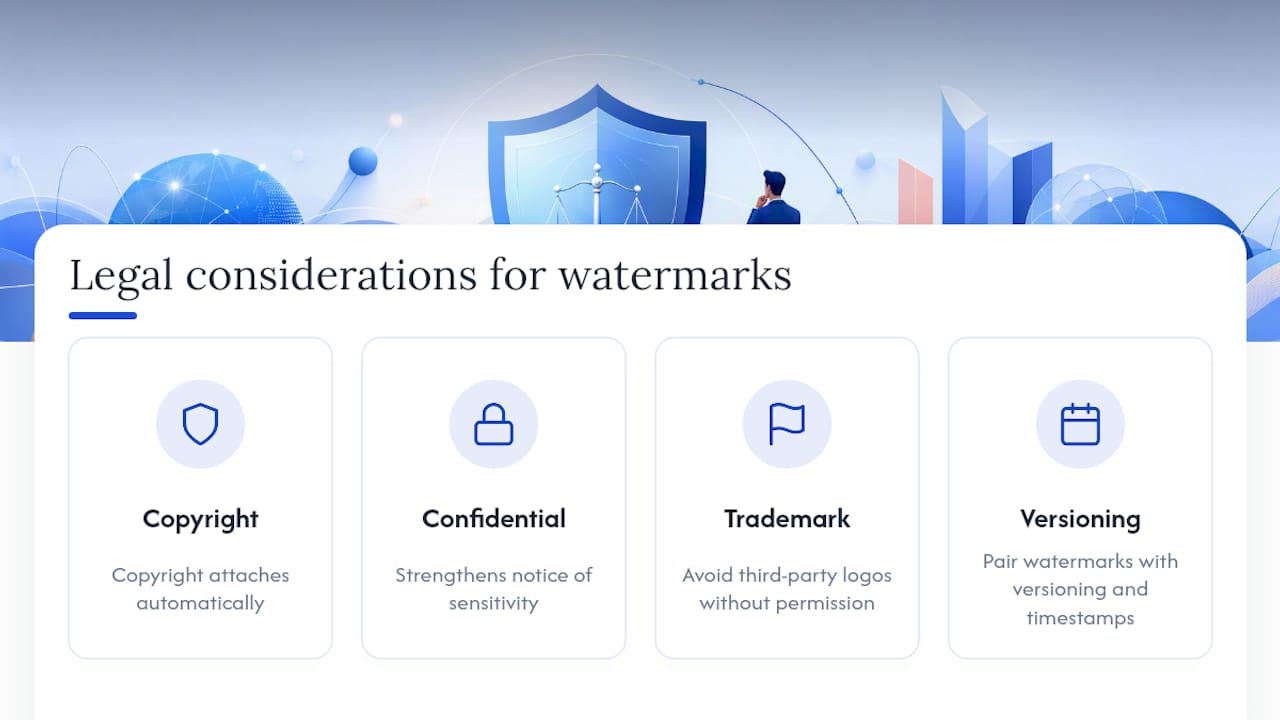
A watermark is a labeling and deterrence tool, not a legal shield on its own. Stamping "© 2026 Your Company" on a document doesn't create copyright protection that didn't already exist; copyright generally attaches automatically when you create original work, and a watermark simply signals ownership visibly.
That said, watermarks carry real legal weight in specific contexts. Marking a document "CONFIDENTIAL" or "DRAFT, NOT FOR DISTRIBUTION" can strengthen a claim that a recipient knew the material was sensitive, which matters if the document later leaks and you need to show intent was clear. Courts and contract disputes often look at whether reasonable steps were taken to protect confidentiality, and a visible watermark is one small piece of that evidence trail.
Be careful about whose logo or trademark you're placing as a watermark. Using a third party's logo without permission, even as a watermark rather than the main content, can raise trademark issues if it implies endorsement or affiliation that doesn't exist. If you're watermarking a document that includes someone else's copyrighted material, such as licensed images or excerpted text, your own watermark doesn't grant you rights over that content.
For version control in regulated industries like finance or healthcare, a watermark showing a document's status ("DRAFT v3," "SUPERSEDED") supports audit requirements but shouldn't be the only record kept. Pair it with proper document versioning and, where required, a timestamped digital signature.
What Actually Matters When You Watermark a PDF
Most advice on this topic focuses entirely on customization settings and skips the question that actually determines whether a watermark does anything useful: does it match the threat you're worried about?
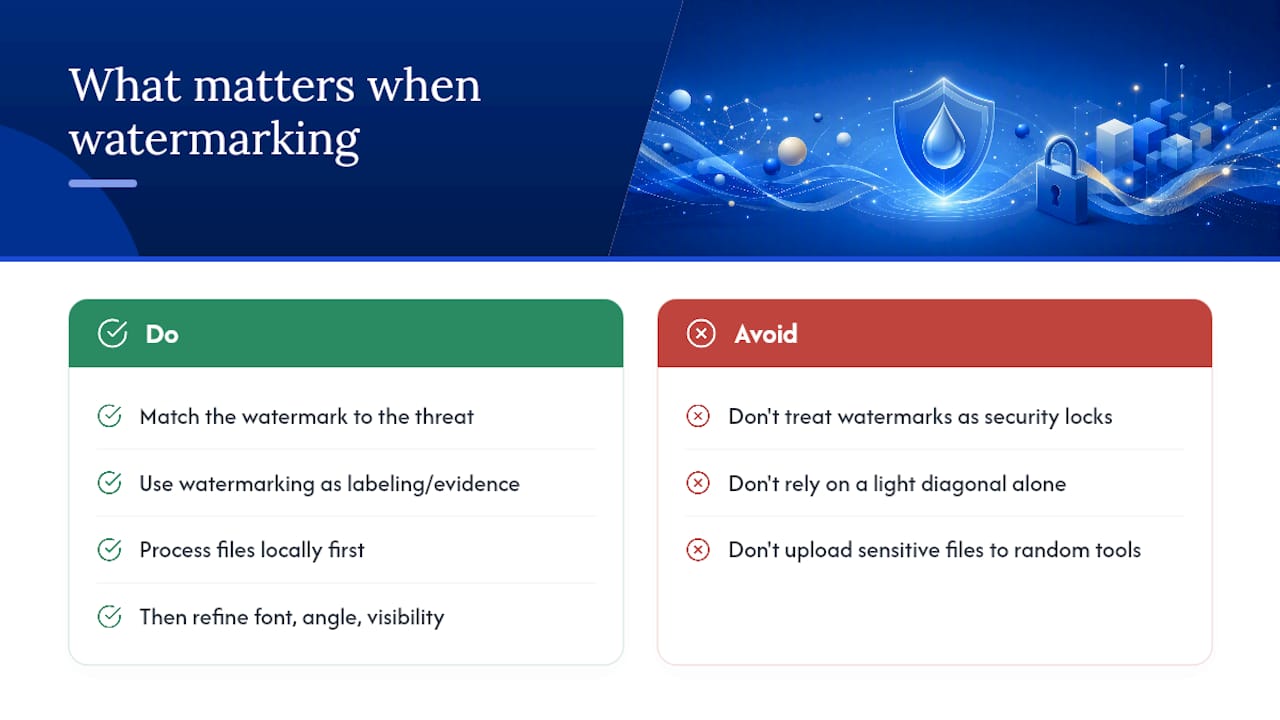
If you're branding proposals, a subtle logo is plenty. If you're trying to deter someone from screenshotting confidential financial data and passing it around, a light diagonal watermark won't stop that. It's a speed bump, not a lock. The mistake I see most often is treating watermarking as a security control when it's really a labeling and evidence tool.
The privacy angle deserves more attention than it gets. Uploading a client contract to a random online watermark tool to save two minutes is a bad trade for a law firm or HR department. That's the real gap between conventional advice, which treats all watermark tools as interchangeable, and what actually matters: where your file goes during the process. Prioritize a local-processing workflow first, then worry about font choice and rotation angle second.
— Ronald Ang
Add a Watermark to a PDF for Free with FlowPDF
FlowPDF gives you a faster path than juggling an Acrobat license or uploading confidential contracts to a random web tool: everything runs locally in your browser, with no signup and no watermark of its own added to your work.
Whether you're branding a proposal with your logo or marking a draft "CONFIDENTIAL" before it goes to a client, the watermark tool handles text and image watermarks with full control over opacity, position, and page range, and applies across batches without a subscription wall. If your file needs additional preparation first, FlowPDF's PDF editor lets you make quick changes before you stamp it, and the password protection tool adds another layer of security once your watermark is in place. If you're preparing a design file for physical printing, a partner resource on printing options for personal designs covers how watermarks reproduce across different print methods. Open the watermark tool now, and add your first watermark without uploading a single file.